Improve Windows 11 File Explorer Performance with SOLIDWORKS PDM

As more SOLIDWORKS PDM users continue to make the leap from Windows 10 to Windows 11, our Technical Support Team has noticed a rise in reports of extreme slowness when loading a new File Explorer window.
By default, Windows 11 is set to open File Explorer to the Home page. While this is usually fine for non-PDM users, customers are reporting issues when PDM is installed, where File Explorer will open and display the Home page, but it appears to stall out while loading. File Explorer either becomes “non-responsive” or a green loading bar will appear behind the word “Home” in the File Explorer’s address bar.
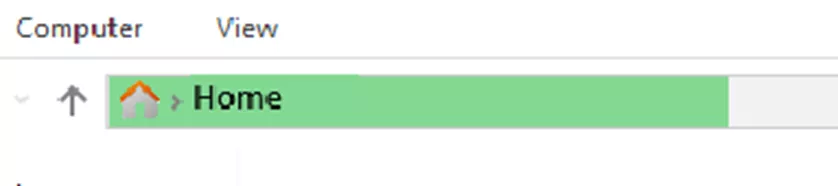
This will often take an excessive amount of time to load (15 minutes to an hour, if at all), and will produce a list of nearly every file in the PDM vault. While we don’t yet have an exact explanation for this behavior, we do have a few theories about why it might be occurring and have an easy workaround.
Why Does This Happen?
The Windows 11 Home tab combines the functionality from the Recent Files and Quick Access lists from previous Windows versions to make finding previously opened files easier. However, in doing this, it ends up including files that the PDM vault view may or may not have cached. Because of the way PDM works with Windows Explorer, it often appears that the majority of the files within PDM fit the Quick Access or Recent Files criteria, which causes this long load.
The Workaround
The best workaround we’ve found thus far is to turn off the Home tab entirely, which can be achieved with just a few clicks.
- Open File Explorer.
- If you're already experiencing the lag, and opening File Explorer is difficult, it may be best to open a “known folder” directly, rather than going straight to the Home page.
- Either right-click on the File Explorer icon and select one of the folder locations listed (such as Downloads, Documents, or any other frequent/pinned folders) or locate a folder on the desktop and open it from there.
- If the File Explorer icon isn't on your taskbar, and there are no folders located on the desktop, you can right-click the desktop background and select New, then This should give you an easy entry point without going through the Home screen.
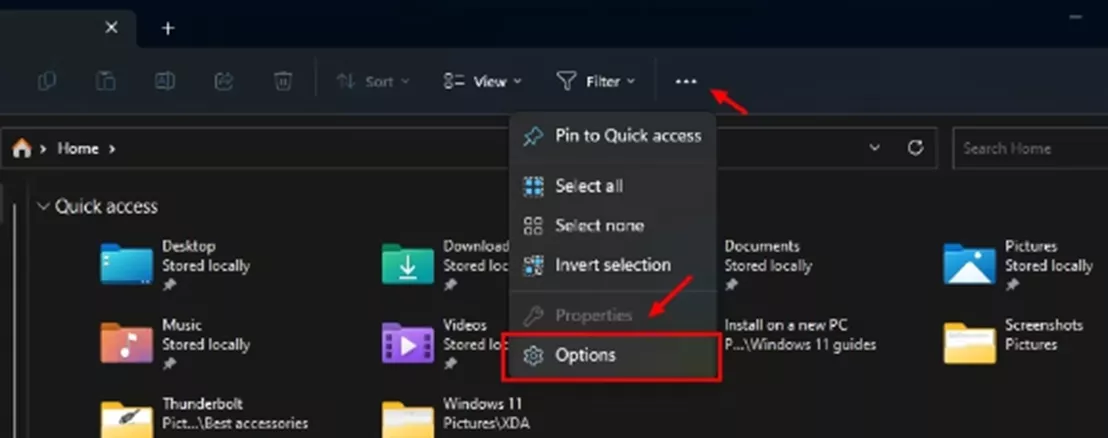
- Navigate to the … menu at the top of the File Explorer window (right above the address bar).
- In the drop-down, select Options.
- Select This PC from the Open File Explorer drop-down.
- Uncheck all the boxes under Privacy. Then click Clear, then Apply.
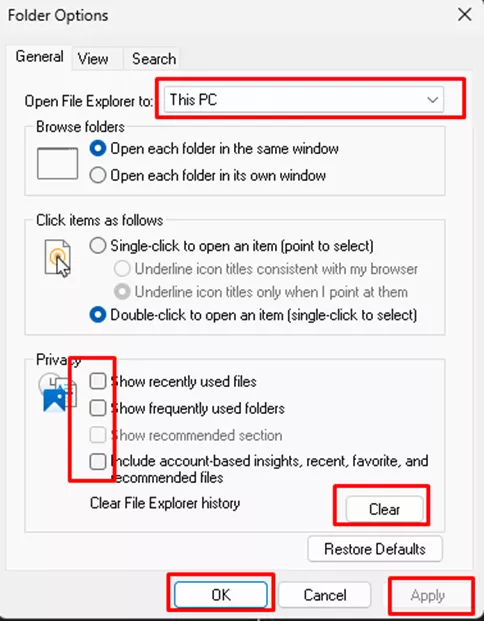
- From there, click OK to finalize the change. When finished, reboot the computer so these changes can take effect.
Quick Access and Pinned PDM locations
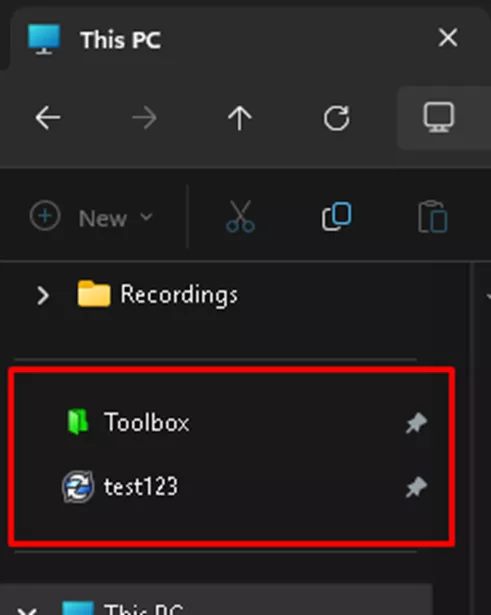
On another note, this issue has also been found to be related to recurring errors when accessing Pinned or Favorited PDM vault views or folders. If you see any pop-ups stating “no database connected to this view”, for example, you may wish to try the steps above. Before doing so, however, be sure to unpin and remove desktop or “quick access” shortcuts to PDM vault views and PDM vault folders, as these are unsupported and may contain the data that is causing this error. If the problem persists, be sure to log out of and back into Windows or restart the computer.
Thankfully, this is a quick change that’s easy to implement and to reverse if need be. This workaround has resolved the problem in most cases, but there have been a few scenarios where other environmental factors were impacting this loading behavior. If you turn off the Home page and continue to experience slowness, please reach out to our support team so we can investigate possible causes and what we can do to address them.
Conclusion
If GoEngineer is your VAR, you can always reach out to your account manager or directly to our Technical Support team if you have questions or require other assistance!
24 Tips to Master SOLIDWORKS PDM
SHORTCUTS ⋅ SEARCHING ⋅ PDM ADD-IN
24 of our expert tips to help you master using SOLIDWORKS PDM. Improve performance, find files faster, and work like a pro.
More Articles About SOLIDWORKS PDM
Avoid Upgrade Surprises: SOLIDWORKS Electrical Connections with PDM
Search for Hidden Variables in SOLIDWORKS PDM
Removing or Deleting a Local Vault View in SOLIDWORKS PDM
SOLIDWORKS PDM – Create Local Host File Workaround as Temporary Solution

About Joe McWhorter
Joseph McWhorter is a SOLIDWORKS PDM Support Engineer based out of Chicago, Illinois. He joined GoEngineer in 2022 and holds a Bachelor's Degree from Augustana College. In his free time, he enjoys reading and cooking with his children, while collecting hobbies like they're trading cards.
Get our wide array of technical resources delivered right to your inbox.
Unsubscribe at any time.