Managing Your SOLIDWORKS PDM Vault Size with Relocation

The SOLIDWORKS PDM Vault grows exponentially over time. Eventually, you will need to add storage space. Of course, adding space means moving the archive data. With PDM Relocation, you can easily move part or all of your archive to a new drive. Relocation is the best and recommended way to increase storage. It allows you to add space without needing to move to a new server, extending the life and viability of your current hardware.
There are two methods for relocation. Both accomplish the same thing, but in different ways.
- Manual Method
- Built-in Relocation Tool
 PLEASE NOTE
We do not recommend using the built-in relocation tool when moving your PDM archives. There is nothing inherently wrong with this tool functionally, but the lack of feedback on progress, no input on splitting the data into smaller chunks, choosing the order, and the inability to pause the process all contribute to our recommendation to use the manual relocation method instead.
Manual Relocation
If you have a vault size reaching or exceeding terabytes, a manual move may be the better option for you. You are more able to control what files are moved to what location.
- Ensure all files are checked into the vault and all users are logged out of the vault.
- If downtime is not acceptable, users can utilize the work offline option, allowing them to work within their cache. You can find information on that feature here in our Working Offline Tips and Tricks guide.
- Take backups of your database and of your archive files.
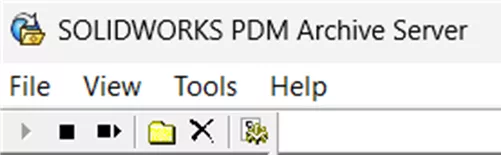
- Stop the SOLIDWORKS PDM Archive Server service in one of two ways:
- Open the Services application, find the service, right-click, and choose Stop.
- Open the Archive Server Configuration application, and click the square stop icon at the top.
- Find the current archive directory one of two ways:
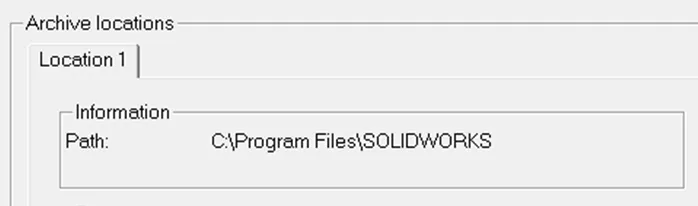
- Open the Archive Server Configuration application.
- Expand This Computer, and select the archive.
- Right-click the vault name and choose properties.
- You’ll see the current location listed in the resulting window.
- Open the Registry Editor
-
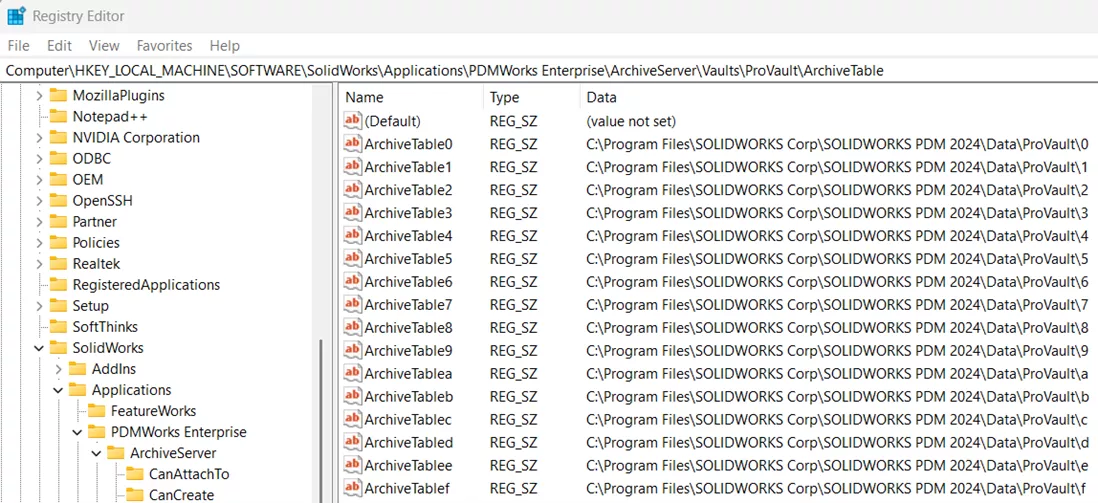
- Navigate to this key: Computer\HKEY_LOCAL_MACHINE\SOFTWARE\SolidWorks\Applications\PDMWorks Enterprise\ArchiveServer\Vaults\[VAULTNAME]\ArchiveTable
- You’ll see the current location listed.
-
- Open the Archive Server Configuration application.
- Copy your archive file folders to the new location.
- In the registry editor, navigate to Computer\HKEY_LOCAL_MACHINE\SOFTWARE\SolidWorks\Applications\PDMWorks Enterprise\ArchiveServer\Vaults\[VAULTNAME]\ArchiveTable
- Change the location for each moved archive folder to reflect the new destination.
- Ensure the copy has completed and turn the SOLIDWORKS PDM Archive Server Service back on.
Note
- With the manual method, it is recommended that the files be copied to the new location, rather than moved, to help prevent data loss.
- Robocopy is often used to complete the file move because it can double check that nothing was missed during a copy.
- As with any manual process, there is an increased risk for mistakes, and it will take longer than the built-in method.
Built-in Relocation Tool
Note: We do not recommend using the built-in relocation tool when moving your PDM archives. There is nothing inherently wrong with this tool functionally, but the lack of feedback on progress, no input on splitting the data into smaller chunks, choosing the order, and the inability to pause the process all contribute to our recommendation to use the manual relocation method instead.
We include these instructions for those customers that would like to use this method regardless.
So, how do we use the tool?
- Ensure all files are checked into the vault and all users are logged out of the vault.
- If downtime is not acceptable, users can utilize the work offline option, allowing them to work within their cache. You can find information on that feature here in our Working Offline Tips and Tricks.
- Take backups of your database, and of your archive files.
- Open the Start menu and either type archive, or navigate to the SOLIDWORKS PDM folder, and open the Archive Server Configuration application.
- If the tool does not open, check for the Archive Configuration icon in your system tray. Click the icon and choose Open.

- If the tool does not open, check for the Archive Configuration icon in your system tray. Click the icon and choose Open.
- In the left pane of the tool, expand This Computer and select your archive folder. In this example, it is called Archives.
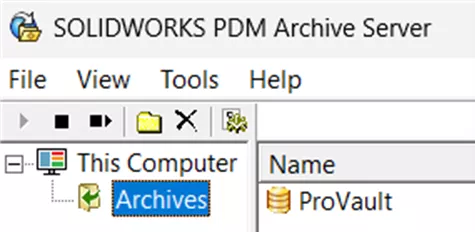
- In the right pane of the window, right-click the vault name and choose Relocate.
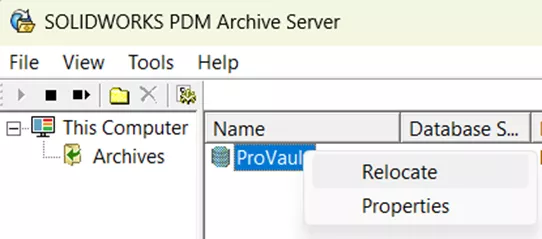
- A new window will pop up, where you’ll make your selections.
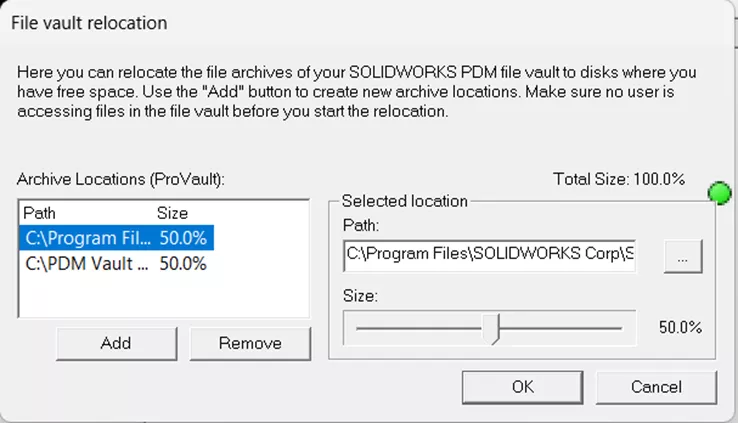
- Click Add to create a new location to move files to.
- Add the destination using the … button.
- Move the slider for each path to ensure a total of 100%.
- Ensure the total size between all locations is 100%. If it is less than or greater than, the colored circle will be red, and the window will not close when clicking OK.
- If you’re moving 100% of the vault to a new location, adjust the bar of the original path to 0%.
- Click OK.
- Confirm that all users are logged out of the vault.
- Click OK again.
- Allow the process to complete.
Note
- The tool needs time to accomplish this. It must be allowed to run its course completely.
- The system may appear non-responsive at some point in the process. If you choose to cancel the activity in this case, the files will likely be corrupted. The larger the move, the more likely you are to see this error.
- In larger moves, it is recommended to move files in smaller increments. You can move files in as little as 1/16th increments. Doing so will help prevent an overload of the server and any lockups that might cause.
- The process will move the chosen percentage of the archive structure, not of the total data.
- The PDM Archive can be split between up to 16 locations. This number is dictated by the nature of PDM storage. Files are assigned document IDs, which are then translated into a hexadecimal number and organized based on that number. The file is stored in the folder that matches the last character of its hexadecimal ID. There are 16 of these folders.
As always, if you run into issues or have questions with this process, and GoEngineer is your VAR, you can reach out to Technical Support for assistance. To learn more about SOLIDWORKS PDM, check out the additional articles listed below.
24 Tips to Master SOLIDWORKS PDM
SHORTCUTS ⋅ SEARCHING ⋅ PDM ADD-IN
24 of our expert tips to help you master using SOLIDWORKS PDM. Improve performance, find files faster, and work like a pro.
Related Articles
SOLIDWORKS PDM Secret Getting Started Guide
SOLIDWORKS PDM Client Installation on an Existing SOLIDWORKS Installation
Resolve SOLIDWORKS PDM Error No Database is Connected to this View
How to Install SOLIDWORKS with the PDM Client

About Danielle Irish
Danielle Irish is a SOLIDWORKS PDM Support Engineer based out of metro Detroit. She has a degree from OCC in CAD Design and Engineering. Danielle has extensive experience in customer service as well as a 10 year adventure in Automotive Engineering. Danielle enjoys challenges and puzzles, and is an avid gamer and fiber artist.
Get our wide array of technical resources delivered right to your inbox.
Unsubscribe at any time.