SOLIDWORKS PDM Update References Tool Use and Options

Table of Contents
Managing file references in SOLIDWORKS PDM is often a seamless, automatic process. The vault does most of the work for you. When you come across files with incorrect or broken references, however, PDM provides a streamlined method to fix them.
The most common scenario we encounter jumbled references is when files are being brought into the vault. Whether it’s one assembly and its parts, or an entire directory, if files are imported in the wrong order, references can end up all over the place.
This leaves a mess for your users to sort through when searching for all the files related to a project. It can also result in multiple errors in PDM and SOLIDWORKS, such as check-in warnings, suppressed parts, and broken mates, making it difficult to work with the files.
The Update References tool is meant to alleviate these issues in a much quicker and more automated fashion than manually repairing each path one by one in your SOLIDWORKS FeatureManager Design Tree.
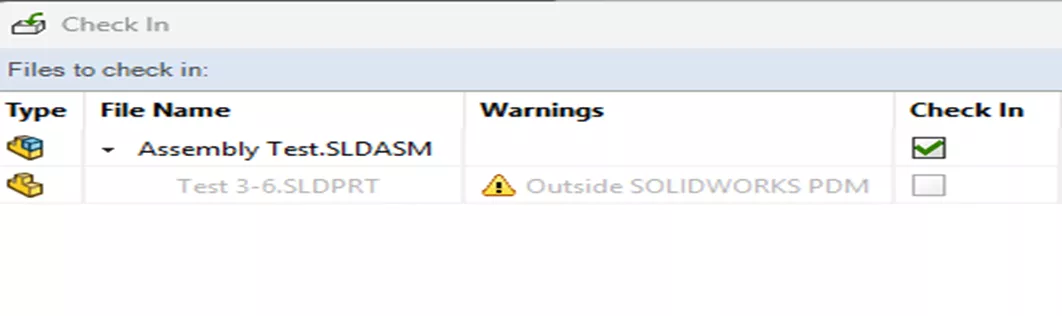
The example used here to showcase the Update References tool is based on a common scenario where just the assembly file is added to the vault from a location outside the vault and checked in, while its referenced part file was later added to a different subfolder.
Example of Error During Check-In:
We’ll Cover the Following:
Accessing the SOLIDWORKS PDM Update References Tool
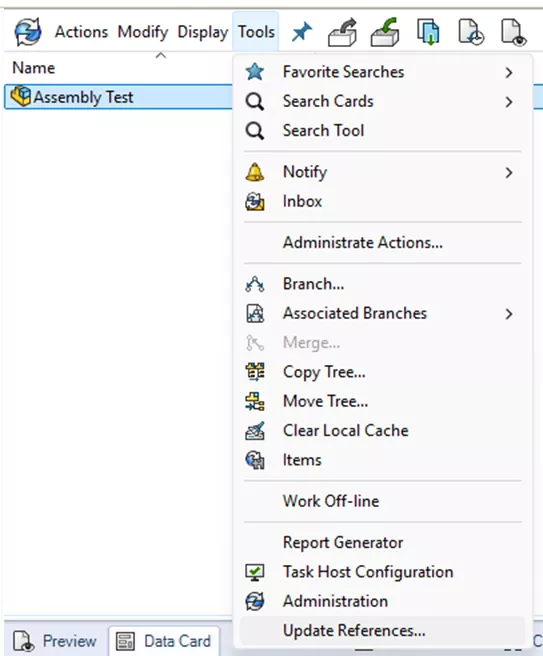
To access the Update References Tool, left-click and highlight the assembly or drawing file in question that contains broken references.
While the file is highlighted, click Tools and then click Update References…
Note: Users will need to check out the rights to the files they want to update the references for. If the file isn’t already checked out to that user, the tool will check out the file for them.
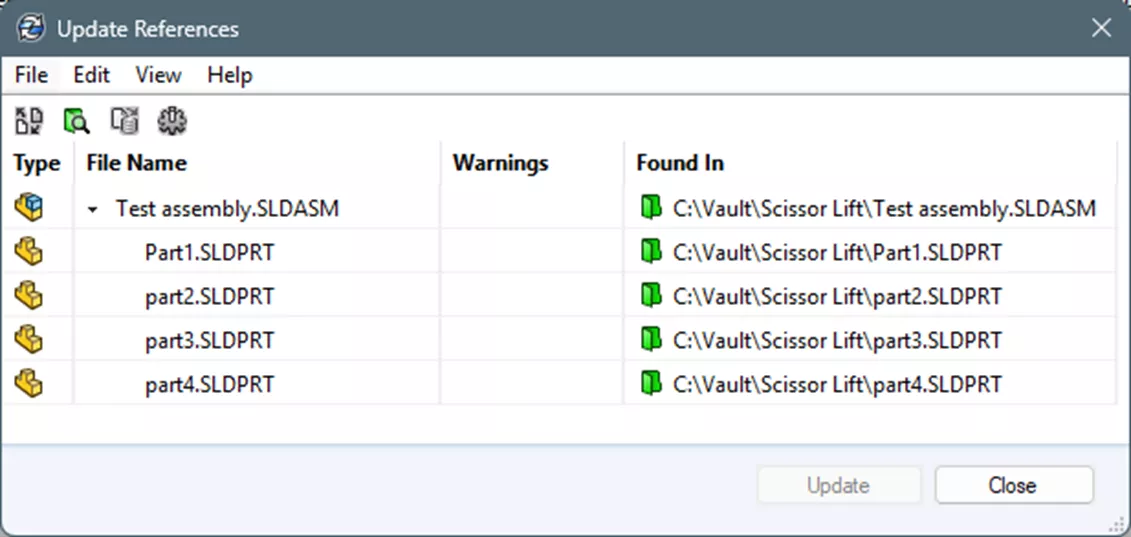
Once open, the tool will show the selected file, all referenced files, their current locations, and any relevant warnings.
The Update References tool has a few different options to choose from based on what you’re trying to do.
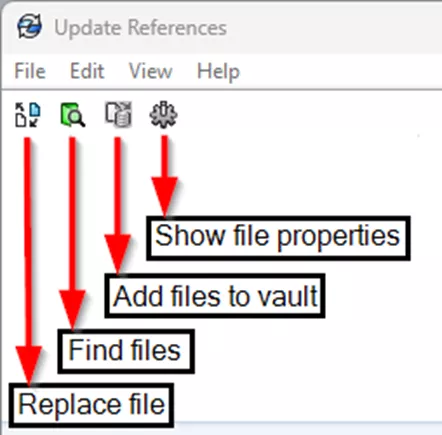
Replace File
If you know the individual reference file that needs to be corrected and want to take a more detailed approach, use the Replace File option.
Click and highlight the reference file in question (see Outside SOLIDWORKS PDM warning under the Warnings column).
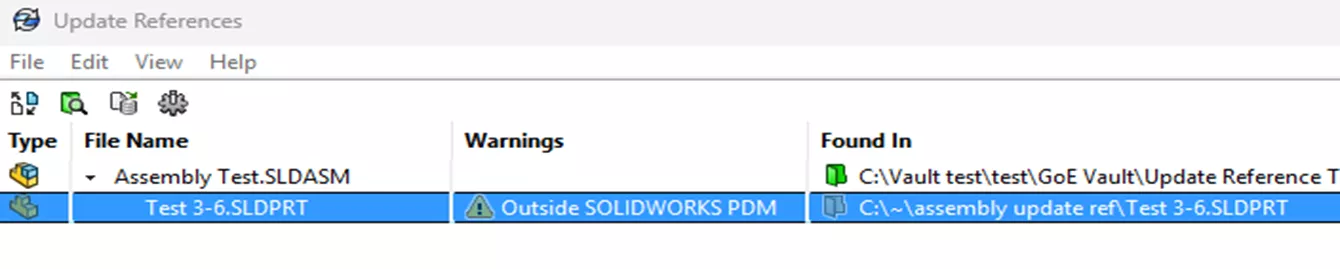
This should make the Replace File button available to click: 
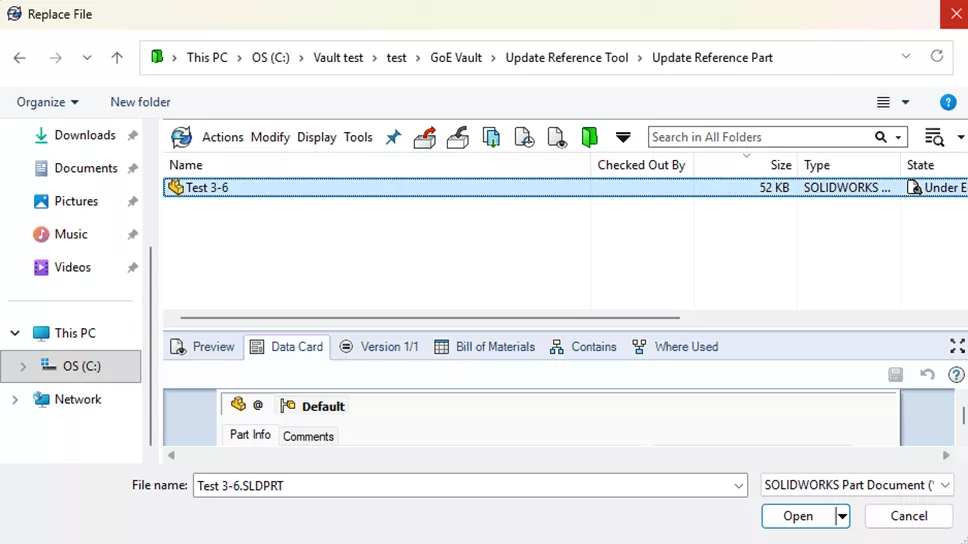
Once you click Replace File, a new window will open, which allows you to select the file you’d like to replace this reference with.
Browse to the location within the vault and select the file in question. Then click Open.
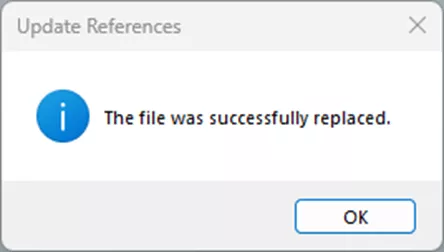
When successful, you’ll see the following prompt. Click OK.
Verify that the file shows OK (Modified) under the Warnings column and that the Found In column shows the new path for the part file within the vault. Click Update.

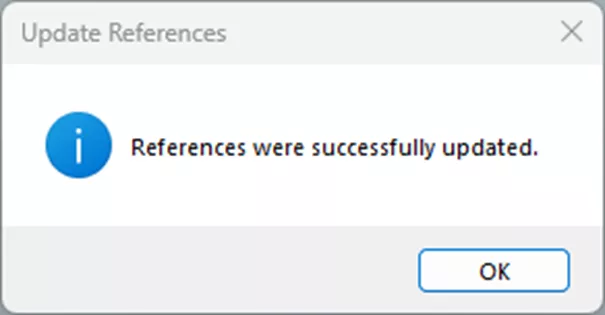
You should then see the following prompt, stating that it was successful.
Add Files to Vault
In some situations, the reference files were added to the vault folder but weren’t actually added to the vault. This makes them appear as local files instead. When this happens, use the Add Files to Vault option to add them to the vault and update the references at the same time.
Click the Add Files to Vault button: 
Select the root vault folder and click Next.
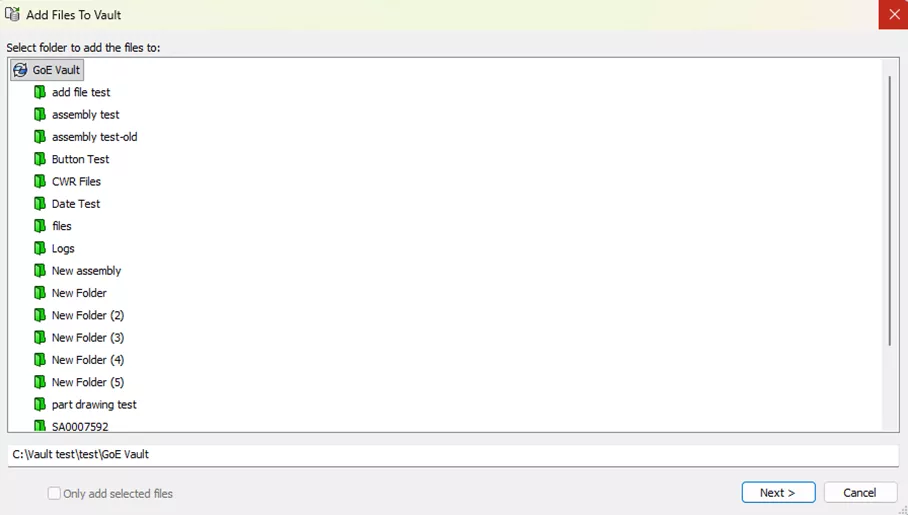
Verify that the files that were local are shown in the list to be added, and then click Finish.

Verify that they are listed, and then click Update.
Show Properties
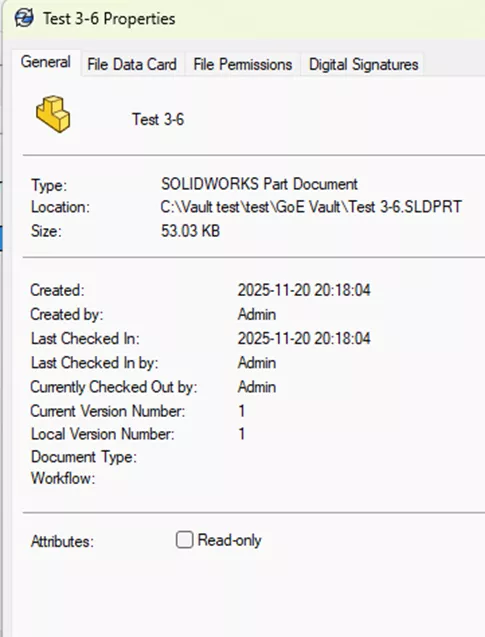
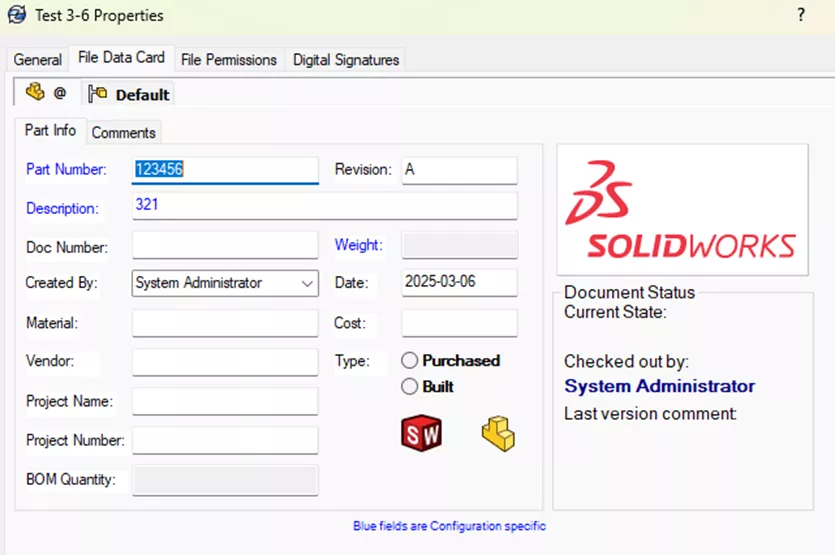
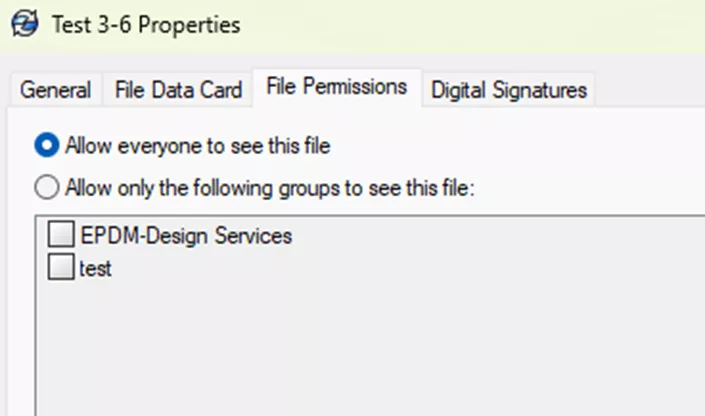
The Show Properties option is more for informational purposes. It displays the properties window of the file selected, where you can verify if the file is set to read-only, view the file data card, or verify who has permission to see the file.
General tab
File Data Card tab
File Permissions tab
Summary
The Update References tool allows you to correct broken references of assemblies and drawings while giving you control over what is being updated, and getting it done in a much easier way compared to your standard slog through suppressed components.
If you have a large dataset you need to migrate into your PDM – whether it’s a legacy OneDrive or combining two vaults into one – GoEngineer offers Migration Services to help make this process seamless and worry-free.
If you’d like to see how validating the process on your own might go, we recommend checking out the Data Migration Validation guide for more tips.
If these steps don’t work for you or if you have any questions on this process, you can reach out to our Technical Support team for more help if GoEngineer is your SOLIDWORKS partner.
24 Tips to Master SOLIDWORKS PDM
SHORTCUTS ⋅ SEARCHING ⋅ PDM ADD-IN
24 of our expert tips to help you master using SOLIDWORKS PDM. Improve performance, find files faster, and work like a pro.
Related Articles
Improve Windows 11 File Explorer Performance with SOLIDWORKS PDM
Avoid Upgrade Surprises: SOLIDWORKS Electrical Connections with PDM
Search for Hidden Variables in SOLIDWORKS PDM
Removing or Deleting a Local Vault View in SOLIDWORKS PDM
SOLIDWORKS PDM – Create Local Host File Workaround as Temporary Solution

About Sean Mark
Sean is a Sr. SOLIDWORKS Technical Support Engineer at GoEngineer.
Get our wide array of technical resources delivered right to your inbox.
Unsubscribe at any time.