New SOLIDWORKS PDM 2026 Vault View Sync & Ownership Transfer

SOLIDWORKS PDM 2026 introduced a new feature that many users and admins will be very excited about – vault view synchronization. We’re going to review this new function, show how it works, and explain why it might be useful to you, so you can make the most of this new backup feature whenever you need it.
This new feature was initially introduced in 2026 SP0, but after some beta testing and confirmation with Dassault’s Development team, we found the most stable performance was with 2026 SP02 and beyond. Keep that in mind if you’d like to utilize this functionality!
If you’re curious about what else was introduced in 2026, check out SOLIDWORKS' What’s New for PDM page.
What Is It?
Vault view synchronization is actually a two-part function. First, it creates a backup copy of any checked-out files you have saved and uploads a copy of that modified file to the archive server. Once the file is synced to the server, users with the Transfer Ownership permission can change who has the file checked out (and therefore owns the right to edit the file) from user A to user B.
This updates the vault’s database to show user B as having the file checked out (rather than user A), and then they’re able to cache the editable backup copy of the file from the server to their local vault view. From there, user B can continue working on the file as usual or check the file in for others to access and work on.
Why Does It Matter?
Previously, if a user had files checked out, the only place the modified file existed was directly on that user’s computer, and even more specifically, on that particular vault view. This meant that any number of situations could arise where you would lose that work forever.
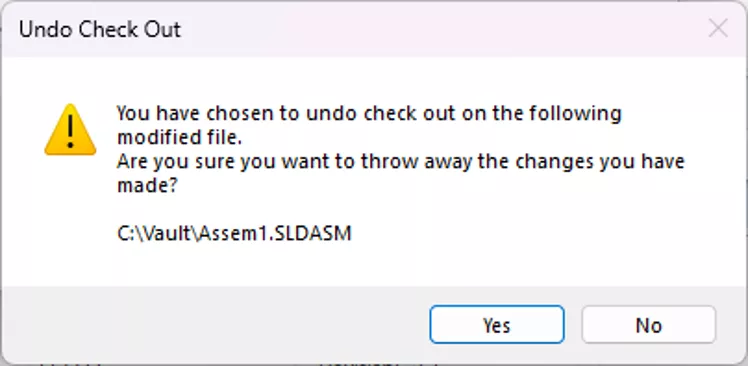
If you recreate the vault view on a user’s machine without preserving the cache, any work you hadn’t checked in yet is lost. Even if you did preserve the cache, you’d still have to manually hunt down every file you checked out, Undo Check Out (which causes any changes made since the check out to be lost), check the file out again, paste the local copy over it, and check it in once more. It is a tedious process that requires you to find and overwrite files one by one.
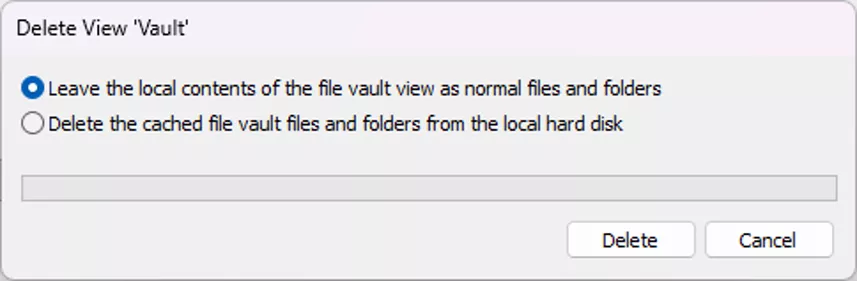
What if a user’s computer crashes, they go on leave, or any other scenario where access to the computer is lost? Those files are gone. You’re stuck yet again with finding every file they checked out and either undoing the check out or deleting the file altogether.
What if a user has a laptop for travel and a desktop computer in the office, but they have left their laptop at home today? They would either be stuck until they could access that laptop again, or they’d have to Undo Check Out and recreate the work.
These are just three extremely common scenarios we see all the time in our interactions with customers where users end up losing work. This feature isn’t meant to replace checking in a file by any means, but we’re all human, and mistakes happen. Even if we’re incredibly diligent about checking in our files, sometimes circumstances beyond our control (hardware failure, power outages, even theft) mean it’s not always possible.
This new feature is a nice little safety net, allowing you to recover all the files you worked on. This way, you won’t have to miss a deadline or waste time redoing work you've already completed.
Thankfully, the backend driving the vault view sync is pretty straightforward! Let’s walk through what it does:
How Does It Work?
User A checks out a drawing on Computer A (though this works on any file type – not just SOLIDWORKS files!). They open the file in SOLIDWORKS and begin making changes to it. After a while, they save the file, close SOLIDWORKS, and head off to lunch. They wanted to preserve their changes, but they’re not done with the full job yet, so they’re leaving it checked out for now.

The edmserver.exe process (which is present on every machine with a PDM client install) does a scan of the checked out files in that user’s vault view every 30 seconds or so. If it notices a newly modified file, it starts the sync process. Shortly thereafter, a copy of this file is added to the archive folder on the server. Rather than the usual hexadecimal/version-based naming convention for archive files, it’s called “00000000.backup”.

Let’s say User A has a sudden family emergency and leaves work in the middle of their lunch. This drawing needs to be sent for review before the end of the day, however, so User B agrees to finish out the work. User B can right-click the file in their vault view > Transfer ownership.
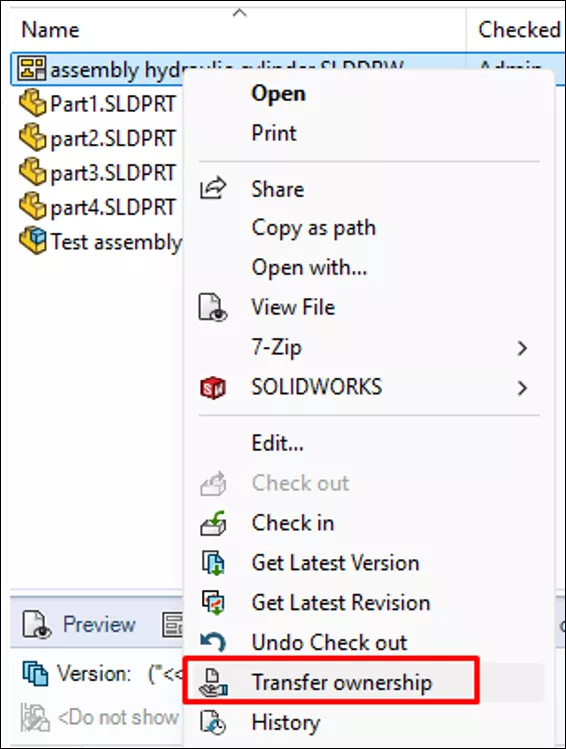
This takes the file from showing as checked out by User A on Computer A:

To checked out by User B on Computer B:

From there, User B can simply open the drawing in SOLIDWORKS and work on it as if they checked it out themselves. The transfer operation appears in the history to let you know why the user who checked in a file is different from the user who checked out the file.
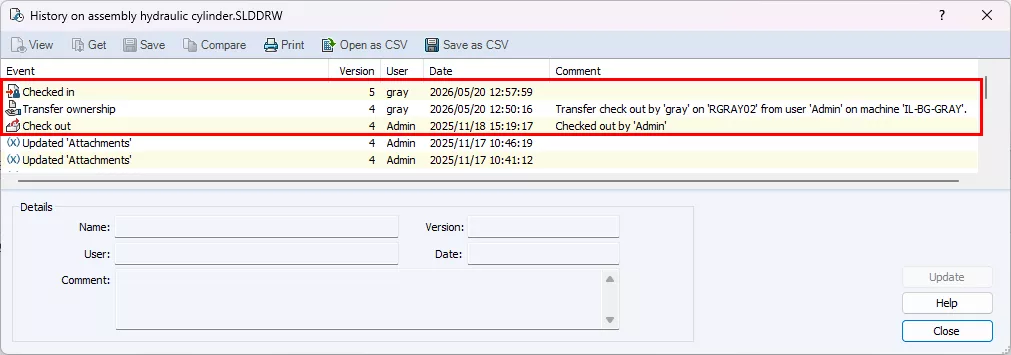
Once a file is checked in, the archive server does a scan every 15 minutes or so to remove leftover “00000000.backup” files to clean up space on the server. There’s only ever one backup copy of each file at a time, so you don’t have to worry about your archive server filling up and running out of space due to the sync.
If you have Archive Replication set up, it will also allow backups to replicate on-demand between archives if the user that transfers ownership of the file is attached to a different archive server than the original user.
Permissions
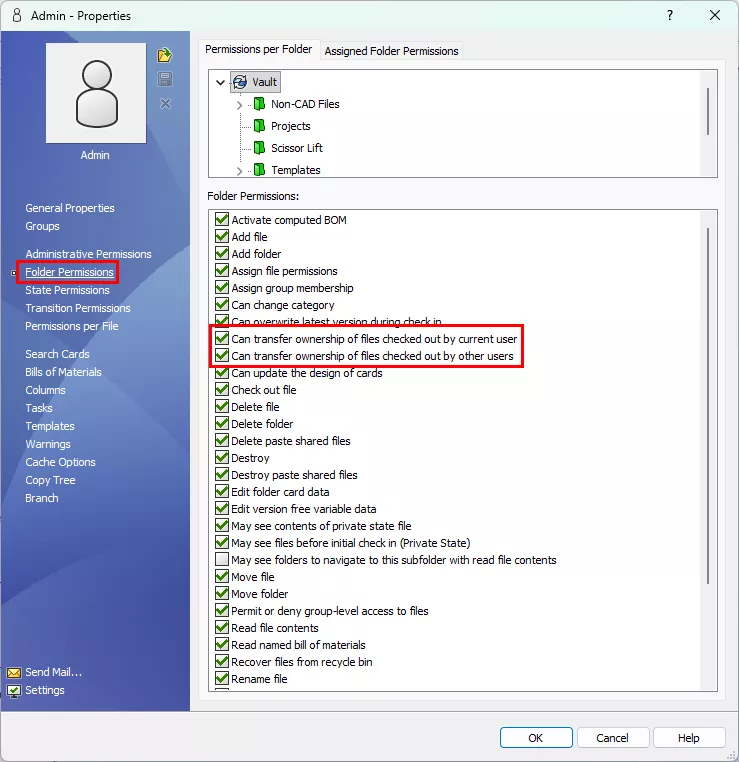
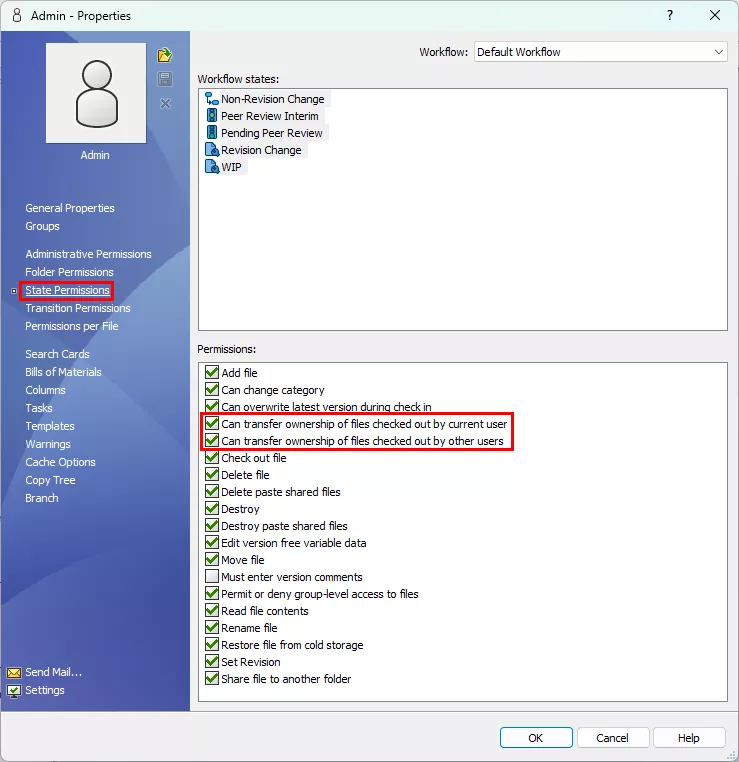
While the sync of checked-out files from a user’s local vault view happens automatically, the ability to transfer ownership of files is actually a permission that needs to be configured.
Note: If your vault started in a version prior to 2026 and was upgraded, the ‘Admin’ user will not have these permissions active by default. Vaults created in 2026 should have these enabled for ‘Admin’ by default. All other users/groups will need to have it added regardless.
There are two permissions for this functionality:
- Can transfer ownership of files checked out by the current user.
- Can transfer ownership of files checked out by other users.
They’re pretty self-explanatory, but essentially this lets you decide whether users should be allowed to transfer their own files between computers, and if they should be able to transfer other users’ checked-out files. It’s typically recommended that only administrator-level users have the right to transfer ownership of other people’s files – but that’s a decision you can make based on your company’s user base and policies.
There are two areas you’ll need to add the permissions to: State and Folder. Files exist in a folder location in the vault and are also assigned a workflow and state. Both of these are used to filter how permissions can be applied.
PDM Permissions are additive, so a user needs to have access to both the location a file is in (folder) and the workflow/state a file is in for them to have the assigned rights. Ensure you have “transfer ownership” in both places for any user you want to have this ability.
If you need a refresher on permissions in SOLIDWORKS PDM, you can check out our Ultimate Guide to PDM Permissions.
Folder Permissions:
State Permissions:
Can I Turn It Off?
If, for whatever reason, the sync isn’t something you’d like to use, it can be disabled. The sync can be turned off for single client machines by making a simple Windows Registry change.
This turns off the background sync that scans for and uploads files to the server, but you will also need to remove the Transfer Ownership permissions to ensure users don’t try to select that option and get an error.
Client Disable
To disable the sync on a client machine, log in to the machine and update the registry. Note that it will apply to ALL vaults on this machine. If a user has multiple vault views, it can’t be disabled for just one vault.
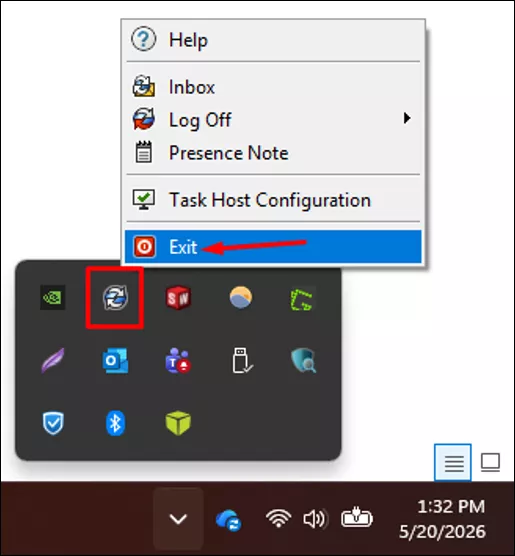
- Exit PDM via the blueberry icon in the system tray. Changes should take effect once you log back into the vault view.
- Open the Windows Registry Editor. You can find it by searching “regedit” in the Windows Start menu.
- Be sure to right-click the registry editor > Run as Administrator to ensure you have the necessary rights to make these changes.
- Navigate to the following location: Computer\HKEY_LOCAL_MACHINE\SOFTWARE\SolidWorks\Applications\PDMWorks Enterprise\EdmServer.
- If EdmServer doesn’t exist, right-click the PDMWorks Enterprise key and select New > Key. Name it EdmServer.
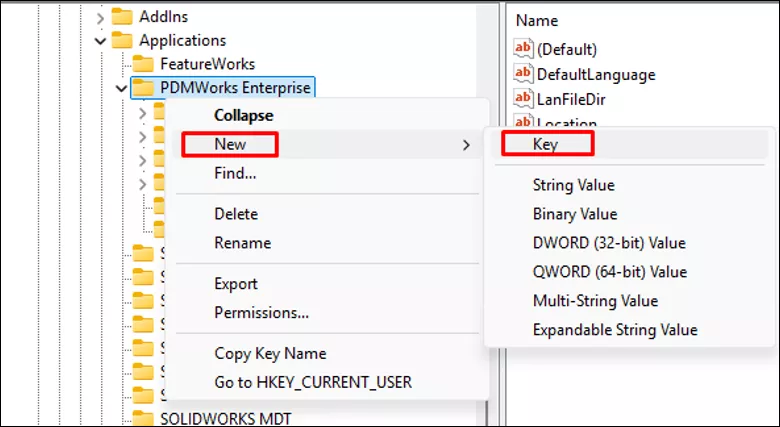
- If EdmServer doesn’t exist, right-click the PDMWorks Enterprise key and select New > Key. Name it EdmServer.
- In the EdmServer key, right-click the blank space in the right pane > New > DWORD (32-bit) Value.
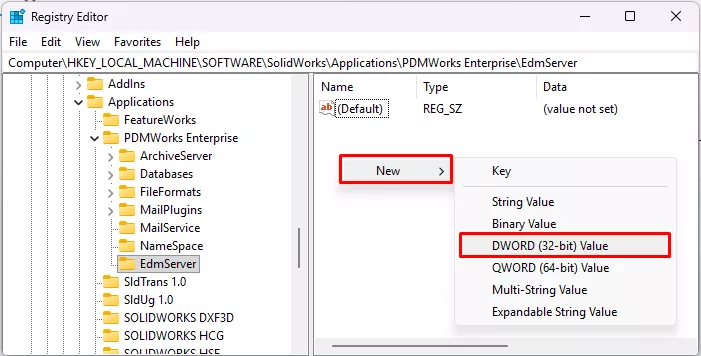
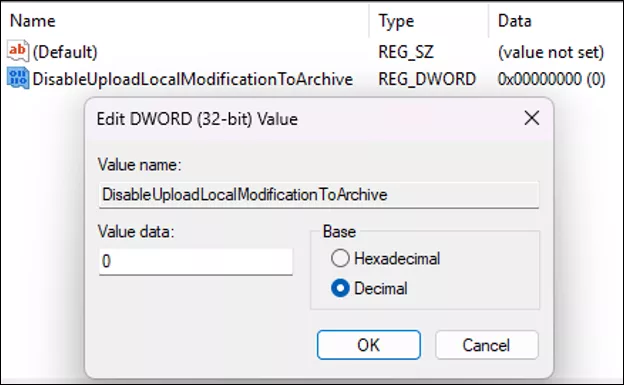
- Name the value DisableUploadLocalModificationToArchive
- The value can then be double-clicked to edit it. You can set the value to one of two things (be sure to choose “Decimal” when modifying this value):
- Enable upload, which is the default: 0
- Disable upload: 1
Can I Adjust the Frequency of Scans?
You can also set the system to scan less frequently if you’re concerned about performance or network traffic. This is also done on a per-client basis using the Windows Registry. Again, this applies to ALL vaults on the machine.
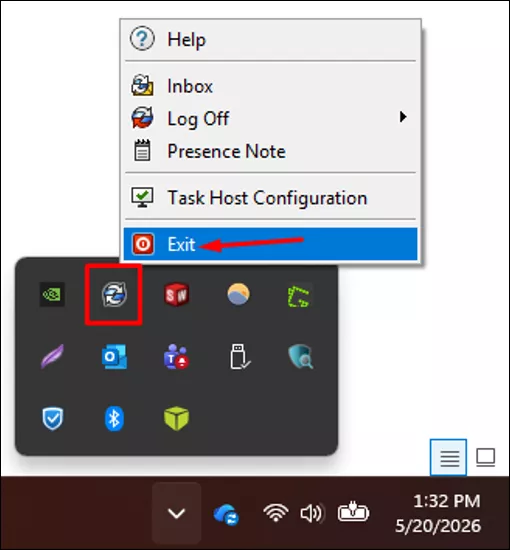
- Exit PDM via the blueberry icon in the system tray. Changes should take effect once you log back into the vault view.
- Open the Windows Registry Editor. You can find it by searching “regedit” in the Windows Start menu.
- Be sure to right-click the registry editor > Run as Administrator to ensure you have the necessary rights to make these changes.
- Navigate to the following location: Computer\HKEY_LOCAL_MACHINE\SOFTWARE\SolidWorks\Applications\PDMWorks Enterprise\EdmServer.
- If EdmServer doesn’t exist, right-click the PDMWorks Enterprise key and select New > Key. Name it EdmServer.
- If EdmServer doesn’t exist, right-click the PDMWorks Enterprise key and select New > Key. Name it EdmServer.
- In the EdmServer key, right-click the blank space in the right pane > New > DWORD (32-bit) Value.
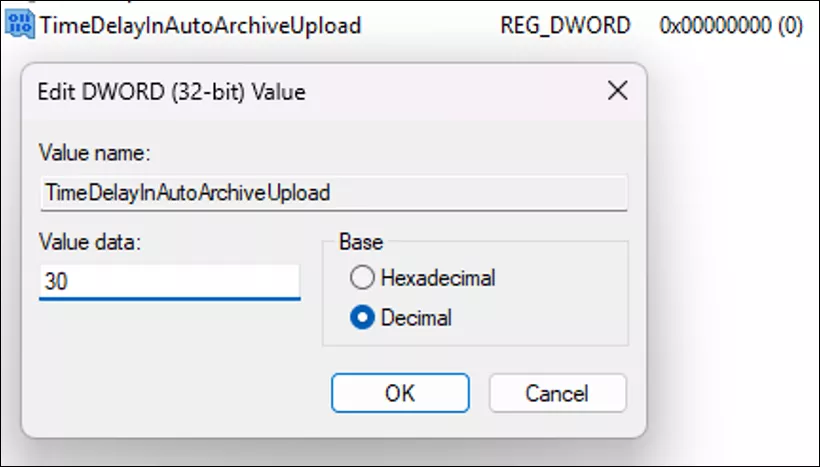
- Name the value TimeDelayInAutoArchiveUpload.
- The value can then be double-clicked to edit it. Be sure to choose “Decimal”. The value you set represents the number of seconds the system waits between initiating a scan for modified files. The minimum is 30 seconds.
Final Thoughts
Your vault contains your company’s intellectual property and is often vital for day-to-day operation. Anything you can do to further preserve this data in unexpected circumstances is great! This function isn’t meant to replace check-ins or backing up your data, but it’s an additional feature that gives you that extra peace of mind.
If GoEngineer is your SOLIDWORKS partner, you can always reach out to our Technical Support team if you have questions about vault view sync and ownership transfer or require other assistance.
24 Tips to Master SOLIDWORKS PDM
SHORTCUTS ⋅ SEARCHING ⋅ PDM ADD-IN
24 of our expert tips to help you master using SOLIDWORKS PDM. Improve performance, find files faster, and work like a pro.
Related Articles
SOLIDWORKS PDM System Resources Starting Point
Managing Your SOLIDWORKS PDM Vault Size
Managing Your SOLIDWORKS PDM Vault Size With Cold Storage
Managing Your SOLIDWORKS PDM Vault Size with Relocation

About Rowan Gray
Rowan Gray is a Technical Support Manager at GoEngineer and CPPA/CPAP with a specialty in SOLIDWORKS PDM and related data/lifecycle management. They have been with GoEngineer since 2020, and have a strong IT background that helps them more fully support customers with whatever issues may arise in their PDM environment. In their free time, they enjoy playing video games, D&D, multimedia crafting, and spoiling their pets.
Get our wide array of technical resources delivered right to your inbox.
Unsubscribe at any time.