Managing Your SOLIDWORKS PDM Vault Size With Cold Storage

Do you have a large vault that is getting a little unwieldy? Or maybe you’ve just reached a limit on how much space your server can have. SOLIDWORKS PDM Cold Storage can help. It is a useful tool that moves or removes file versions from the archive, freeing space on your server, according to a schedule. It lends itself best to scenarios where moving the vault entirely to a new drive is not ideal.
There are two types of Cold Storage that you can implement:
- Relocate
- Delete
 Before you implement
Cold storage can be handy to manage your vault's size, but we recommend proceeding with extreme caution before implementing it - especially the delete option. To have a painless experience with cold storage, your company needs to have extremely strict version management for the files in your vault.
If you attempt to work with a parent file that references an older version of a child file, which has been cold stored, you’re likely to run into warnings and pop-ups about the cold stored version. Multiply that for assemblies and drawings with hundreds (or even thousands) of child references, and things can get pretty tedious.
There is nothing inherently wrong with cold storage as a utility, but if your users haven't been diligent about checking out and rebuilding parents so they are always referencing up-to-date children, you're going to be inundated with these pop-ups when opening those files.
A quick barometer for whether you'd be affected by this behavior is to think about whether you see "The file is not rebuilt" (or similar) warnings in your Preview tab, eDrawings, and Check In/Out or Change State dialogs. If that's a common sight in your vault, you are far more likely to run into the situation described above.
You can still use cold storage if that's the case, to be clear, but it's a significant enough disruption for many users that we felt it warranted a warning for any admin considering this option.
Relocate
The main purpose of Cold Storage is to disperse files among multiple drives and directories. It allows you to choose to move all file versions beyond a chosen amount, at an interval that suits your processes. It moves the data to a location of your choice and tells the database where it is. The database then marks the file version as cold stored.
Important Note
- Users cannot work with these file versions, until they are restored to the vault.
- Only users with the appropriate permissions and access can restore files from cold storage.
- Rollback actions cannot be performed on file versions that have been cold stored.
- There is no way to predetermine how much space cold storage will free up.
- In some cases, cold storage can create additional data, using more space than before. This is due to how files are evaluated for storage. In the vault, the system minimizes the file footprint when only metadata has changed. In cold storage, each file version is stored as a full iteration, despite it being physically identical to the previously stored version. This creates its own storage problem.
- There are some proactive methodologies that can help mitigate this. For more information on those options, please visit our overview of Vault Size Management.
Delete
The secondary function of cold storage is file removal. This is a true way to remove file versions from the vault. It will tell the database to mark the file as cold store deleted. Then, it deletes the file version from the archive.
Important Note
- Files cannot be recovered after they are deleted. The deletion is permanent.
- Rollback actions cannot be performed on file versions that have been cold store deleted.
Implementation
Setting up cold storage schemas is done in the SOLIDWORKS PDM Administration tool.
- Open the Start menu and type Administration, or navigate to the SOLIDWORKS PDM folder, and choose the Administration tool with the PDM icon.
- Log into the vault by double-clicking the vault name and entering the admin or an administrator-level user’s credentials.
- Right-click the Cold Storage Schemas node and select New Cold Storage Schema…
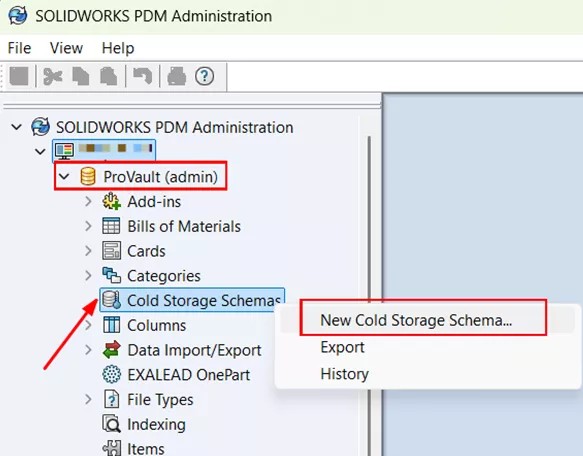
The Cold Storage Schema dialog will pop up, and you’ll be able to make your selections.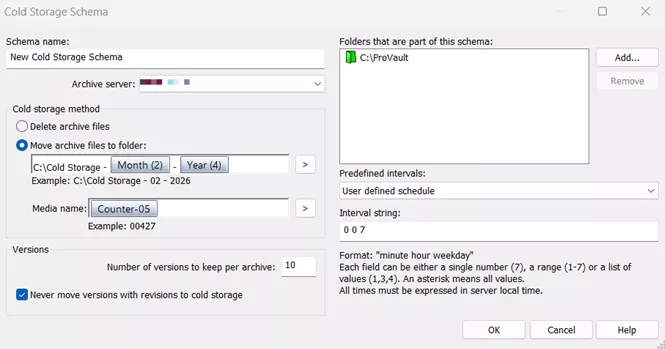
- Choose your cold storage method. For moving the files, you’ll need to provide a location and a naming convention.
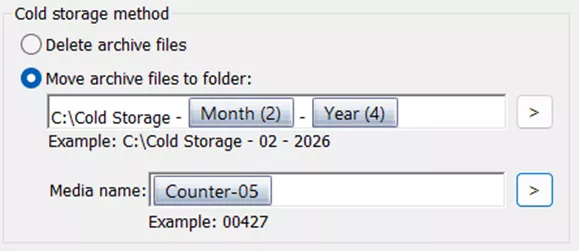
- For the location, first provide a file path, and then choose some custom path variables.
- For the media name, we recommend using one of the variable counter options that are available.
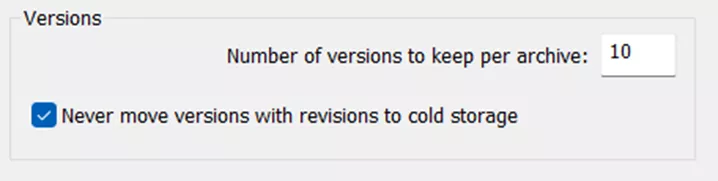
- Select the number of versions to keep, and decide if you’re keeping files with revisions. Checking the box for never move versions with revisions to cold storage will ensure cold storage skips over any file version where the PDM revision was incremented. In this case, those incremented/revisioned versions of the file remain active on the archive, and users can interact with them as normal.
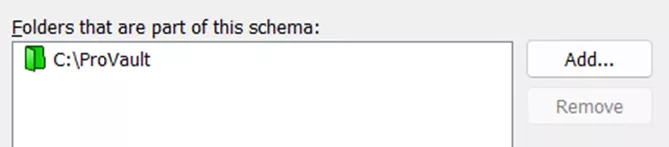
- Choose the folders you want to be included in this schema. You do not have to run this on the entire vault. It can be run on particular folders. Add as many specific locations here as needed.
- For intervals, we are setting the frequency of the cold storage run. Choose whichever option from the dropdown that works best for you, or create your own unique schedule.
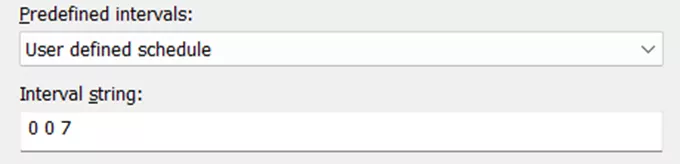
- Formatting is MHD.
- Hours are 1-24, and the time is local to that of the server.
- Days start on Monday and go 1-7.
- An asterisk * indicates all values.
- Examples:
- (0 * *) = Every hour, every day.
- (0 0 1-5) = Every day, Monday – Friday, at midnight.
- (30 20 1,3,5) = Every Monday/Wednesday/Friday at 8:30 pm.
Recovery
When file versions are moved, rather than deleted, they can be restored through the PDM system. This requires that the user performing the action have the folder permission restore file from cold storage.
- In the file vault view, select the file for which you want to restore an old version.
- Open the Actions menu and select Get Version.
- Choose versions in cold storage.
- Right-click the desired version to restore, and choose ‘restore’.
The file will now be accessible by the user.
As always, if GoEngineer is your SOLIDWORKS partner and you run into issues or have questions, reach out to Technical Support for assistance!
24 Tips to Master SOLIDWORKS PDM
SHORTCUTS ⋅ SEARCHING ⋅ PDM ADD-IN
24 of our expert tips to help you master using SOLIDWORKS PDM. Improve performance, find files faster, and work like a pro.
Related Articles
SOLIDWORKS PDM Secret Getting Started Guide
SOLIDWORKS PDM Client Installation on an Existing SOLIDWORKS Installation
Resolve SOLIDWORKS PDM Error No Database is Connected to this View
How to Install SOLIDWORKS with the PDM Client

About Danielle Irish
Danielle Irish is a SOLIDWORKS PDM Support Engineer based out of metro Detroit. She has a degree from OCC in CAD Design and Engineering. Danielle has extensive experience in customer service as well as a 10 year adventure in Automotive Engineering. Danielle enjoys challenges and puzzles, and is an avid gamer and fiber artist.
Get our wide array of technical resources delivered right to your inbox.
Unsubscribe at any time.