Replace a SOLIDWORKS Sketch Entity Without Rebuild Errors

In SOLIDWORKS, when you delete a feature’s sketch entity and replace it with another, it can have negative downstream effects in your model. The reason is that SOLIDWORKS generates a new face in the feature that used the previous sketch entity. Features that referenced the previous face or sketch entity will have rebuild errors. To resolve this, SOLIDWORKS has a sketch tool called Replace Entity.
Where is Replace Entity Located?
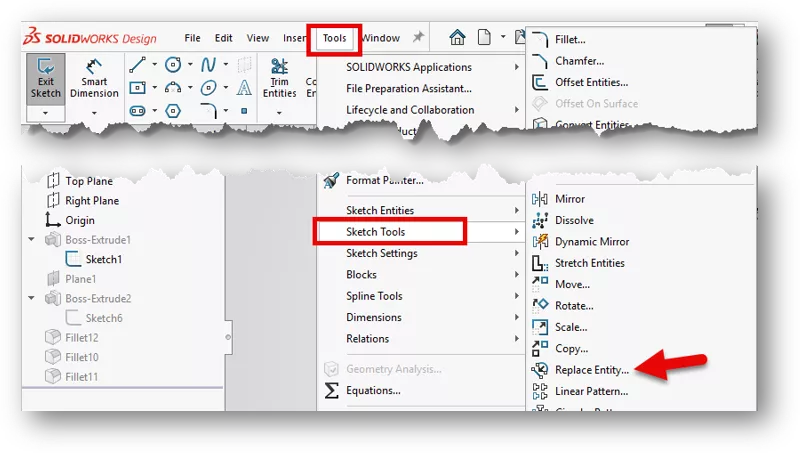
The Replace Entity tool can be found in Tools > Sketch Tools > Replace Entity (an active sketch is required).
How to Use Replace Sketch Entity
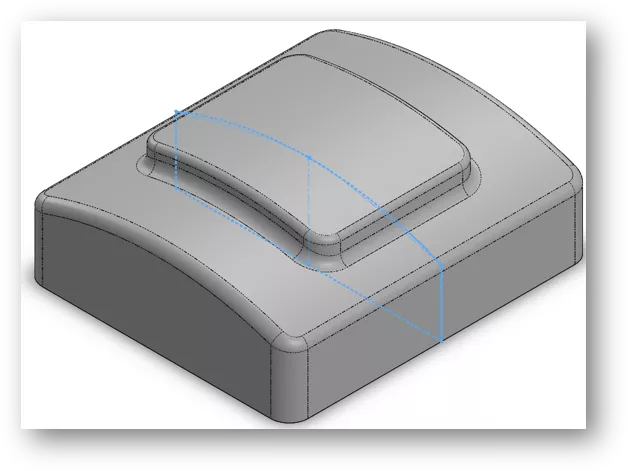
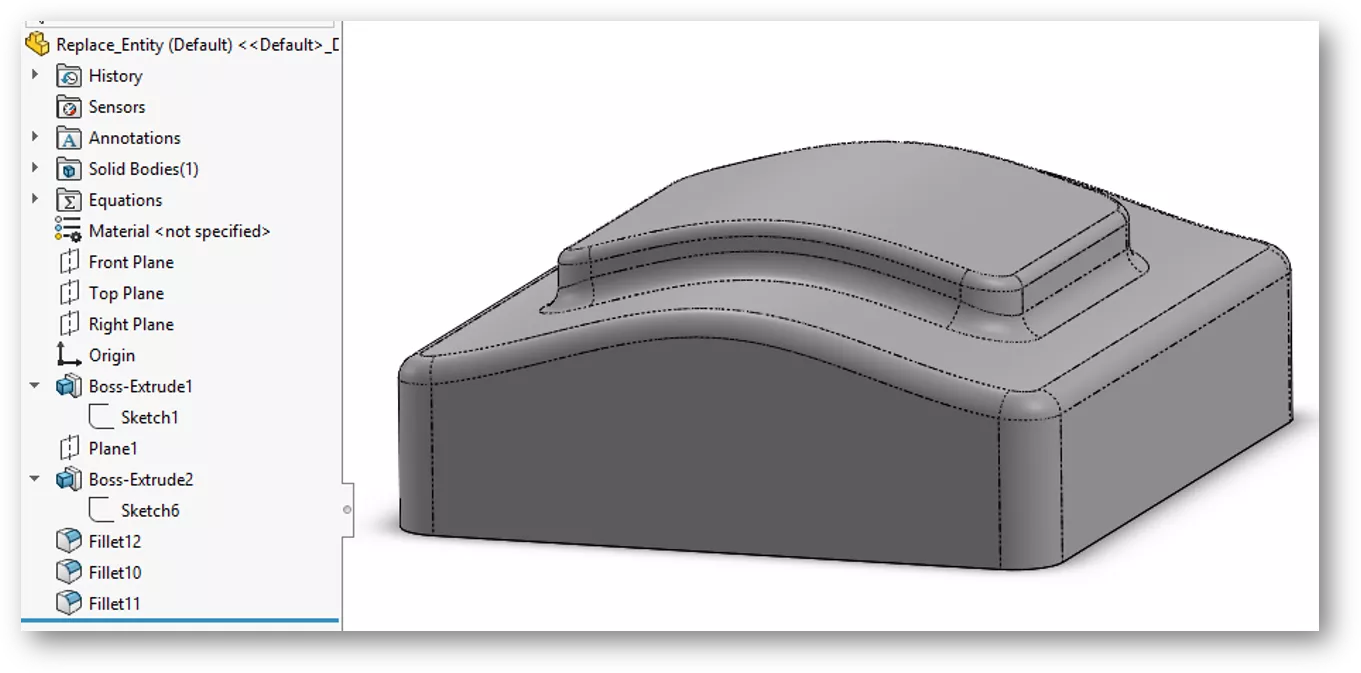
Here, we have a model with a curved top face created from a 3-point arc. There are also child features of the parent’s curved face. We want to replace the 3-point arc with a spline that has a slightly different curvature.
Deleting the 3-point arc and replacing it with a spline will cause errors in the child features.
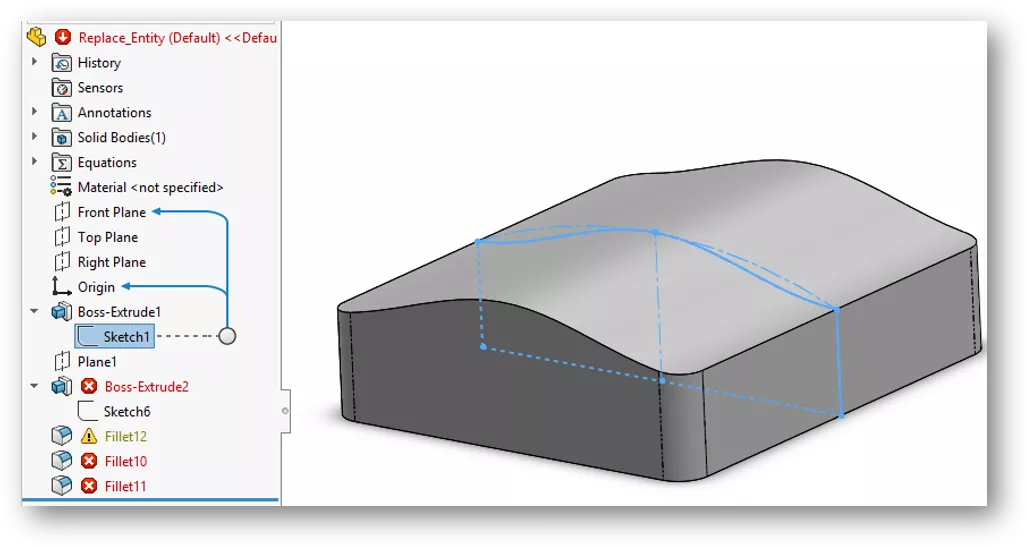
Instead of deleting the 3-point arc (or making it construction geometry), we will edit the sketch, add the spline as construction geometry, then use Replace Entity to swap one for the other.
In the Replace Entity PropertyManager, select the arc for “Replace this entity”, then select the spline for “With this one”. We can choose to make the arc construction geometry to leave it in place, or select the radial button to delete the arc. We also have a radial button to make the spline contour geometry.
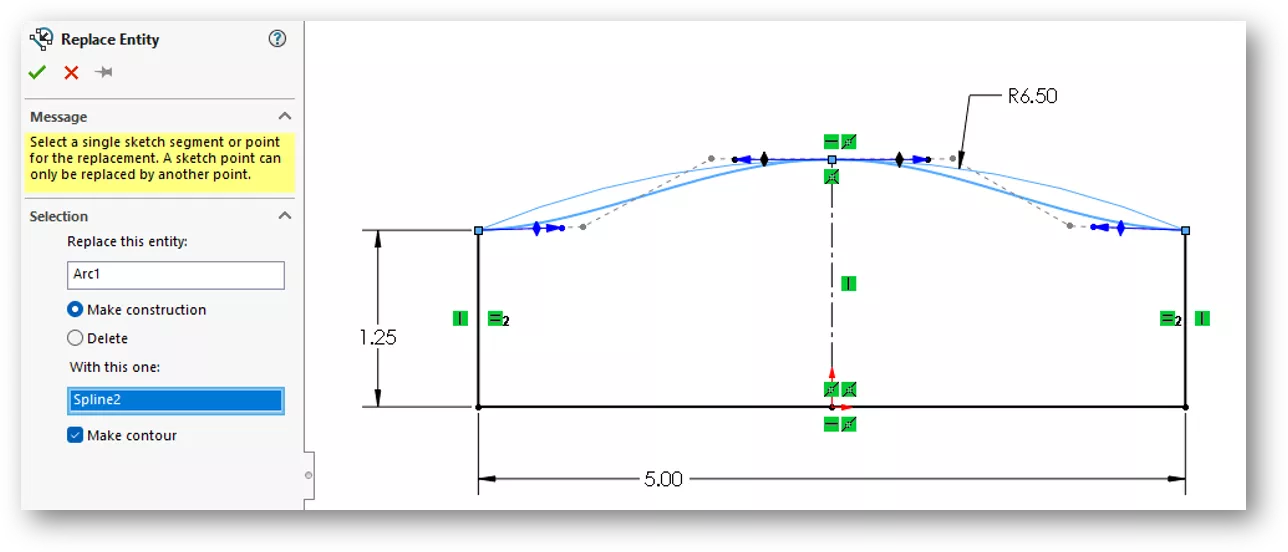
After making the proper selections, click the green check mark and close the sketch. The result is a model with no rebuild errors.
It is worth noting that this works best with subtle geometry changes. There may still be errors if the replaced entity is completely different from the original. Also, this could affect mates in an assembly where a tangent mate was applied when it was an arc. Tangent mates cannot be applied to faces made by splines.
Want to learn more about SOLIDWORKS? Check out additional tutorials and tips below. Additionally, join the GoEngineer Community, where you can create forum posts, enter design contests, and answer questions from other SOLIDWORKS users.
SOLIDWORKS CAD Cheat Sheet
SHORTCUTS ⋅ MOUSE GESTURES ⋅ HOT KEYS
Our SOLIDWORKS CAD Cheat Sheet, featuring over 90 tips and tricks, will help speed up your process.
Related Articles
Introduction to SOLIDWORKS Mates: Standard, Advanced, & Mechanical
SOLIDWORKS Worm Gear Mate Quick Tip
Missing SOLIDWORKS Bend Lines in Flat Pattern DXF
Changing Component Colors in SOLIDWORKS Drawings

About Zach Brown
Zach Brown is a certified SOLIDWORKS Expert and a Technical Support Engineer. Prior to working at GoEngineer, he spent 15 years as a mechanical designer, CAD support tech, and instructor using SOLIDWORKS. His hobbies include playing guitar, riding motorcycles, and skiing.
Get our wide array of technical resources delivered right to your inbox.
Unsubscribe at any time.