SOLIDWORKS Electrical Schematic: Importing Data from the Electrical Content Portal

When SOLIDWORKS Electrical is first installed, the libraries will have a basic set of items already inside the database. This is intended as a starting point. Not every user will want all of these, and some will want more.
SOLIDWORKS Electrical provides additional content via an integrated portal tool. The following steps outline the process of importing manufacturer parts from online content. More specifically, the SOLIDWORKS Electrical Content Portal.
What is the Electrical Content Portal?
The SOLIDWORKS Electrical Content Portal (ECP) is a content service hosted by Dassault Systèmes. It gives access to a comprehensive and intelligent catalog of qualified electrical components.
The ECP is where you can download content, such as symbols, manufacturer parts, cable references, and files for 2D layouts. You can also share links to an item (the manufacturer part, symbol, etc.) or the electrical package containing the item in the Electrical Content Portal.
A dedicated dockable panel displays the ECP interface. It allows you to download content and automatically archive it into the respective libraries. In ECP, each downloadable element has a detailed view of its properties.
How Do I Access the Electrical Content Portal?
You can access the ECP content from inside SOLIDWORKS Electrical or via: https://electricalcontentportal.3ds.com.
To use the ECP, you will need a login and a current subscription for SOLIDWORKS Electrical.
Login
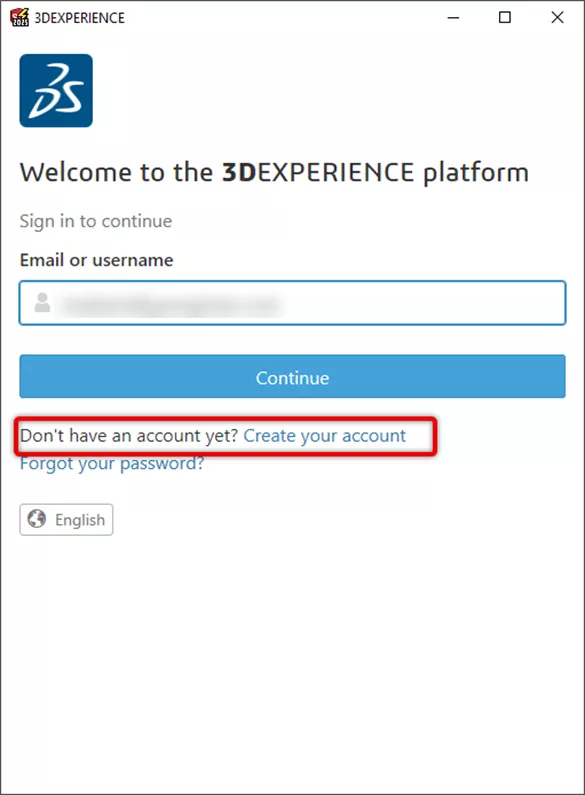
You must have an account on the 3DEXPERIENCE platform. Use your credentials to connect to the ECP application. If you do not already have a 3DEXPERIENCE account, follow the directions to create one.
Subscription
You cannot access any feature without a valid subscription. When you connect to the Electrical Content Portal without a subscription, you will receive a prompt that a subscription is required to use the download feature.
If you experience trouble with a subscription, contact your reseller.
GoEngineer customers can submit a support request directly at support@goengineer.com.
Opening the ECP
Using the dockable panel
To access the ECP in a dockable panel:
- Click the View ribbon tab, then in the Dockable panels section, click Electrical Content Portal
 .
.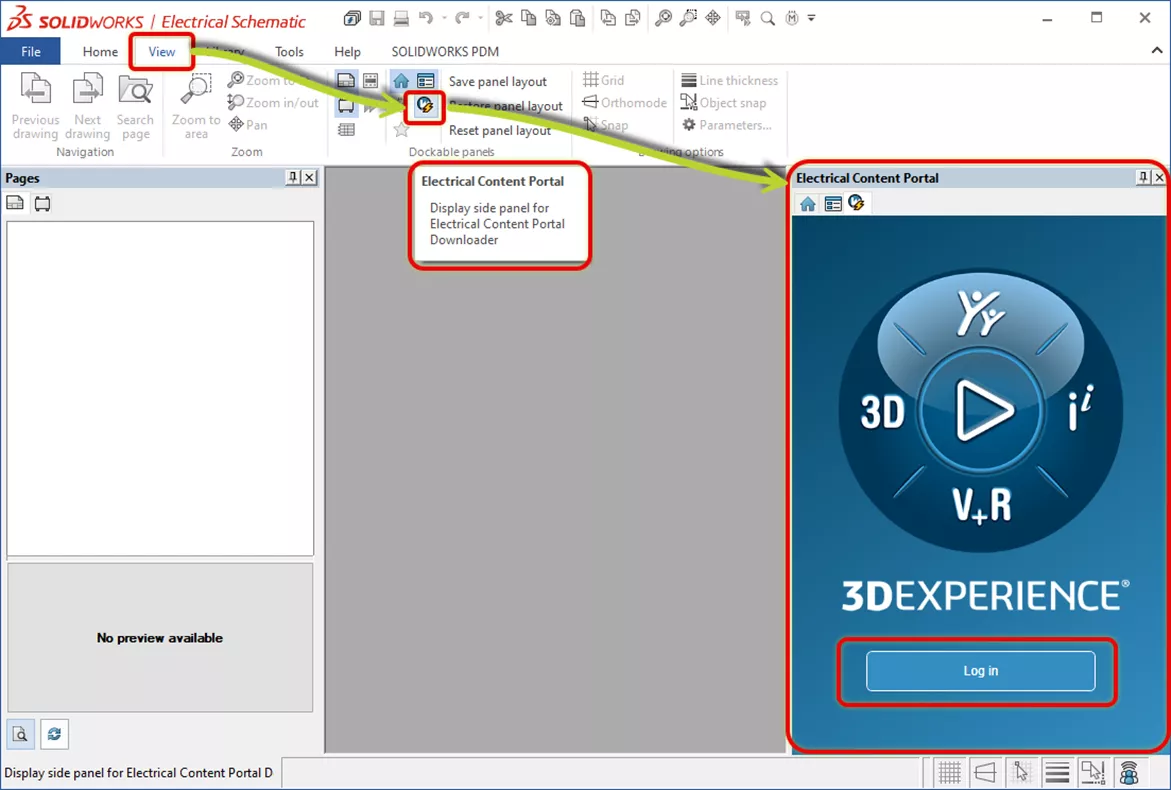
- Click Log in.
- In the 3DEXPERIENCE login window, enter your 3DPassport credentials.
Using a Web Browser
To access the ECP in your web browser:
- Click the Help ribbon tab, then in the Get more content section, click Electrical Content Portal .
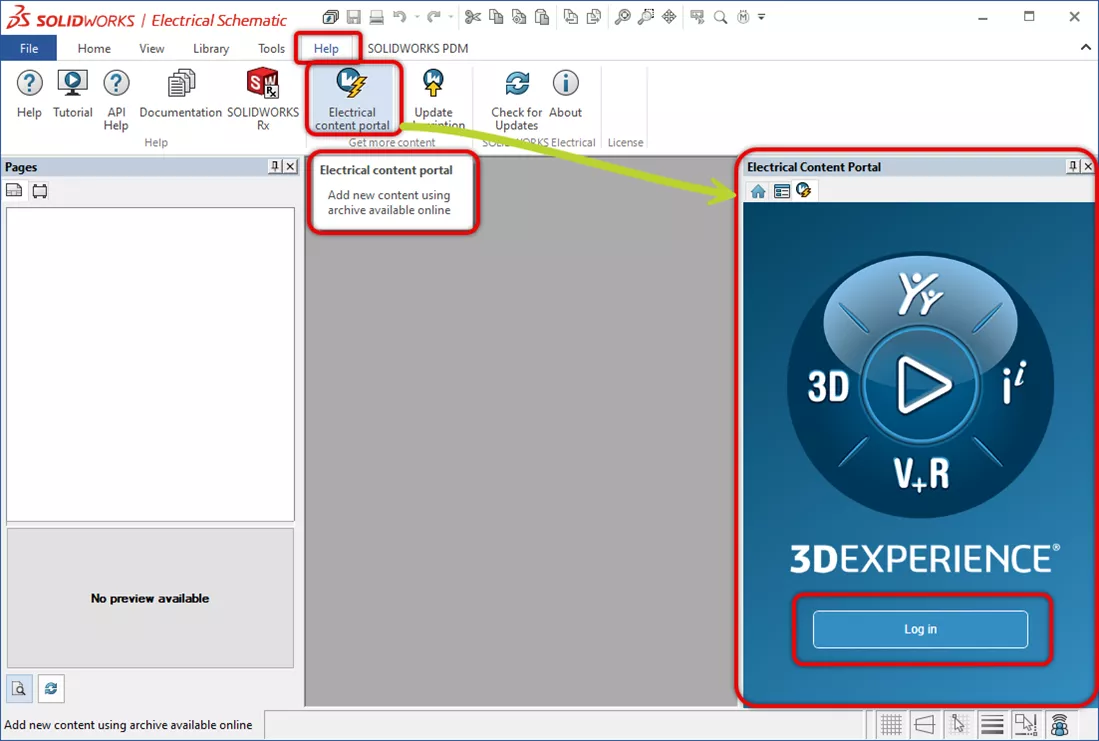
- In the 3DEXPERIENCE login window, enter your 3DPassport credentials.
Library Manager Option
You can also access the ECP from inside SOLIDWORKS Electrical using the Electrical Content Portal button in either the Cable reference or Manufacturer part management dialogs.


Content Portal Layout
In the SOLIDWORKS Electrical Content Portal, available items are organized by Catalog. Manufacturers are grouped alphabetically, along with a few mixed content catalogs.
Each manufacturer catalog is separated into families and series, which can be downloaded in the SOLIDWORKS Electrical format (.tewzip).
Note: Here is where the latest version of the default manufacturer parts catalog in SOLIDWORKS Electrical can be downloaded. Handy if you deleted one of the originals.
Catalog Contents
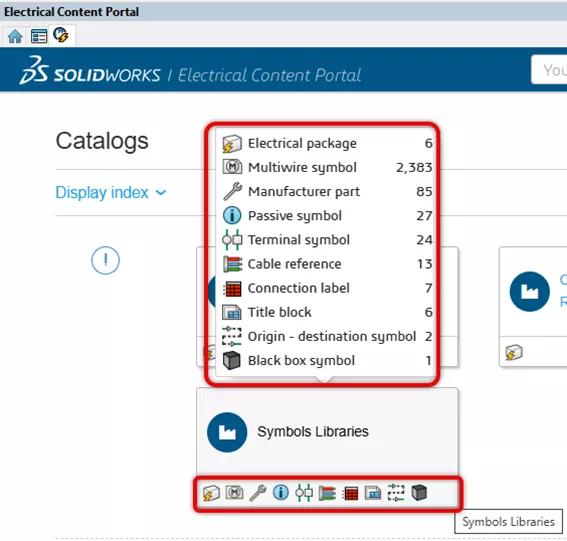
Catalogs can contain multiple types of SOLIDWORKS Electrical objects.
|
|
|
|
|
|
|
|
|
|
|
|
|
Icons displayed on the catalog help identify the contents.
Search for Content
You can download parts, catalogs, or copy links to the downloads.
- To download a part or catalog, click Download.
A categorized list of parts, vendors, references, and electrical packages appears as you type. - Optional: For additional options, click
 :
:
Options
Description
Get link
Copies the download link to the clipboard.
Download (package)
Downloads the containing electrical package (if applicable).
Get link (package)
Copes the download link to the containing electrical package (if applicable) to the clipboard.
- Double-click the downloaded file to open the Unarchive Wizard, which guides you through the process of adding the content to your library.
Download Content
You can search for vendors and content using text, tags, or both.
- Type the text you want to search for in the Search field.
A categorized list of parts, vendors, references, and electrical packages appears as you type. - To perform a simple text search, do any of the following:
- To see all matching results, click
 or press Enter.
 - To select a matching part, catalog, vendor, or package, click the result in the list.
- To see all matching results, click
- To use search tags to refine your search, do the following:
- Click
 .
. - Optional: Type the text you want to search for in the Search tags field.
- Click
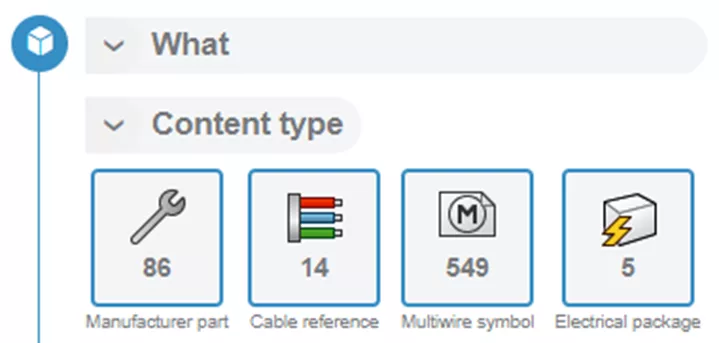
The What > Content Type search tag groups frequently used content types into a convenient, quick-access menu by default. To show the standard detail view, click Show all.
The list of search tags is refined to include only items matching the text you typed.
Selecting an item in the catalog will open the item’s properties display.
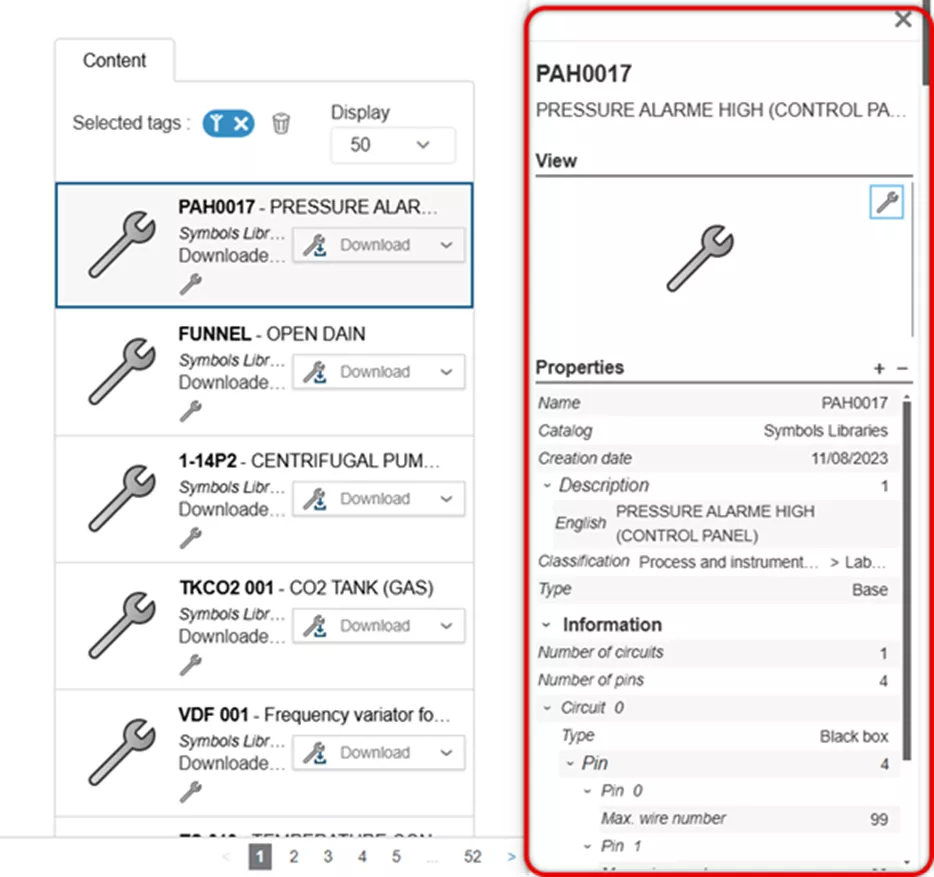
These will vary depending on type.
With the catalog opened, select the list next to an item to:
- Download the item
- Link to the item
- Download the electrical package
- Link to the electrical package
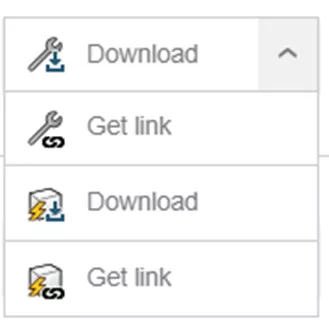
The Electrical Package type has multiple items included in one downloadable package rather than separate item types.
Adding Content Using the ECP Panel
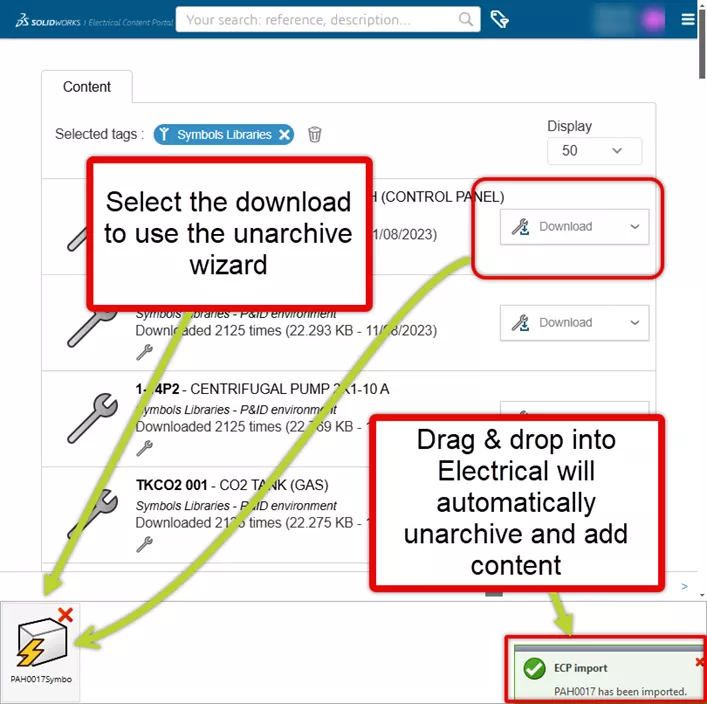
From a selected catalog item, you can choose to use the Unarchive Wizard for more control or drag and drop the item into SOLIDWORKS Electrical; the item will be added to the environment using default options.
Add Part Footprint in Cabinet Layouts
Another place to use the ECP is in cabinet layout drawings.
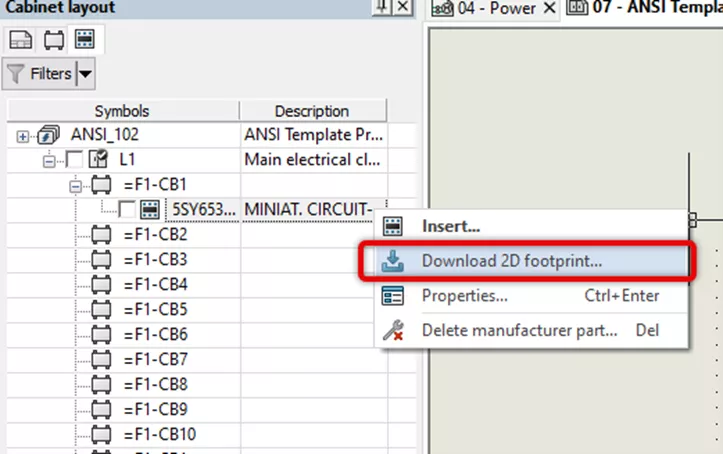
You can add a cabinet layout footprint for a manufacturer’s part from a cabinet layout drawing sheet.
With the cabinet layout panel displayed, right-click the manufacturer part and select Download 2D footprint...
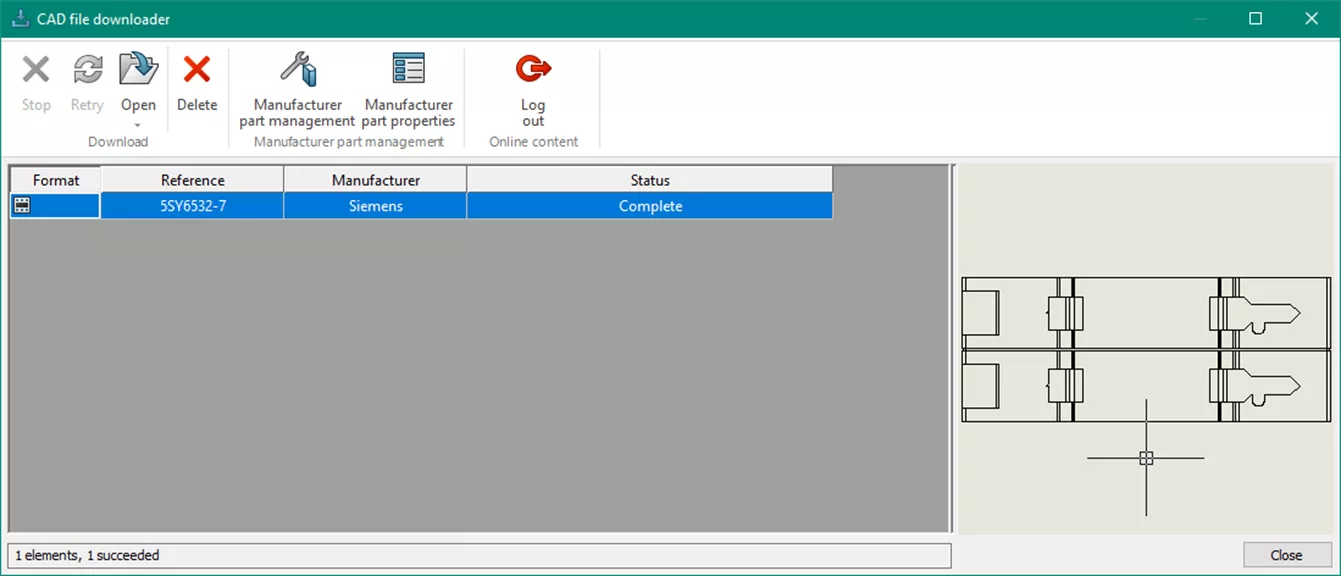
The wizard will attempt to find the appropriate footprint and download it to the library.
How You Unarchive Matters
There are two methods for unarchiving downloaded content: using the wizard with and without user input. With interaction will allow customization of what actions will be taken. Without interaction is a quicker method, but make sure you understand the implications of using the default options.
Unarchiving with the Wizard
Unarchiving opens and extracts data from an archive file. This data is compared with existing data.
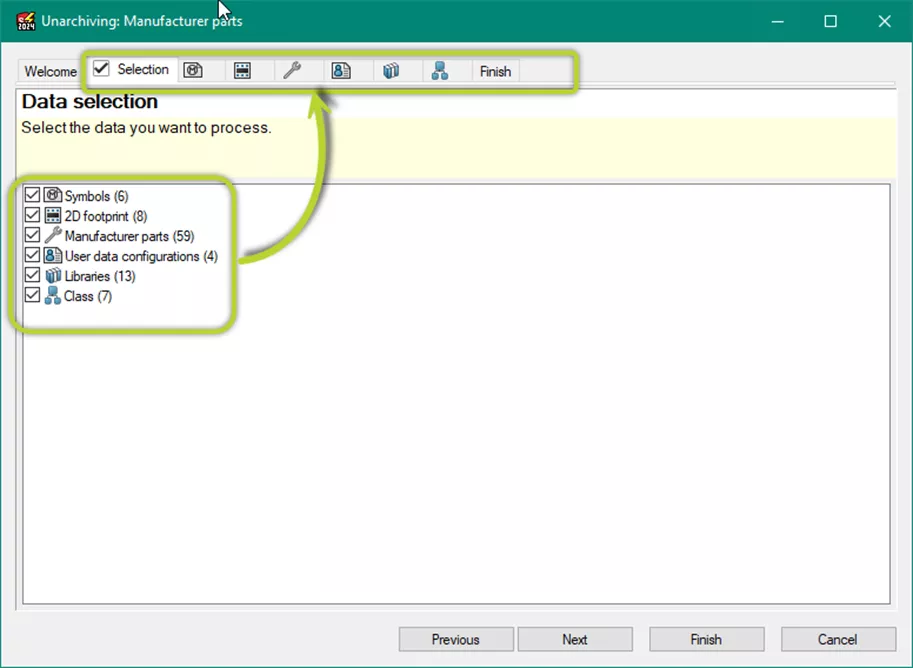
On the Selection tab, select the data to import.
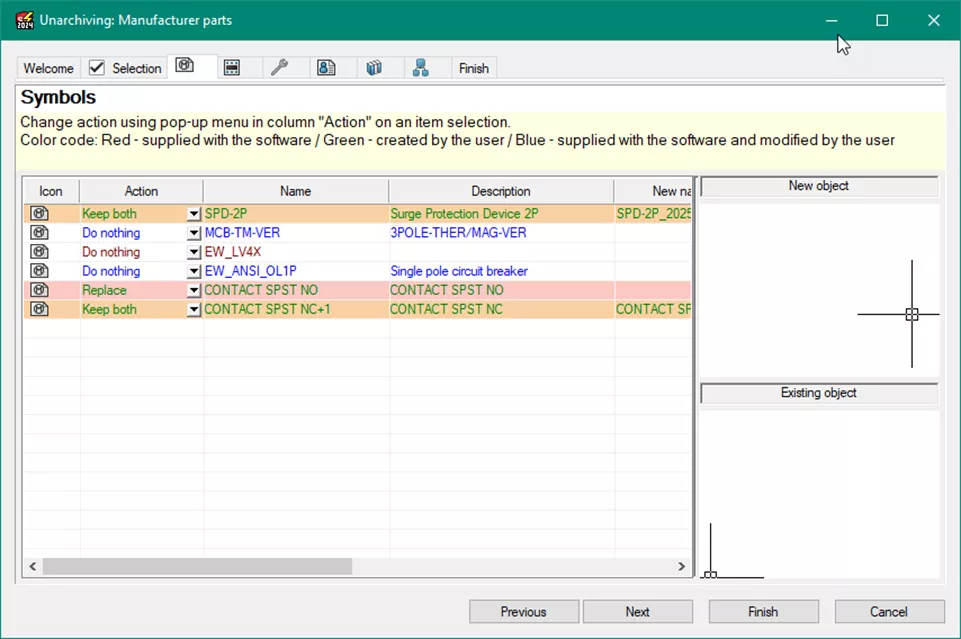
The unpacking wizard compares the data to be unarchived to the existing data. You can then choose an action for each data type.
A default action type is suggested based on the following:
- New data is marked as add.
- If existing data was created by the user and has been modified by the user, it is marked as replace.
- If existing data created by the software editor (system) has been modified by the user, it is marked as do nothing.
- If data exists and you have not changed it, but the new file or files are marked as updated by the software editor (system), it is marked as replace.
- Catalogs of cables and equipment are marked update.
Stepping through each data type allows review and change of the default action for each element in the archive.
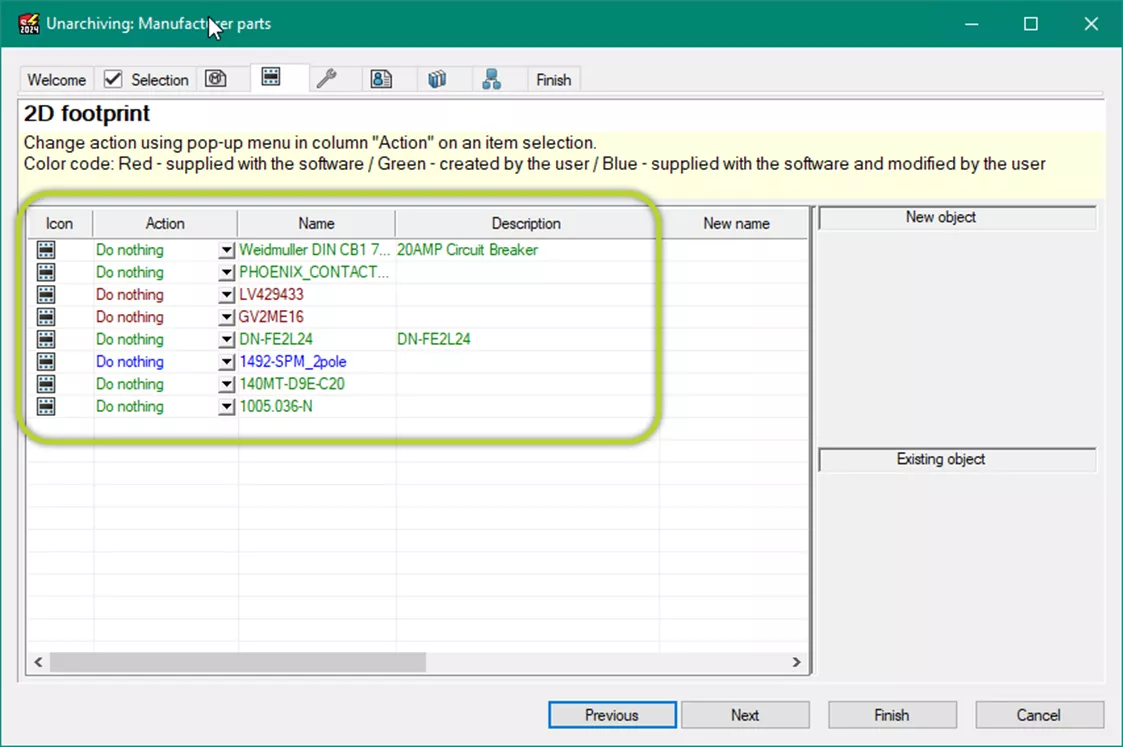
If you change an action, the row will change color to indicate that a change from the default action was made.
Unarchiving with Default Options
As the option name implies, this uses the default options as described above. There is no wizard interaction. The unarchive will complete the process without further interaction. If you are confident of the default selection actions, or don’t care, this is the less complicated method.
Summary
A few key items to remember.
- You need to have a 3DEXPERIENCE account and a valid subscription to download from the ECP.
- The ECP is available from multiple locations in SOLIDWORKS Electrical.
- The ECP has multiple data types.
- Using the filter tools will reduce your search times.
- How you unarchive matters.
With the above information, you should be able to access the data available on the ECP. If you do not find the content you are looking for, you can use the request content option on the web-based version of the ECP.
Want to learn more about SOLIDWORKS Electrical? Check out the articles listed below. Additionally, join the GoEngineer Community to create forum posts, enter design contests, and answer questions from other SOLIDWORKS users.
Related Articles
Create Custom Wire Numbers in SOLIDWORKS Electrical 2D
SOLIDWORKS Electrical 2026 - What's New
Gaining Insight Into the Little ”Tells” of SOLIDWORKS Electrical Schematic
SOLIDWORKS Electrical Schematic: Importing Manufacturer Parts from Local Source

About Martin Adams
Martin Adams is a Senior Technical Support Engineer at GoEngineer supporting SOLIDWORKS CAD and SOLIDWORKS Electrical products. In addition to a CSWE certification, he has a Bachelor's degree in Industrial Engineering and an Electrical Associate's degree. Prior to joining GoEngineer in 2019, he worked for almost twenty years on prototype automotive instrumentation. He also served as an Electrician's Mate in the US Navy. His favorite activities are fishing and spending time around a campfire with friends.
Get our wide array of technical resources delivered right to your inbox.
Unsubscribe at any time.