SOLIDWORKS PDM Paste as Reference

Managing non-CAD files like Engineering Change Orders (ECOs), instruction PDFs, or component data sheets alongside your models can be tricky. In SOLIDWORKS PDM, the Paste as Reference feature lets you link external documents directly to a part, assembly, or drawing, keeping your project context complete and easy to navigate.
Throughout this article, I'll be referring to two files: the parent file is the primary document (often a part, assembly, or drawing file), and the child file is the augmenting document, which contains supplementary information.
Where Are These References Displayed?
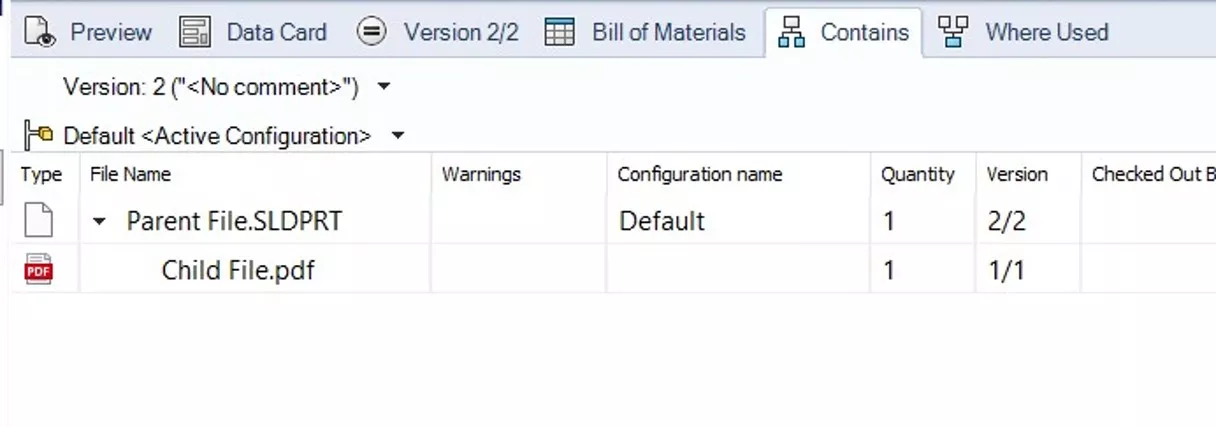
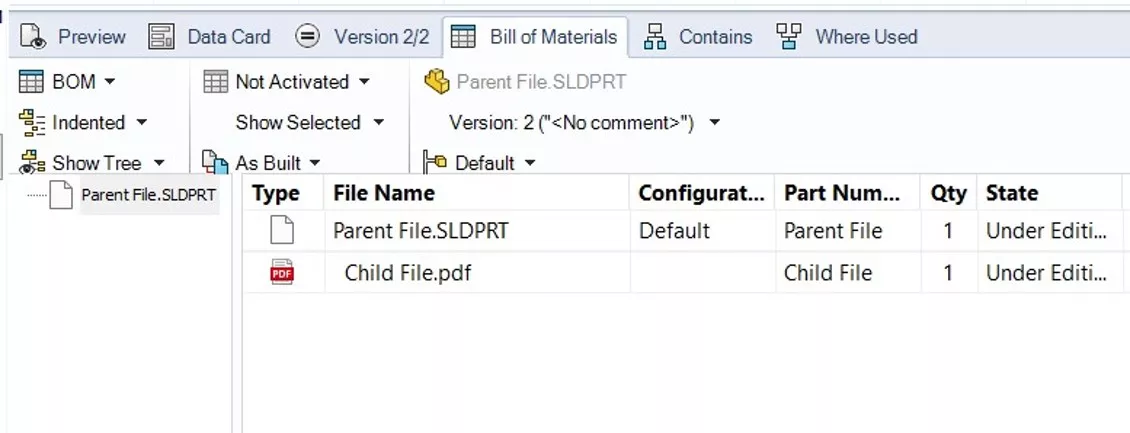
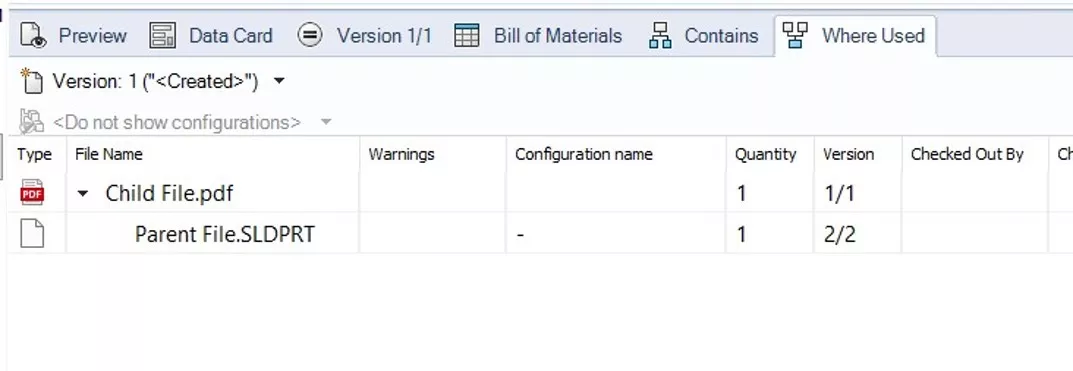
Once a link is made defining a parent/child relationship, it appears on tabs in the SOLIDWORKS PDM File View. The parent file shows the child file in both the Contains and Bill of Materials tabs. The child file shows the parent file in the Where Used tab. Depending on your reference file settings, you will also see the child file during state transitions of the parent.
How to Paste as Reference
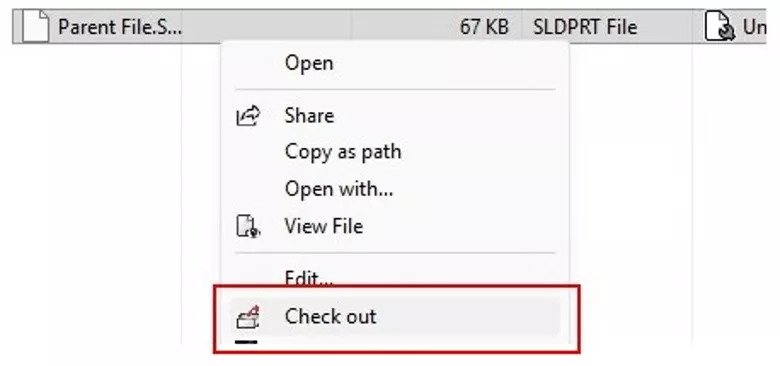
- In PDM, check out the parent file.
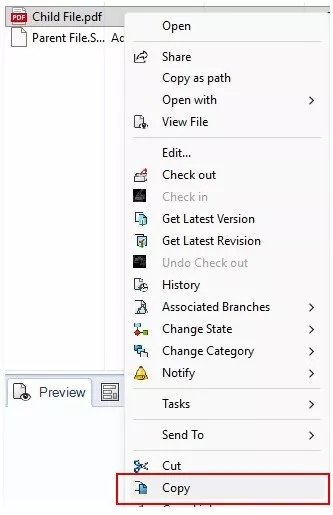
- Navigate to the child file, right-click it, and select Copy.
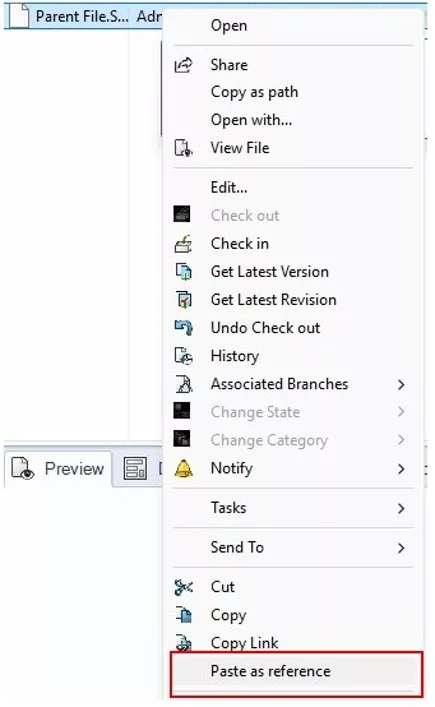
- Go back to the parent file, right-click it, and select Paste as reference.
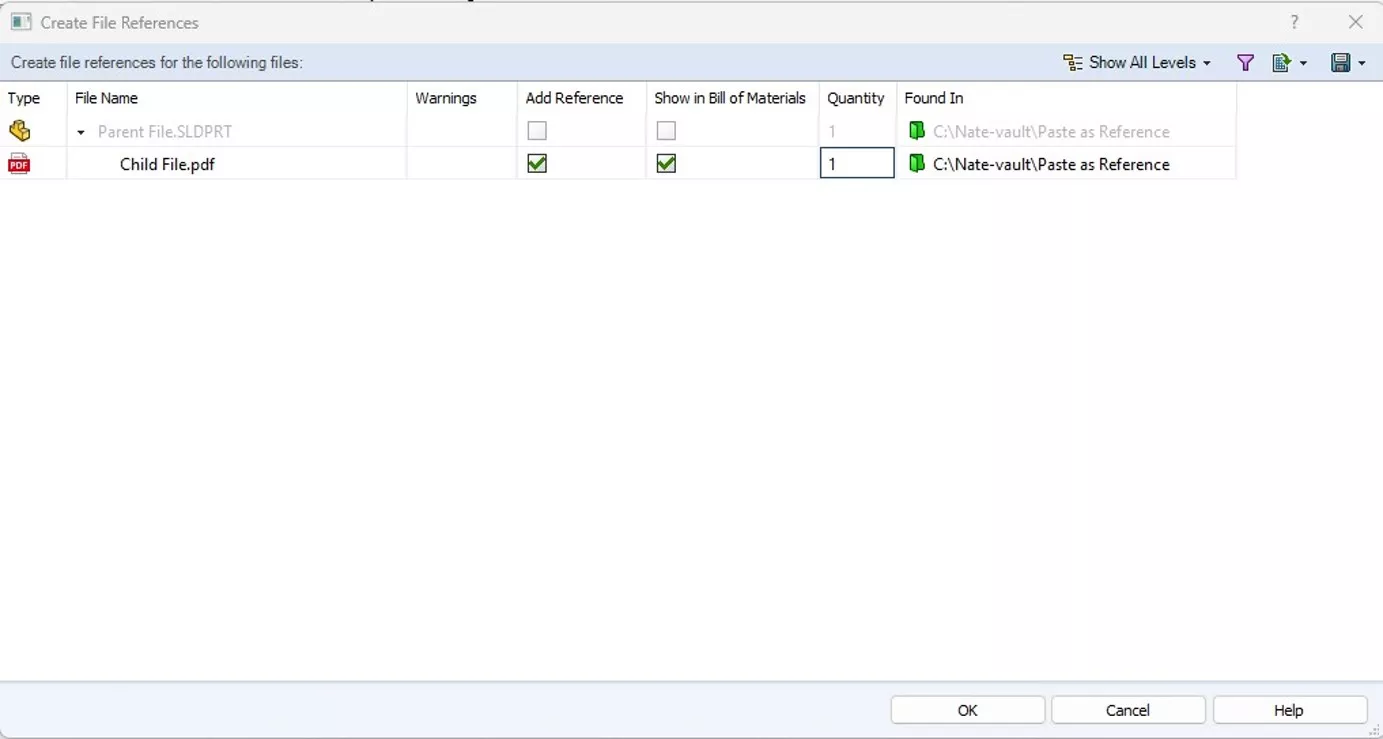
- The Create File References dialog box will pop up to confirm the relationship. Before clicking OK, you can also decide whether the child file should display in the parent file's Bill of Materials.
- The Create File References dialog box will pop up to confirm the relationship. Before clicking OK, you can also decide whether the child file should display in the parent file's Bill of Materials.
- Check the parent file back in to update the PDM database.
Once checked in, you can verify the relationship in the Contains, Bill of Materials, and Where Used tabs.
Edit or Remove Custom References
If you want to edit or remove an existing parent/child relationship.
- Check out the parent file.
- Go to the Contains tab and click Custom References.
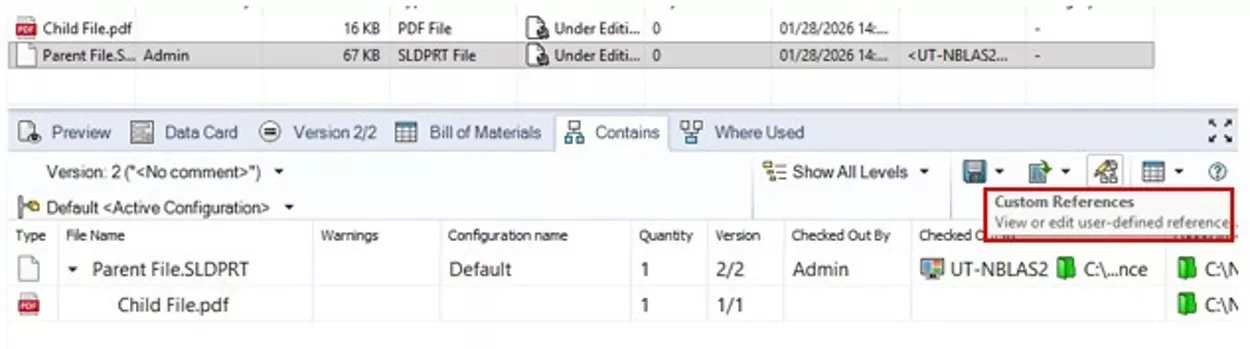
- This will pop up the Edit User-Defined File References dialog (which shows the same options we saw in the Create References dialog earlier).
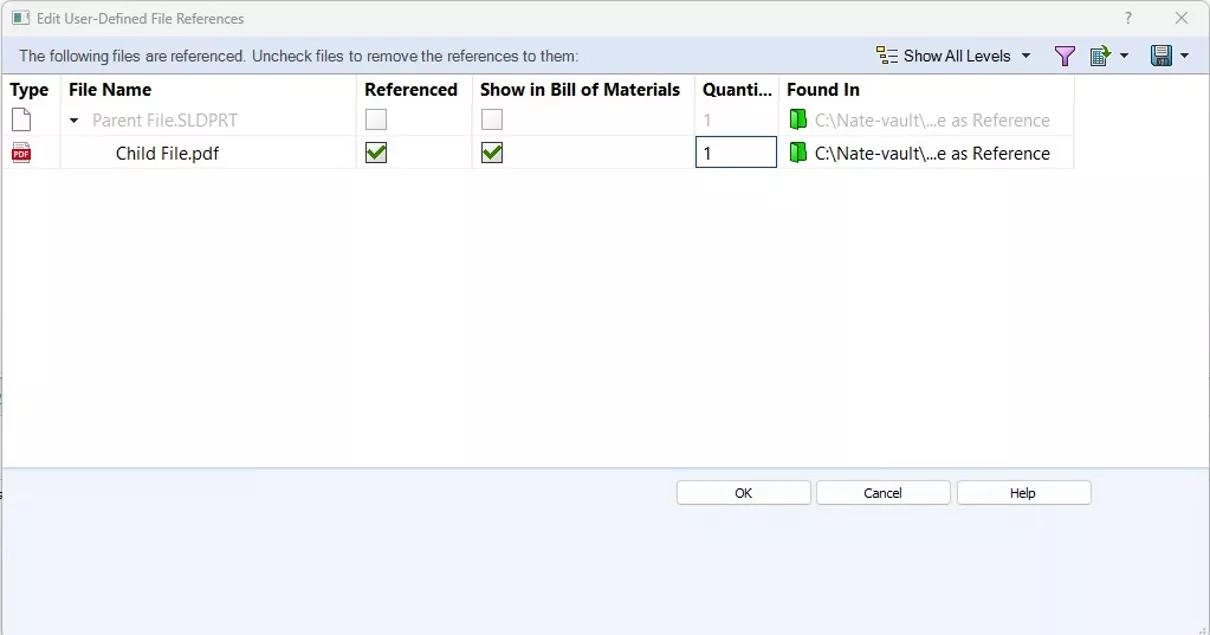
- This will pop up the Edit User-Defined File References dialog (which shows the same options we saw in the Create References dialog earlier).
- Unchecking the Referenced and Show in Bill of Materials boxes will remove a reference entirely.
- Click OK and check the parent file back in.
You can also create an exhaustive spreadsheet summary of a file's references.
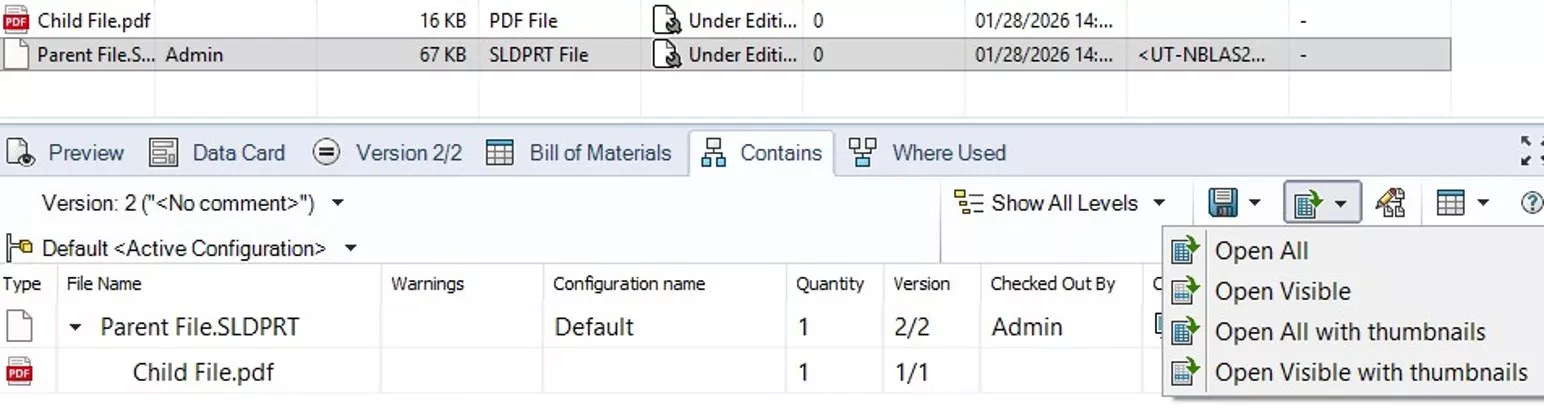
To export the list as a CSV file, click the Save icon  in the Contains tab. Or open the list directly in Excel by clicking this button
  .
.
I hope you found this article helpful. If GoEngineer is your SOLIDWORKS partner and you have questions or issues, please reach out to our Support Team for more help! We’re happy to assist.
24 Tips to Master SOLIDWORKS PDM
SHORTCUTS ⋅ SEARCHING ⋅ PDM ADD-IN
24 of our expert tips to help you master using SOLIDWORKS PDM. Improve performance, find files faster, and work like a pro.
Related Articles
Changing the Default File View in SOLIDWORKS PDM
Creating and Using .CVS Files for SOLIDWORKS PDM Local Vault View
SOLIDWORKS PDM Creating a CVS File from an Existing System
Changing a SOLIDWORKS PDM User Password

About Nathen Blas
Nathen Blas is a SOLIDWORKS Technical Support Engineer based out of our Headquarters in Salt Lake City, Utah. He earned his Bachelor’s degree in Mechanical Engineering at the University of Utah in 2018 and joined the GoEngineer family that same year.
Get our wide array of technical resources delivered right to your inbox.
Unsubscribe at any time.