SOLIDWORKS PDM Settings Dialog Recommendations

Table of Contents
In SOLIDWORKS PDM, options control what you see in the user interface. These are set under the Settings dialog.
There are a couple of ways to access this dialog. But, regardless of how you get there, SOLIDWORKS PDM saves these settings with the user account. Furthermore, these settings do NOT change when a user changes groups. In this way, these settings don’t act like other folder or state permissions.
In this blog, I will highlight some setting recommendations. If you have questions on other settings, use the Help button in the bottom right of the dialog.
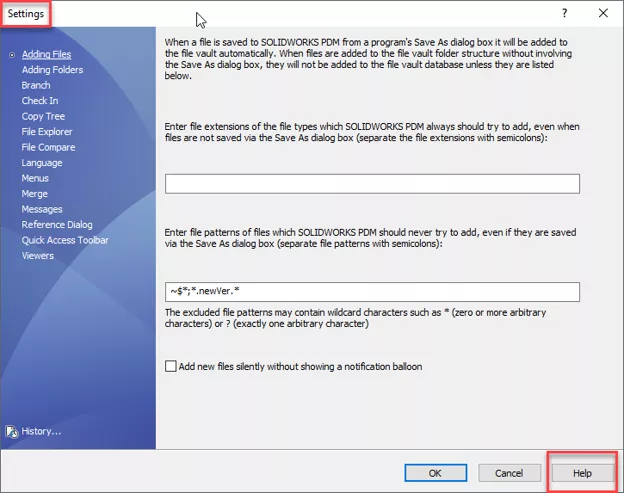
Accessing the Settings Dialog
You can access the 'Settings'dialog from a group, the user level, or by right-clicking the Users node and selecting Settings.
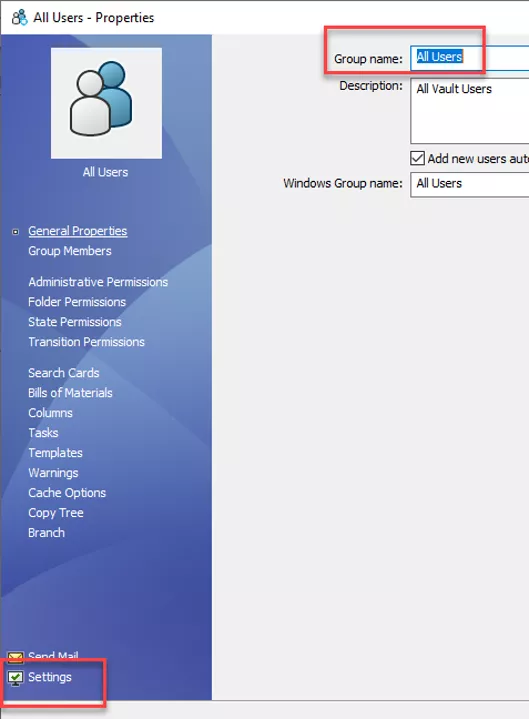
If you change the settings for a group, SOLIDWORKS PDM copies them to every current member of the group. That said, the settings of anyone added to the group do not update the group settings.
If you select 'Settings'for a group with no members, you will see an error telling you that there are no members to copy the settings to.
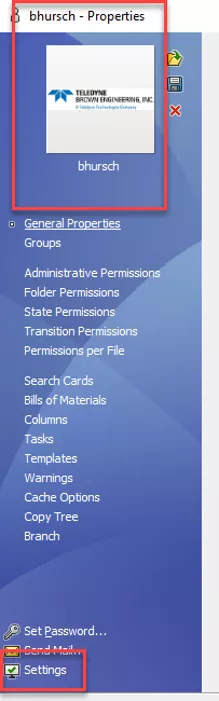
If you go to 'Settings'from an individual user, then any changes will only affect that user.
And lastly, if you open the settings by right-clicking Users and choosing Settings, then all users are affected by these changes.
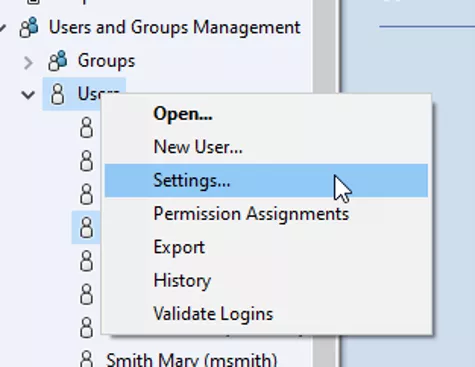
This is my preferred method to modify 'Settings' in PDM. This way, all users have the same interactions with SOLIDWORKS PDM.
File Explorer Settings Recommendations
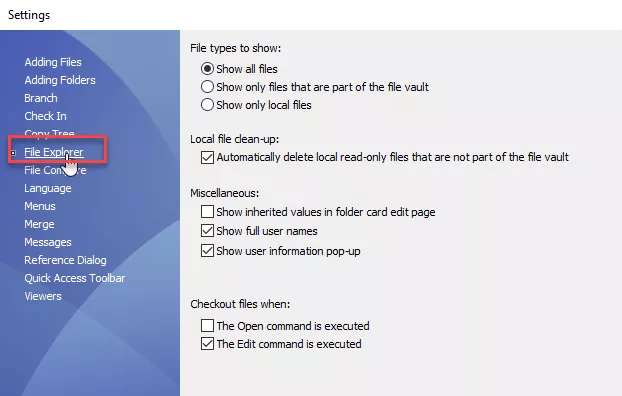
Local Files
To understand File types to show and Local file clean-up, you need to understand what SOLIDWORKS PDM means by “local files”.
Local files are files that are saved in the PDM vault view area but are not part of the vault. These files are not managed by PDM because they haven’t been added to the database.
Local files can be writable or read-only. SOLIDWORKS PDM creates a read-only local file when you reference a file, caching it on your system, and then the file moves or is renamed on a different computer. The cached version of the file on your computer is not deleted. It is still there, and SOLIDWORKS can reference and open that file.
File types to show
I recommend you set this to Show all files.
For example, let’s say you create a file in a folder and save it. Then, you can’t save it under the name you want because there is a Windows error saying that a file of the same name already exists. But you can’t see this other file since it is a local file and your account is set to show only files that are part of the file vault.
Local file clean up
Check the box to automatically delete local read-only files that are not part of the file vault.
“Local files” are a problem, but selecting this box helps keep them tidy. It’s important to note that this only activates when you access a folder, meaning some local files may linger in the vault, causing potential issues.
Check out my video on the issue of local files.
Check out files when
Uncheck “The Open command is executed”.
This is a dangerous box to leave checked. This means PDM automatically checks out files (without asking you) when you open a file. Therefore, no files are read-only, and it’s more difficult for multiple users to have a file open.
User preference: Check the box “The Edit command is executed”.
To access the Edit command, right-click on the file and select Edit from the menu. This is a conscious effort by the user to edit the file, so it makes sense to check out the file as you are choosing to edit it.
Reference Dialog Settings Recommendations
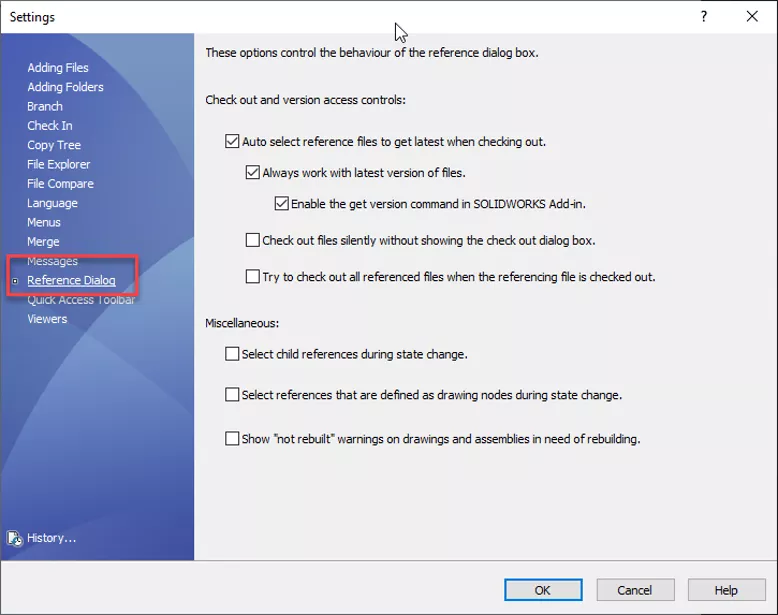
Check out and version access controls
Check the boxes:
- Auto-select reference files to get latest when checking out
- Always work with latest version of files
- Enable the get version command in SOLIDWORKS add-in
Auto-select reference files to get latest when checking out automatically downloads the latest version of all referenced files when checking out an assembly or drawing.
Always work with latest version of files locks users to the latest versions of files. With this selected, users cannot get a previous version of a file. They can only use the latest version.
If this is unchecked, users must constantly monitor that the files they are working with are the latest version. With this on, SOLIDWORKS PDM gets the latest version of a file whenever you preview, open, or copy a file.
This setting saves a lot of money, as it helps prevent you from sending old versions of files to manufacturing. This helps both new and experienced users. I have seen even the most experienced users send old versions of PDFs because they forgot to 'get latest version' before sending it to the manufacturer. This can cost thousands of dollars, so it's an important setting.
Uncheck the boxes:
- Check out files silently without showing the check out dialog box
- Try to check out all referenced files when the referencing file is checked out
Check out files silently without showing the check out dialog box lets you check out files without realizing it. You should always be aware of the files you’re checking out. A checked out file is meant to be edited and then checked back in, so the changes are saved in the vault and other users can access them.
Try to check out all referenced files when the referencing file is checked out. Imagine checking out a top-level assembly that references thousands of files. You want to add a file to it. With this option checked, SOLIDWORKS PDM automatically checks out every referenced file as well. Again, this is dangerous as you’re checking out files you don’t intend to edit and you might make unintended changes.
Miscellaneous
Uncheck all three of these:
- Select child references during state change
- Select references that are defined as drawing nodes during state change
- Show “Not rebuilt” warning on drawings and assemblies in need of rebuilding
Select child references during state change drags all referenced files along for the ride when you change the state of an assembly.
Let’s say you release an assembly with most of its references. You realize you need to make a minor change to the assembly, so you transition the assembly from the “Released” state to the “Work in Progress” (WIP) state. With this box selected, SOLIDWORKS PDM selects every released file that the assembly references and moves them to WIP. There is the option in the transition dialog to deselect the referenced files, but why select them all to begin with?
All transitions and check outs should be conscious decisions by the user.
Select references that are defined as drawing nodes during state change automatically includes drawings with model transitions. I recommend unchecking this, as I have seen multiple drawings selected. The drawing nodes grabs the drawings of referenced components, and therefore, too many drawings are selected. It is best to manually select the drawing for the model and include it with the transition.
Show “Not rebuilt” warnings on drawings and assemblies in need of rebuilding. My issue with this setting is that it is not accurate. I have seen users spend hours rebuilding assemblies and drawings and getting very frustrated because they cannot get rid of this warning. Most of the time, even if the file does need to be rebuilt, it is not a big problem. Therefore, I recommend unchecking this box.
Conclusion
These are some of my top recommendations that I have seen help customers the most. Of course, it is up to your company to decide what these settings should be. Use this as a guide for your SOLIDWORKS PDM settings and what they do, and you’ll be in good shape!
I hope you found this article highlighting SOLIDWORKS PDM Settings dialog recommendations helpful. Learn more about SOLIDWORKS PDM below. Additionally, join our GoEngineer Community to participate in discussions, create forum posts, and answer questions from other SOLIDWORKS users.
24 Tips to Master SOLIDWORKS PDM
SHORTCUTS ⋅ SEARCHING ⋅ PDM ADD-IN
24 of our expert tips to help you master using SOLIDWORKS PDM. Improve performance, find files faster, and work like a pro.
Related Articles
New SOLIDWORKS PDM 2026 Vault View Sync & Ownership Transfer
SOLIDWORKS PDM System Resources Starting Point
Managing Your SOLIDWORKS PDM Vault Size
Complete SOLIDWORKS PDM Client Installation Guide

About Jim Ward
Jim Ward is a Sr. SOLIDWORKS Support Engineer at GoEngineer. He has a BSME from CSU, Chico and has been managing SOLIDWORKS PDM since 2008, first for a major corporation until 2015, then as a PDM Support Specialist at GoEngineer since 2016.
Get our wide array of technical resources delivered right to your inbox.
Unsubscribe at any time.