Complete SOLIDWORKS PDM Client Installation Guide

SOLIDWORKS PDM is a client/server product. This means that there is a portion installed on the server and a second portion (the Client) installed on each user’s computer. There are three possible scenarios:
- No SOLIDWORKS products are currently installed on the computer, but both SOLIDWORKS and PDM Client are desired to be on the computer.
- SOLIDWORKS is already installed on the computer, but now the PDM Client must be added.
- No SOLIDWORKS products are currently installed on the computer, and only the PDM Client is desired on the computer.
- Installation on many clients. An admin image is useful when the number of clients is above about 15. More than this, then an admin image is worth using. Less than this, you are better off using the complete installation file set. This article does not cover admin images. For admin image instructions, please use the following links:
- Generally, a local vault view can be created by running the View Setup Wizard, which is installed with the PDM software. The person running the Wizard needs to know the Server name where the SOLIDWORKS PDM vault is hosted, and they need to have Attach Access to this server. If the person running the Wizard is the Admin, this is easy. However, in a larger rollout, the admin may not be the one to complete this step. This is where the .CVS file is useful. A .CVS file can be used to create the local vault view from an executable file, which the user can launch from their desktop. Read our blog that explains creating a “View Setup file” or a “.CVS” file.
Regardless of the scenario, once the PDM Client has been installed, a Vault View must be created. The vault view is how users interact with PDM. This is where they add files to the vault, check files in and out, and more.
- Selecting each of the above sections will take you to that section in this document. In this scenario, all screenshots were taken when installing SOLIDWORKS and PDM 2025 sp5. The installation steps have been the same for many releases, so these steps are valid regardless of the version being installed.
- The paths specified are the default file paths. It is assumed that the installation file set is stored in the default location “…Documents\SOLIDWORKS Downloads\SOLIDWORKS_2025_SP5.0\”
- All installations are started using the SOLIDWORKS Installation Manager (sldim). This is started by running “…Documents\SOLIDWORKS Downloads\SOLIDWORKS_2025_SP5.0\setup.exe”.
- The currently logged-in user must have Windows administrative permissions to install SOLIDWORKS and PDM.
Install Both SOLIDWORKS and PDM Client
- Start the SOLIDWORKS Installation Manager by running “Documents\SOLIDWORKS Downloads\SOLIDWORKS_2025_SP5.0\setup.exe”. It can be run as an admin, but this is not usually necessary.
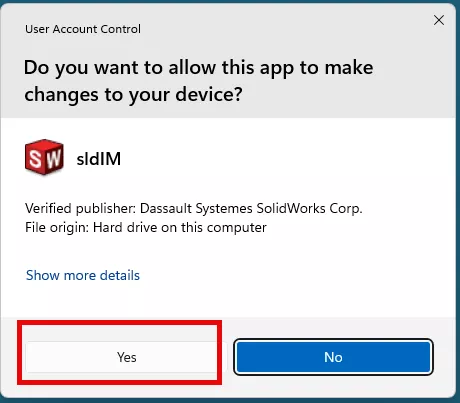
- User Account Control asks your permission to allow sldim to install.
- Select Yes.
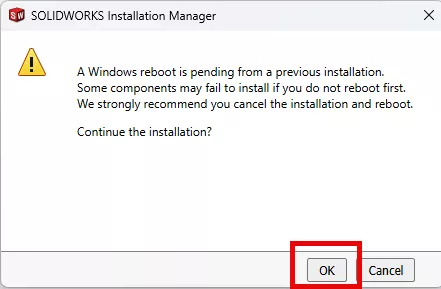
- Often, this dialog will say that a Windows reboot is pending. This can be safely ignored.
- Select OK.
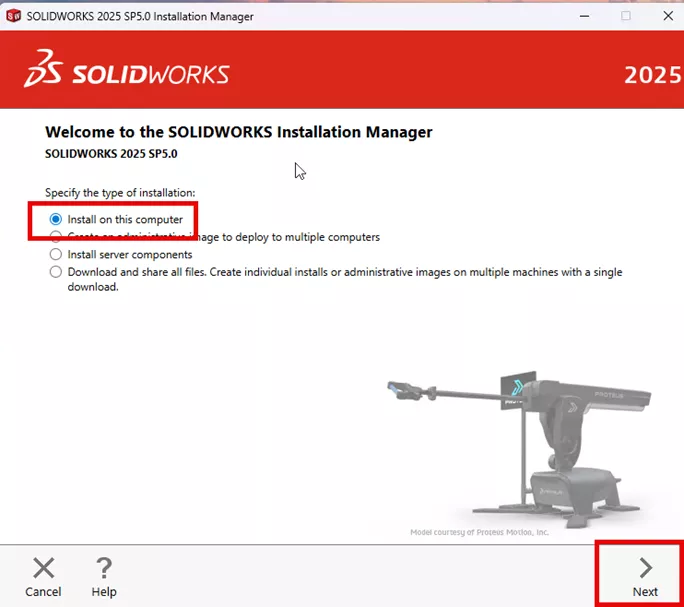
- Select Install on this computer.
- Select Next.
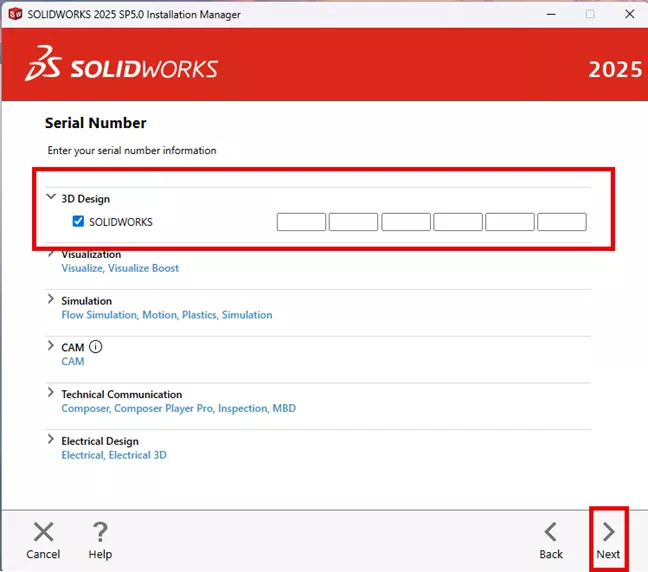
- Enter any serial numbers you have. Since you are installing SOLIDWORKS 3D software, you must have a SOLIDWORKS serial number.
- Select Next.
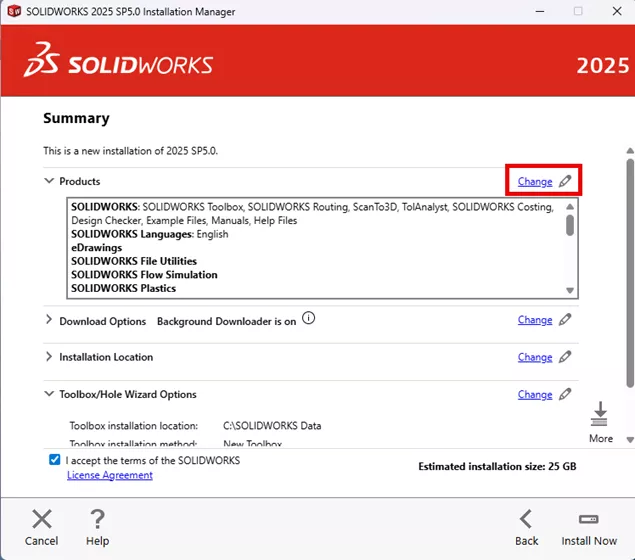
- Under Products, select Change.
- Choose the items to install. Scroll down to find SOLIDWORKS PDM Client and select it.
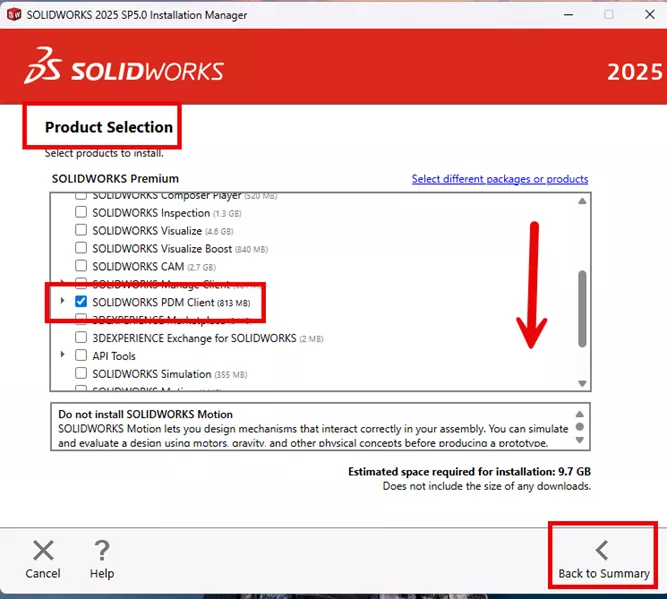
- Once all desired items have been selected, click Back to Summary.
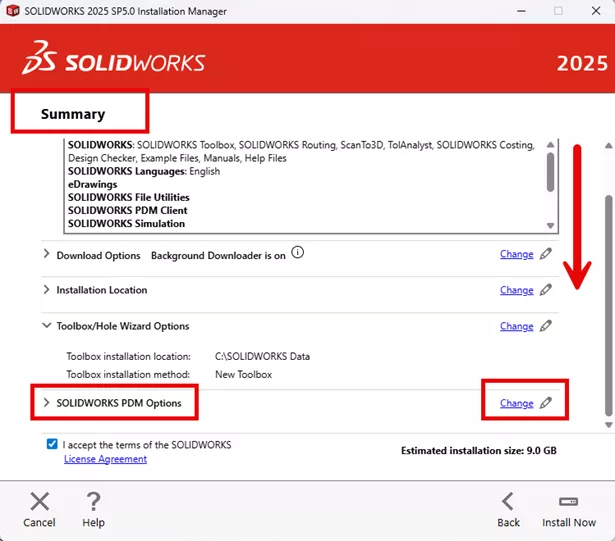
- On the Summary screen, scroll down until you see SOLIDWORKS PDM Options and select Change.
- In SOLIDWORKS PDM Client Options, choose what will be installed.
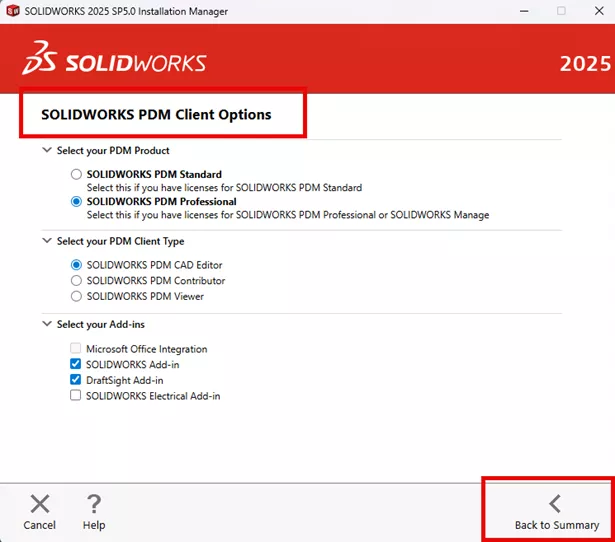
- Select your PDM Product:
- All clients should choose to install SOLIDWORKS PDM Professional. This is because a SOLIDWORKS PDM Professional client can connect to both a PDM Professional and a PDM Standard vault.
- Select your PDM Client Type:
Note: Your company must have a license for the chosen Client Type.- Editor: This includes the SOLIDWORKS PDM add-in.
- Contributor: Allows check out/in of files, but does not have the SOLIDWORKS add-in.
- Viewer: This is a read-only installation. However, Viewers can approve files in the workflow so Managers can be Viewers.
- Select your Add-ins:
- Only choose add-ins for products that you currently have installed.
- Select your PDM Product:
- Select Back to Summary.
- Accept the SOLIDWORKS license terms and click Install Now.
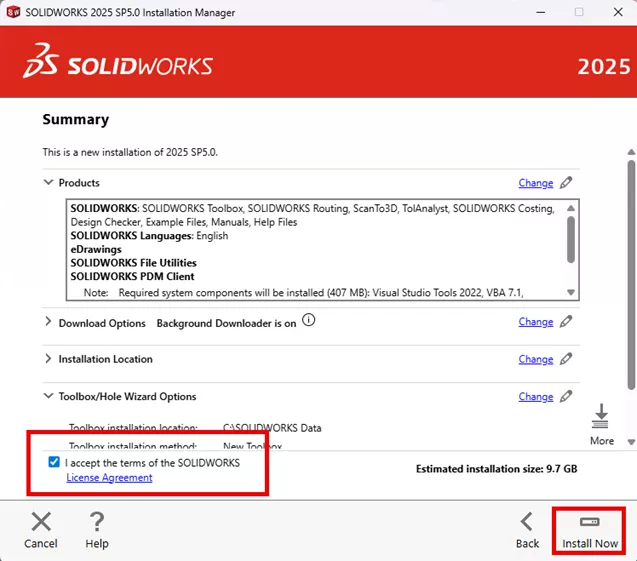
- Both SOLIDWORKS 3D and the SOLIDWORKS PDM Client will now install.
Add PDM Client to SOLIDWORKS
To add PDM Client to an existing SOLIDWORKS installation, the installation must be modified.
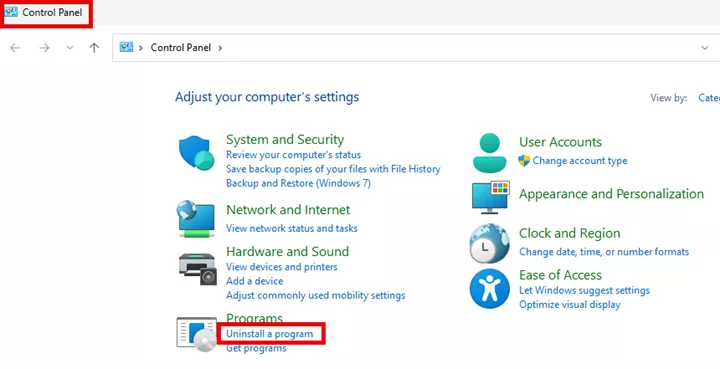
- Open the Control Panel and choose Uninstall a program.
- In Programs and Features, select the SOLIDWORKS installation and then Change.
- Note: Change will not be available if this installation was done using an Admin Image. If an Admin Image was used, then SOLIDWORKS must be uninstalled and then reinstalled with PDM selected.
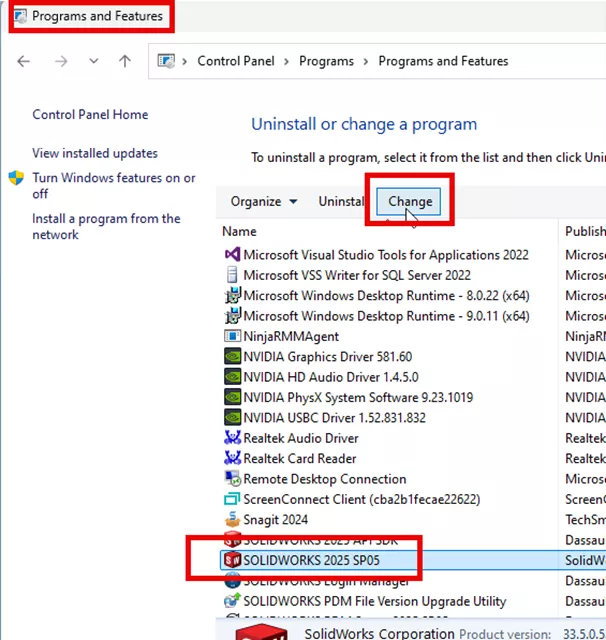
- Note: Change will not be available if this installation was done using an Admin Image. If an Admin Image was used, then SOLIDWORKS must be uninstalled and then reinstalled with PDM selected.
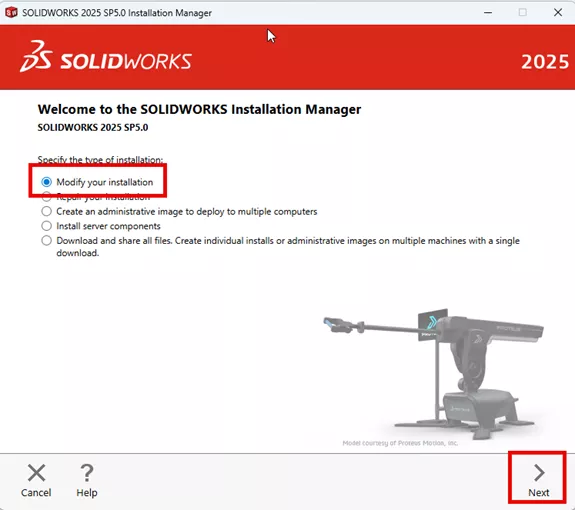
- Select Modify your installation.
- Select Next.
- You shouldn't need to change anything on this screen, as your serial numbers should already be entered. Select Next.
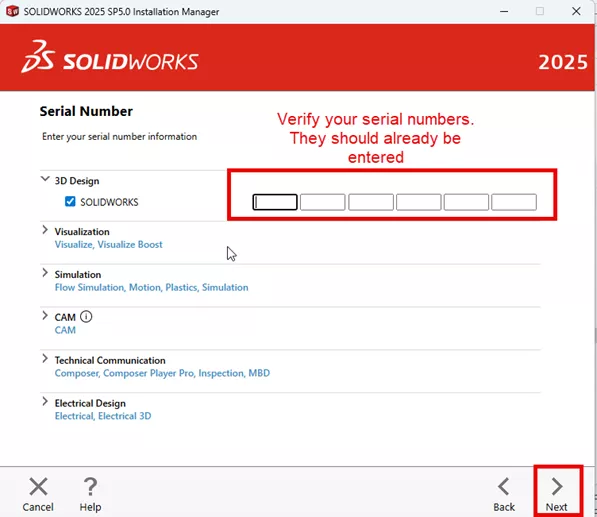
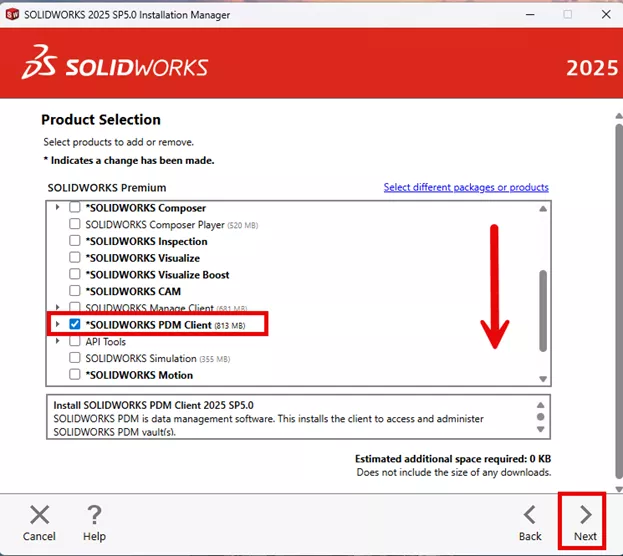
- In the window for Product Selection, check the box next to SOLIDWORKS PDM Client. You may need to scroll down to find it. There is no reason to expand it for Items. Most companies don’t use Items, so don’t select this unless you know your company uses them.
- Select Next.
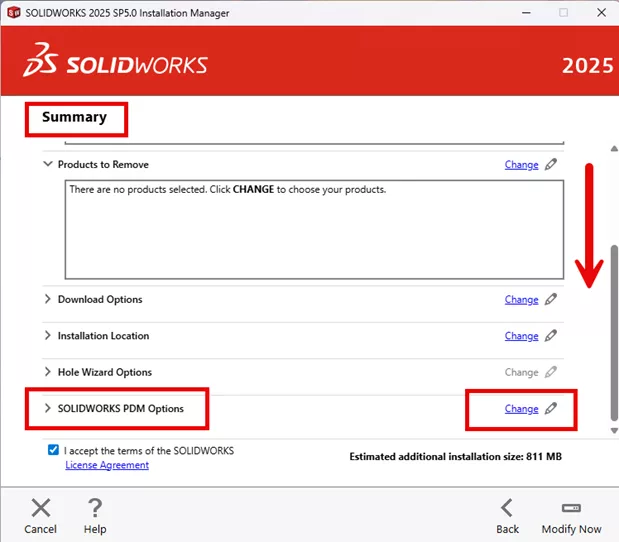
- On the Summary screen, scroll down until you see SOLIDWORKS PDM Options. Select Change.
- On the SOLIDWORKS PDM Client Options, choose what will be installed.
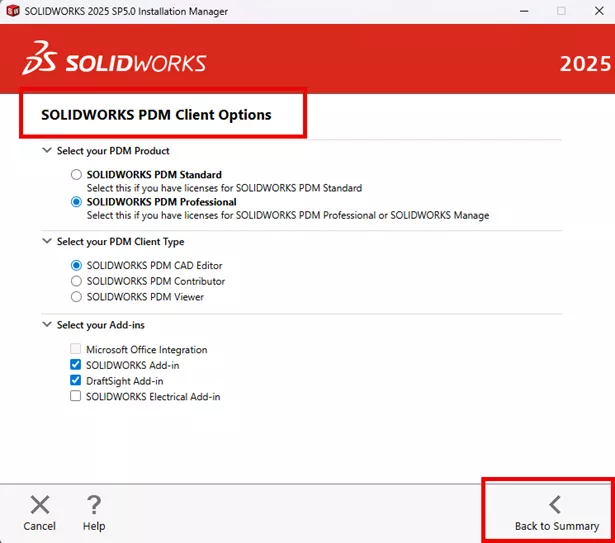
- Select your PDM Product:
- All clients should choose to install SOLIDWORKS PDM Professional. This is because a SOLIDWORKS PDM Professional client can connect to both a PDM Professional and a PDM Standard vault.
- Select your PDM Client Type:
Note: Your company must have a license for the chosen Client Type.- Editor: This includes the SOLIDWORKS PDM add-in.
- Contributor: Allows check out/in of files, but does not have the SOLIDWORKS add-in.
- Viewer: This is a read-only installation. However, Viewers can approve files in the workflow so Managers can be Viewers.
- Select your Add-ins:
- Only choose add-ins for products that you currently have installed.
- Select your PDM Product:
- Select Back to Summary.
- Accept the license terms.
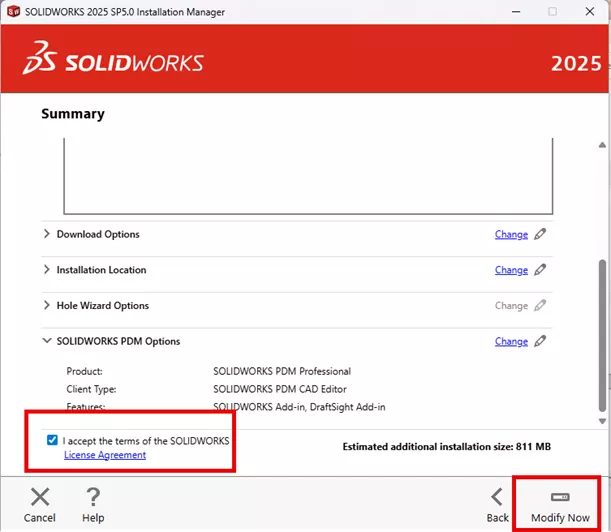
- Select Modify Now.
Modification of the SOLIDWORKS install to include the PDM Client will begin.
Install PDM Client only (no SOLIDWORKS)
- Start the SOLIDWORKS Installation Manager by running “Documents\SOLIDWORKS Downloads\SOLIDWORKS_2025_SP5.0\setup.exe”. It can be run as an admin, but this is not usually necessary.
- User Account Control asks your permission to allow sldim to install.
- Select Yes.
- Often, this dialog will appear stating that a Windows reboot is pending. This can be safely ignored.
- Select OK.
- Select Install on this computer.
- Select Next.
- Uncheck SOLIDWORKS.
- No serial numbers should be entered.
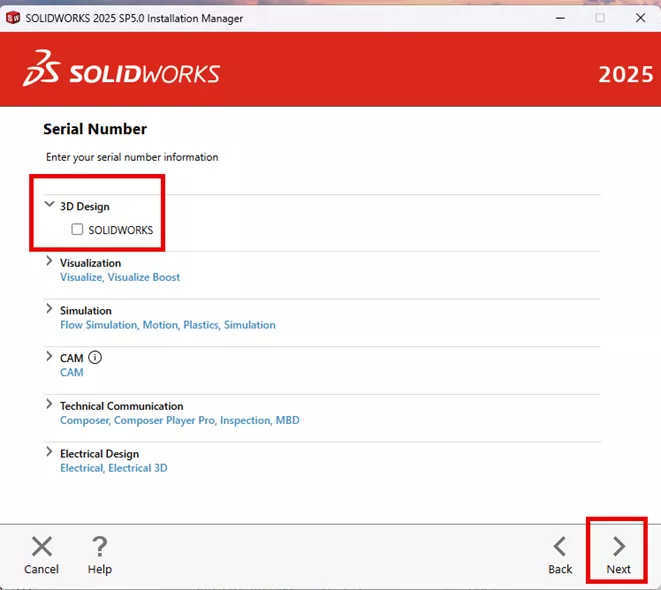
- No serial numbers should be entered.
- Select Next.
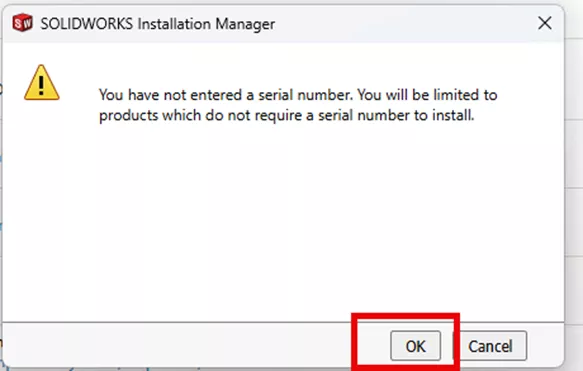
- A dialog will appear warning you that you have not entered a serial number. That’s fine, as the PDM Client doesn’t require a serial number to be installed.
- Select OK.
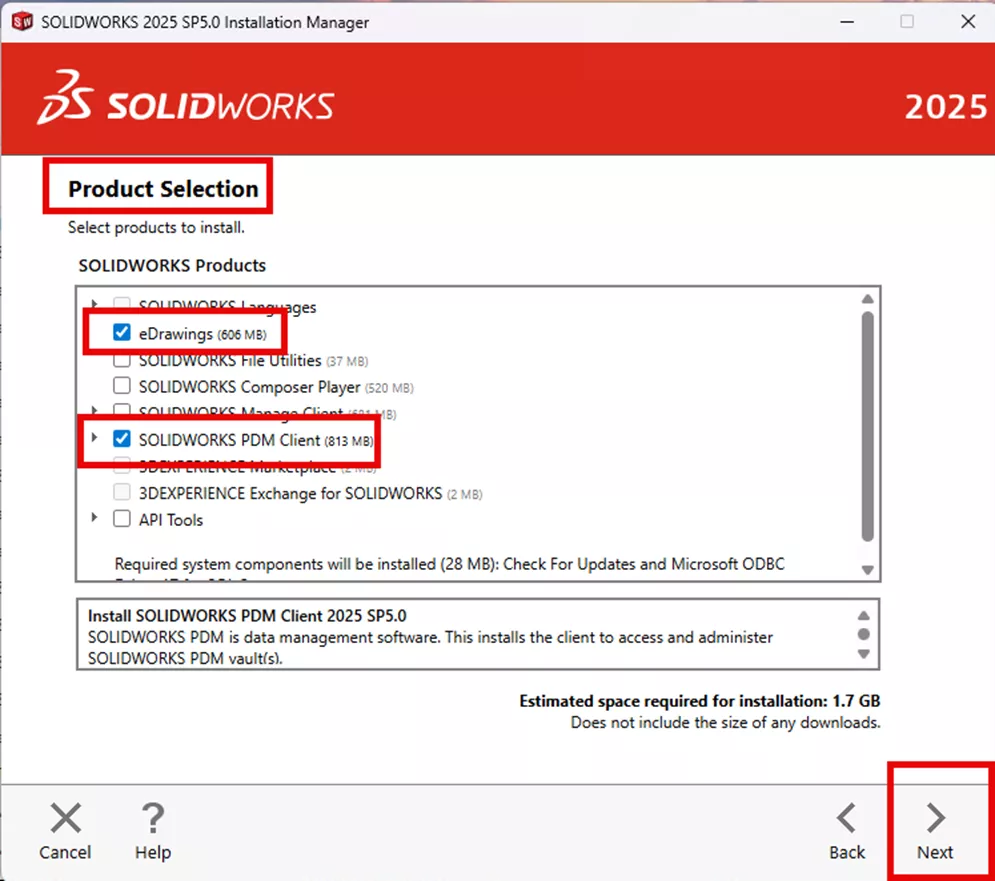
- On the Product Selection screen, select eDrawings and SOLIDWORKS PDM Client.
- Select Next.
- On the Summary screen, select Change for SOLIDWORKS PDM Options.
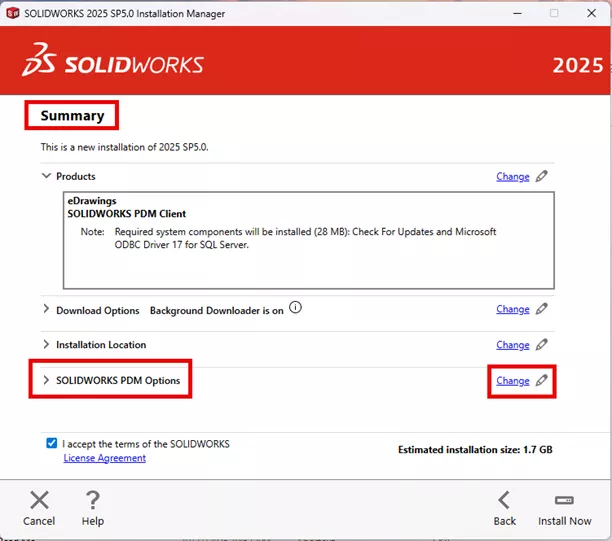
- In the SOLIDWORKS PDM Client Options, choose what will be installed.
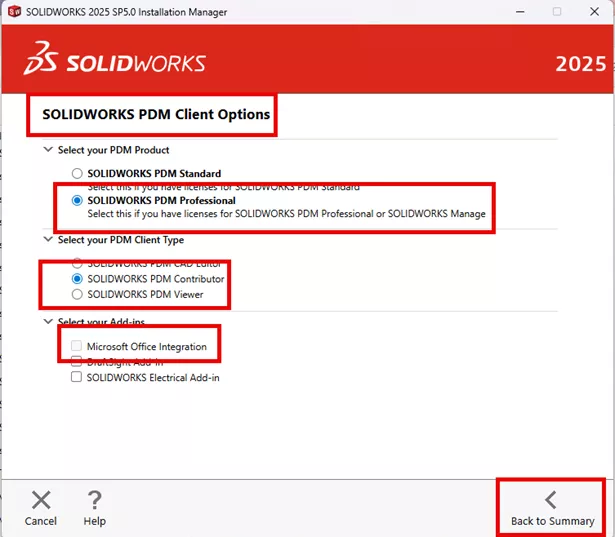
- Select your PDM Product:
- All clients should choose to install SOLIDWORKS PDM Professional. This is because a SOLIDWORKS PDM Professional client can connect to both a PDM Professional and a PDM Standard vault.
- Select your PDM Client Type:
Please note that your company must have a license for the selected Client Type.- Editor: This includes the SOLIDWORKS PDM add-in. Since this computer doesn’t have SOLIDWORKS, choose one of the other two
- Contributor: Allows check out/in of files, but does not have the SOLIDWORKS add-in
- Viewer: This is a read-only installation. However, Viewers can approve files in the workflow so Managers can be Viewers.
- Select your Add-ins
- Only choose add-ins for products that you currently have installed.
- Most likely, you will want the Microsoft Office Integration add-in. This will allow files to be checked in/out from Office programs like Word and Excel.
- Select your PDM Product:
- Select Back to Summary.
- Accept the SOLIDWORKS License terms.
- Select Install Now.
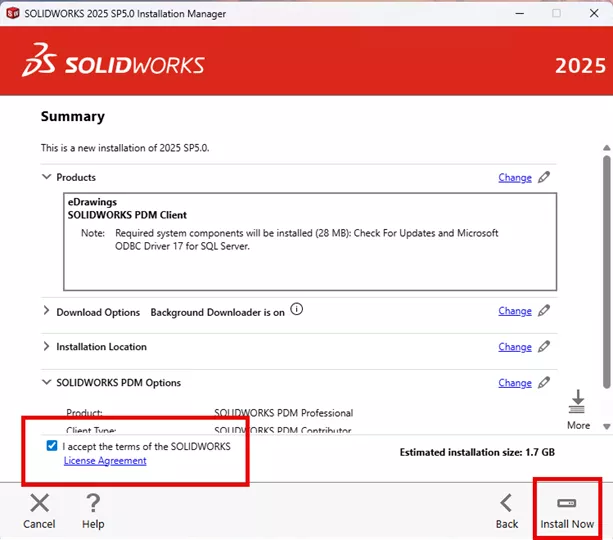
eDrawings and the PDM Client will now install.
How to Create a Vault View
Now that the PDM Client is installed, a Vault View must be created for the user to interact with PDM. We do this by running View Setup from the Windows Start menu.
In the Windows Start menu, find the SOLIDWORKS PDM folder. Expand it and select View Setup.
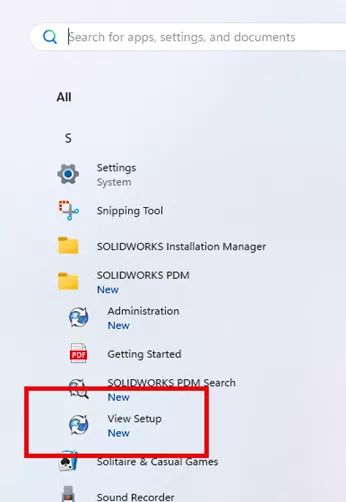
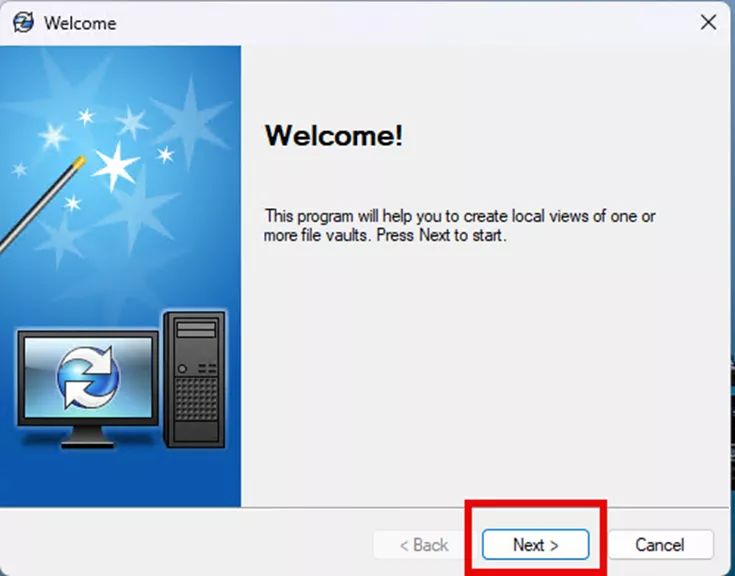
View the setup Welcome screen.
Select Next.
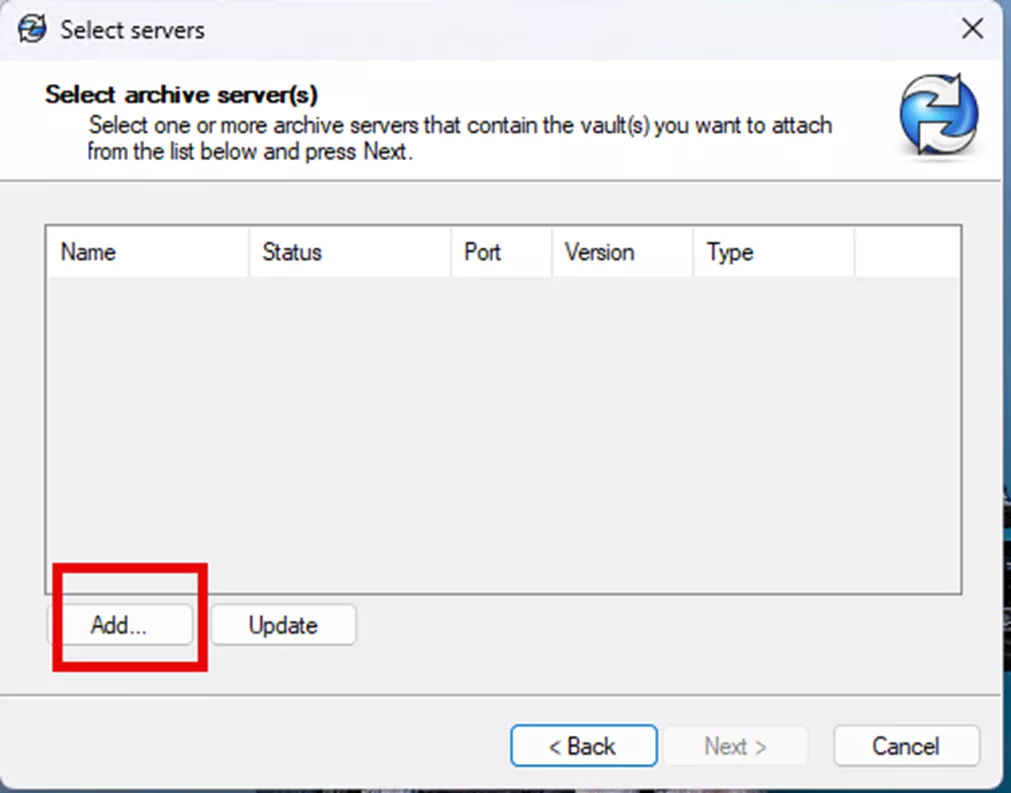
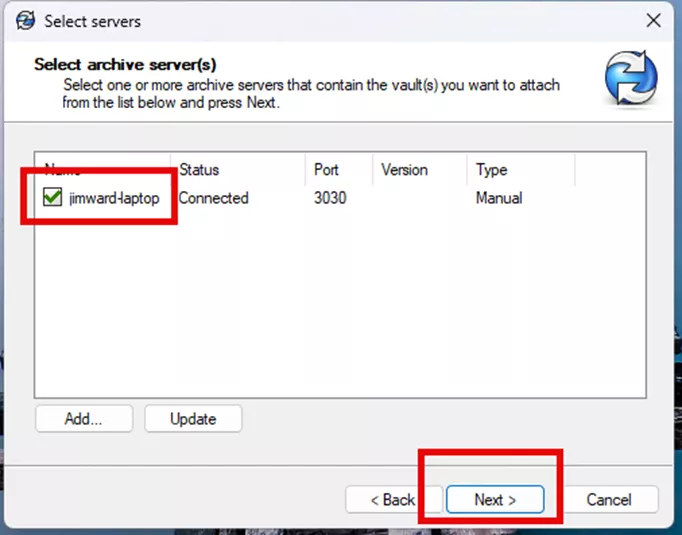
Select servers dialog:
If you don’t see your PDM archive server listed, select Add.
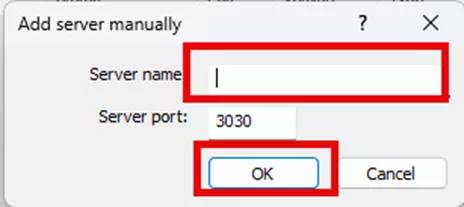
In the Add server manually dialog box, enter the server name and then select OK.
- Note: The server name is the short name, not the Fully Qualified Domain name. If the computer cannot resolve the short name to an IP address, add the short name and IP address to the computer’s host file.
- To modify the host file, check out this article: SOLIDWORKS PDM – Create Local Host File Workaround as Temporary Solution.
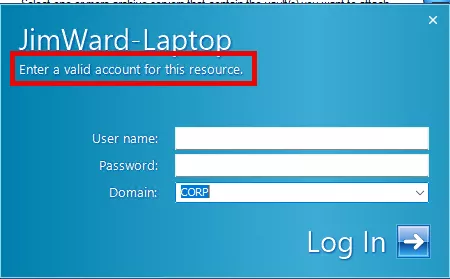
After selecting OK, you may be presented with the dialog: Enter a valid account for this resource.
This dialog is looking for Windows credentials, not PDM account information. It is looking for the Windows credentials of someone who has been added to the Attach Access section on the PDM Archive server.
To learn more about Attach Access, check out our article: SOLIDWORKS PDM Attach Access: A Master Guide.
Select servers dialog (again).
Once your SOLIDWORKS PDM Archive server is listed in this dialog, select the checkbox next to the server name.
Select Next.
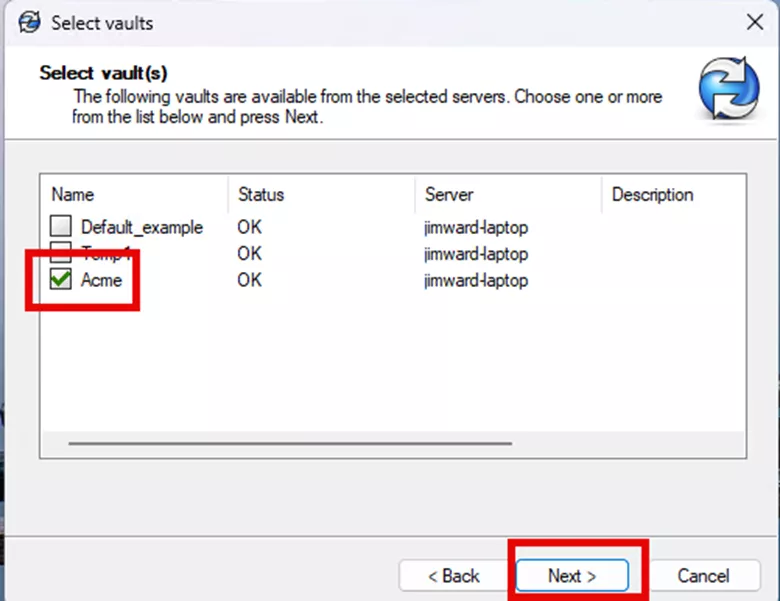
Select vaults dialog.
Check the box next to all vaults for which you want a vault view.
Select Next.
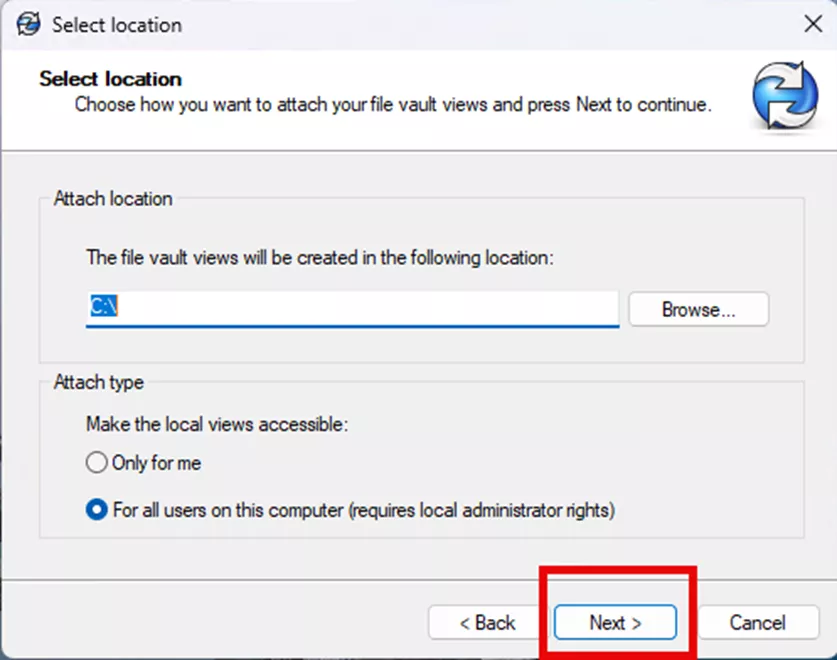
Select location dialog.
Attach location
Choose where to install the vault view.
The default is the root level of the “C” drive. However, the person installing the vault view may not have the permission to save anything here. In that case, place it in a subfolder.
Attach type
Only for me will place the vault view information in the registry in the “CURRENT_USER” area. Only the person creating the vault view will be able to use this view.
For all users… will place the vault view information in the “LOCAL_MACHINE” area of the registry. Anyone who logs into the computer can use this vault view. As it says, the person installing the Vault View must have Windows admin permissions.
Select Next.
Review actions
Note the Status column. It should say Ready. If it doesn’t, then there is an issue, and you may need to contact Technical Support.
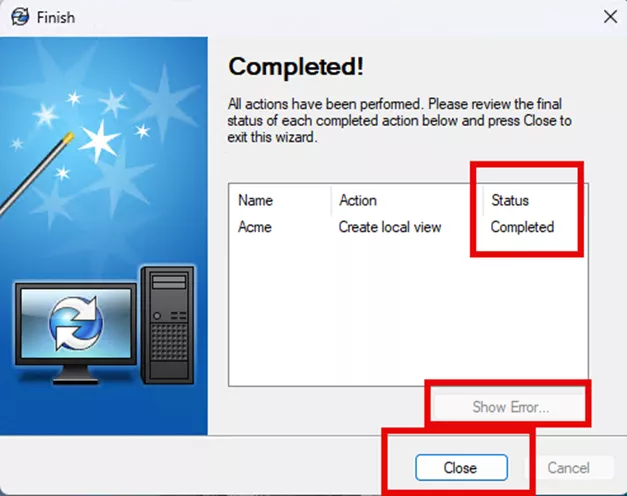
Select Finish.
In the Finish dialog, notice the status is now Completed.
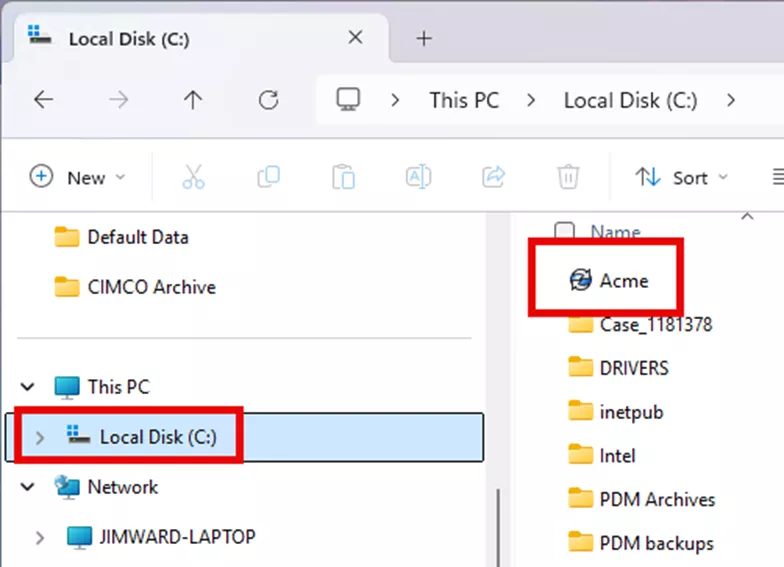
In File Explorer, we can now see the vault view Acme at the root of the “C” drive.
Have fun working and collaborating with your colleagues in SOLIDWORKS PDM!
I hope you found this complete SOLIDWORKS PDM Client Installation guide helpful. You can learn more about PDM from the articles listed below.
24 Tips to Master SOLIDWORKS PDM
SHORTCUTS ⋅ SEARCHING ⋅ PDM ADD-IN
24 of our expert tips to help you master using SOLIDWORKS PDM. Improve performance, find files faster, and work like a pro.
Related Articles
SOLIDWORKS PDM Mixed Authentication Logins
SOLIDWORKS PDM & Changing Domains
SOLIDWORKS PDM Secret Getting Started Guide
Resolve SOLIDWORKS PDM Error No Database is Connected to this View

About Jim Ward
Jim Ward is a Sr. SOLIDWORKS Support Engineer at GoEngineer. He has a BSME from CSU, Chico and has been managing SOLIDWORKS PDM since 2008, first for a major corporation until 2015, then as a PDM Support Specialist at GoEngineer since 2016.
Get our wide array of technical resources delivered right to your inbox.
Unsubscribe at any time.