Unconventional SOLIDWORKS Environments: Risks & Consequences

Table of Contents
SOLIDWORKS allows for a lot of flexibility in the way you use the software, the hardware you run it on, and the customization of your settings. You have a lot of freedom and options to make the software work according to your needs, and that’s part of why we love it. However, there are a few specific setups we commonly get asked about that can seem like attractive options, but will ultimately cause more harm than good.
Some of these environments are specifically called out as unsupported by Dassault Systèmes, some are “technically supported”, and others aren’t really called out in much detail at all. Let’s review these setups, why they might seem like a good option, and how they’ll likely end up hurting you and wasting your time. The insights shared here are a result of decades of experience from our technical team, highlighting how these setups can go wrong based on firsthand observations.
Linux/Ubuntu
According to the system requirements page, Dassault Systèmes only supports the use of Windows OS and Windows installed on Mac Parallels as operating systems for SOLIDWORKS.
We’ve actually tested here at GoEngineer whether SOLIDWORKS will install on Linux-based operating systems, and it will not. There have been some whispers floating around various sites and forums that folks have succeeded in getting SOLIDWORKS running on Linux, but we haven’t been able to substantiate these claims, and all of our own testing shows the opposite to be true.
Even if someone is able to get SOLIDWORKS running on Linux, it's not a tested or validated setup, so there’s no guarantee of stability in running it. If something did go wrong, we would also be unable to assist in troubleshooting that issue due to the unsupported nature of the setup.
Remote Access
Remote access in this case refers to having a workstation running SOLIDWORKS, setting up remote desktop software (like Windows RDS, LogMeIn, etc.), and accessing that computer remotely.
This can work, but it has a few drawbacks that make it the less ideal way to work in SOLIDWORKS away from your primary office. We typically recommend borrowing a license or working over a VPN instead of a remote desktop connection because they tend to be more stable methods to access the software when you’re out and about.
Network Stability and Lag
You’ll get the fastest performance when you’re hard-wired into the network and sitting directly in front of it. By increasing the distance between you and your machine, you’re also increasing the distance that each input and piece of data has to travel.
Every movement of your mouse or key input has to travel from the machine you’re on, across the internet, through the remote software, and back into the primary workstation. It adds layers of potential bottlenecking due to network instability and throttled bandwidth, and that can add up to a pretty painful SOLIDWORKS experience.
OpenGL
The other consideration with this type of software is that many remote connections restrict the full usage of your graphics card. This can lead to SOLIDWORKS running in OpenGL mode. OpenGL mode essentially bypasses your graphics card altogether and uses the processor for rendering instead. OpenGL mode can be fine, but it often means you’re limiting the resources your machine has to load things quickly and smoothly.
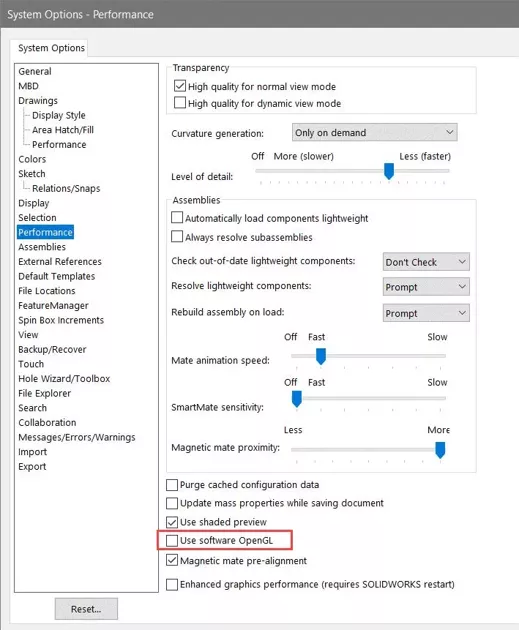
This article talks a little more about what OpenGL mode is and how it can be utilized in troubleshooting.
Virtual Desktop Infrastructure (VDI)
VDI – sometimes also referred to as a Terminal Server (though they are slightly different things) – is a way to create virtual desktops for users to access without the need for dedicated workstations for each. The desktops are “roaming” and can be accessed from just about anywhere. The hardware that runs these instances is all hosted on a central server. It’s very similar to a virtual machine, but a bit more flexible and ephemeral.
Similarly, new platforms are being introduced to “stream” software through a browser or program (e.g., Amazon’s WorkSpaces – formerly known as AppStream). This is a very similar idea, but is used to virtualize individual applications instead of full desktops.
VDIs are not true workstations. This can be good in some ways relating to flexibility and hardware costs, but it also means you’re virtualizing all aspects of a user’s environment. This also often means the desktop is not persistent, and many things reset when the user logs off.
We’ve seen countless issues arise from the use of virtual graphics cards alone. They’re supposed to work just the same as a physical GPU, but often have driver and compatibility issues that lead to crashing, failure to be read/used by SOLIDWORKS, and display issues.
We’ve also seen issues with settings being reset after users log out (due to the roaming nature of the virtual desktops), licenses not being checked out or returned properly, files not properly saving or being overwritten, files failing to have their read-only flags set correctly, and even files becoming corrupt.
We go more in depth on VDI and SOLIDWORKS here. It’s important to note that our Technical Support team cannot provide any assistance with the setup and configuration of VDIs, nor can they troubleshoot issues that arise as a result of using VDI due to the unsupported nature of that environment. Dassault Systèmes does not test or certify any VDI platforms. The information provided is solely offered as a courtesy to our customers who decide to utilize them.
If portability and access from anywhere, regardless of hardware, is important to you, it may be worth looking into the cloud version of SOLIDWORKS via 3DEXPERIENCE. That offers a similar level of portability while allowing for full support from your reseller and Dassault Systèmes should anything go sideways.
Mac Parallels
Parallels, the virtualization platform for Mac computers, is one of the options that falls into the “technically supported” category. Dassault Systèmes does mark Parallels as an available hypervisor on their system requirements page, but in practice we’ve found that Parallels is not nearly as stable or robust as a Windows-hosted hypervisor, and the level of developer support for troubleshooting and bug reports is not as robust as Windows.
This is a virtual machine running on an unsupported OS (macOS) that’s running on unsupported hardware (Mac). It can be made to work, but it’s often less stable than its supported counterparts, and we’re limited in how involved our support can be with that in mind.
You could do this, but it often causes more pain than it’s worth if something goes wrong.
Final Thoughts
The system requirements page for SOLIDWORKS and its related products (Electrical, Simulation, PDM) is a good starting point, but they aren’t exhaustive. Treat them as a baseline, then adjust for your environment, needs, and use case.
For setups that are only “technically supported,” or that aren’t addressed in the public documentation at all, do your research first. If there’s one lesson we’ve learned in decades of supporting this software, it’s this: just because you can doesn’t mean you should.
Before committing to a new setup, especially one outside the norm, reach out to your reseller. If you’re a GoEngineer customer, our Technical Support team, is happy to help you find the right path.
Related Articles
Non-CAD-Aware Cloud File Management Recommendations
Is Bad Version Control Costing Your Engineering Team?
The Real Costs of Poor Data Management
Stop Using Network Drives - Maximize SOLIDWORKS Performance with Cloud Services

About Rowan Gray
Rowan Gray is a Technical Support Manager at GoEngineer and CPPA/CPAP with a specialty in SOLIDWORKS PDM and related data/lifecycle management. They have been with GoEngineer since 2020, and have a strong IT background that helps them more fully support customers with whatever issues may arise in their PDM environment. In their free time, they enjoy playing video games, D&D, multimedia crafting, and spoiling their pets.
Get our wide array of technical resources delivered right to your inbox.
Unsubscribe at any time.