5 Advanced SOLIDWORKS Patterning Techniques to Supercharge Your Workflow

We’ve all been there: you attempt to pattern a feature around a complex curve, and your CAD software suddenly decides "not today." Patterning is often treated as a necessary evil, a finicky tool that seems to break at the slightest hint of a design change.
But when you move past standard linear arrays and into curve-driven paths, variable spacing, and visual scripting, it stops being a bottleneck and becomes a superpower. Whether you are lightweighting components with lattice structures or automating intricate textures, these techniques represent a shift from simply drawing geometry to defining it.
Here are 5 SOLIDWORKS and 3DEXPERIENCE patterning workflows to get you started.
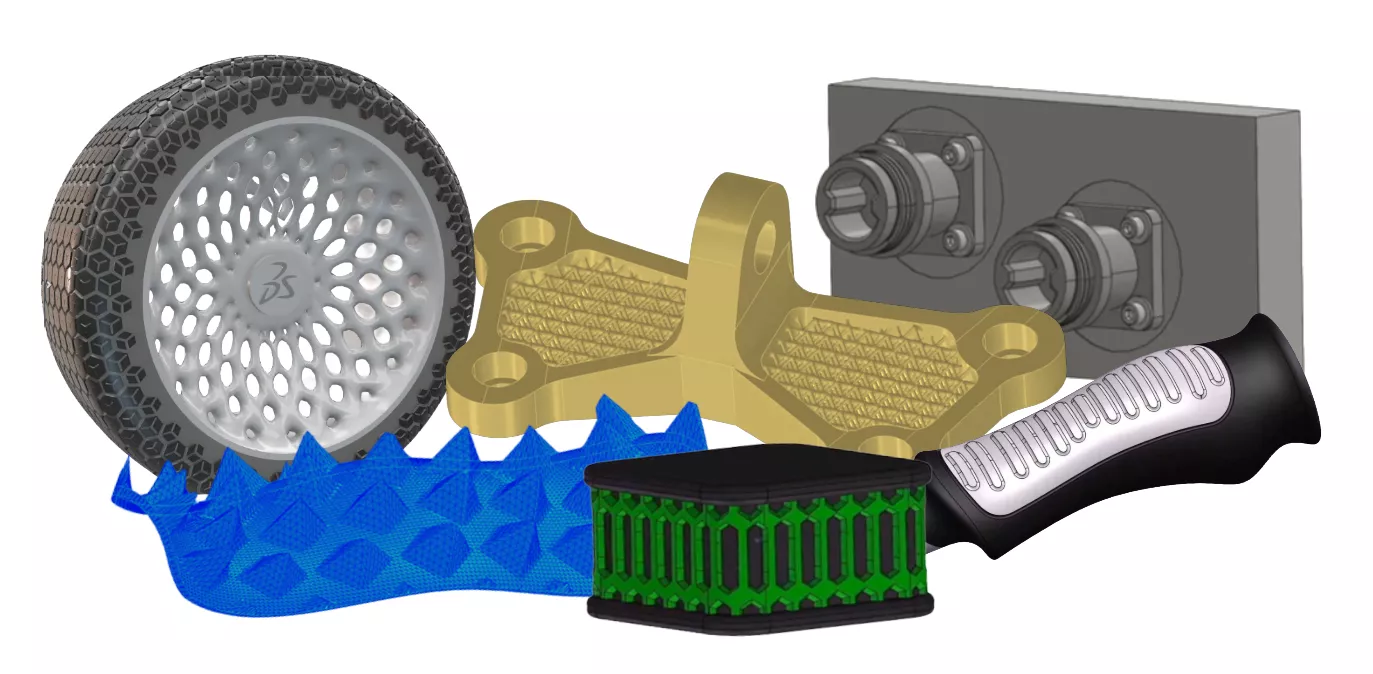
#1. Mastering Curve-Driven, Sketch-Driven, and Variable Patterns
Standard linear or circular patterns are often insufficient for organic or complex geometry. To handle these cases, SOLIDWORKS offers specialized patterning tools.
Curve-Driven Patterns
Curve-driven patterns allow features to follow complex paths across curved surfaces. A common best practice is to utilize 3D sketches to position the feature on a surface before defining the path.
One frequent hurdle occurs when a pattern stops prematurely because it only recognizes a single line segment of a path. To solve this, Composite Curves should be used. By combining multiple edges or sketch segments into one composite curve, SOLIDWORKS treats the path as a single continuous entity, allowing the pattern to flow seamlessly around corners.
Variable Patterns
Variable patterns offer unmatched versatility for customizing feature dimensions and spacing within a single pattern. By selecting the Vary Sketch option in the PropertyManager, users can drive changes in the patterned instances based on the geometry they are following.
This is particularly effective for ergonomic designs, such as tool grips, where dimensions may need to shift to accommodate a hand's shape. This method also allows for quick creation of multiple configurations for testing, which is invaluable for overnight 3D printing and rapid prototyping.
#2. Streamlining Assemblies with Smart Components
Managing hardware and repetitive components in large assemblies can be a significant time drain. Smart Components and Smart Fasteners automate the insertion of hardware while maintaining strict design standards.
By utilizing smart fasteners, users can automatically populate holes with the correct bolts, washers, and nuts. This ensures consistency across an entire engineering team and eliminates the manual "one-by-one" placement of hardware. Furthermore, these automated workflows ensure that the Bill of Materials (BOM) remains accurate, as every piece of hardware is accounted for as soon as it is generated.
#3. Procedural Geometry via Visual Scripting
The 3DEXPERIENCE platform introduces Visual Scripting, a method that moves beyond the traditional linear feature tree. This approach uses "operators" (logic blocks) to create geometry procedurally.
Visual scripting is ideal for complex, repetitive surfaces, like heat shields or acoustic panels, that would be nearly impossible to model manually in standard CAD. By capturing engineering knowledge into a script, designers can automate the generation of intricate geometry and reuse those scripts across multiple projects, ensuring both speed and high-level design capture.
#4. Lattice Structures for Additive Manufacturing
For industries requiring lightweight, high-strength components, such as aerospace, medical devices, or performance sports, lattice structures are a game-changer.
Tools like Lattice Designer allow for the rapid generation of these complex internal structures. What would take hours of manual patterning in traditional CAD can be accomplished in minutes. These structures are optimized for 3D printing, enabling the creation of parts that use minimal material while maintaining structural integrity and advanced thermal properties.
#5. Advanced Prototyping: 3D Textures and Surface Flattening
Final product aesthetics and tactile feel are often determined by surface textures. Modern tools allow designers to move beyond visual-only textures to physical 3D Textures.
- 3D Texture Tool: This feature converts 2D appearances into physical geometry, which is essential for knurling or custom grip patterns intended for 3D printing.
- Wrap Feature: Use the Wrap feature to project sketches onto complex faces for precise engraving or embossing.
- Surface Flattening: When preparing designs for manufacturing or 3D printing preparation, use intersection-split lines to identify a "flattening line." This allows SOLIDWORKS to unroll complex surfaces into flat templates for further processing.
Key Takeaways for Design Implementation
Adopting these advanced techniques leads to significant time savings and more scalable, professional-grade designs. By shifting from manual modeling to automated and procedural workflows, you gain:
- Precision: Greater control over feature placement on non-linear geometry.
- Scalability: Automated creation of intricate surfaces that can be modified via scripts.
- Speed: Accelerated prototyping using variable patterns and physical 3D textures.
- Efficiency: Lightweighting through lattice structures to optimize material usage.
- Accuracy: Error-free assemblies with automated hardware and BOM synchronization.
For designers looking to implement these strategies, connect with us at GoEngineer for training, solutions, and support.
Register to view the full webinar “Pattern Like a Pro: Tips & Tricks to Patterning Fast" on-demand:

Pattern Like a Pro: Tips & Tricks to Patterning Fast
Shake and bake, baby! This webinar is all about going fast with design features that’ll make your CAD feel like it’s driving a stock car on fire.
We’ll blast through Up to Reference, No Seed Features, and Symmetric patterns quicker than Ricky Bobby in a cougar-filled race car.
More SOLIDWORKS Tips
11 SOLIDWORKS CTRL Key Shortcuts to Start Using Today
Why SOLIDWORKS Mates Can Cause Slow Assemblies
SOLIDWORKS Pack and Go: What It Is & How to Use It
About GoEngineer
GoEngineer delivers software, technology, and expertise that enable companies to unlock design innovation and deliver better products faster. With more than 40 years of experience and tens of thousands of customers in high tech, medical, machine design, energy and other industries, GoEngineer provides best-in-class design solutions from SOLIDWORKS CAD, Stratasys 3D printing, Creaform & Artec 3D scanning, CAMWorks, PLM, and more
Get our wide array of technical resources delivered right to your inbox.
Unsubscribe at any time.