SOLIDWORKS Motion Studies - Animating View Orientation

Animation Motion Studies, available in all SOLIDWORKS packages, allow us to create presentation-worthy animations of our models. In this article, we’ll be covering some basic techniques you can use to create animations that rotate and zoom in and out on your model.
Animation Wizard
The Animation Wizard provides an easy way to create basic animations. With it, we can animate a model rotating, exploding, or collapsing following the steps of an existing Exploded View. Additionally, you can import calculated motion from Basic Motion and Motion Analysis Motion Studies, or the Mate Controller.
With SOLIDWORKS Professional, after creating a Sunlight Light in your model, you can also simulate the effect of the movement of the sun. Check out our article for more information on setting up a Solar Access Study.
In this article, we’ll be focusing on rotating, exploding, and collapsing an assembly. To open the Animation Wizard, click on the Animation Wizard button at the top of the MotionManager toolbar.
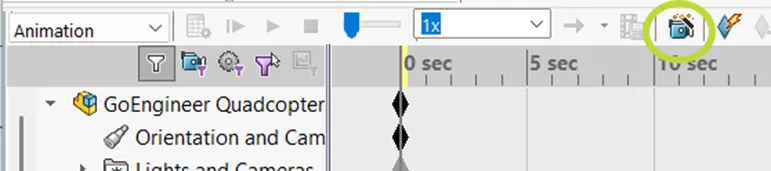
Figure 1: Animation Wizard button
On the first page of the wizard, you’ll be prompted to select one of the animation types. In addition to the radio buttons that list the animation types, on this first page, you’ll also find a checkbox for Delete all existing paths. Checking this box clears any animation sequences already in the study.
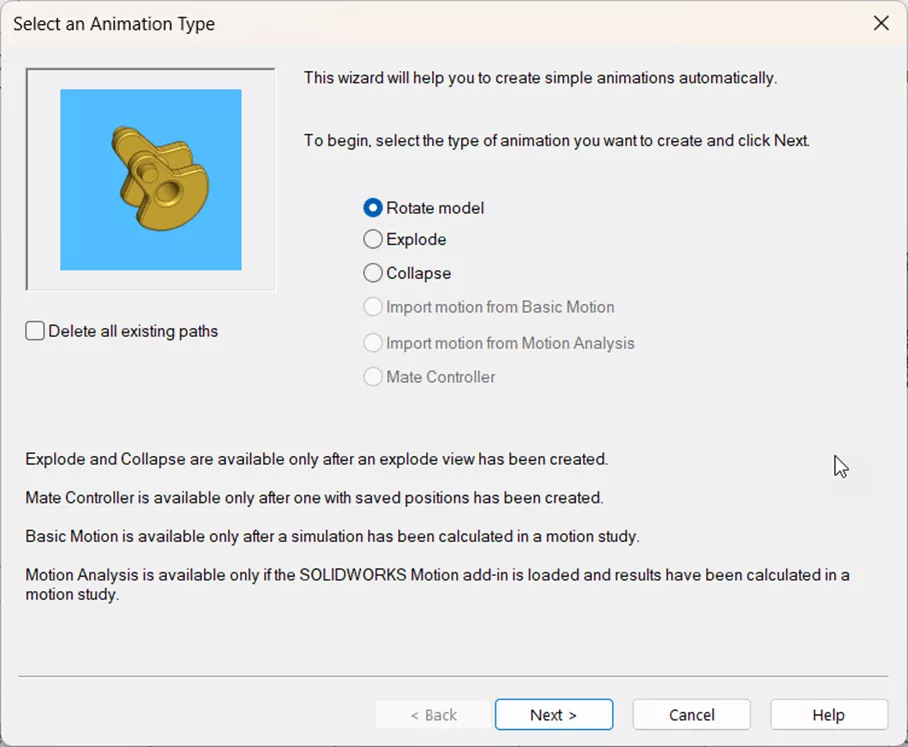
Figure 2: First page of the Animation Wizard
If you select Rotate model, click the Next button, and you'll be taken to a page with settings that control how the model will rotate. You can choose to rotate about the assembly-level X, Y, or Z axes. An animated preview on the left shows a preview of how that will look. On this page, you can also change the number of rotations and whether they are clockwise or counterclockwise.
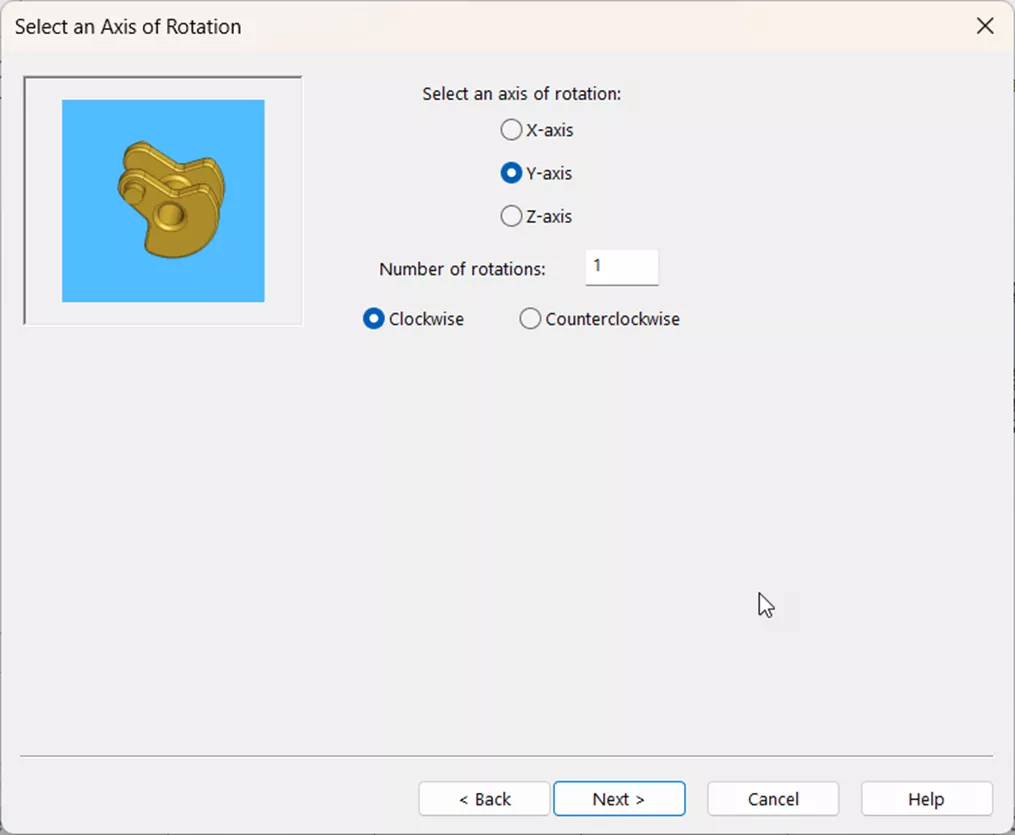
Figure 3: Animation Wizard Select an Axis of Rotation page
On the next page, you can set how long it takes the model to rotate the number of rotations specified. By default, the animation will start wherever your time bar is currently, but if you want to change it to a different time step, here's the place to do it.
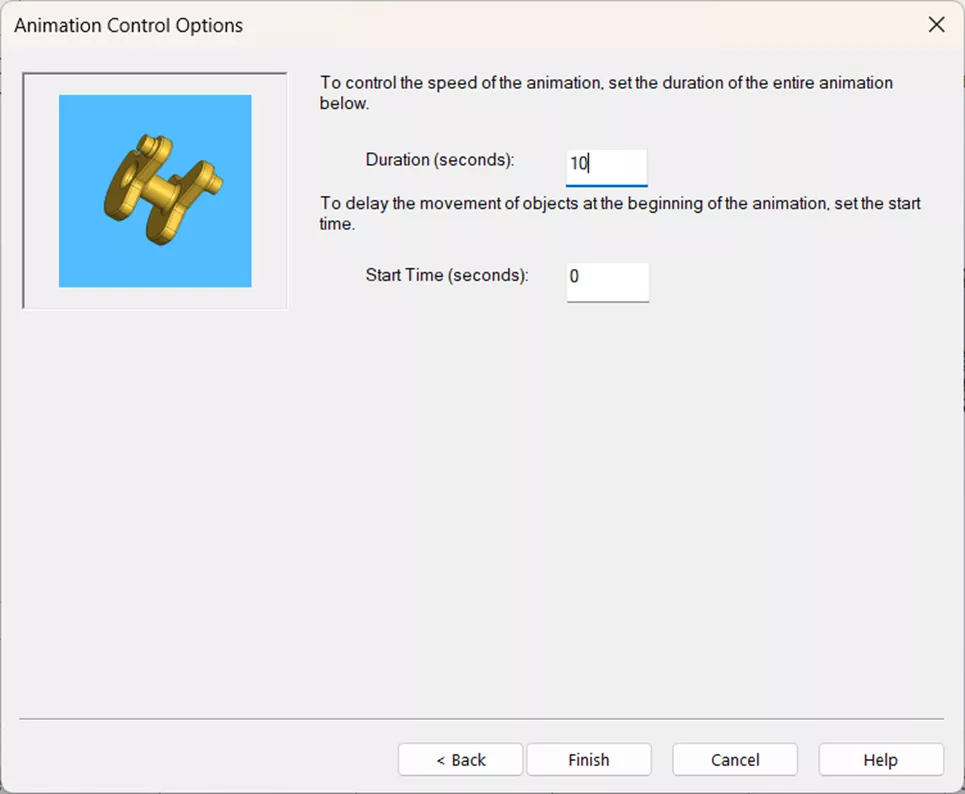
Figure 4: Animation Wizard Animation Control Options page
Selecting either Explode or Collapse jumps right to Animation Control Options (see Figure 4). There is no option to pick which exploded view is animated if you have more than one; it will always use the first in the list. You may need to reorder them in the ConfigurationManager, depending on which you want to utilize for your animation.
If we examine the timeline after using the Animation Wizard, we can see that for Rotate, keys are created in the Orientation and Camera Views row. The view orientation is changing, which is giving the appearance of the model rotating. Explode and Collapse, on the other hand, both create keys for the components that are being exploded. Keys represent positions, and the changebars between them represent movement. In this kind of animation, the components are actually moving.
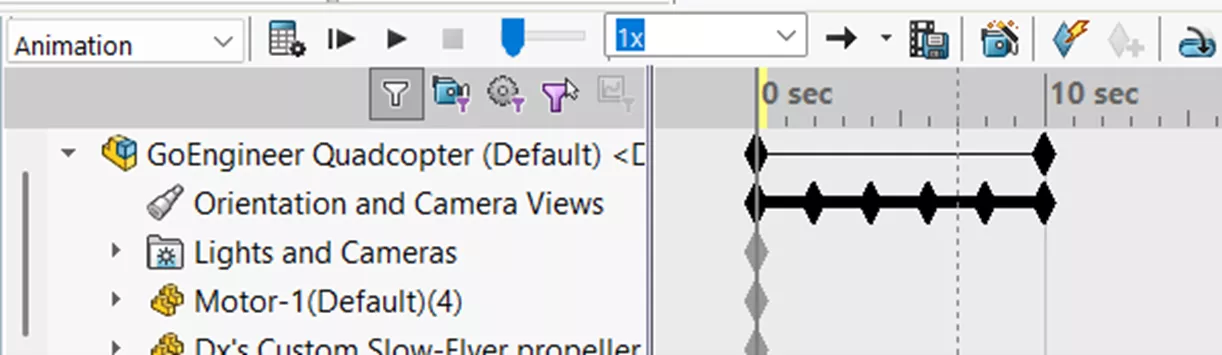
Figure 5: Timeline after Rotate model

Figure 6: Timeline after Explode
Orientation and Camera View In-Context Menu Options
While the Animation Wizard is a great tool for simple animations and can serve as a starting point for more complicated ones (as we’ll discuss), it doesn’t cover everything. One simple way to create your own custom animations is to create view orientation key points in the Orientation and Camera Views row of the timeline. The Animation will interpolate between them, transitioning from one to the other. Looking again at Figure 5, we can see that this is what the Animation Wizard is doing when we use it to rotate the model.
At this point, it is helpful to pause and consider the options available in the in-context menu when right-clicking different places in Orientation and Camera views. This will give you a better idea of what you can do when animating view orientations.
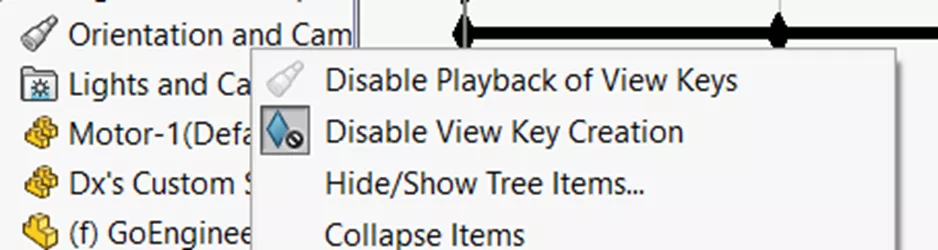
Figure 7: In-context menu when right-clicking the Orientation and Camera Views folder
To start, if you right-click on Orientation and Camera Views in the Motion Study FeatureManager Design Tree (Figure 7), you’ll only see two Motion Study-related options:
- Disable Playback of View Keys: This ignores view keys when playing your Animation. The view orientation will stay on whatever was in your graphics area. This is helpful if you’re also animating components (for example, like we did with the Explode and Collapse options in the Animation Wizard). When playing the animation, you can focus solely on how the components move, not how the view orientation is changing.
- Disable View Key Creation: With this toggled off, automatic View Key Creation will be enabled. By default, when this option is on, you have to manually create key points. When this is off, moving the time bar and adjusting the orientation in your Graphics Area automatically makes a key for that new angle. While this can be convenient, it’s also easy to make keys you didn’t want or change existing ones.
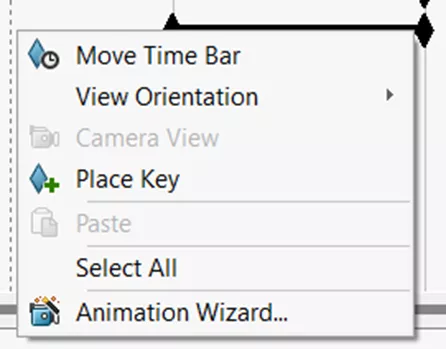
Figure 8: In-context menu when right-clicking in the timeline where there is not a key
If you right-click in the Orientation and Camera Views row in the timeline where there is not already an existing key, you’ll see the following options:
- Move Time Bar: Moves the time bar to where you right-clicked. This is an alternative to clicking and dragging it to move it.
- View Orientation: Places a key set to a specific standard view or the starting view.
- Place key: Does exactly what it sounds like: it creates a key point. The view orientation is whatever is in the graphics area.
- Paste: Pastes keys that have been copied.
- Select All: Highlights all keys.
- Animation Wizard: Opens the Animation Wizard tool. When you open the Animation Wizard this way, the Start Time on the Animation Control Options page will default to where you right-clicked.

Figure 9: In-context menu when right clicking in the timeline where there is a key
When you right-click on an existing key, you’ll see:
- View Orientation: Instead of creating a new key with a standard orientation, this option changes the existing key's view orientation to the selected standard view.
- Replace Key: Changes the existing key's view orientation to whatever is currently in the graphics area.
- Cut: Removes the selected key and puts it on your clipboard.
- Copy: Copies the selected key to your clipboard.
- Delete: Deletes the selected key.
- Suppress: Suppresses the selected key. Suppressing keys is similar to suppressing features or components in your SOLIDWORKS FeatureManager Design Tree. While it will still exist in the timeline, it will be ignored when calculating the animation as if you had deleted it.
- Interpolation mode: Provides options for how the animation moves between keys. The default, Linear, moves at a constant pace between view orientations. Alternatively, you can have it snap to the new view, which keeps the view orientation on the previous key until the next key's time stamp - or ease in or ease out, the view changes smoothly, but the speed at which the orientation changes is different (e.g., moves faster at the end, beginning, or middle).
Animation with View Orientation and Key Points
As a very simple example, let’s animate zooming in and out on a specific component of interest.
Here, we want the animation to start in the standard, Isometric view orientation. To ensure that, right-click on the key at 0 sec and select View Orientation > Isometric.
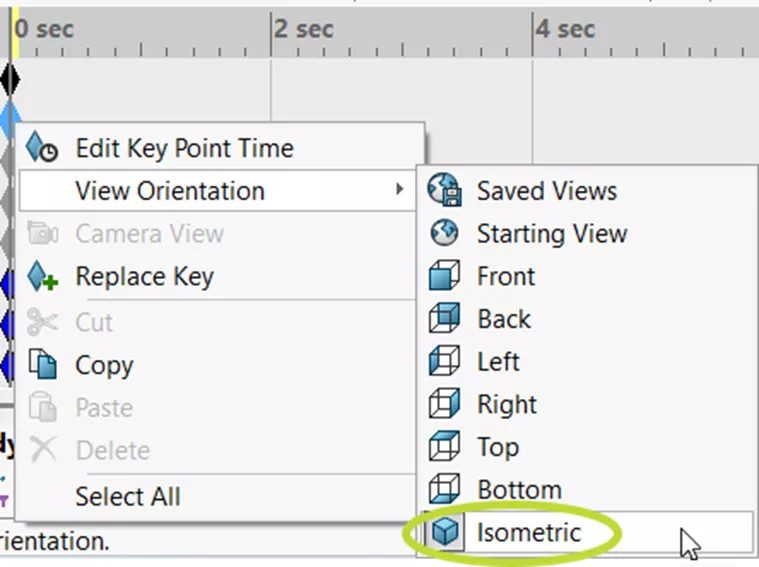
Figure 10: Right-click menu for view orientation key at 0 sec
The goal is to zoom in over the course of 2 seconds, hold there for 2 more seconds, then zoom back out to the starting position. The next step is to click and drag the time bar forward to 2 seconds. Here, we can right-click on the component we want to zoom in on and select Zoom to Selection. To set the view orientation of my animation to this zoomed-in view at the 2-second mark, right-click in the timeline at 2 seconds and select Place Key.

Figure 11: Place Key option
To stay zoomed in for 2 seconds, we need a copy of the key we just created. If you have two keys with the same view orientation one after the other, the effect is that the view won’t transition to anything different; it just stays on that view orientation for the duration. Right-click the key that was just created and select Copy. Then, right-click at 4 seconds and select Paste.

Figure 12: Copy option
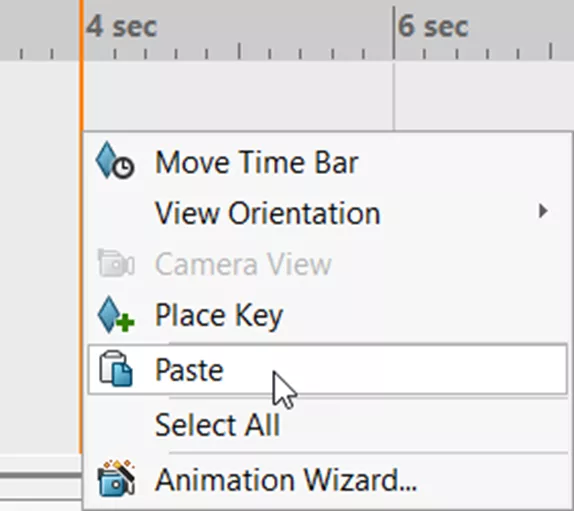
Figure 13: Paste option
Finally, to zoom back out, drag the time bar forward again to 6 seconds. Right-click and select View Orientation > Isometric again.
Example SOLIDWORKS Motion Animation – Bring It All Together!
As mentioned above, the Animation Wizard is a great jumping-off point for creating more complex animations. In the example below, we’ll rotate halfway around our model, pause to zoom in on a component of interest, then continue rotating.
In a new Animation Motion Study, move the time bar to 0 sec. Then, zoom and rotate your model in the graphics area to a good starting position. Once you have an orientation you’re happy with, right-click the 0 sec key and select Replace Key.
Click on the Animation Wizard. In it, select Rotate Model and, on the next page, pick the axis of rotation. For this model, we are using the Y axis. Set the number of rotations to 1 and the direction to clockwise. The duration is 10 seconds, and the start time is 0 seconds. Click Finish to create a series of view orientation keys at 2-second intervals.

Figure 14: View orientation key points created by Animation Wizard
At the 5-second mark, we want to pause rotating to zoom in on a detail on the back of the model. Click and drag the time bar to the 5-second mark, then right-click and Place Key. Right-click the new key and copy it. Then, paste the key next to it.
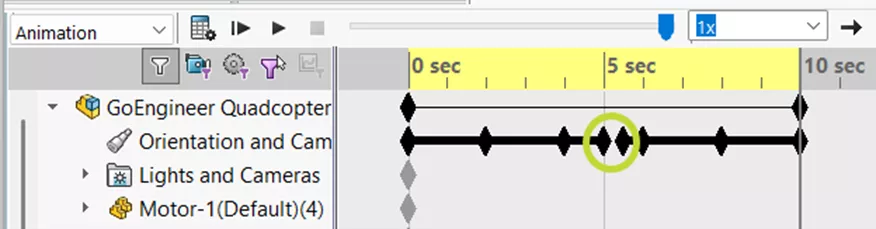
Figure 15: Circled are the new key and its copy. Note the gap between them
Because we don’t want the zoom to happen too quickly, we’ll need to pause here to move the last 3 keys (the ones created by the Animation Wizard) forward on the timeline to make room. This can be done just by clicking and dragging them.

Figure 16: Timeline after moving keys
At this point, recalculate and play your animation to see this effect. As described in our previous example, having two keys with the same view orientation next to each other holds the animation on that view in between the keys.
Move the time bar between the copied keys. Zoom in on the component of interest. Right-click and place a key.
After recalculating again, the animation should start on your initial view orientation, rotate halfway, pause at 5 seconds and zoom in, then zoom back out and continue to rotate. Try playing around with the different interpolation modes around the zoom keys to see how these affect how the animation transitions between these basic view orientations.

Want to learn more about SOLIDWORKS Motion? Check out more tutorials and tips below, or check out the GoEngineer Community, where you can create forum posts, enter design contests, and answer questions from other SOLIDWORKS users.
SOLIDWORKS CAD Cheat Sheet
SHORTCUTS ⋅ MOUSE GESTURES ⋅ HOT KEYS
Our SOLIDWORKS CAD Cheat Sheet, featuring over 90 tips and tricks, will help speed up your process.

Related Articles
SOLIDWORKS Motion Study Analysis and Setup Tutorial
SOLIDWORKS Motion Analysis Motor Torque & Power
SOLIDWORKS Motion: A Tip for Handling Performance "Hogs"
SOLIDWORKS Motion Study: Add a Torsional Spring

About Lauren McGarry
Lauren McGarry is a Certified SOLIDWORKS Expert based out of San Diego, California. She earned her Bachelor of Science degree from Case Western Reserve University and has been with GoEngineer as a Technical Support Engineer since 2016.
Get our wide array of technical resources delivered right to your inbox.
Unsubscribe at any time.