SOLIDWORKS PDM & Changing Domains

What does your company need to be aware of when it moves the SOLIDWORKS PDM Servers to a different domain from the current domain? What happens when PDM Clients are moved into a different domain from the PDM Servers?
Often, user names change when they are moved to a different domain. How do we handle that? The database will need to be modified in some cases. When modifying the database, always take a backup of the database before proceeding.
Moving SOLIDWORKS PDM Servers to a New Domain
The domain the PDM Servers are on must be changed. This could be due to your company being acquired and the domain name changing, or my company expanding and needing to move to multiple domains. How does the domain change affect the user’s ability to connect to their PDM Server?
There are two PDM Servers: the Archive server and the server hosting SQL Server. Often, both the archive and SQL are installed on the same server. However, in larger businesses, they are split for better performance. The clients’ PDM must be able to connect to both servers. PDM accesses the Archive server over port 3030. The default port for SQL is 1433, but this can be changed if needed.
If the PDM servers’ names have not changed, then modifying the DNS to reflect the new IP address should be enough to allow PDM on the clients to access the servers. If the PDM servers’ names have changed, then the clients and database must be updated to the new name.
Note that it is a good idea to add the servers’ IP addresses to the hosts file on each server. This will help make the servers faster and more reliable as they aren’t relying on the DNS to resolve the server names to IP addresses.
Do not just specify IP addresses as the server names.
While you can use IP addresses instead of server names, the change must be made in multiple places. Refer to the section Configuring SOLIDWORKS PDM to Communicate Using IP Addresses Only from the PDM installation guide.
Update the Vaults on the Archive Server to the SQL Server Name
On the archive server, open the registry with the command “regedit”.
Go to HKEY_LOCAL_MACHINE\SOFTWARE\SolidWorks\Applications\PDMWorks Enterprise\ArchiveServer\Vaults\yourVaultName” where “yourVaultName” is the name of your vault. Be certain to update all vaults.
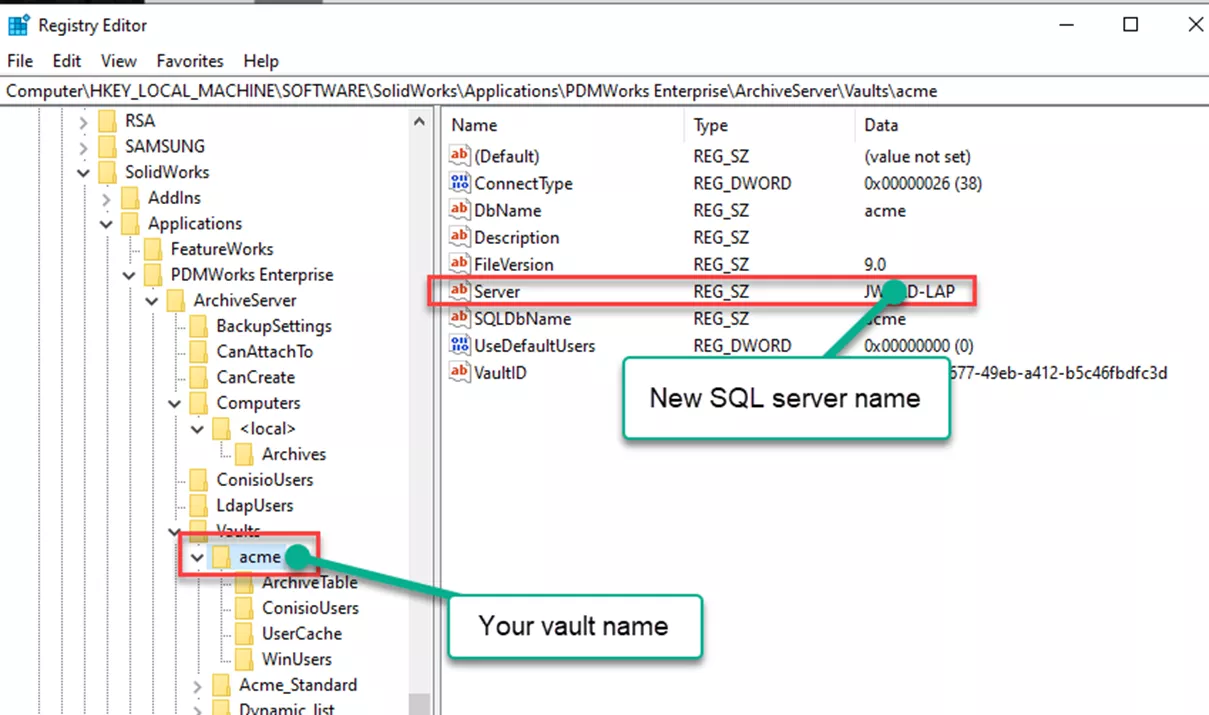
Update the Database to the New Archive Server Name
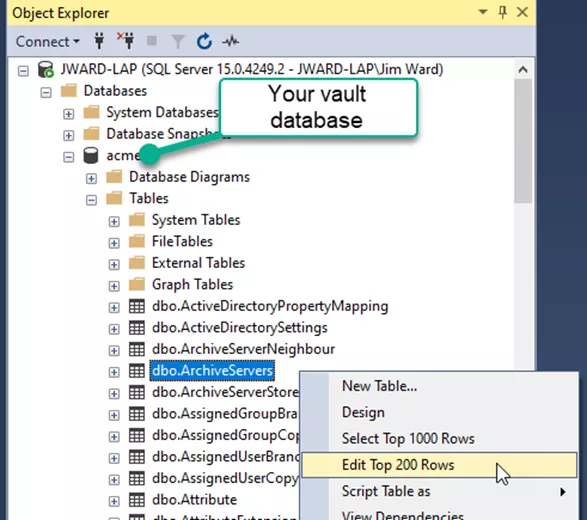
On the SQL server, start Microsoft SQL Management Studio, and log in with an account that has sysadmin privileges. Expand Databases: your vault database: Tables. Right-click the table dbo.ArchiveServers and choose Edit top 200 Rows.
Edit the ArchiveServerName and select Enter.
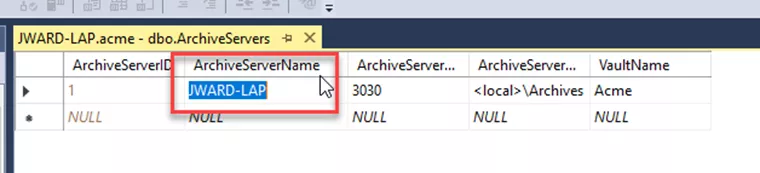
Important: Selecting Enter triggers your changes to be saved.
Repeat the process in the table “dbo.SystemInfo”.

Repeat the process for any other vaults on the moved archive server. If the vault is replicated, then other archive servers will be listed. Only update the archive server whose name has changed.
Updating Clients to the New Server Names
You must update the “ServerLoc” key with the new archive server name and the “DbServer” key with the new database server name in two places on each client.
The two places are:
HKEY_LOCAL_MACHINE\SOFTWARE\SolidWorks\Applications\PDMWorks Enterprise\Databases\YourServerName
And
HKEY_LOCAL_MACHINE\SOFTWARE\WOW6432Node\SolidWorks\Applications\PDMWorks Enterprise\Databases\ YourServerName
 Watch our video on this subject: SOLIDWORKS PDM – Update Client to New Server.
User Accounts Across Domains
If you are using the SOLIDWORKS PDM login as your login type, then you don’t need to do anything. Users will continue to log in just fine.
Most companies with domains use the “Windows login” type. For this login type, the PDM archive server must be able to reach the AD server for authentication. PDM uses the AD server specified in Windows. There is no way to edit the AD location inside of PDM.
After the server move, if the users are in a different domain, please review SOLIDWORKS Knowledge Base article S-013275: How are users added from other domains in the SOLIDWORKS PDM Professional Archive Server configuration tool when defining Windows login type?
Note: SOLIDWORKS recommends that the domains have a two-way trust setup.
Changing “Login Names”
Typically, changing the domains of users also results in their Windows login names changing. You could delete the old login names and create new user accounts for the new login names. However, it would be better to change the login names to the new ones. This will keep the user continuity in the database.
The procedure for this is in the SOLIDWORKS Knowledge Base article S-018704: How can I change the login name of a SOLIDWORKS® PDM user?
First, edit the table “dbo.Users” in the database. Use the same method as outlined in "Update the database to new archive server name" to access the tables in the database. Right-click the table dbo.Users, and choose Edit top 200 rows. Edit the first 200 usernames to the desired names. Do not change the username for the admin user. This is a special user for PDM and should not be modified.
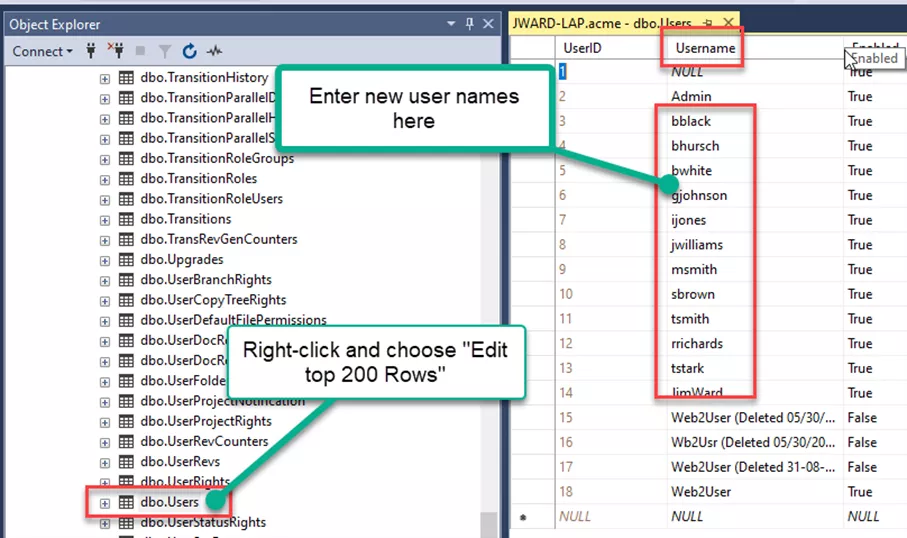
If you have more than 200 users, then you will need to use the SQL command Update Table. Be very careful with this command, as you can destroy the table with it.
For the new account to log in to PDM, it must be listed in a group defined in the Windows login settings on the archive server.
That concludes the changes required if the PDM Server is moved to a new domain, if the SOLIDWORKS PDM users' domain has changed, and the handling of username changes. To learn more about SOLIDWORKS PDM, check out the additional articles listed below.
24 Tips to Master SOLIDWORKS PDM
SHORTCUTS ⋅ SEARCHING ⋅ PDM ADD-IN
24 of our expert tips to help you master using SOLIDWORKS PDM. Improve performance, find files faster, and work like a pro.
Related Articles
SOLIDWORKS PDM Secret Getting Started Guide
SOLIDWORKS PDM Client Installation on an Existing SOLIDWORKS Installation
Resolve SOLIDWORKS PDM Error No Database is Connected to this View
How to Install SOLIDWORKS with the PDM Client

About Jim Ward
Jim Ward is a Sr. SOLIDWORKS Support Engineer at GoEngineer. He has a BSME from CSU, Chico and has been managing SOLIDWORKS PDM since 2008, first for a major corporation until 2015, then as a PDM Support Specialist at GoEngineer since 2016.
Get our wide array of technical resources delivered right to your inbox.
Unsubscribe at any time.