SOLIDWORKS PDM Revisions: Database Revision vs. Revision Variable

Table of Contents
Customers often ask why the "Revision" for a file in SOLIDWORKS PDM can show different values in different places. What a lot of folks don’t realize is that the Database Revision (or the “Local/Latest Revision” you see in the Version tab and in the File History dialog) is not the same as, or synced with, the Revision Variable (as seen in the variable list on the Preview tab or on the Data Card tab). They’re totally separate fields and values. This is a very commonly misunderstood aspect of revisions (understandably, since it’s not often explained), so let's clear up the confusion once and for all.
Note: To ensure you get the most out of this article, it’s important that you fully understand the difference between Versions and Revisions. We recommend checking out our guide on understanding versions and revisions in PDM first. This is foundational knowledge that this article assumes you understand and builds on.
Database Revision
The database revision is the “true” revision value for a file. When you define Revision Numbers and Revision Number Components in the PDM Administration tool, you’re setting up an ordered list of values, driven by counters that can be assigned to files as they move through your workflow. The components, specifically, are the portions of a revision number that automatically increment each time the revision number is applied to the file.
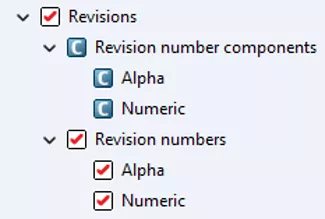
Image A: The PDM Administration tool’s expanded Revisions node
When you define a component, you give the database a known string with sequential values, whether that be a pre-built format string or a custom-defined list of values. The most common components are numeric and alphabetical, meaning your revision values consist of 1, 2, 3… or A, B, C… so on and so forth.
If you give PDM a static value like “A” with no underlying meaning and tell it to increment by 1, there’s nothing telling the system what comes after A. The revision components link each value to a counter (A = 1, B = 2, C = 3, etc.), which the database can track to increment accordingly. The only values PDM tracks for the sake of incrementing revisions are these counters and their associated values. Once defined and assigned to a file, that’s how you end up with the database revision.
The system stores a revision counter value in the database for each file. When displaying the revision value, or trying to increment the revision, it looks at the counter value, finds the associated revision value for that counter, and gives you the displayed revision on the “front end”.
So, if you increment by 1 for the revision of a file with a counter of “2”, you get 2 + 1 = 3. Then the system looks at the Revision Number list and sees 3 = C, so it shows that value to the user.
Incrementing the database revision is done as part of a workflow, using the Increment Revision action in a Transition or the manual Set Revision tool via the State.
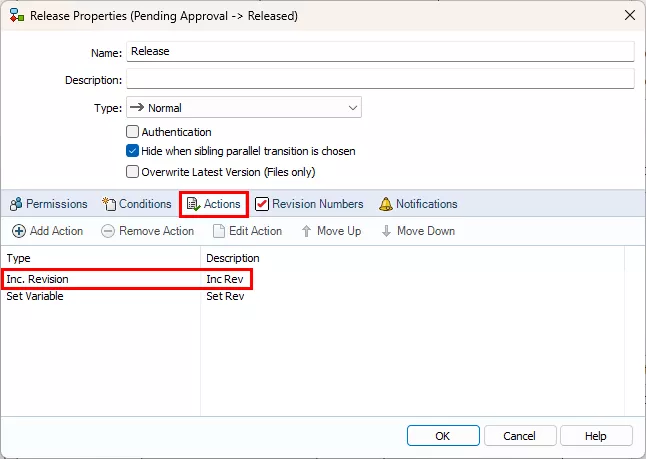
[Image B: The “Inc. Revision” action in a workflow Transition]
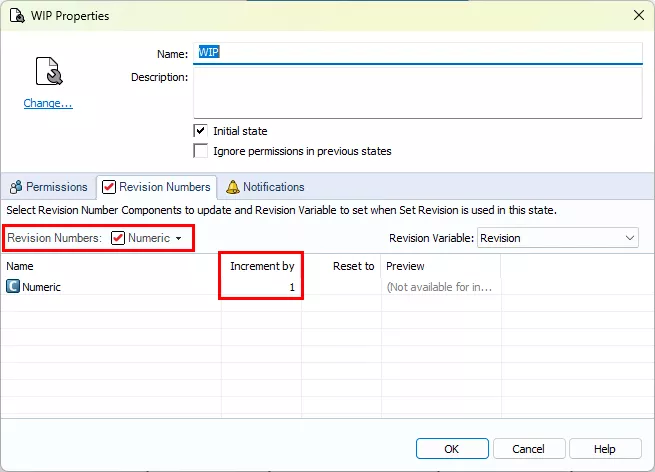
[Image C: A workflow State showing the components of a State Revision Schema]
As mentioned in the “Version vs Revision” article linked above, the database revision is version-specific. As soon as you check in changes to a file or change its state, you end up on a new version of that file with no revision assigned. This can lead to situations where the “Revision (Local Version)” or “Revision (Latest Version)” values and the data card might seem conflicting.
Decoding the Version tab
You can see the database revision and how it relates to the currently cached version of a selected file on the Version tab in File Explorer. Before we move on to the variable part of revisions, you might be wondering why there are several different fields on the Version tab that all reference “revision” (and even more confusingly, you may wonder why they don’t match).
This is the value it’s actually setting based on your Revision Numbers and Revision Components created in the admin tool. This is what displays when the database counters are calculated.
[Image D: The Version tab for a file in File Explorer]
There are three “Revision” fields on the tab, and they are all correct; they just reference slightly different revisions according to different versions of the file.
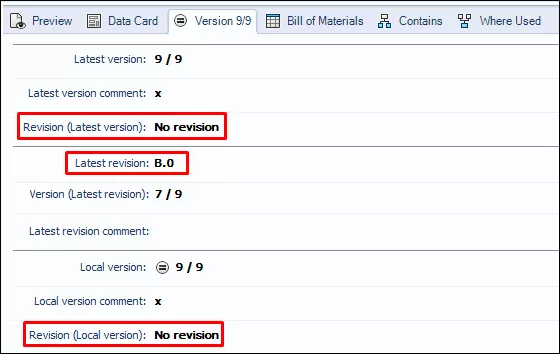
- Revision (Latest version) corresponds to the latest version of the file, and whether it has an assigned revision. (No Revision indicates the latest version of a file doesn’t have a revision assigned.)
- Latest Revision is representative of whatever the most recent set revision value is, regardless of what you have cached.
- Revision (Local version) corresponds to the version of the file you have cached on your machine.
Because the database revision is specific to the version of a file you set that revision on, the Local and Latest revision values can differ. If you have a file on version 5 and you use a workflow transition action or the manual Set Revision action to increment the revision on a file, it’s only assigning the revision to that specific version. Once you check in the file again or change the state so it moves up to version 6, there is no longer a “local” revision.
This is more easily visualized in the History dialog. As you can see, version 5 is assigned Revision A, version 6 has no revision, and version 7 is assigned Revision B.
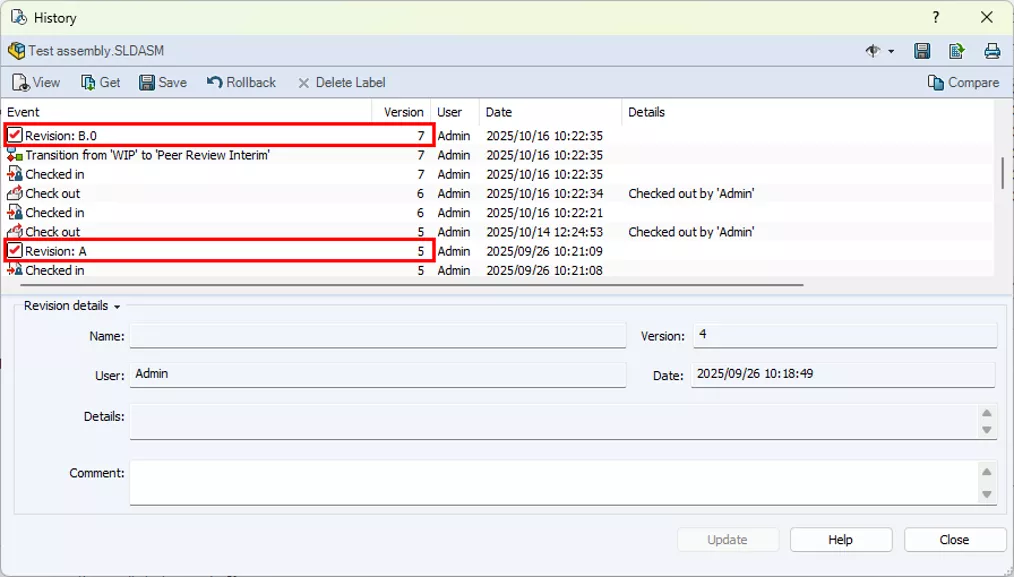
[Image E: The History dialog for a file, showing the version-specific revisions as separate line items]
Most users try to keep the latest version of the file cached on their machine, but in case they have an older version, or no file cached at all, the Local and Latest revision values might differ.
Using the same example as above, the “Test Assembly” shown below is on version 9, and no new revision has been assigned since version 7. So, if you have the latest version of the file (9) cached on your workstation, Latest and Local will both show “No Revision”.
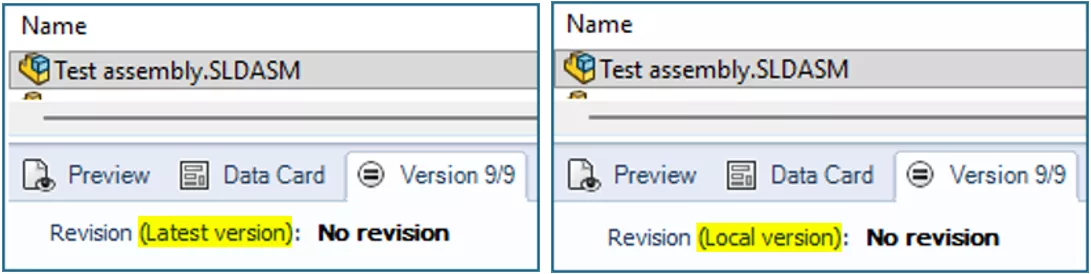
[Images F.1 & F.2: Comparison of the Version tab for the same assembly file showing version 9/9 with both “Revision (Latest Version)” and with “Revision (Local Version)” showing “No Revision”]
If you do a “Get” on version 7, you’ll see that change. Latest remains “No Revision” because version 9 has no revision assigned, but your local file is version 7, which does have a revision assigned.
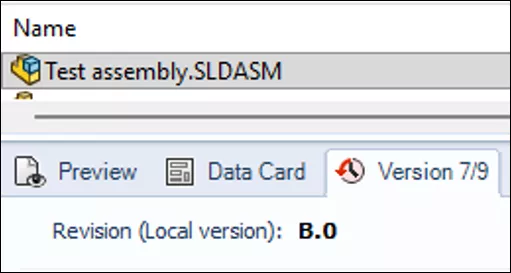
[Image G: Comparison of the Version tab for the same assembly file from Image F showing version 7/9 with “Revision (Local Version)” showing “B.0”]
Revision Variable
Now that you understand the Database Revision and how to read it, we can explain the Revision Variable (and how it differs). First and foremost, this is the Revision value you’ll see on the data card. It’s what a lot of people view as the default, or ”true” revision, though realistically the database revision is always going to be the most accurate since the variable is based on that database value.
PDM has a variable built into the default vault called “Revision”; this is provided as a default, generic template you can choose to use or not. You don’t have to use this variable if it doesn’t work for your needs – in fact, many companies have custom Revision variables, or even use more than one.
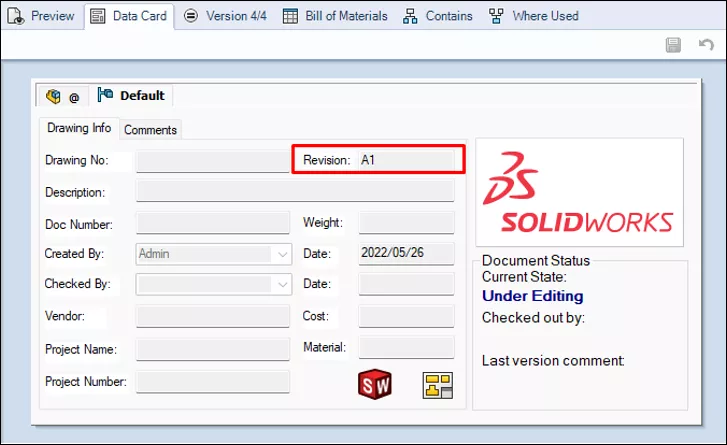
[Image H: The Data Card for a file, showing the populated Revision variable]
The revision variable is no different than any other variable, and when mapped to a data card it’s just a container for any text you put into it. Theoretically, you could even type whatever you wanted in that data card field - it’s static and considered nothing more than a “string” of characters that can be mapped to custom properties and displayed on the data card. Things can feed into it, or it can be manually updated - but it’s ultimately still just a container for text.
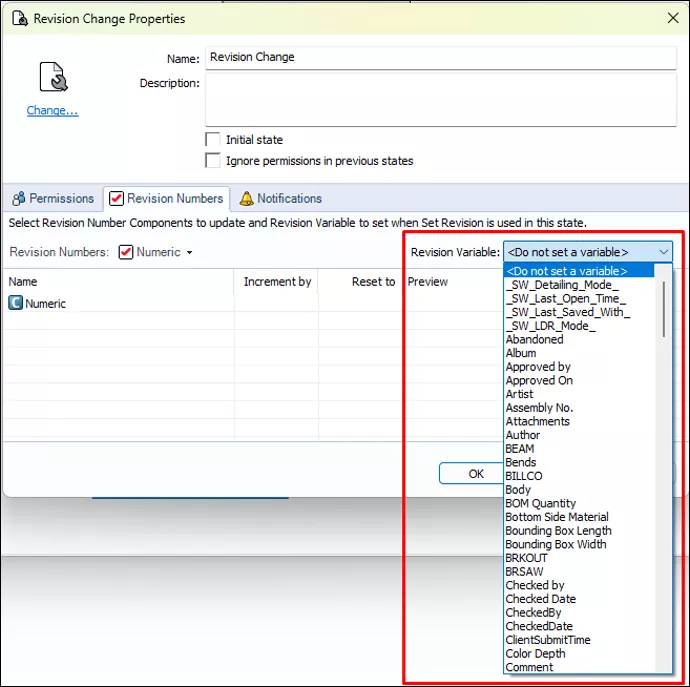
[Image I: The properties for a workflow State, showing the expanded “Revision Variable” dropdown where you can assign the variable you want to use for Revisions]
While some companies treat the SOLIDWORKS file as the one source of truth, it’s best to have PDM manage your revisions through your workflow. Then you can feed those values to the data card and finally the custom properties. This reduces the potential for human error and ensures proper permissions, approvals, and workflows are followed. We recommend setting up a revision component and number as mentioned above, assigning them to your workflow’s designated transitions and states, and setting up transition actions to Increment Revision and Set Variable in a pair.
The Revision Variable populates from the Set Variable action in a workflow transition…
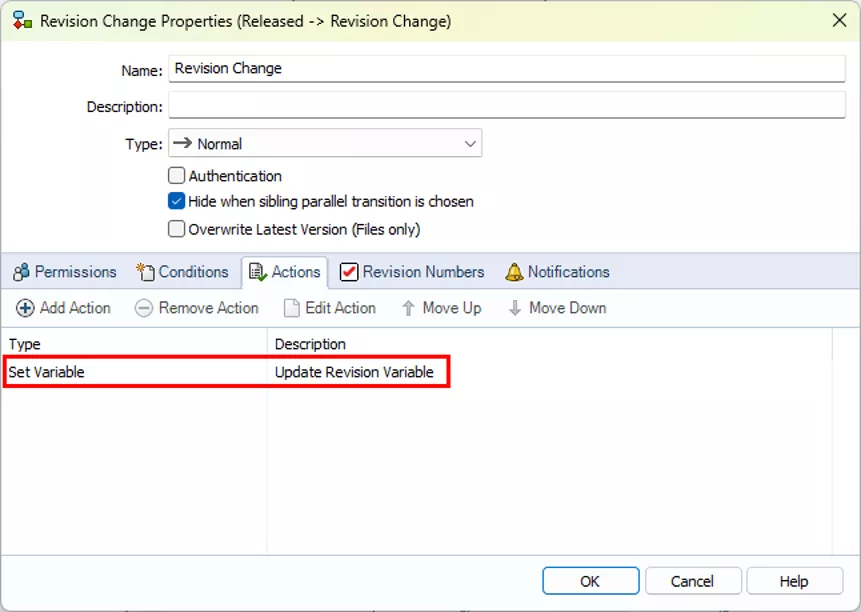
[Image J: The properties of a workflow Transition, showing the Set Variable action with a description of “Update Revision Variable”]
…or the Update Variable checkbox in the manual Set Revision tool. (Though both of these feed from configuration done in the workflow.)

[Image K: The Set Revision dialog, highlighting the Update Variable checkbox, which will populate the Revision Variable you assigned in the Workflow State properties]
The Revision variable will never update on its own – even if the database revision changes. The values are not linked, so you have to configure your workflow to update the variable with the database revision using the aforementioned methods. If you’re not careful about pairing the “Increment Revision” and “Set Variable” actions together in your workflow, they can easily become mismatched.
The nice part about the revision variable (as with any other variable) is that it persists across versions, unlike the database revision. You can still see “Revision: B” on the data card whether it was set on the latest version or not. It won’t update until someone changes it, either by manually typing into the data card, using the Set Revision tool, or via workflow transition.
You can also map variables to custom properties on your files so they can be added to a Drawing’s title block, BOMs, synced to ERP systems, etc. It’s the “visible” portion of the revision outside of PDM. If you’re looking to learn more about how to do that, we recommend reading our blog on mapping variables to SOLIDWORKS file custom properties.
Putting this Into Practice
Now that we’ve explained what the Database Revision and Revision variable are, the fact that they are not linked at all might make a little more sense. It just so happens that a lot of admins set up their vaults to update the revision variable on the data card with the database revision that they just incremented – and it’s absolutely considered best practice to do so – but there’s nothing in the system actually forcing these two things to sync. You have to tell PDM to do that.
Both require setup in your workflow to increment properly, and to map to a revision variable with the newly incremented value. We have a great blog on the differences between state and workflow revisions, which details the purpose and walks through how to set up each component. This is particularly handy for both your standard automated workflow transitions, and for use with the “Set Revision” tool to do it manually.
Final Thoughts
Many users have faced confusion when it comes to understanding the revision system in PDM, so we hope this helps clear up the mystery for you. SOLIDWORKS PDM can feel like it has an endless number of moving parts, and we’re happy to try and demystify as much of it as possible so you can confidently and efficiently manage your vault in the day-to-day.
If GoEngineer is your reseller, you can always reach out to our Technical Support team if you have questions or require other assistance! Good luck revisioning!
24 Tips to Master SOLIDWORKS PDM
SHORTCUTS ⋅ SEARCHING ⋅ PDM ADD-IN
24 of our expert tips to help you master using SOLIDWORKS PDM. Improve performance, find files faster, and work like a pro.
Related Articles
SOLIDWORKS PDM File History View Errors
SOLIDWORKS PDM Professional Automated SQL Backups
SOLIDWORKS PDM Paste as Reference
What Is the SOLIDWORKS PDM Archive Consistency Tool?

About Rowan Gray
Rowan Gray is a Technical Support Manager at GoEngineer and CPPA/CPAP with a specialty in SOLIDWORKS PDM and related data/lifecycle management. They have been with GoEngineer since 2020, and have a strong IT background that helps them more fully support customers with whatever issues may arise in their PDM environment. In their free time, they enjoy playing video games, D&D, multimedia crafting, and spoiling their pets.
Get our wide array of technical resources delivered right to your inbox.
Unsubscribe at any time.