SOLIDWORKS PDM System Resources Starting Point

We often get asked about recommendations for setting up a server (or servers) for SOLIDWORKS PDM. Dassault Systèmes' System Requirements page contains some information about server specs, but it’s not terribly specific. The hardware requirements are aimed more for a SOLIDWORKS workstation for an end user rather than a PDM server.
As the title of this article states, these are a starting point for a SOLIDWORKS PDM server system. Meaning that as your company, user count, and vault size grow, more of these system resources will need to be allocated to the server system. Ensure that your server system resources are scalable.
PDM has three main server components, comprised of:
Archive
- The primary repository for data.
- Maintains file vaults and provides client access to PDM.
- Sends the files between the archive server and the clients.
- Sends files from the archive server to other archive servers during replication.
- Validates user logons when using the SOLIDWORKS PDM login, and when using the Windows login for communicating with Windows services to authenticate with Active Directory.
Database
- This is the “helper” service for PDM vault databases. It is not the same as the SQL server, but they often get mixed up.
- You can install this service on either the archive or the SQL server. The service connects to the SQL Server service.
- This service processes jobs, such as email notifications and replication changes. The service logs in to SQL Server and queries for new jobs to process.
- You can restart this service while users are logged in to the system without causing interruption. When the service restarts, it begins processing jobs in the database queue.
SQL
- The SQL Server service provides storage, data processing, access control to data, and transaction processing. In short, this service controls how database information is delivered to the PDM clients, the database server process, the archive server process, and the web server. It is the “brain” of PDM.
- This service contributes the most to SOLIDWORKS PDM performance and uses the most processor and RAM resources. It requires the dedication of sufficient hardware resources to function efficiently.
Hardware Recommendations
There are two main ways a PDM server environment is laid out: with each of the two components (Archive and SQL) on their own separate machines, or with both components on the same machine. It’s recommended to separate the archive and SQL server components, but for smaller environments (15 users or fewer), it can be reasonable to have them on the same machine.
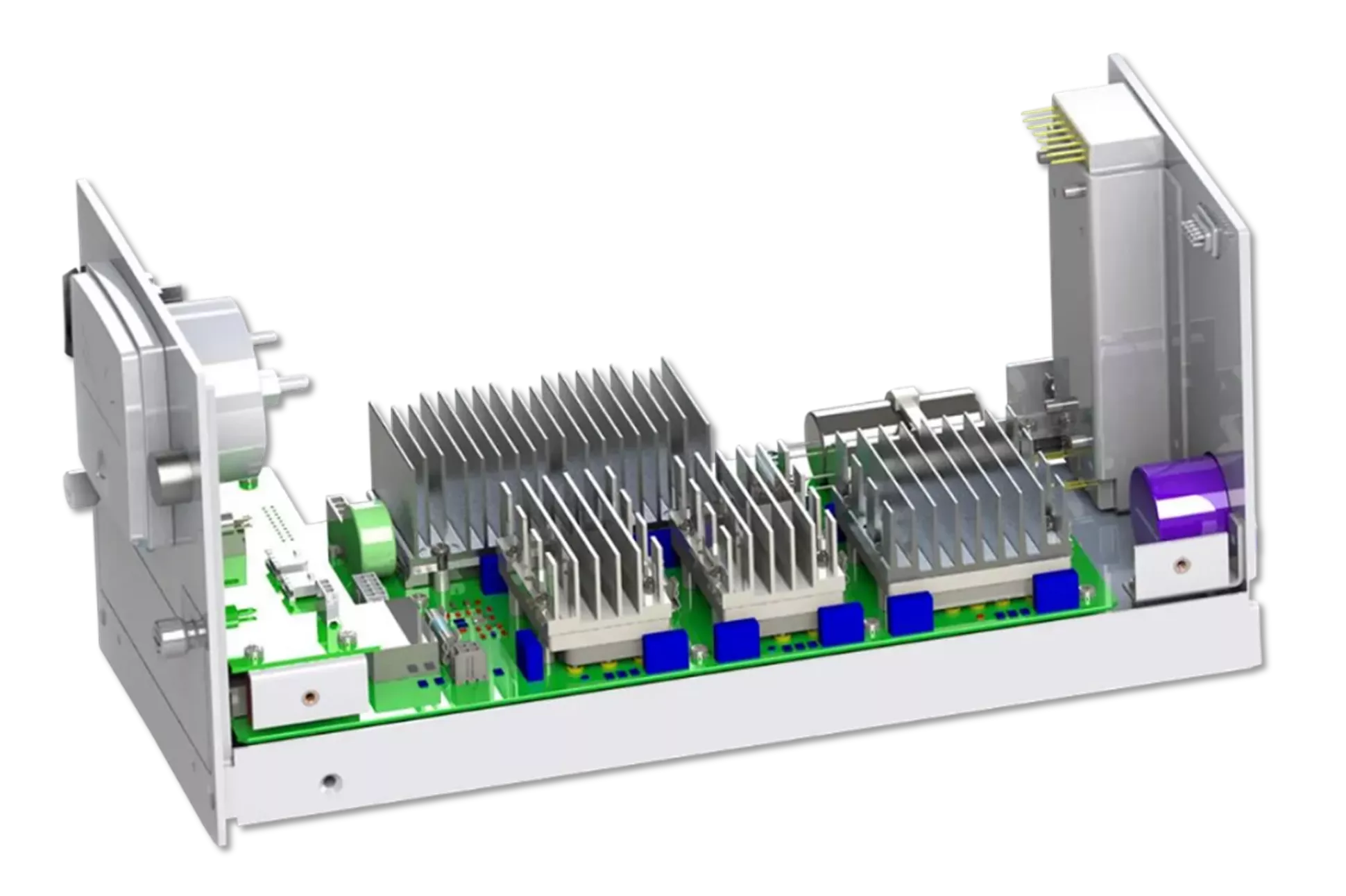
Separate Archive and SQL Servers
If you’d like to host the archive and SQL components on separate machines, you’ll need to allocate resources according to the needs of each server component. The PDM archives are very storage-heavy, require quick read/write speeds on the disk, and don’t need a ton of processing power compared to SQL. SQL is very processor- and memory-heavy, but often has a much lower storage capacity requirement.
Archive Server
RAM: 16GB, unless you have more than 40-50 users, in which case 32GB may be prudent.
Processor: Intel or AMD processor with 4 cores. Speed is less important. Any decent server-grade CPU should be fine.
Disk Space: A MINIMUM of 500GB.
- You want to have 3-5x the disk space available based on the current size of your data (whether it’s currently in a vault or not). This means if you currently have 250GB worth of CAD data, you’d want between 750GB and 1.2TB of storage available.
- Be sure this disk space is scalable, or you can add further space later. PDM is almost guaranteed to grow over time, so being able to add more storage rather than moving to an entirely new server is preferable.
- This storage should be in the form of locally mounted/native drives on the server. Removable storage drives or network storage, like a SAN/WAN, are not supported and can lead to performance degradation.
- The disk should be an SSD with high i/o speeds. Hard drives can be used, but they tend to be less reliable in the long term. The archive will be written to (and over) very frequently. The ability to reorganize data and access it quickly is extremely important to ensure your users have good baseline performance.
SQL server
RAM: 32GB
-
Monitor RAM utilization during business peak-time. A good rule of thumb is to have enough memory to load all of your databases simultaneously plus about 20% available room for overhead for any resource during business peak-time. This bullet is even more important on a system hosting multiple vault databases.
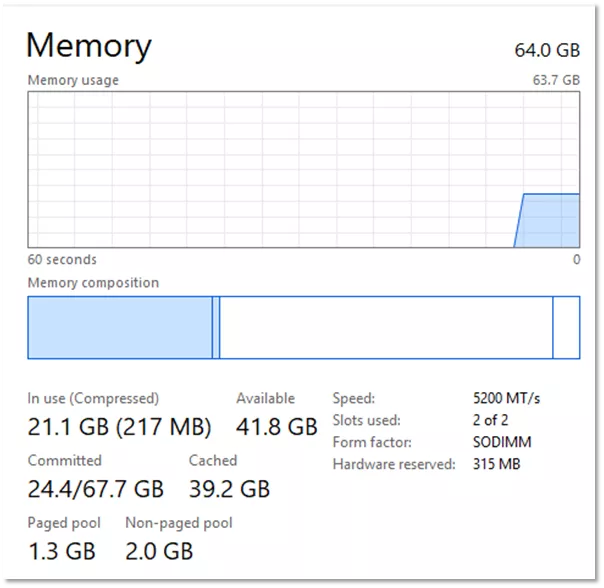
- SQL Server can be configured to use up to a maximum amount of RAM using SQL Server Management Studio. You don’t want to accidentally let SQL gobble up all of the RAM that the PDM server components need to function, so it’s often recommended to leave ~8GB of RAM in reserve for the operating system and any other apps.
Processor: An Intel or AMD processor with at least two logical CPUs. Support for streaming SIMD Extensions 2 (SSE2) is also required.
- It’s best to use processors with higher core density (like quad processors) because they can more efficiently handle the growth of SQL’s workload over time.
- For larger environments (15-20+ users), it’s best to aim for average CPU utilization under the 50% mark during normal operation. We often see performance bottlenecks when utilization approaches 75% or more.
Disk Space: 100GB minimum
- The storage needed for SQL is more minimal, but you still want to account for backups, potential growth during major activities, install files, the OS, etc. 100GB is the minimum storage you could comfortably have for a dedicated SQL server. If you have a larger environment, moving to 200-250GB would be better.
A few notes:
- Change SQL Recovery Model to “Simple”. It is recommended,and your server will thank you. We explain why and how in more depth here: Change SQL from Full Recovery to Simple Recovery Model.
- Be mindful when running automated tasks, like replication or SQL maintenance. Resource-intensive tasks should be scheduled during off-hours.
- Automatic backups are integrated with SQL Standard, but you can set them up for SQL Express, too. Check out our backups master list for more info.
Combined Archive and SQL Server
When combining the archive and SQL on one server, you need to have the processing power for SQL and the storage capacity for the archives. For smaller environments, this is more attainable. The same additional recommendations from above would apply here, but in tandem for each resource type.
Note: This is not recommended for environments with more than 15-20 users, as it can increase the risk of competing for resources and make troubleshooting issues on the server more complex.
RAM: 32GB of RAM
Processor: An Intel or AMD processor with at least two logical CPUs. Support for streaming SIMD Extensions 2 (SSE2) is also required.
Disk Space: 500GB minimum
PDM Standard Considerations
PDM Standard uses SQL Express, which has limitations compared to SQL Standard or Enterprise. We recommend checking out the limitations of each edition of SQL.
- Database size limits (per database):
- 2022 and earlier: 10GB
2025 and beyond: 50GB
- 2022 and earlier: 10GB
- Maximum RAM allocation: 1GB per instance of SQL (meaning 1GB of RAM across all databases in the instance).
- Processing Limits: a maximum of the lesser of 1 socket or 4 cores allocated for the processor.
This means that even if you have 64GB of RAM and a 16-core processor, the SQL instance will only ever use up to the limits stated above. PDM Standard is meant to be used in small <10 user environments with minimal traffic or complexity. Using it in larger or more active/complex environments is bound to lead to performance throttling and bottlenecks. Keep this in mind when allocating resources for your SQL server, specifically if you’re using PDM Standard.
The recommendations below assume PDM Professional/SQL Standard, so there are fewer or no limits comparatively.
General Configuration Recommendations
Network Considerations
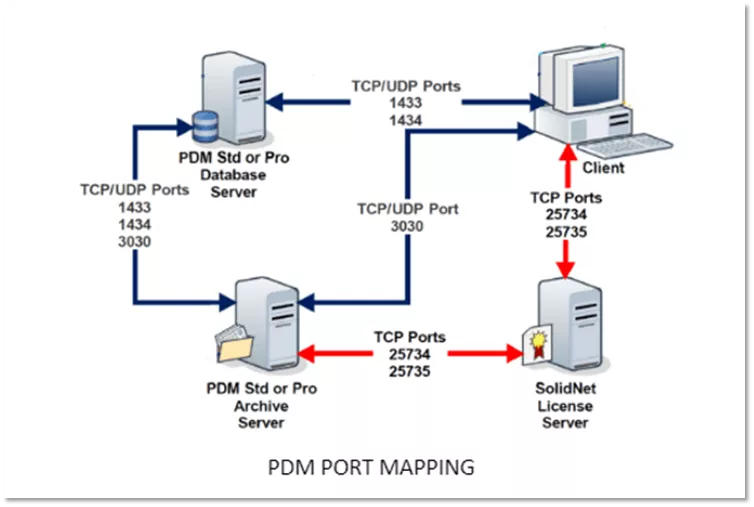
It’s important to understand that these recommendations assume a healthy network infrastructure. A client system should be a machine in the same LAN as the archive server. A gigabit network with reliable/continuous connectivity and throughput is necessary. Connections that require a WAN should set up a replicated environment such that the remote client is local to the remote archive server.
Latency on the network should not exceed ~100ms when testing with a weighted ping (1000 bytes per packet) over 60 seconds or so of continuous sending. This more closely resembles PDM standard traffic and can be used as a marker for network suitability.
Once you hit the 150ms latency mark, experience dropped packets, or excessive highs and lows in the ping test, your network might not be stable enough to run PDM. We cannot guarantee PDM’s reliability if those variables are affecting your network.
PDM also works based off of the server's host name, not IP or the fully qualified name. This means your DNS needs to allow for proper name resolution between Client and Server machines in order for communication to succeed.
Performance Validation
The recommendation is to monitor resource usage at least once every year or when there is a major change to the production environment. For example, when adding many new PDM users, when using a new third-party PDM add-in, or after activating replication for the database server or the archive server. This allows you to check in on your environment’s performance and make plans to scale resources as necessary.
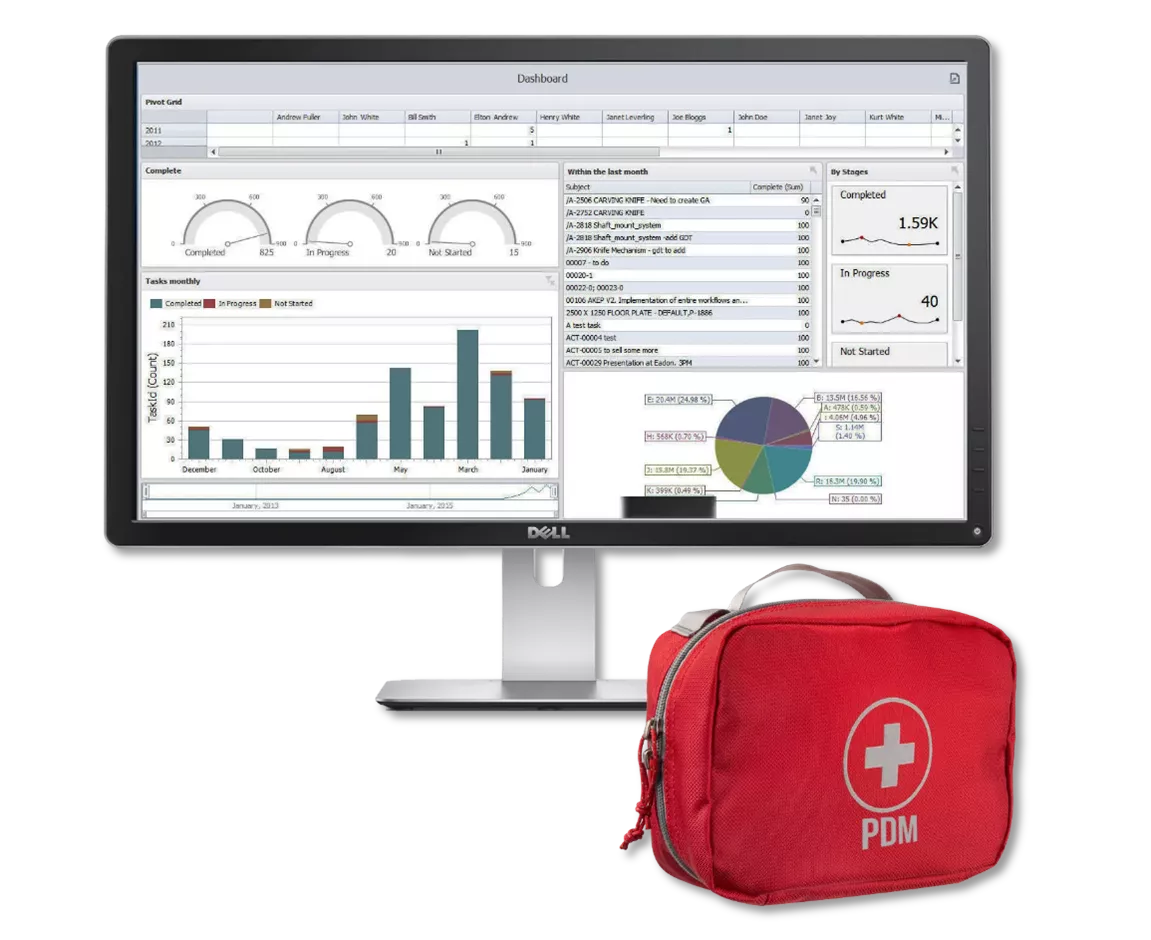
Our PDM Services team also provides a PDM Health Check, which can give you a more in-depth understanding of where your current environment stands, and personalized recommendations on ways you might improve performance and stability.
Sharing the space
Your server(s) should be dedicated to PDM. Hosting other applications, their databases, or trying to run multiple items on one server can lead to resource conflicts, more difficult troubleshooting and isolation, and potential instability of the other applications that don’t “play nicely” with PDM.
SQL Licensing
While PDM once came bundled with licensing for SQL standard with PDM Professional seats, that is no longer the case. You will need to purchase your own SQL licensing. We recommend working with a Microsoft/SQL reseller to ensure you’re compliant with Microsoft’s licensing requirements. Here is an article that explains SQL licensing pretty well (at the time of publishing). This is a third-party site, and we can’t 100% guarantee the validity or safety of their recommendations, so be sure to take recommendations with a grain of salt and confirm with your support team or your Microsoft reseller if you’re unsure.
Note: PDM does not support hosted SQL instances, like those offered by AWS or Azure. All of your server components must be hosted on a full server machine with an installed OS and full administrative control.
Conclusion
This article is meant to provide a jumping-off point to guide you in what SOLIDWORKS PDM requires. It’s by no means comprehensive, and as such should not be taken as gospel. If GoEngineer is your SOLIDWORKS VAR and you have questions about your setup and what might work best for you, contact our Technical Support team for more tailored guidance for your environment.
Editor's Note: This article was originally published in October 2017 and has been updated for accuracy and comprehensiveness.
24 Tips to Master SOLIDWORKS PDM
SHORTCUTS ⋅ SEARCHING ⋅ PDM ADD-IN
24 of our expert tips to help you master using SOLIDWORKS PDM. Improve performance, find files faster, and work like a pro.
Related Articles
Managing Your SOLIDWORKS PDM Vault Size
Managing Your SOLIDWORKS PDM Vault Size With Cold Storage
Managing Your SOLIDWORKS PDM Vault Size with Relocation
SOLIDWORKS PDM Secret Getting Started Guide
SOLIDWORKS PDM Client Installation on an Existing SOLIDWORKS Installation

About Rowan Gray
Rowan Gray is a Technical Support Manager at GoEngineer and CPPA/CPAP with a specialty in SOLIDWORKS PDM and related data/lifecycle management. They have been with GoEngineer since 2020, and have a strong IT background that helps them more fully support customers with whatever issues may arise in their PDM environment. In their free time, they enjoy playing video games, D&D, multimedia crafting, and spoiling their pets.
Get our wide array of technical resources delivered right to your inbox.
Unsubscribe at any time.