How to Upgrade SOLIDWORKS to a Newer Version

At some point, every software needs to be upgraded to a newer version. Fortunately, SOLIDWORKS offers two relatively simple methods. Below are the instructions for upgrading SOLIDWORKS to either a new Service Pack (SP) or a new version.
 PLEASE NOTE
These steps are for upgrading SOLIDWORKS. If you use PDM, Electrical, or use an Admin Image, different steps and procedures may be needed. Do not upgrade without permission from your Admins.
Before You Upgrade
Before performing an upgrade, back up your settings. This is a precautionary measure to ensure that a copy is available for restoration, should the need arise. Refer to this article for instructions: SOLIDWORKS Settings Wizard Made Easy
With your settings saved, you can proceed to updating.
Method 1: Check for Updates
The first method is a simple one: use the built-in Check for Updates option. Inside SOLIDWORKS, click the Help menu button (?) located in the upper right of the window. In the menu, click Check for Updates.
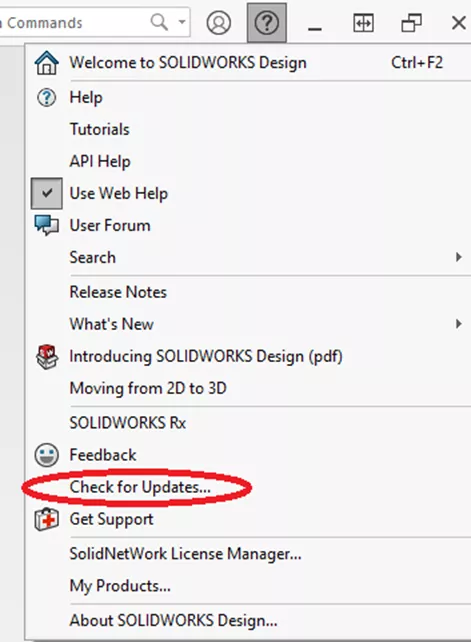
The Installation Manager window will open and check for available updates (you can close SOLIDWORKS once this opens). Once it has finished checking, the Installation Manager will list any available updates in a dropdown list. Choose the SP (Service Pack) or version you wish to install, then proceed through the Install screens until the install begins. Once complete, you should be updated!
Method 2: Using an Install Package
The second option is using an Install Package, which can be acquired through the GoEngineer Customer Portal. Once logged in, you can access the software from the SOFTWARE DOWNLOADS link in the footer of the site.
Once downloaded, extract the Files using 7-Zip, then run the setup as an Administrator. You will be shown the standard Installation Manager, asking to install. Proceed through as normal.
If updating from one SP to another of the same version, the steps proceed as a normal installation. If you are upgrading your version of SOLIDWORKS to a new one, you will be presented with the option of installing as a new instance (in addition to what's currently installed) or upgrading a current one.
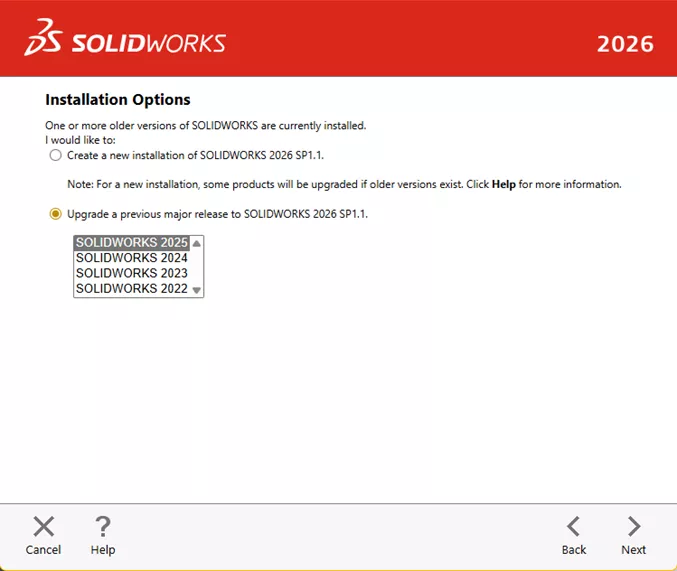
If you elect to upgrade a previous major release, choose which one to upgrade from the list of current instances. Then click Next. If multiple instances of the Toolbox are detected, you'll be prompted to create a new one or upgrade an existing one. Click Change to pick an option.
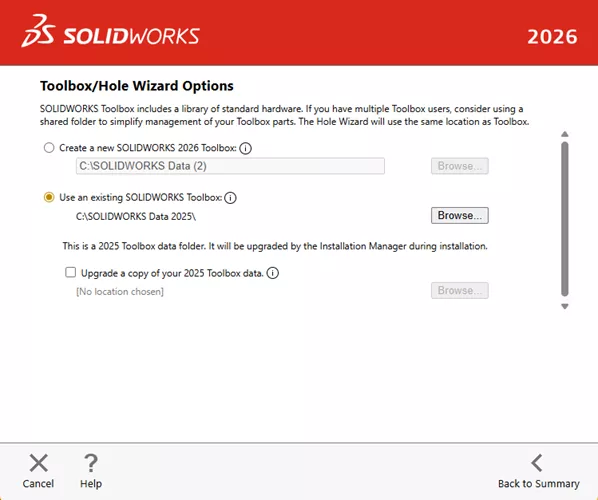
It's usually best to upgrade your existing SOLIDWORKS Toolbox. But you may wish to create a new one or upgrade a copy if you'll be maintaining other instances of SOLIDWORKS. Once this has been selected, click Back to Summary. You should then be able to agree to the Terms and Conditions and begin the installation!
Note that this does not apply to Administrative Images.
Should any issues arise, reach out to Technical Support.
Editor's Note: This article was originally published in March 2019 and has been updated for accuracy and comprehensiveness.
Recently Added SOLIDWORKS Articles
What is CEF for SOLIDWORKS & How to Fix the Faulting Module libcef.dll?
SOLIDWORKS Pack and Go: What It Is & How to Use It
Optimizing Graphics Card Setup for SOLIDWORKS
Adding and Removing Search Paths in SOLIDWORKS

About Joshua Irwin
Josh Irwin is a SOLIDWORKS Technical Support Engineer at GoEngineer.
Get our wide array of technical resources delivered right to your inbox.
Unsubscribe at any time.