Enable SOLIDWORKS Virtual Companions: AURA, LEO, and MARIE

This guide walks through adding and activating AI Virtual Companions AURA, LEO, and MARIE to the desktop version of SOLIDWORKS.
Connect to the 3DEXPERIENCE Platform
To run the AI companions in SOLIDWORKS, your license must include Cloud Services and be connected to the 3DEXPERIENCE platform. The steps below walk through setting up the 3DEXPERIENCE platform for licenses that include cloud services. If you don't have cloud services or are unsure if you do, contact your SOLIDWORKS reseller. If you already have 3DEXPERIENCE SOLIDWORKS or have 3DEXPERIENCE connected to your desktop SOLIDWORKS, you can skip to the next section.
-
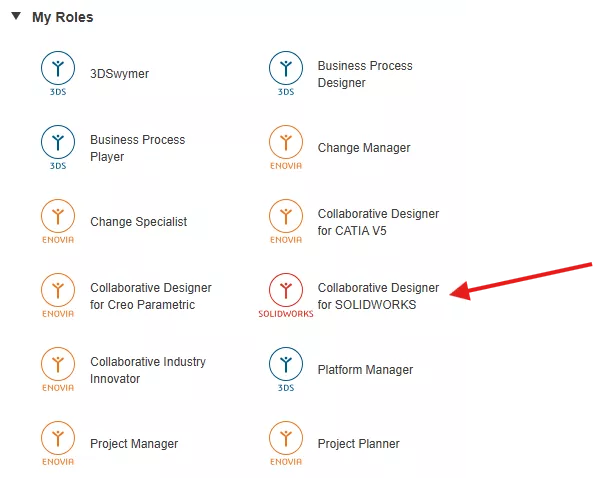
To set up the 3DEXPERIENCE platform, you will need to determine who the platform admin should be. (Note: If you only have one seat of SOLIDWORKS, the admin will have to be the SOLIDWORKS user. An extra 3DSWYMER license will need to be purchased for an IT admin to manage the platform). This article walks through setting up the platform: Getting Started with 3DEXPERIENCE: Setup, Dashboards, Connectors & More. The roles you will need to have assigned are the following:


-
Launch SOLIDWORKS from the 3DEXPERIENCE platform in the web browser.
-
Click the compass in the top left.
-
Select the Collaborative Designer for SOLIDWORKS.
-
Launch Design with SOLIDWORKS. You will be prompted to install the launcher; follow the prompts to complete the installation.
-
-
When you launch SOLIDWORKS from your web browser, it should automatically connect to the platform each time. Be sure to check the upper right-hand corner to see if it is connected.
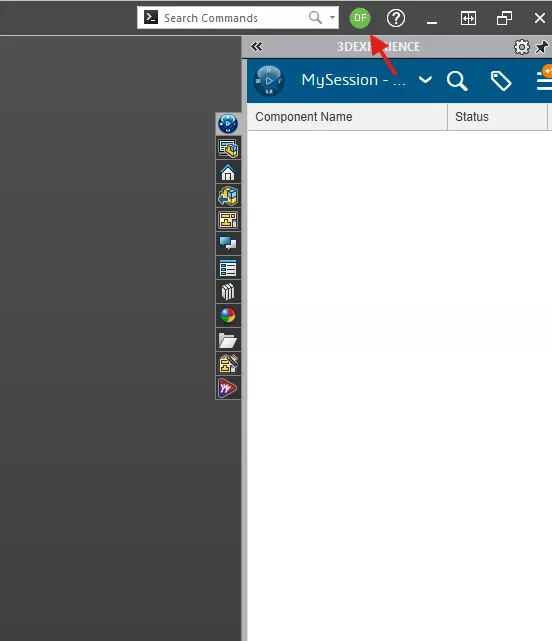
Once SOLIDWORKS and 3DEXPERIENCE are connected, you can add the AI companions.
Virtual Companions Add-in
-
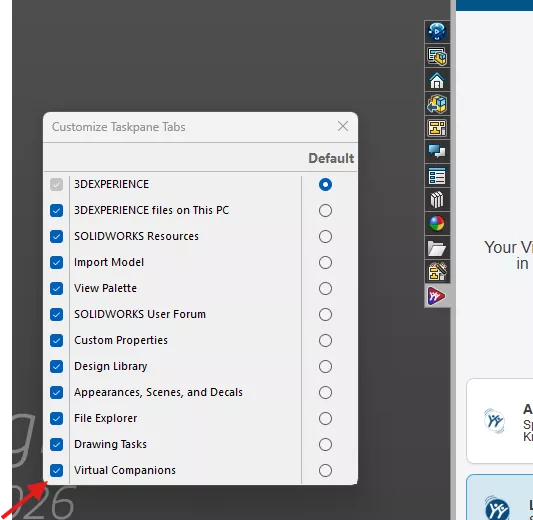
Look for the Virtual Companion icon on the platform.

-
AURA, LEO, and MARIE are all under this one tab. If you don't see this icon, right-click one of the icons and select Customize. A pop-up will appear where you can toggle the selection for Virtual Companions.
-
Once toggled on, you will have access to the virtual companions and all of the amazing features AURA, LEO, and MARIE have to offer.
Questions?
Contact GoEngineer's software technical support team here.
SOLIDWORKS CAD Cheat Sheet
SHORTCUTS ⋅ MOUSE GESTURES ⋅ HOT KEYS
Our SOLIDWORKS CAD Cheat Sheet, featuring over 90 tips and tricks, will help speed up your process.

Related Articles
SOLIDWORKS AI Blue Tokens - FAQ
AI in SOLIDWORKS: What It Is (and What It Isn’t)
Create a SOLIDWORKS Model From a Picture
Overriding Mass Properties Using SOLIDWORKS Design Tables

About Dylan Funk
Dylan Funk is a Technical Support Engineer at GoEngineer.
Get our wide array of technical resources delivered right to your inbox.
Unsubscribe at any time.