How to Set Up an Auto-Name Title in 3DEXPERIENCE

Have you ever worried about saving over files and not following the perfect file naming process? Well, 3DEXPERIENCE can handle all of this for you. You can even set up a custom naming system that best fits your company. In this guide, I will show you how to set up an automatic title naming scheme, so there is no need to worry about file naming.
File Name vs Title
For a bit of background, when you upload a file to 3DEXPERIENCE, the File name will always stay the same and cannot be edited. This is due to any references that may be associated with this file. For instance, if you change the name of a file in the desktop version of SOLIDWORKS, you may encounter a broken reference and will need to locate that part.
3DEXPERIENCE helps mitigate this issue by keeping the original file name and creating an editable attribute called the Title. Now that we understand the difference between File Name and Title, let's walk through the steps for setting up the auto-name feature.
How to Set Up the Auto-Name Feature
- Navigate to the role Platform Manager > Collaborative Spaces Control Center > CAD Collaboration > SOLIDWORKS > Settings > Auto-name. Toggle this on to set up this feature.
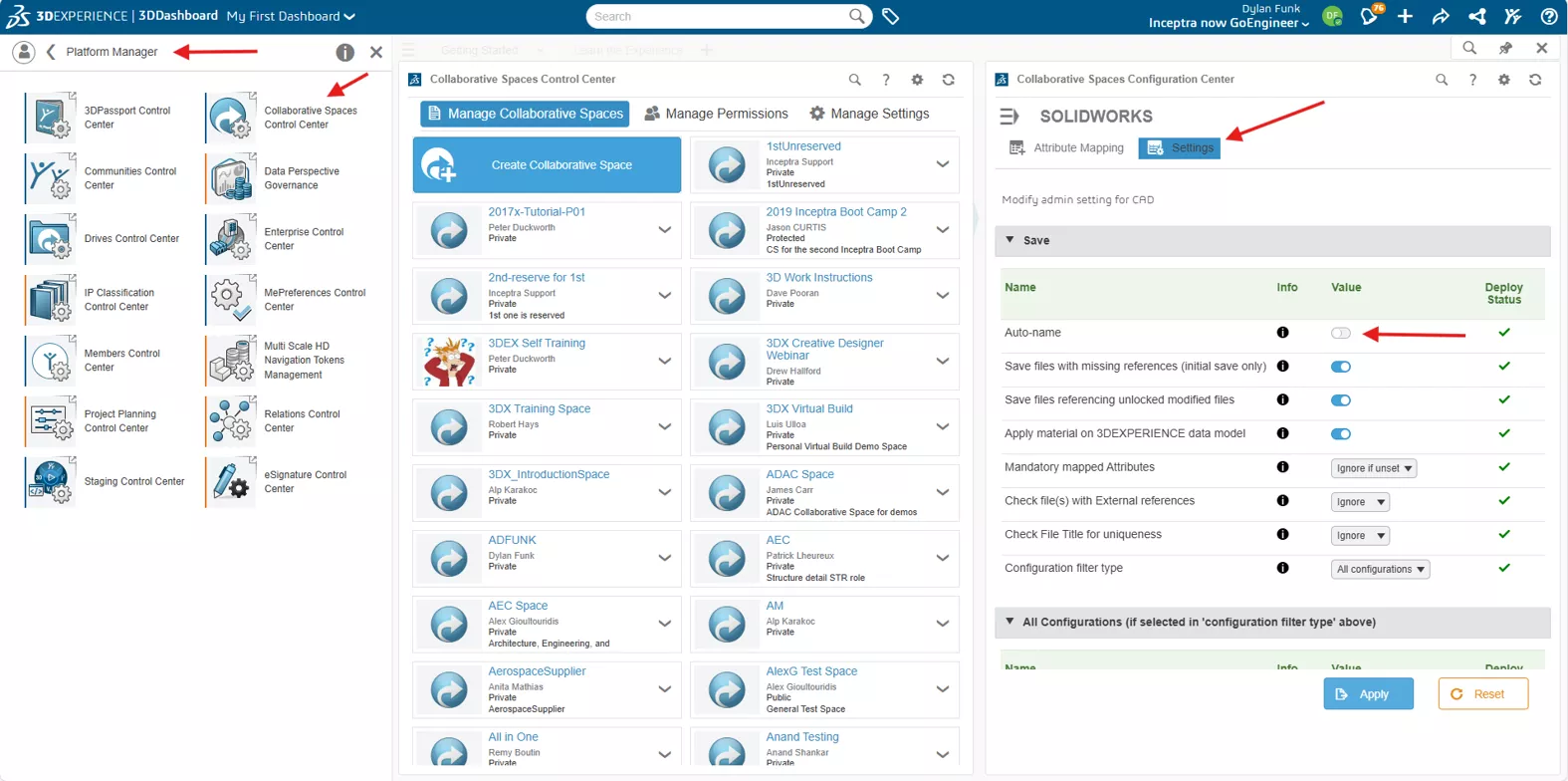
- To tailor the naming convention, you will need to jump over to another area. Still staying in the Collaborative Spaces Configuration Center, go into Content Naming Rules.
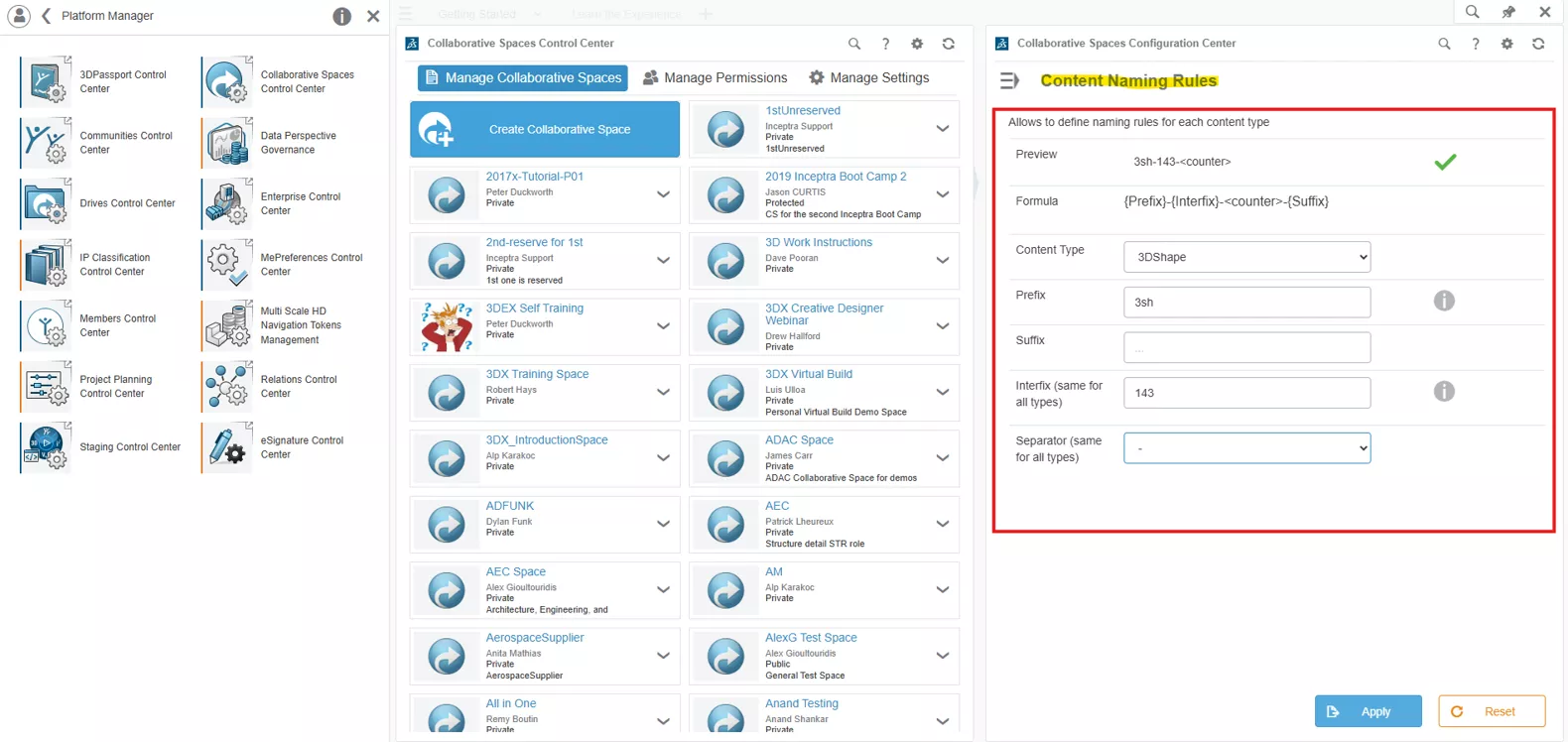
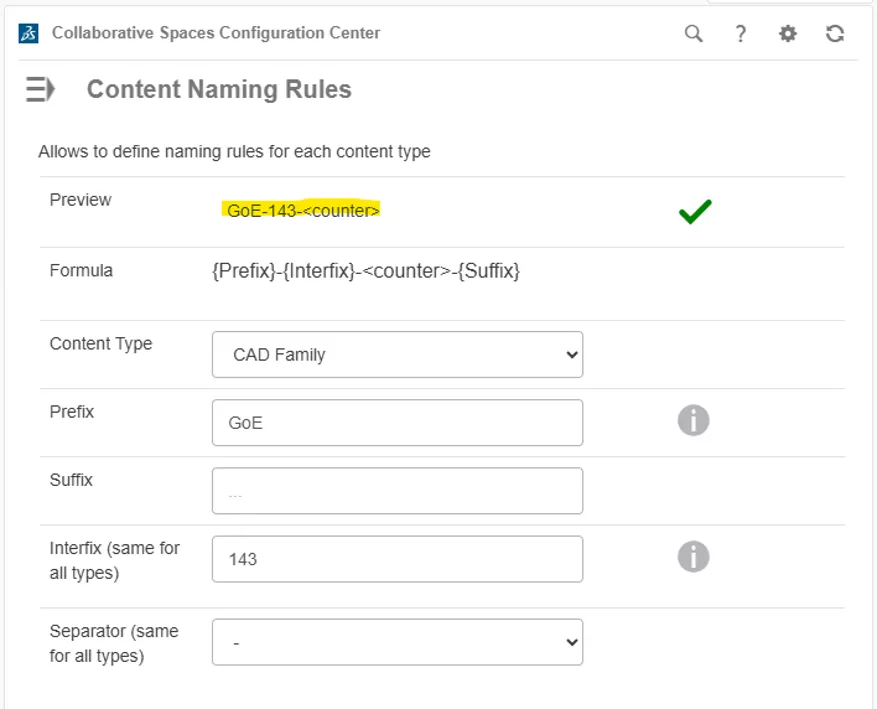
- Currently, you can only add a prefix, suffix, interfix, and a separator within specific content types. 3DEXPERIENCE will then handle the counter for the numbering of the files. Once everything is set, click Apply to set the changes. Below is the preview of what I have set for the CAD Family content.
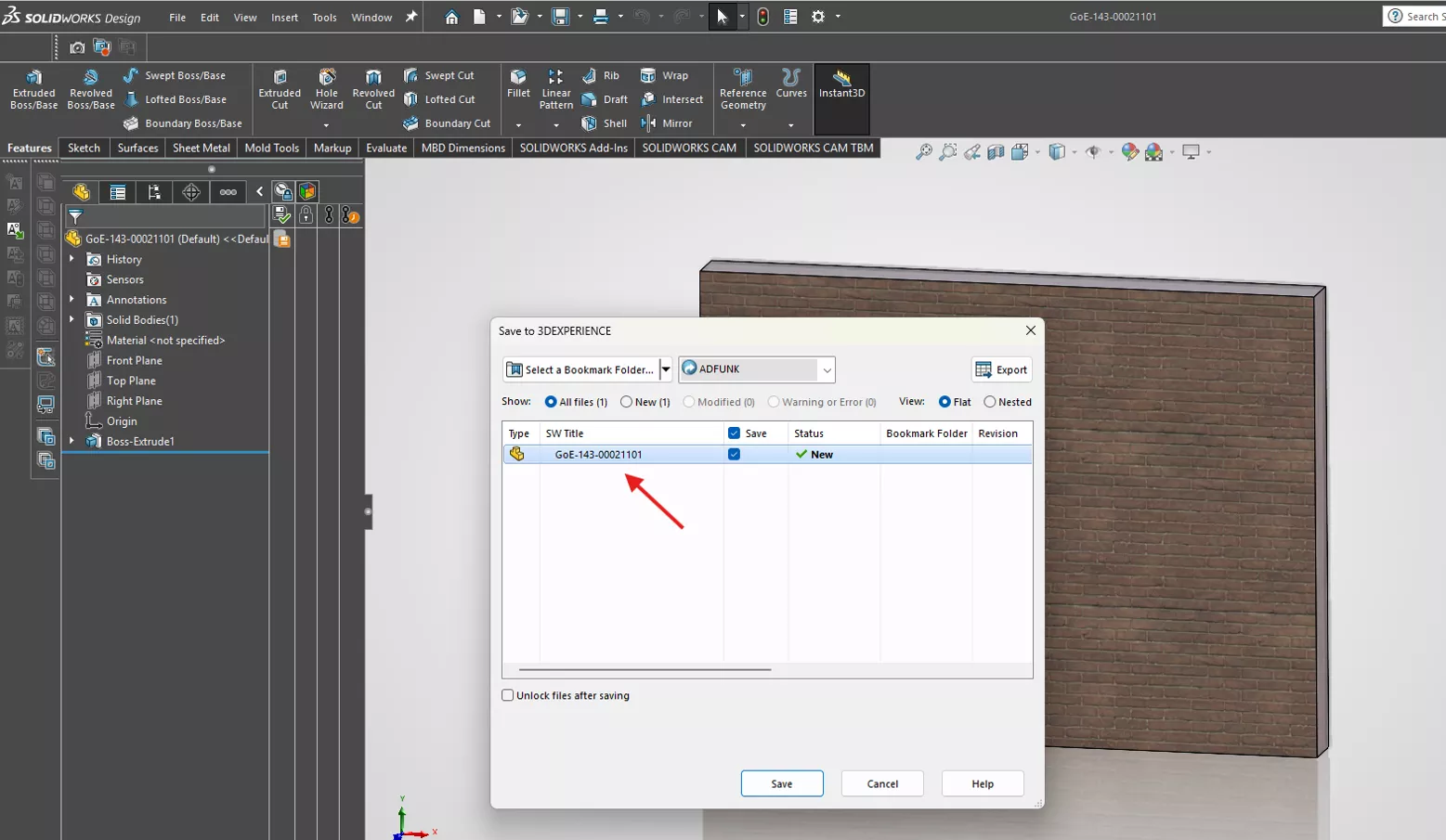
- Let's save a SOLIDWORKS file to test the naming we have set. In the image below, it appears everything is working properly.
In some instances, we may want to establish a unique identifier for our data, completely independent of the title. In this situation, Enterprise Item Numbers (EINs) are a great way to have more control over the component data and even use some of the other attributes like the Title to categorize the components for ease of searching, but still have a clean part numbering done in the EIN.
Want to learn more? Check out more tips and tutorials listed below or on our 3DEXPERIENCE YouTube Channel. Additionally, join the GoEngineer Community, where you can create forum posts, take part in design contests, and answer questions from other 3DEXPERIENCE users.
Related Articles
Changing the 3DEXPERIENCE Maturity Graph Engineering Definition
3DEXPERIENCE SOLIDWORKS Import/Export Package - Getting Started Guide
Benefits of 3DEXPERIENCE Duplicate Function
Change Your 3DEXPERIENCE Platform Name & Organization Title

About Dylan Funk
Dylan Funk is a Technical Support Engineer at GoEngineer.
Get our wide array of technical resources delivered right to your inbox.
Unsubscribe at any time.