Setting Up SOLIDWORKS Plastics Custom Report Templates

In 2023, Dassault Systèmes announced enhancements to the SOLIDWORKS Plastics Report feature, which included updated templates for Microsoft Word and Microsoft PowerPoint. Classic and Light report templates from previous years were replaced with more organized, modern reports.
This update, however, removed a custom template option from the report setup page as seen in versions 2022 and older.
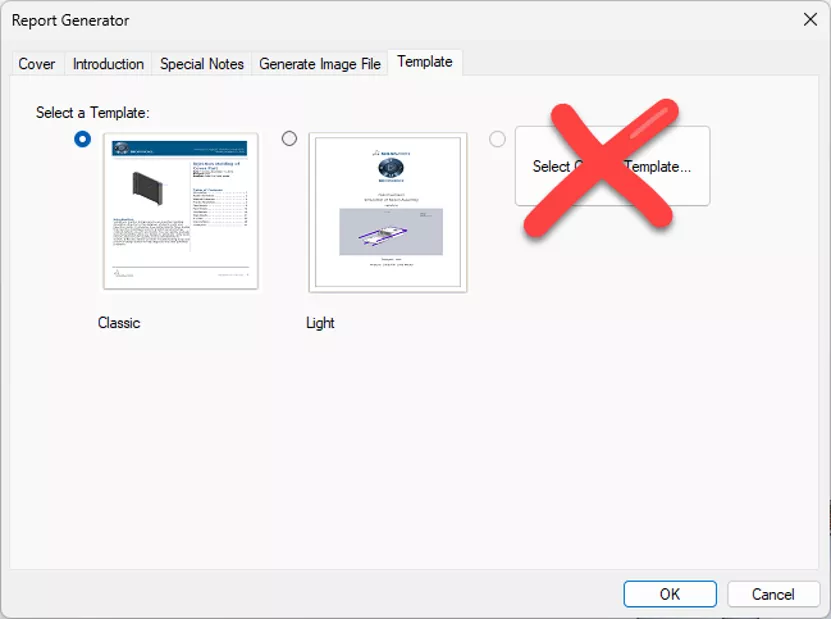
This article explains how to apply your own document templates to the Word and PowerPoint reports for SOLIDWORKS Plastics Reports, which can be modified to add corporate branding such as logos, addresses, letterhead, and themes.
Locating & Preparing the Report Template Files
In this example, the report template files are in the following location:
C:\Program Files\SOLIDWORKS 2023\SOLIDWORKS Plastics\Document
Note: This is the file installation location for the SOLIDWORKS 2023 version on this computer. It could be C:\Program Files\SOLIDWORKS\SOLIDWORKS Plastics\Document.
The Word document is named Word template classic.docx and the PowerPoint template is named PowerPoint report template.pptx.
These names must remain the same. This is not like other SOLIDWORKS template files where we can point to the file location and the template file. Before making any modifications to these files, make a backup copy and save them in a safe location. We will be replacing these files with modified versions. I have copied these files to a SOLIDWORKS Custom Template folder that I created on my computer and renamed them word template classic_orginal.docx and PowerPoint report template_original.pptx.
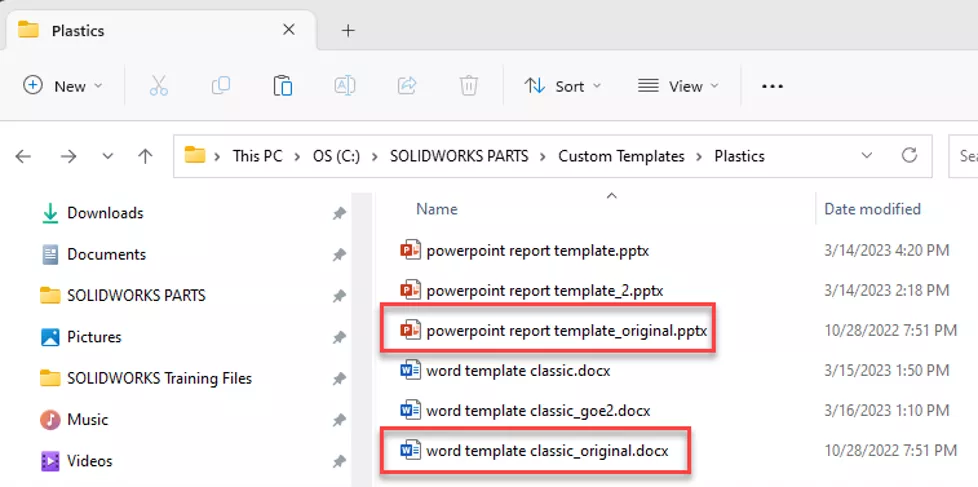
With the backups created, the originals can be opened and modified.
Modifying the Word Document
Step 1. Open the word template classic_original.docx file and save it as word template classic.docx in the file location where this backup file was saved.
You will not be able to open and save the file that is in the original file location due to write access settings.
Note: We are not saving these files as document template .dotx files.
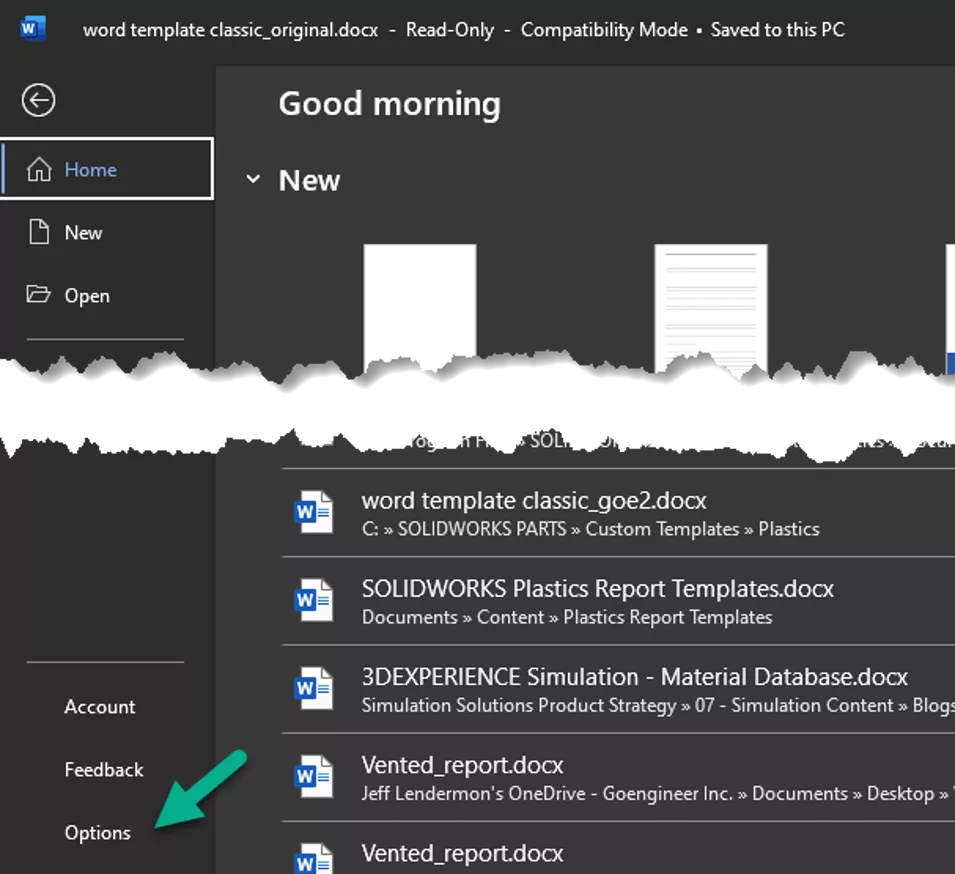
Step 2. Go to File and select Options in the bottom left corner.
Step 3. Select Add-ins and then Manage > Templates and then select Go...
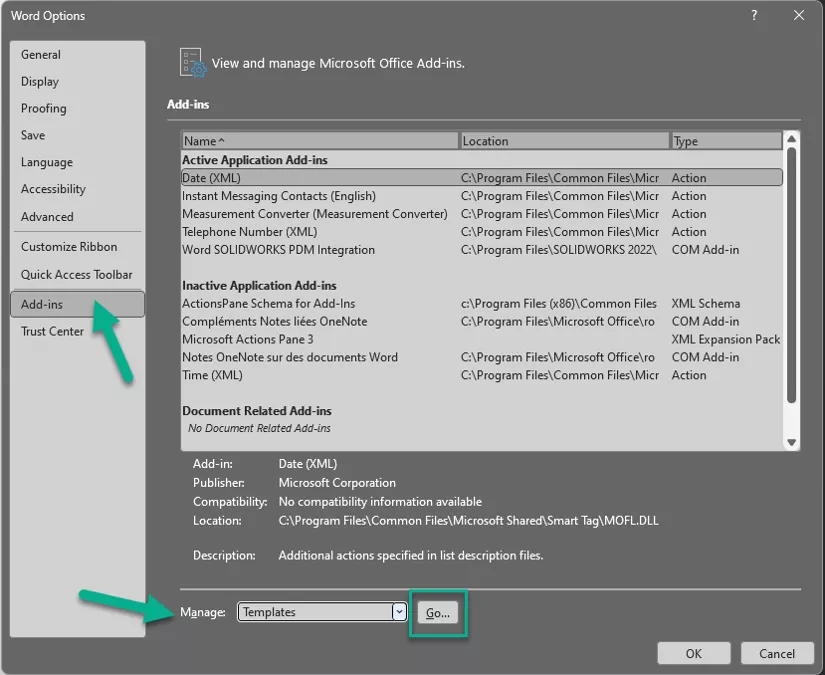
Step 4. Check Automatically update document styles and then select Attach…
Choose the template you want to apply to the document, and choose Open.
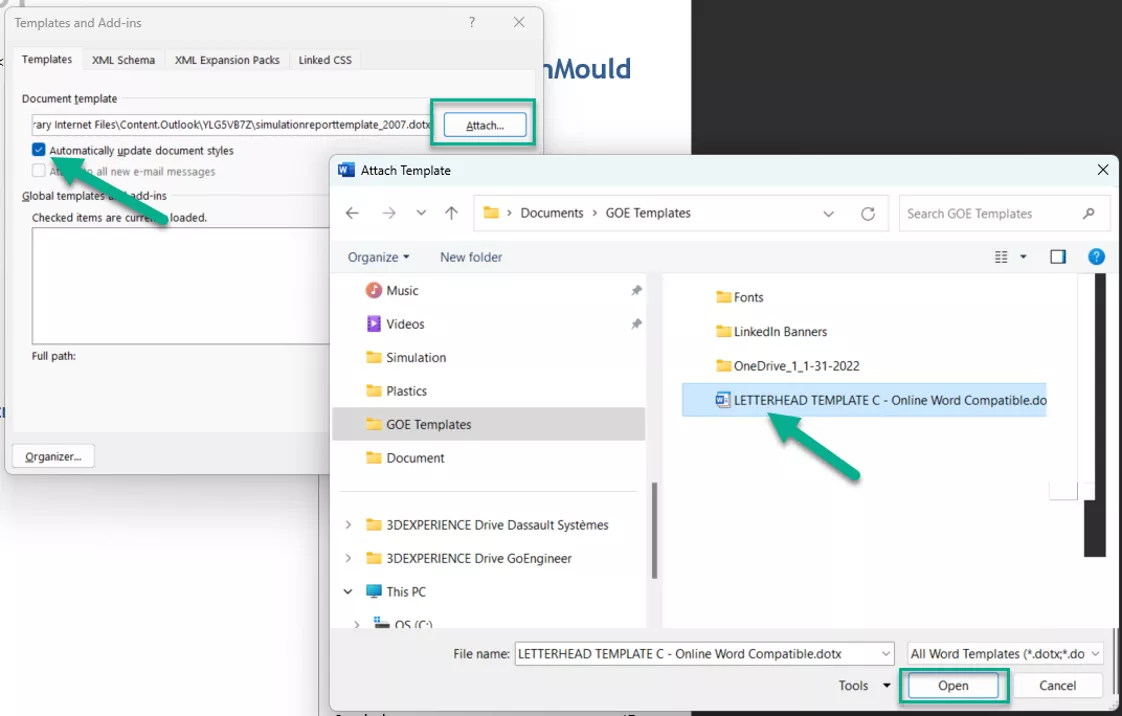
This will apply the template design from the selected template to the Plastics report template.
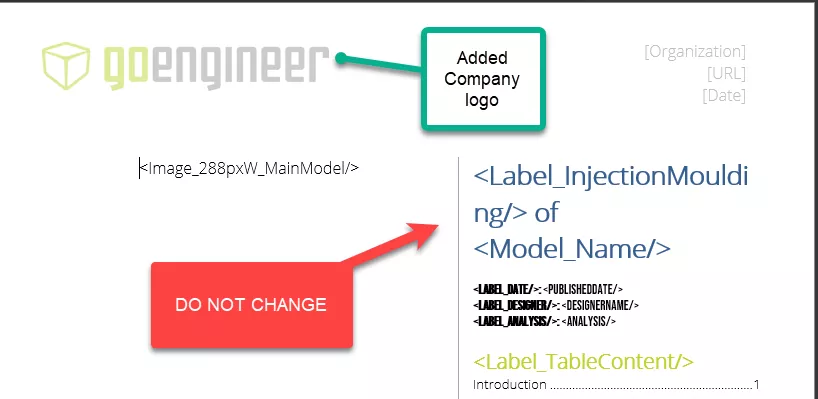
Step 5. Do not make any changes in the document to the labels or other fields; this will often cause the report to fail.
You can make other changes to the header and footer, such as adding a corporate logo.
Step 6. Save the document.
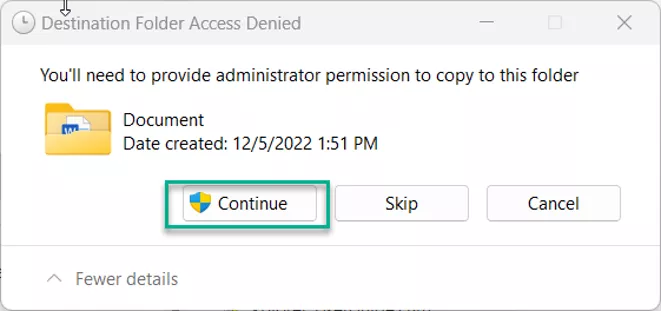
Step 7. Copy the word template classic.docx and paste it to the C:\Program Files\SOLIDWORKS 2023\SOLIDWORKS Plastics\Document file location.
You must have Administrator rights to paste into this file location. It's okay to choose to overwrite the file (we made a backup). Choose Continue in the administrator permission window.
Step 8. Test the template by running the Report in SOLIDWORKS Plastics.
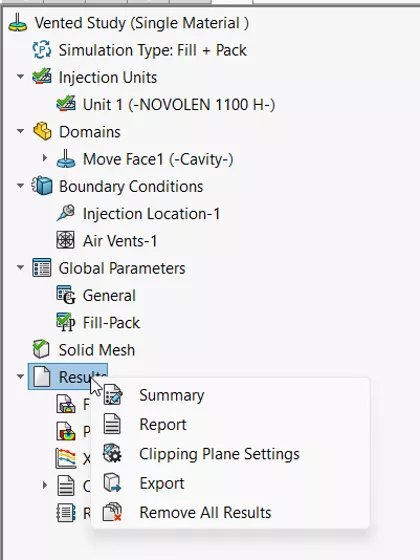
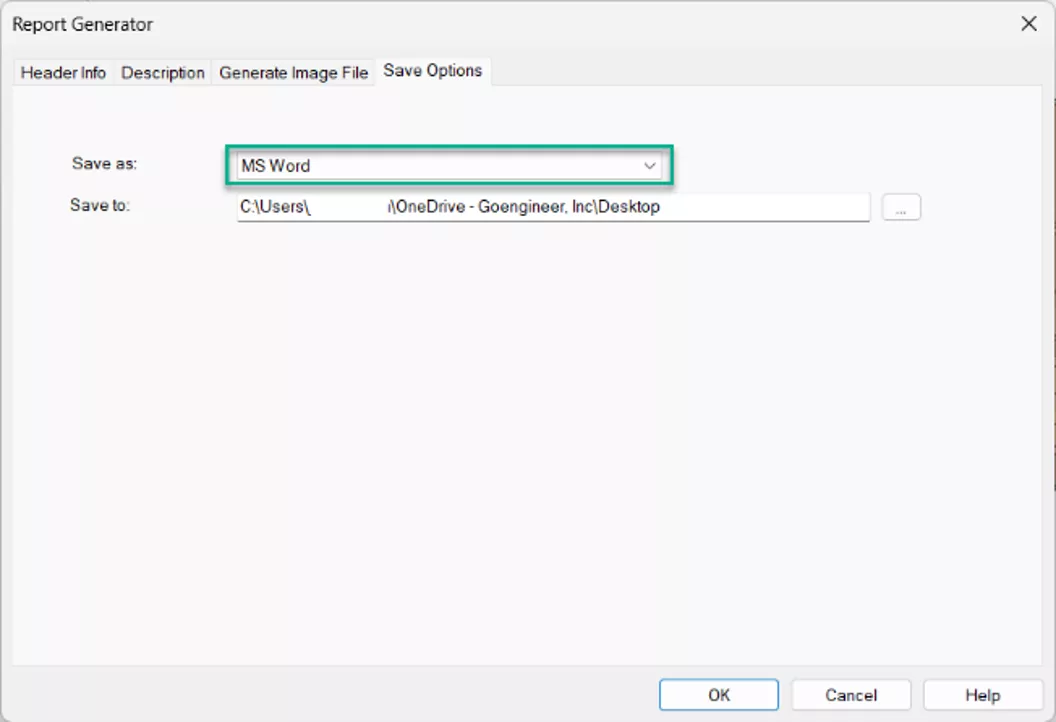
There is an option to choose the save to file type: Choose MSWord if you just want to test the Word template.
Modifying the PowerPoint Document
Step 1. Open the PowerPoint template_original.pptx file and save it as PowerPoint template.pptx in the file location where this backup file was saved. You will not be able to open and save the file that is in the original file location due to write access settings.
Note: We are not saving these files as PowerPoint template .potx files.
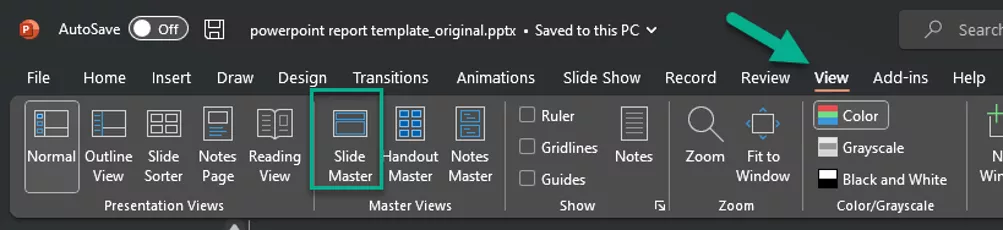
Step 2. Select View and then choose Slide Master. Editing the fonts, colors, or themes in the Slide Master will change the entire presentation to match the Slide Master. This is much easier than editing each slide or copying and pasting all the slide information into a new slide deck.
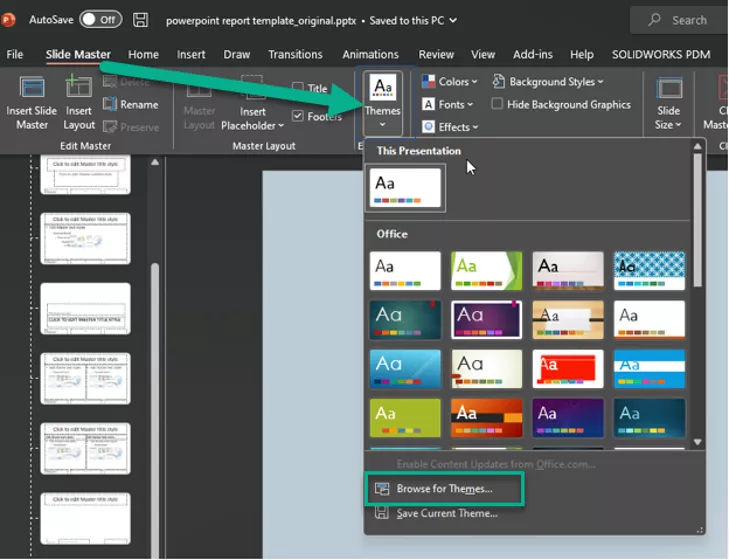
Step 3. In the Slide Master view, select Themes and then choose Browse for Themes.
Step 4. Navigate to the PowerPoint Template file you want to apply to the Slide Master and choose Apply.
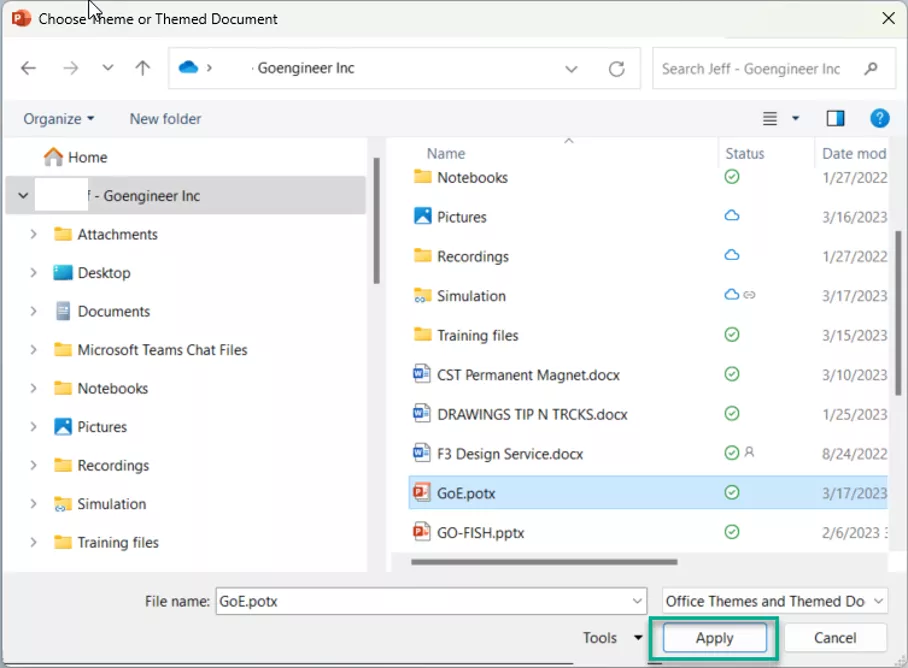
This will apply the template design from the selected template to the Plastics report template. All the slides in the presentation will be updated with the new theme.
Step 5. Select the top slide in the Slide Master and make any other changes or adjustments to the slides.
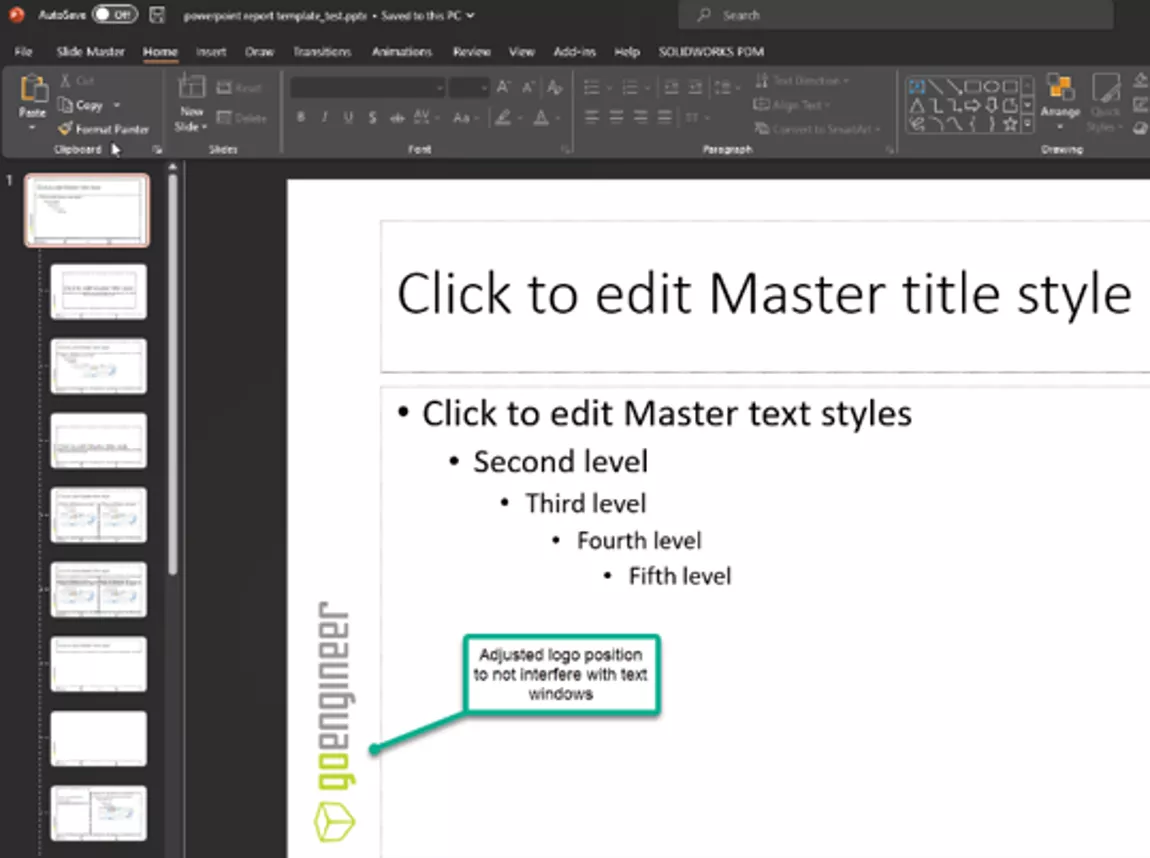
Do not make any changes in the document to the labels or other fields; this will often cause the report to fail. Close the Slide Master.

Step 6. Save the document.
Step 7. Copy the new PowerPoint template.pptx and paste it to the
C:\Program Files\SOLIDWORKS 2023\SOLIDWORKS Plastics\Document file location.
You will need to have Administrator rights to paste into this file location. It is ok to choose to overwrite the file (we made a backup). Choose Continue in the administrator permission window.
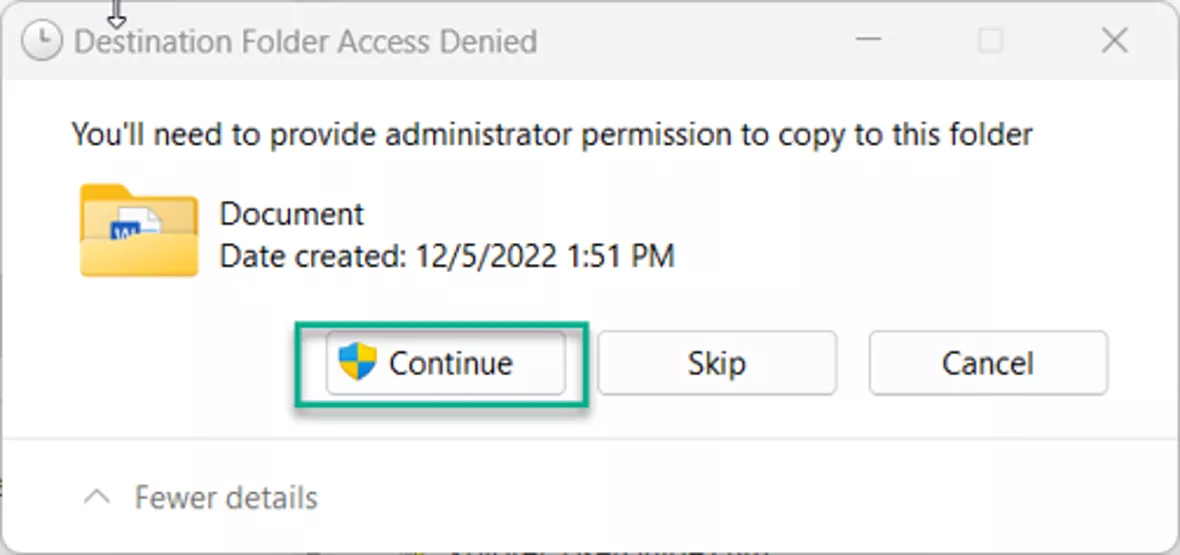
Step 8. Test the template by running the Report in SOLIDWORKS Plastics.
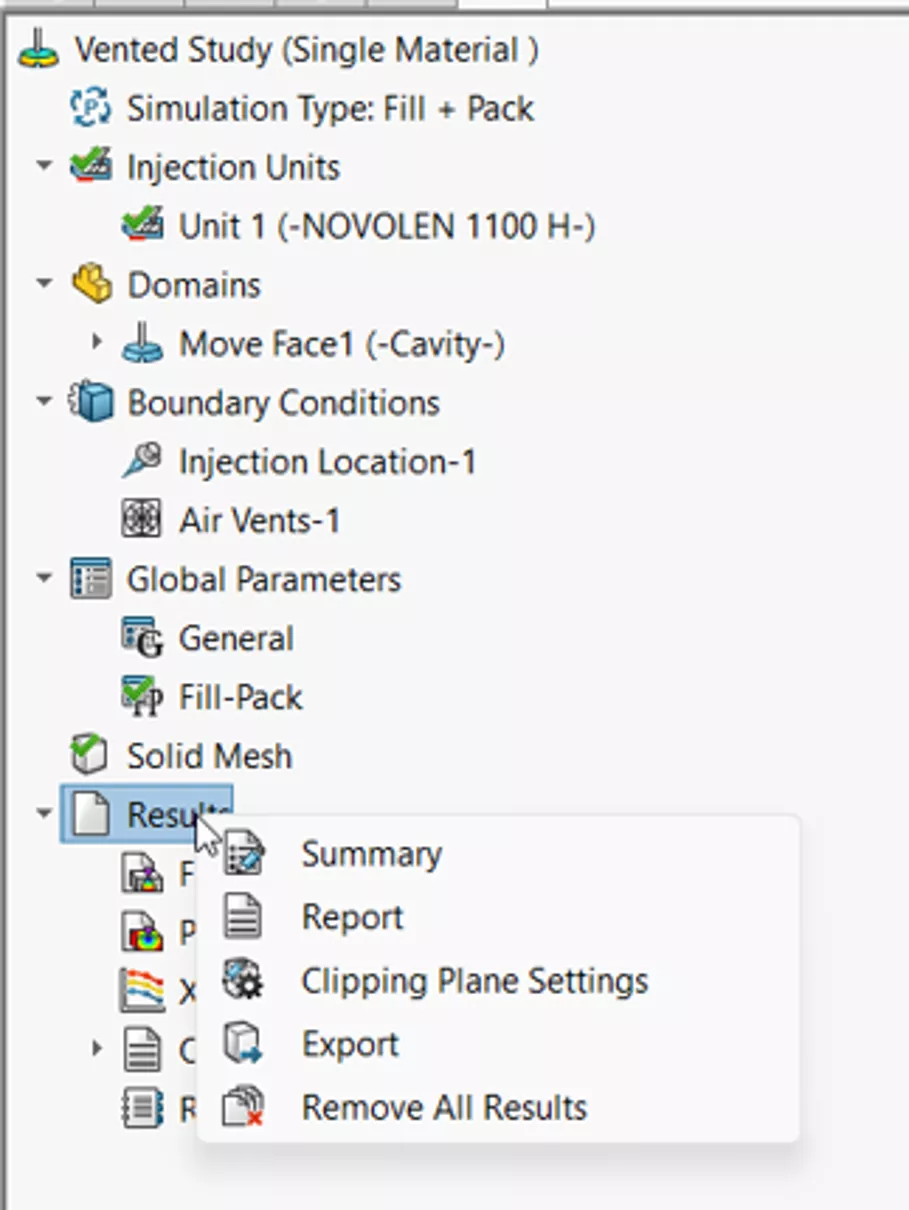
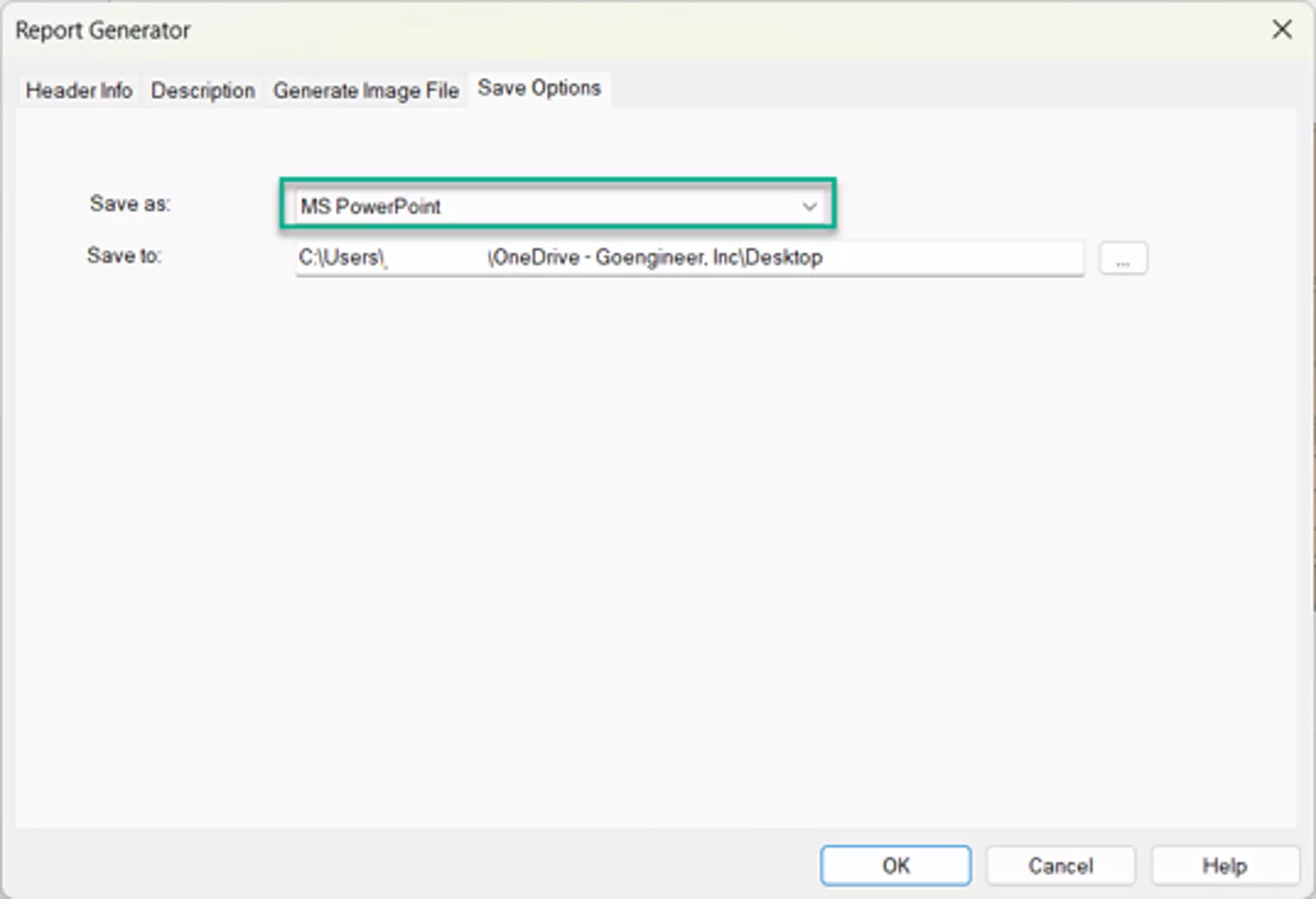
There is an option to choose the save to file type: Choose MS PowerPoint if you just want to test the PowerPoint template.
Conclusion
When customizing files in a SOLIDWORKS installation folder, always keep a backup of the modified file in a safe location to prevent it from being deleted or overwritten during software updates.
Related Articles
SOLIDWORKS Plastics 2026 - What's New
SOLIDWORKS Plastics User-Defined Materials
SOLIDWORKS Plastics: Weld Lines
How to Minimize Sink Marks in Ribs in SOLIDWORKS Plastics

About Jeff Lendermon
Jeff Lendermon is an Applications Engineer for GoEngineer supporting the SOLIDWORKS Plastics simulation software. Jess has over 30 years of experience in the Plastic Injection molding industry, he applies his experience and knowledge of the industry to help customers see the benefits of utilizing the tools within SOLIDWORKS Plastics.
Get our wide array of technical resources delivered right to your inbox.
Unsubscribe at any time.