Adding and Removing Search Paths in SOLIDWORKS

When searching for documents within SOLIDWORKS, the software references a list of search paths, located in System Options > File Locations > Search Path. In addition to the defaults, you can easily add additional search paths. Unfortunately, it's not always so easy to remove them. This article explains how to add and remove stubborn search paths in SOLIDWORKS.
Add a Search Path
To add a new search path, go to SOLIDWORKS Options > System Options > File Locations > Search Paths.
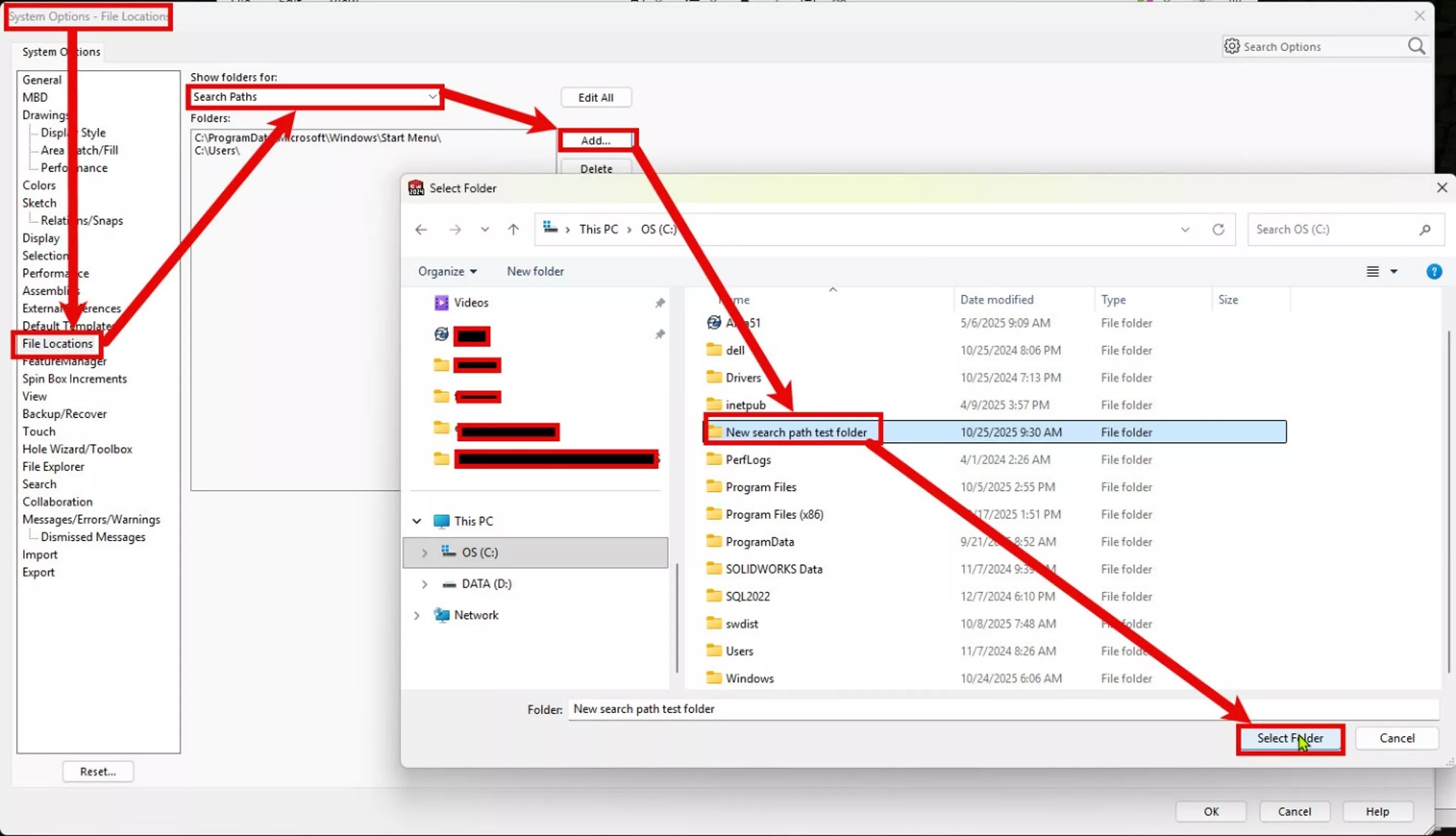
Click Add, browse to a folder, and click Select Folder (the same process as adding any file location).
After you click OK in System Options, User Account Control might display a message like this:
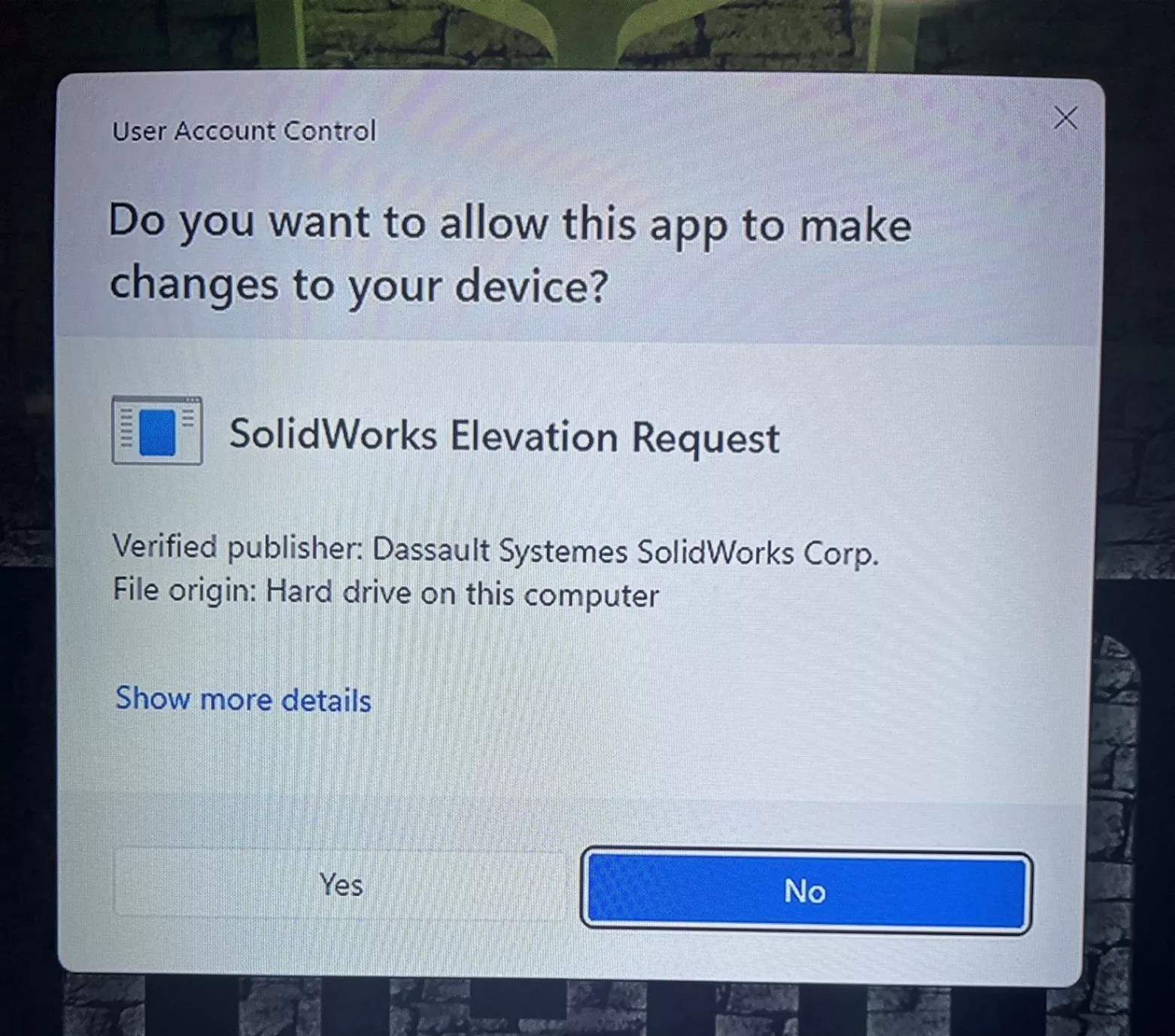
This is SOLIDWORKS helpfully adding this new search path to Windows' indexing list. Click Yes.
Remove a Search Path
If you need to remove a file location from System Options, the process is similar and straightforward...except for Search Paths. If you try to delete a search path, it disappears from the list as you'd expect.
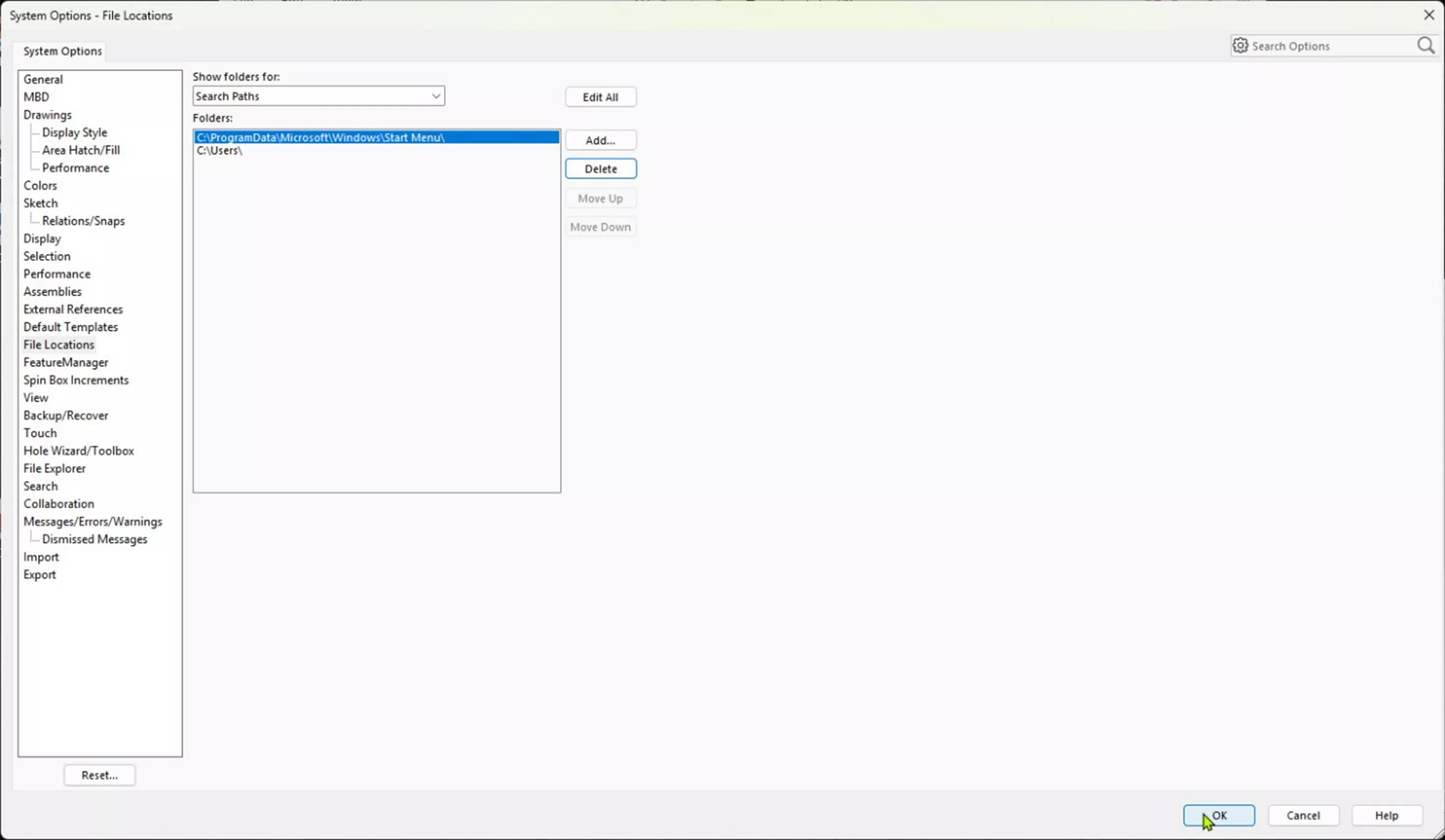
But if you open System Options again later, you may find that it's still there.
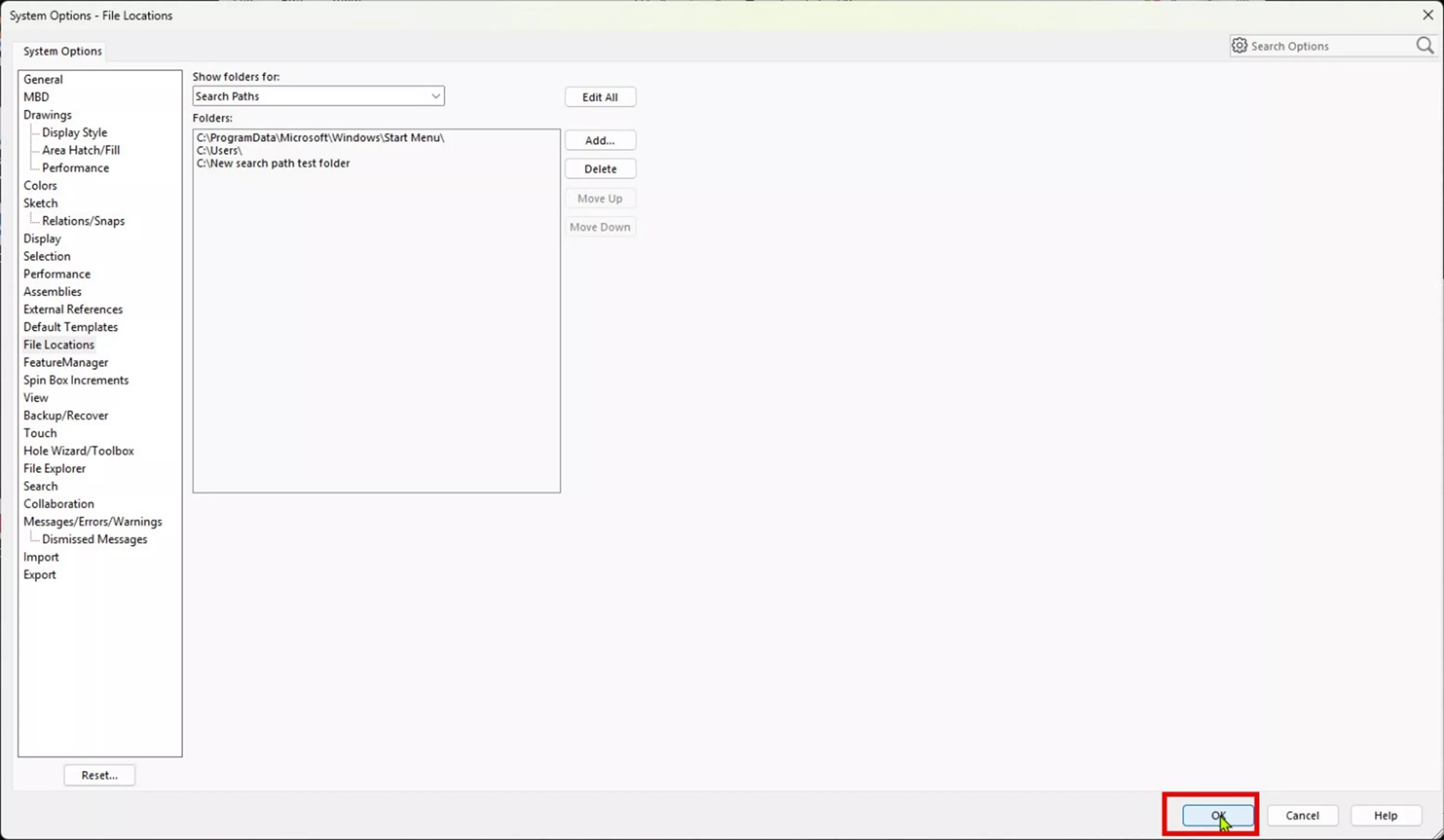
This is due to SOLIDWORKS not automatically removing that path from the Windows indexing list.
Windows Indexing Options
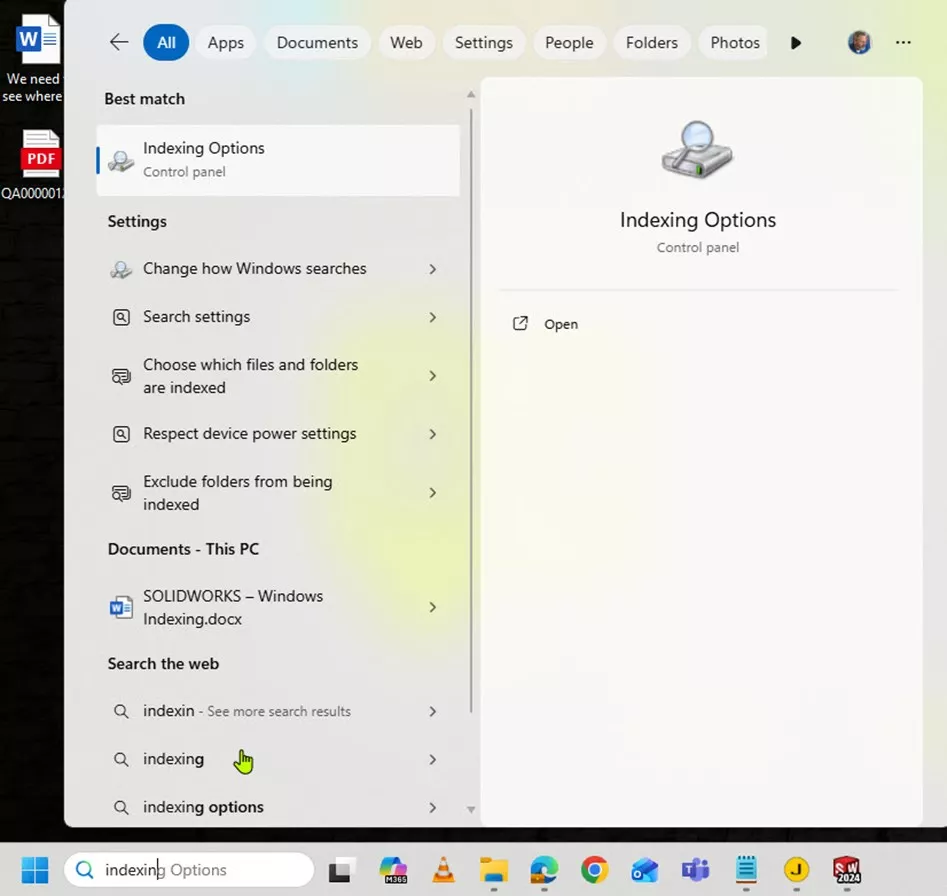
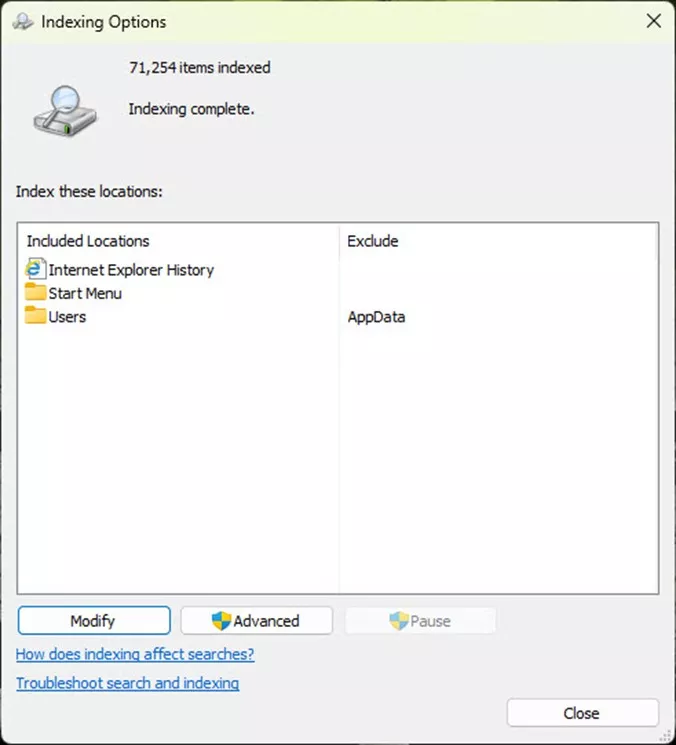
To remove a stubborn search path from SOLIDWORKS, you'll need to make a change to your Windows indexing options. Find this in the Windows Control Panel by searching in the Start menu.
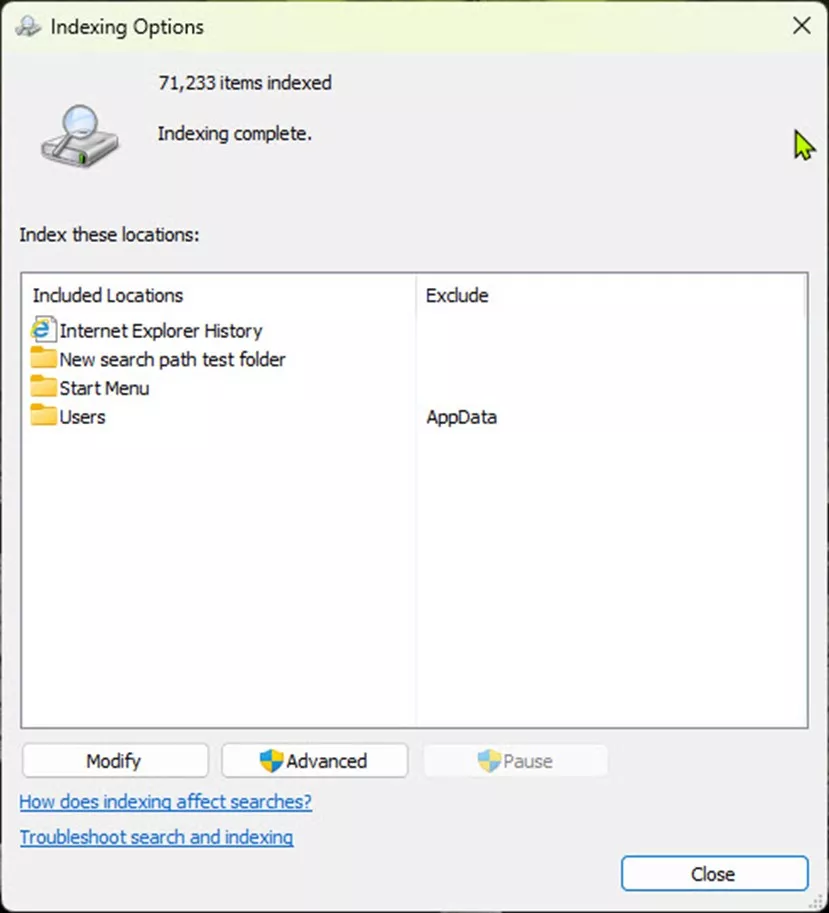
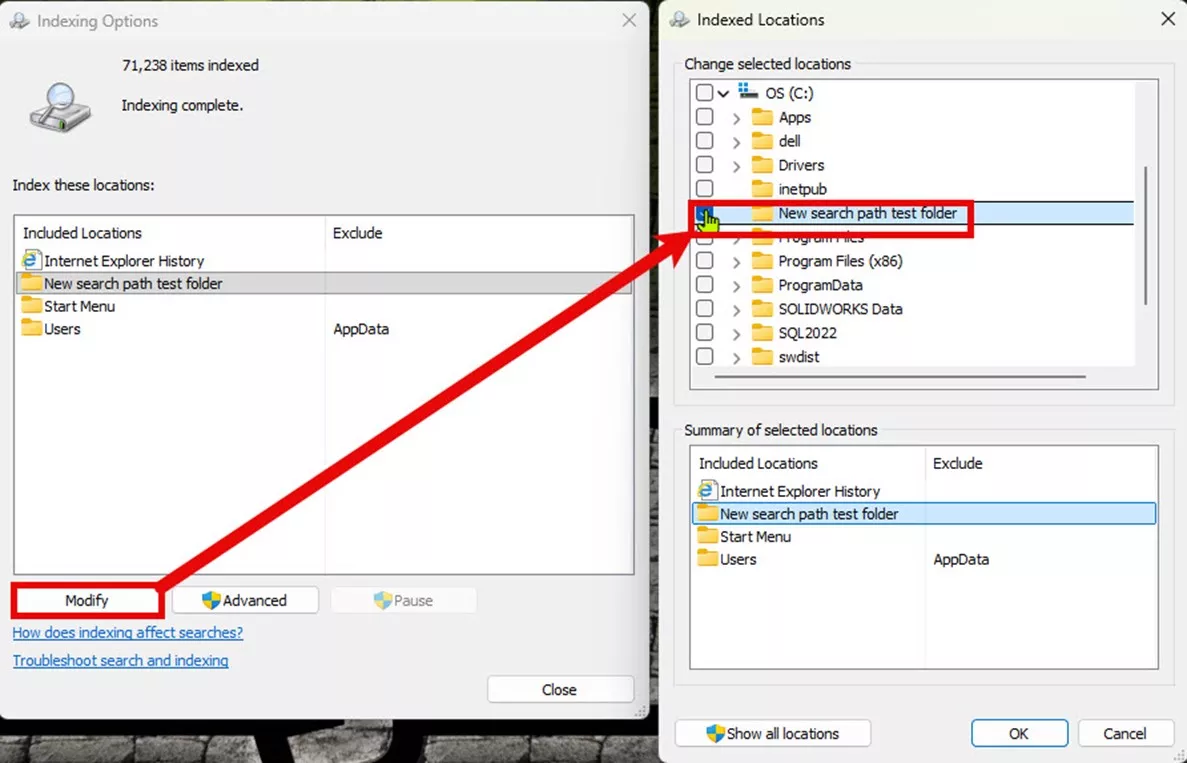
Once open, click the Modify button and uncheck the folder you wish to remove.
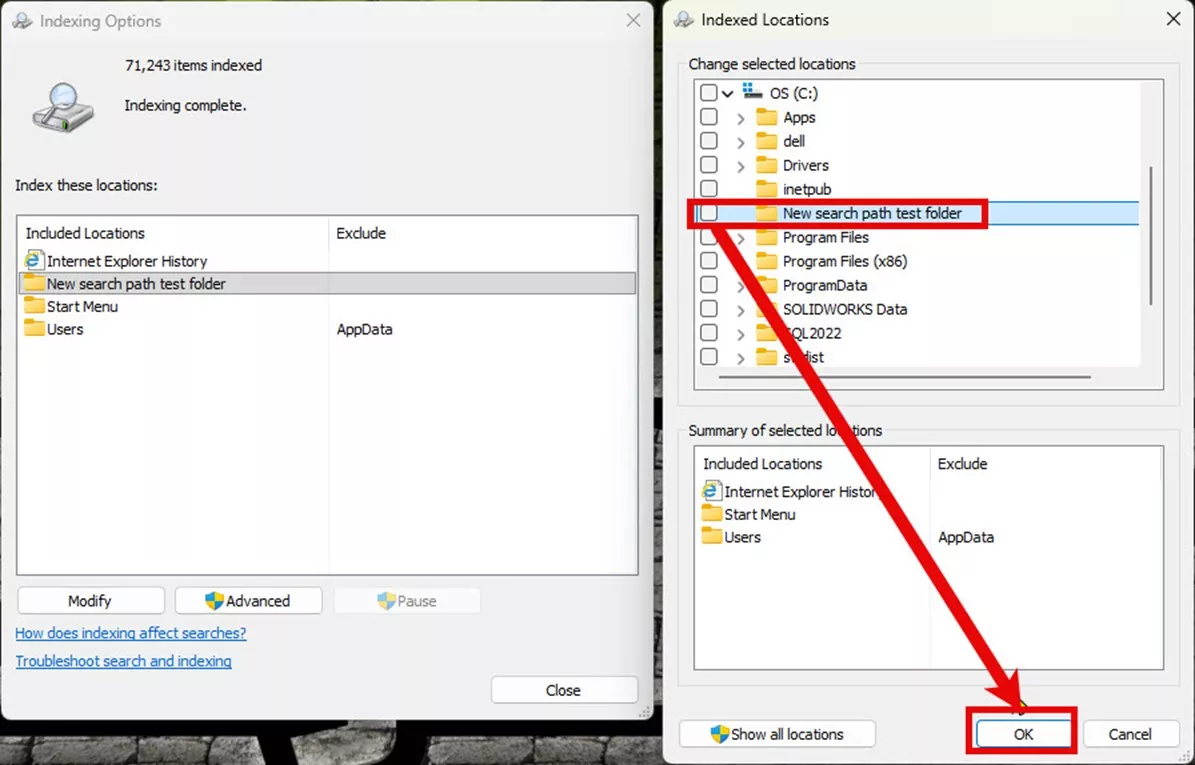
After clicking OK, you'll see the folder has been removed from the indexing options.
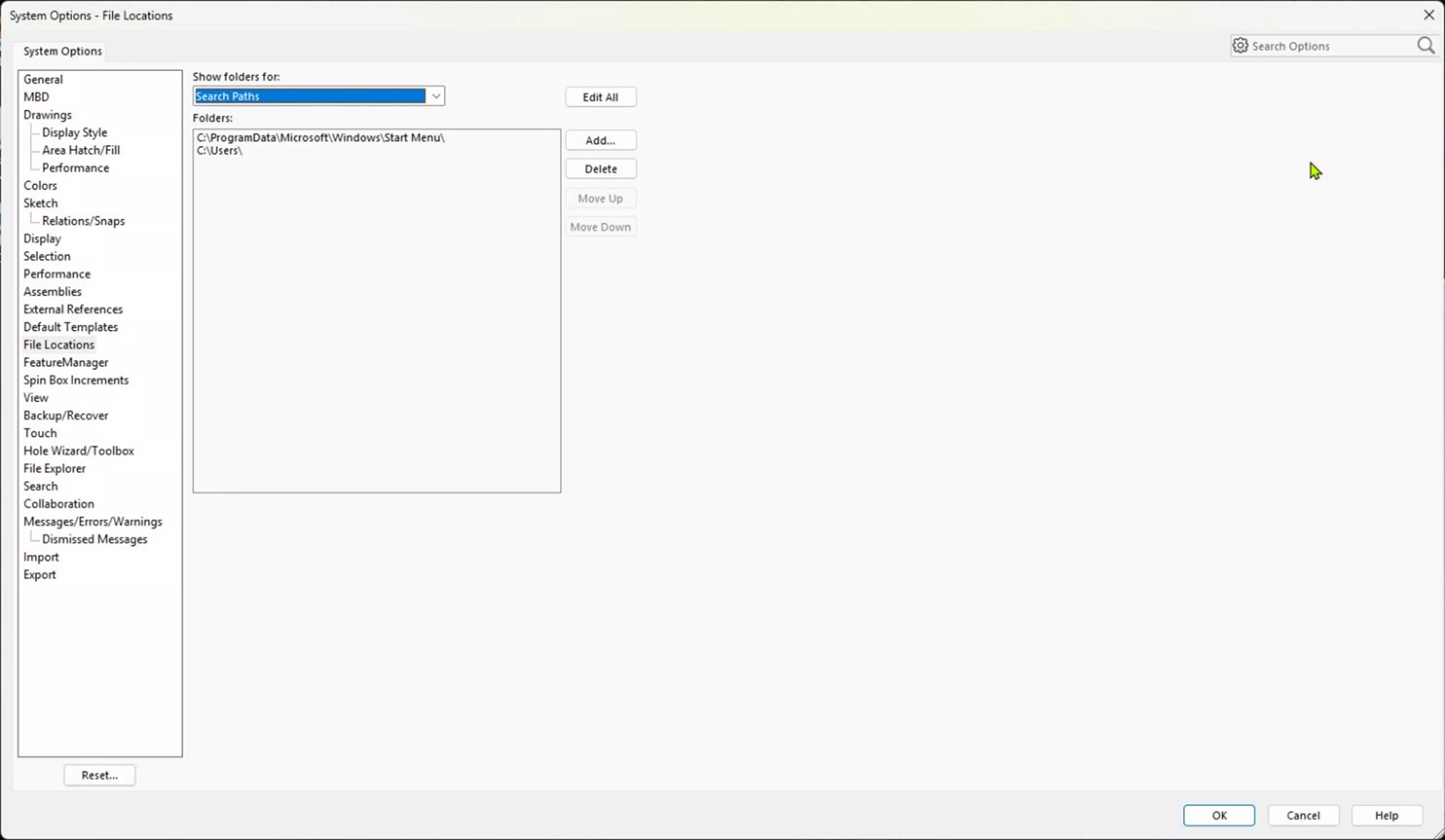
If you return to System Options > File Locations in SOLIDWORKS, you'll notice the folder has been removed from the Search Paths list.
I hope you found these steps helpful. Check out more tutorials below. Additionally, check out the GoEngineer Community, where you can create forum posts, enter design contests, and answer questions from other SOLIDWORKS users.
SOLIDWORKS CAD Cheat Sheet
SHORTCUTS ⋅ MOUSE GESTURES ⋅ HOT KEYS
Our SOLIDWORKS CAD Cheat Sheet, featuring over 90 tips and tricks, will help speed up your process.

Learn More
Ballooning Subassemblies in a SOLIDWORKS Drawing
Why Your SOLIDWORKS Drawing Balloons Have Question Marks (?) or Asterisks (*)
How the SOLIDWORKS Sketch Picture Scale Tool Can Affect Zoom to Fit
SOLIDWORKS Convert to Sheet Metal vs Insert Bends

About Matthew Kusz
Matthew Kusz is a Senior Technical Support Engineer at GoEngineer. When Matthew isn’t assisting customers with their engineering challenges, he spends his free time repairing antique watches/clocks, designing furniture, tending his aquariums and learning about bee keeping.
Get our wide array of technical resources delivered right to your inbox.
Unsubscribe at any time.