How to Install the SOLIDWORKS Flow Simulation Remote Solver

The Remote Solver in SOLIDWORKS Flow Simulation is used to run flow analyses on a remote computer connected to the network.
Requirements
- If multiple editions of SOLIDWORKS are installed on the local and remote machines, only the latest edition can be utilized for remote solver capability.
- Both workstations must have the same SOLIDWORKS and SOLIDWORKS Flow Simulation edition and service pack installed.
- SOLIDWORKS & Flow Simulation may use a network license or (1) standalone license.
- The remote computer would ideally have a better processor and more RAM but does not need a good graphics card.
You can see the general hardware and system requirements here.
Step 1: Install Necessary Programs
- For a network license, install the SolidNetWork License Manager on the server.
- Install SOLIDWORKS and Flow Simulation on the local and remote computers. SOLIDWORKS and/or Flow Simulation do not have to be activated on the remote computer.
- For a network license, test that a local and remote computer can borrow and release licenses.
Step 2: Establish Communication Through TCP Ports
Under Tools > Flow Simulation > Tools, Options > Remote Solver, set TCP port and directory for remote solver’s temporary files (Fig. 1).
- Port numbers must not be in use by any other processes.
- Set the same port number on the local and remote machines.
- If needed, set TCP port using the registry instead: HKEY_LOCAL_MACHINE\SOFTWARE\Srac\COSMOS_FlowWorks 20XX\
- By default, solver files are located in C:\Windows\Temp.
Ensure TCP port inbound/outbound settings are open through the firewall.
Use ping [port number] or Telnet test to confirm a connection.
Step 3: Connect the remote computer to the local computer
- On a local computer, click Run > Add computer… (Fig. 2).
- Select Browse…, and select the computer from the local network (Fig. 3)
- Ensure the Remote Solver for Flow Simulation 20XX service is started on the remote computer (Fig. 4).
- Control Panel > Administrative Tools > Services
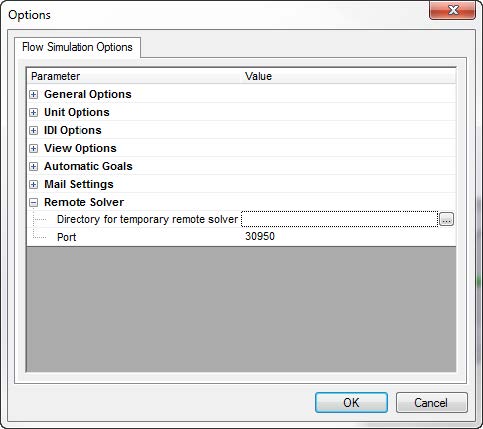
Figure 1. Step (2.1) – Set the inbound/outbound port number for remote solving.

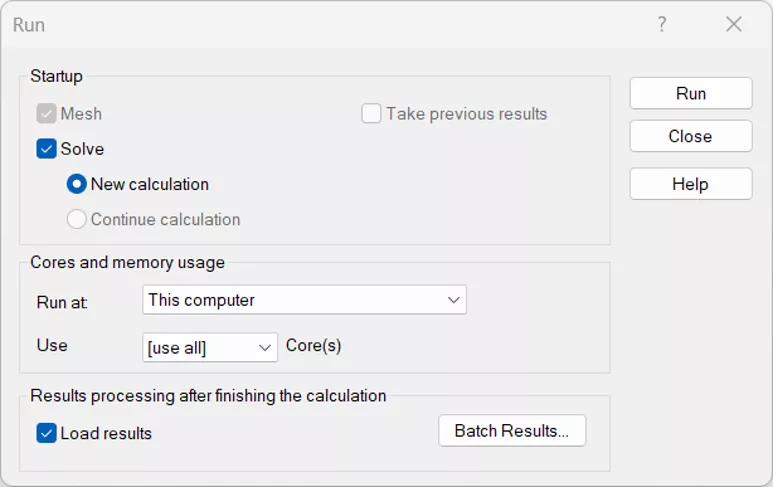
Figure 2. Step (3.1) – Run command from Flow Simulation. Note “Run At” chooses which computer projects solves on, and “Use” defines how many cores will be used.
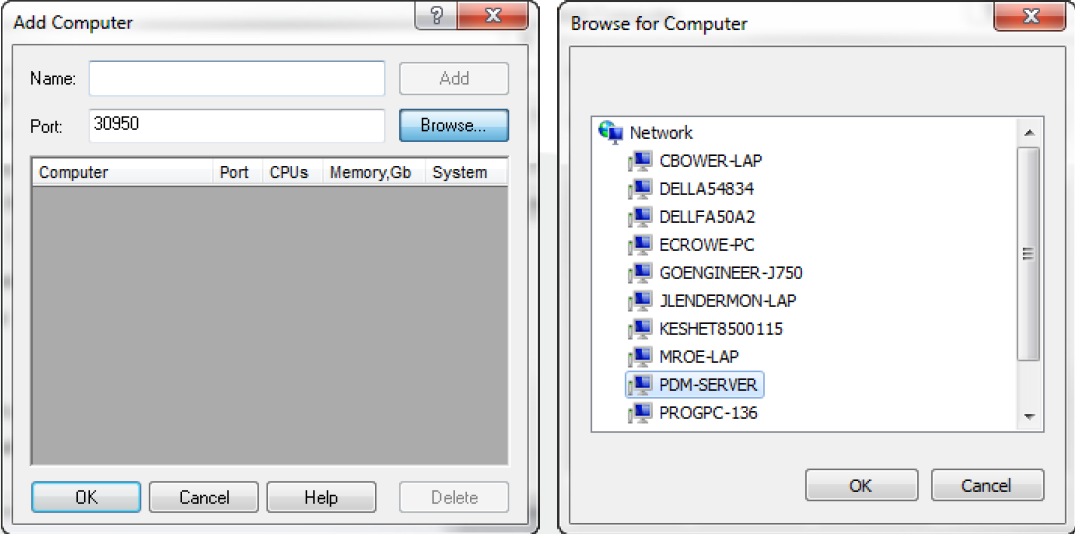
Figure 3. Step (3.2) – Browse to the remote computer.

Figure 4. Step (3.3) – Ensure “Remote Solver for Flow Simulation 20XX” is “Started”.
When the remote solver is in use:
- The SOLIDWORKS and Flow Simulation licenses are retained by the local machine.
- The preview of the solve is viewable on the local machine, not the remote machine.
- On the remote machine, the Windows Task Manager will show the process “StandAloneSlv.exe” for versions older than 2012, or “efdsolver.exe” for 2013 and later versions.
Benchmark: Effect of Simultaneous Runs on Solve Time
Standard Flow Simulation functionality allows for a maximum of two simultaneous runs per license. If we own one SOLIDWORKS Flow Simulation license, we can solve two projects simultaneously on the remote machine. If we have two SOLIDWORKS Flow Simulation licenses, standard functionality allows for four projects to be run simultaneously on the remote machine.
Running multiple projects on a single computer can cause slower solve times due to hardware limitations. Below, we will provide a benchmark for effects on solve time due to simultaneously running projects. For further benchmark data for solve time on single projects, please review the GoEngineer blog SOLIDWORKS Flow Simulation: How Many CPU Cores Do You Need? and the Dassault Systèmes Knowledge Base article “Usage of multiple CPUs and influence on solution time” QA Article QA00000109363. (Login required for access.)
BENCHMARK FILESETS:
Two SOLIDWORKS Flow Simulation Tutorial files were used for benchmark testing: C3 – Non-Newtonian, and B3 – Heat Exchanger.
- Details on the setup in seen in the Tutorials PDF which can be found in the
\SOLIDWORKS Flow Simulation\lang\english\Docs folder. - The files can be found in
\SOLIDWORKS Flow Simulation\Examples .
The default location of the
Each fileset was adjusted to produce larger solve times.
Example file B3 – Heat Exchanger is modified in three ways from its default.
- CAD is adjusted to include more pipe bends and varying flow paths, see Figure 5.
- Setup adjusted for a fully 3D Computational Domain, rather than the tutorial’s use of symmetry.
- Global Mesh at Level 5, Local Mesh with Level 3 refinement at fluid/solid boundary applied to certain walls
The total number of cells after modification is 456,692.

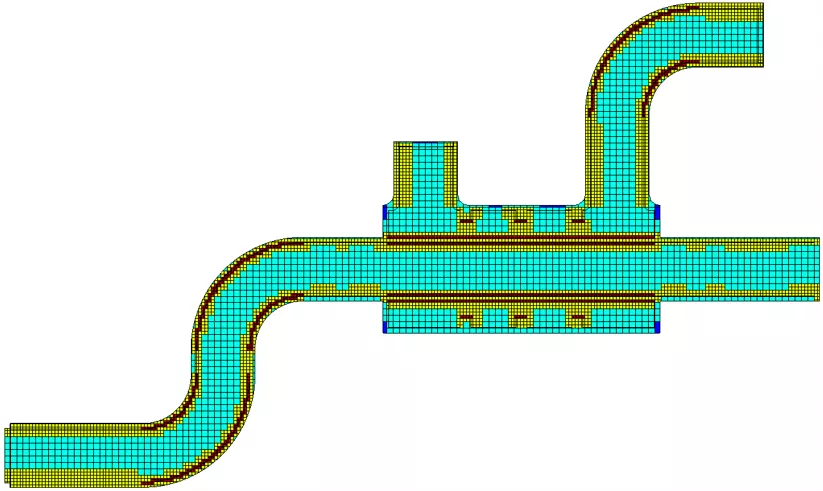
Figure 5. B3 – Heat Exchanger example file, CAD modifications include additional pipe bends and fins within the heat exchanger.

Figure 6. C3 – Non-Newtonian, global mesh adjusted to “Level 4” and Local Mesh with Level 3 refinement at fluid/solid boundary applied to walls.
Benchmark Workstations:
Two separate machines using their own SOLIDWORKS Flow Simulation licenses submitted jobs to a remote machine; specifics are available in Figure 7.
| Model | CPU Type | No. of Cores | Base/Boost Freq. (GHz) | RAM Capacity (GB) RAM Speed (MHz) |
| Boxx Apexx T4 | AMD Ryzen Threadripper Pro 5965WX | 24 | 3.8/4.5 | 128 DDR4-3200 |
Figure 7. Workstation specifications used for benchmark testing.
Results:
Local Machine 1 submitted two copies of B3 – Heat Exchanger, and Local Machine 2 submitted two copies of C3 – Non-Newtonian Fluid to the remote machine, for a total of four projects solving simultaneously. Baseline data was produced by projects submitted alone.
- All calculations used SOLIDWORKS Flow Simulation 2026.
- Meshing and solving were done on the remote machine.
- Projects were submitted with “use all cores” set. Theoretically, this requests each CFD project to use all 24 CPU cores for each project.
| Time to Solves (s) | |||
| Single Project | Simultaneous Solve | Effect on Solve Time | |
| B3 - Submitted from Machine 1 | 174 | 418 | 2.4x |
| B3 - Submitted from Machine 1 | 178 | 424 | |
| C3 - Submitted from Machine 2 | 136 | 411 | 3.0 x |
| C3 - Submitted from Machine 2 | 140 | 412 | |
Figure 8. Simultaneous solves vs individual solves on remote machine, and the effect on solve time.
For simultaneous solves, all four projects pushed to the remote machine and began to calculate within ten seconds.
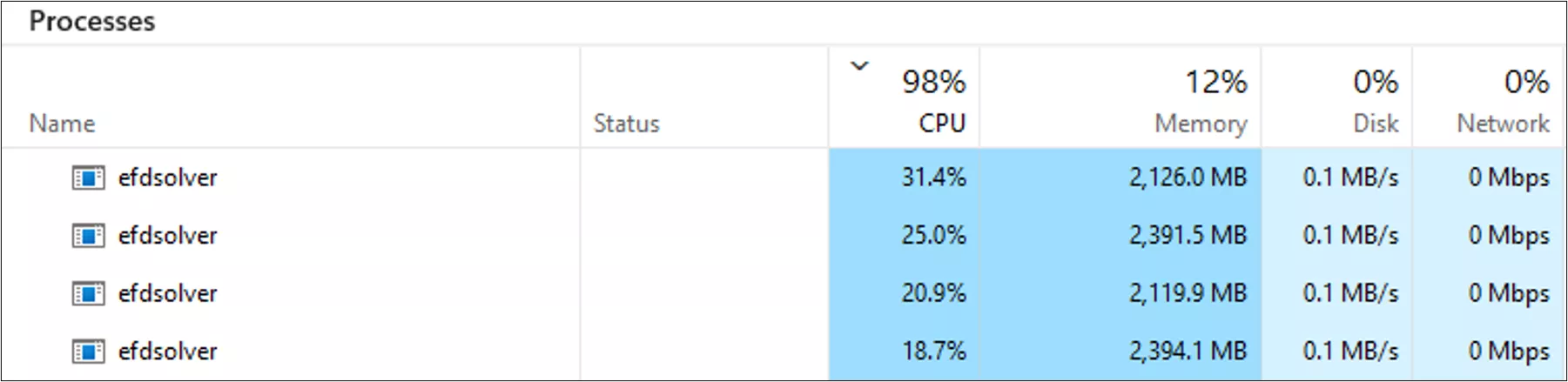
Figure 10. Task Manager as seen on the remote machine. Four instances of “efdsolver.exe” are running simultaneously. Picture taken shortly after project submission, so RAM usage has not significantly increased.
For those looking to use a remote machine in similar capacities, a few conclusions can be drawn:
- A 24-core machine is best for one or two projects run simultaneously.
- If multiple users will be using the machine to solve projects simultaneously:
- For maximum efficiency, a 36+ core machine should be used.
- Users should consider defining the number of cores used for each solve when submitting the project.
- RAM is a bottleneck. If the remote machine runs out of RAM, the solver will terminate. RAM could be increased to 196GB or 256GB or greater.
If further computing power is necessary, cloud computing is available for 3DEXPERIENCE Fluid Dynamics, a CFD tool of similar functional capability within the 3DEXPERIENCE platform.
Contact GoEngineer if your team is interested in this possible solution.
Summary
- If multiple editions of SOLIDWORKS are installed on the local and remote machine, only the latest edition can be utilized for remote solver capability.
- Both workstations must have the same SOLIDWORKS and SOLIDWORKS Flow Simulation edition and service pack installed.
- SOLIDWORKS & Flow Simulation may use a network license or (1) standalone license.
- Standard functionality allows for two simultaneous projects to push from a single SOLIDWORKS Flow Simulation license. Multiple licenses can be used to push from multiple users’ machines.
- Increase CPUs and RAM on the remote machine to accommodate simultaneous projects.
We at GoEngineer want to make this process easy for our customers. If you require further explanation or feel your remote solver fails to work due to another unknown issue, please contact your local Value Added Reseller (VAR) or our Technical Support Team.
Editor's Note: This article was originally published in June 2017 and has been updated for accuracy and comprehensiveness.
Related Articles
SOLIDWORKS Flow Simulation 2026 - What's New
SOLIDWORKS Flow Simulation Pickup Truck Tailgate Drag Analysis
SOLIDWORKS Flow Simulation Semi-Truck Drafting and Drag Impacts
Testing Aquarium Filters Using SOLIDWORKS Flow Simulation

About Shivani Patel
Shivani has a background in aerospace engineering, and is the Engineering Manager for southern Texas. She has the Elite certification in SOLIDWORKS and is happy to jump into anything in the SOLIDWORKS licenses. Her main specialty is Simulation - and has spent the past 6 years digging into the Motion Analysis, FEA and CFD programs and supporting many of our oil and gas customers in the south.
Get our wide array of technical resources delivered right to your inbox.
Unsubscribe at any time.