Managing Your SOLIDWORKS PDM Vault Size

SOLIDWORKS PDM manages the lifecycle and history of files through versioning. Each time a file is checked in, a new version is created. Each new version adds new data to the archive storage, using more space for a given document. As time goes on, the vault grows exponentially. Since space comes at a cost, it’s important to understand the ways you can mitigate the expansion of your vault.
There are three types of tools at our disposal to help slow the growth of the vault:
- Built-in
- Proactive
- Reactive
Built-in Option
Deleted files build up in the recycle bin of your archive. This allows them to be recovered when necessary and does not remove them from the database or the archive. You can destroy these deleted files, which removes the record from the database - but the archive data remains. The PDM system regularly performs a cleanup task in the vault, the schedule of which you can dictate in the server’s registry. This task takes any destroyed file records and removes the corresponding data from the archive.
Proactive Options
As mentioned, the PDM system manages history through versioning, and each check-in creates a new version of that file, taking up more space in the archive. As you can imagine, this fills the vault quite quickly and can get overwhelming fast. To counteract this, PDM has ‘overwrite’ options that help minimize the number of versions created for a given file. Those options are:
- Overwrite on Check-In
- Overwrite during State Change
Overwrite on Check-in
During check-in, there is an option to Overwrite Latest Version. Selecting this option and completing the check-in will result in the new data replacing that of the current latest version, and no new version will be created.

The ability to use this option is controlled via the user or group folder permissions.
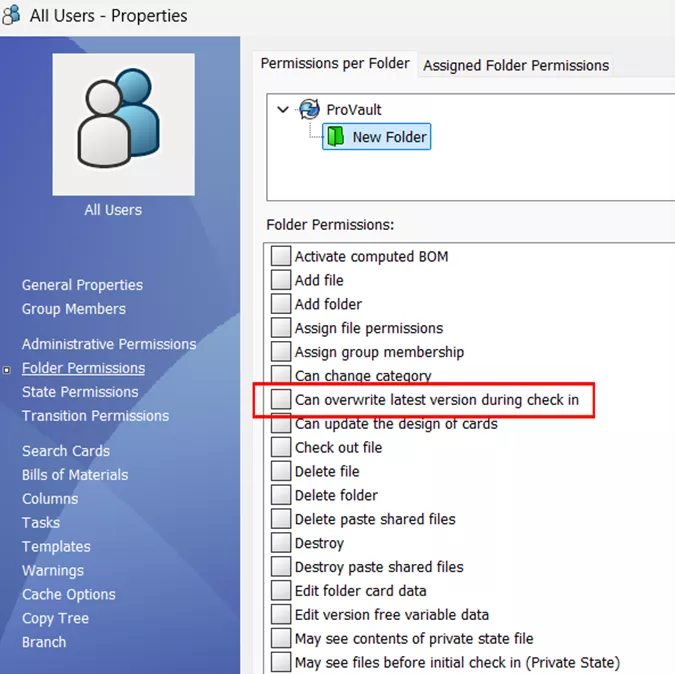
A great example of when this might be used is when geometry changes, but isn’t primed for a transition yet. Perhaps an engineer is saving their work and then committing it to the vault to ensure it doesn’t get lost. This overwrite option will do this without creating an unnecessary version.
Overwrite During State Change
Setting some transitions to overwrite the latest version also helps prevent unnecessary versioning, while the file moves through the workflow. Because any check-in creates a new version, even your approval process is increasing your archive size. This option is found in your transitions in the workflow.
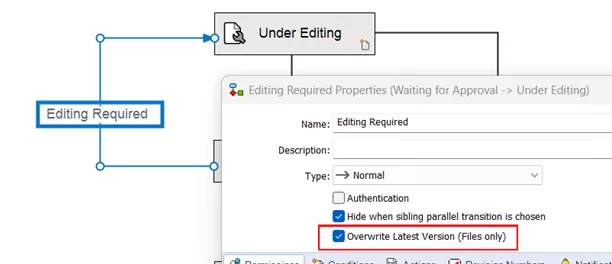
Some instances where this is useful are those transitions leading to editing required type states, to approval/review states, etc. This method is best applied to these situations where only variables have changed, and the geometry remains the same.
Of course, where and when you implement either of these overwrite options is up to your best judgment, and should be determined based on your design processes and practices.
Reactive Options
So, now that you know how to make fewer versions to begin with, what do you do with the versions that are created? We have a few choices here:
- Compression
- Cold Storage
- Relocation
Compression
The archive stores the files in the vault in an uncompressed format by default. In the context of the SOLIDWORKS PDM Archive, compression takes the converted files in the archive and compresses them down. This saves some space on all those older versions.
There are, however, a couple of things to note.
First, archive compression cannot be undone. If you choose to turn compression off in the future, it will only prevent new files from being compressed, it will not uncompress those files that have already been touched. Second, due to recent changes in the structure of SOLIDWORKS files, this compression process has become practically useless for these file types. Compression no longer effectively reduces the size of these files. You can apply compression through a group policy or manually. Though the former is preferred.
Cold Storage
Cold Storage is a true way to remove files from your archive. The tool will take versions older than a specified number, and either delete or move the files to a new drive. If you opt for deletion, the history of the file is altered to reflect that action, and the file version is removed from the archive. If you opt for moving the files, the history is altered in the same manner, and the file version is moved to the specified location outside of the archive storage.
Deletion is a permanent and irreversible action, while moving the files allows them to be restored to the archive if needed. However, due to how metadata changes are recorded in the archive, the move option may create another space issue where you keep the cold stored files.
For more details, visit our Cold Storage guide.
Relocation
Relocation is a great option for managing your vault size. You can distribute portions of your vault out among up to sixteen storage drives. You can either move the entire archive to a larger storage drive each time you reach the ceiling on space, or you can separate out the folders to multiple drives. Either option is viable and should be considered based on your resources and needs. For details on relocation and implementation, please see our Archive Relocation and Distribution guide.
Conclusion
SOLIDWORKS PDM, by nature, grows quickly. While these options and tools do help mitigate the archive size, they do not prevent that growth. You will always need to periodically increase your storage capacity, as time goes on.
As always, if GoEngineer is your SOLIDWORKS partner and you run into issues or have questions, reach out to Technical Support for assistance!
24 Tips to Master SOLIDWORKS PDM
SHORTCUTS ⋅ SEARCHING ⋅ PDM ADD-IN
24 of our expert tips to help you master using SOLIDWORKS PDM. Improve performance, find files faster, and work like a pro.
Related Articles
Managing Your SOLIDWORKS PDM Vault Size With Cold Storage
Managing Your SOLIDWORKS PDM Vault Size with Relocation
SOLIDWORKS PDM Secret Getting Started Guide
SOLIDWORKS PDM Client Installation on an Existing SOLIDWORKS Installation
Resolve SOLIDWORKS PDM Error No Database is Connected to this View
About Danielle Irish
Danielle Irish is a SOLIDWORKS PDM Support Engineer based out of metro Detroit. She has a degree from OCC in CAD Design and Engineering. Danielle has extensive experience in customer service as well as a 10 year adventure in Automotive Engineering. Danielle enjoys challenges and puzzles, and is an avid gamer and fiber artist.
Get our wide array of technical resources delivered right to your inbox.
Unsubscribe at any time.