Setting Enterprise Item Numbers (EINs) in 3DEXPERIENCE

Setting up Enterprise Item Numbers (EINs) in the 3DEXPERIENCE platform provides unique identification for your platform data, giving you ultimate control over your CAD data (the EIN is separate from the title attribute as opposed to the auto-name feature).
Enterprise Item Number (EIN)
We'll start by setting this up in our tenant:
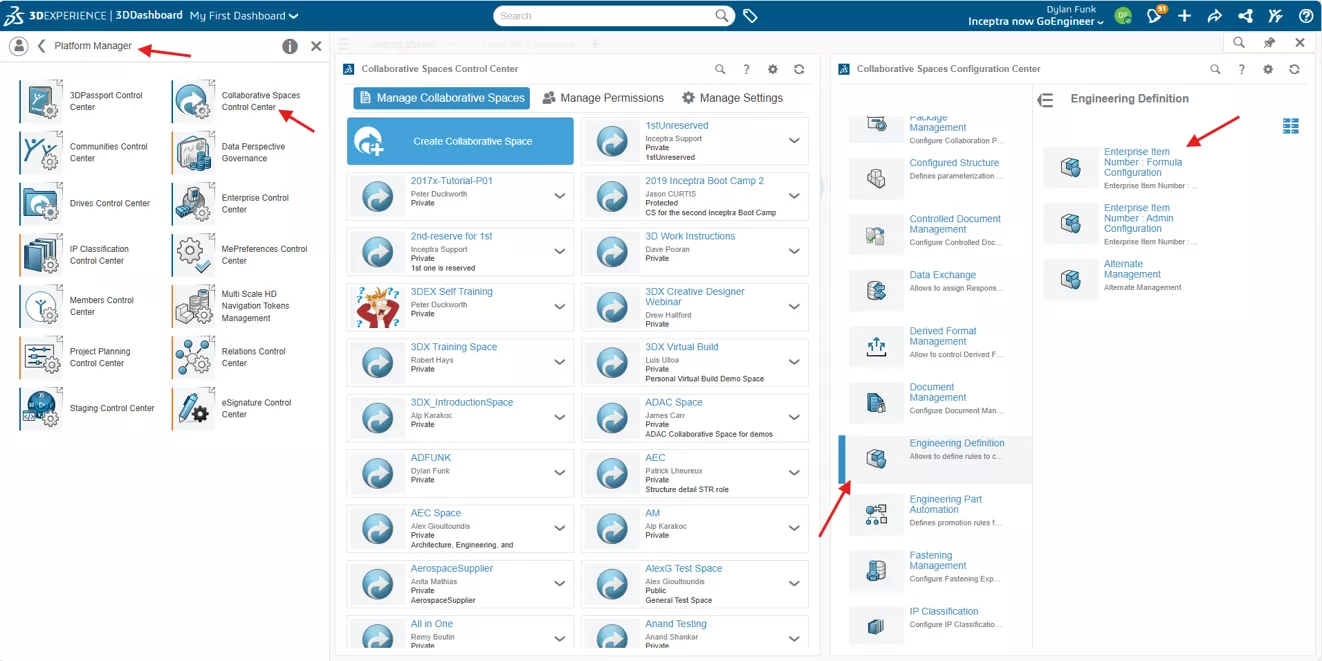
- Navigate to the role Platform Manager > Collaborative Spaces Control Center > Engineering Definition > Enterprise Item Number: Formula Configuration.
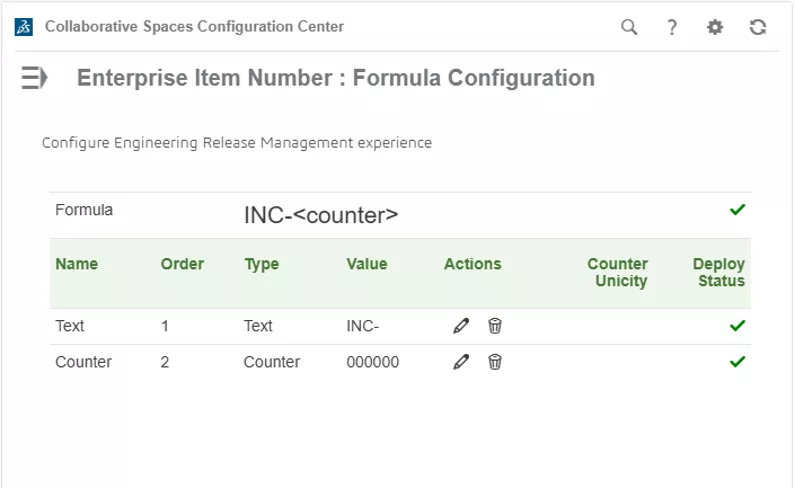
- This is what the EIN configuration currently looks like in my platform:
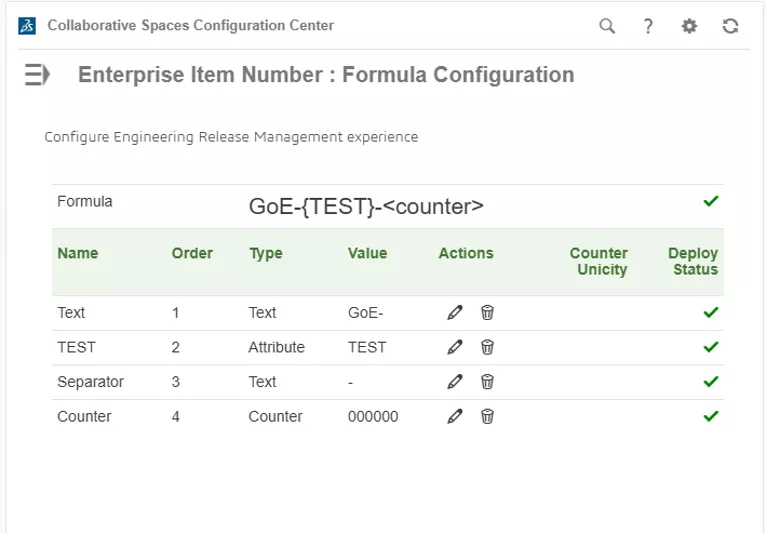
- We can modify the EIN within this pane. Here, I will change the text to my company (GoE) and then add a custom attribute called “TEST”. Make the attribute whatever makes sense for your company. You can even categorize all your CAD data by department, projects, etc. Once the preview looks the way you want it, click Apply.
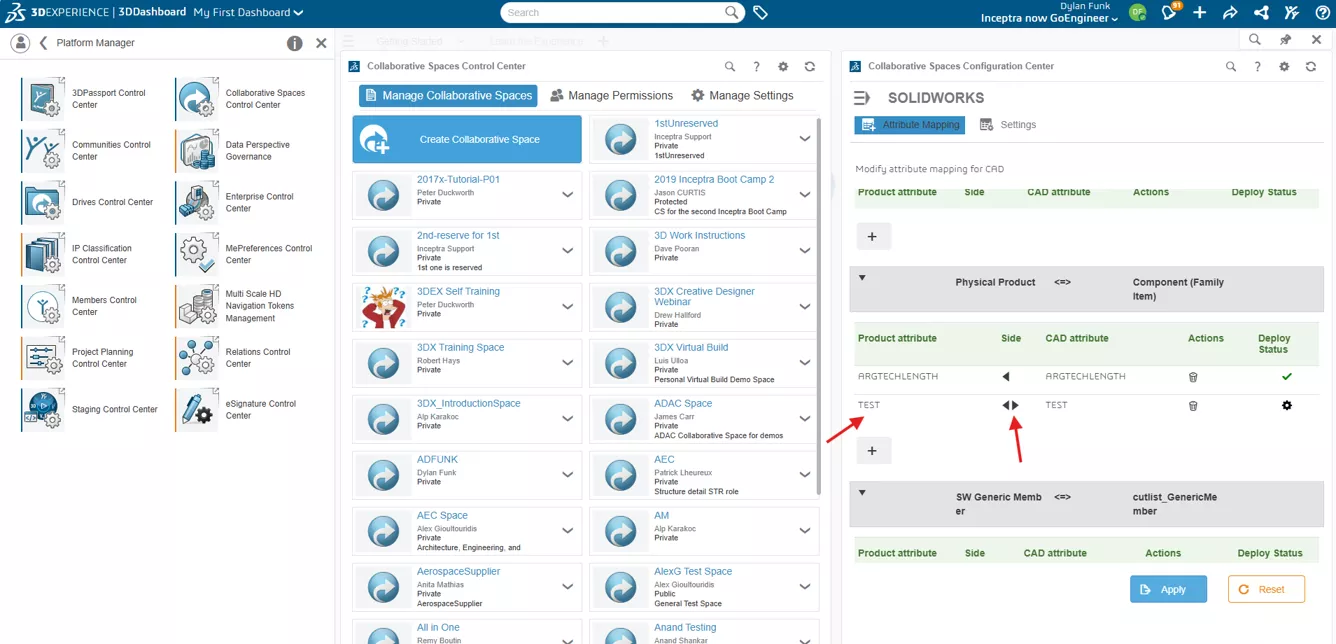
- Next, we'll ensure the attribute is linked to our SOLIDWORKS data by going to Platform Manager > Collaborative Spaces Control Center > CAD Collaboration > SOLIDWORKS. Under the physical Product tab, I have added the “TEST” attribute and applied it to the platform.
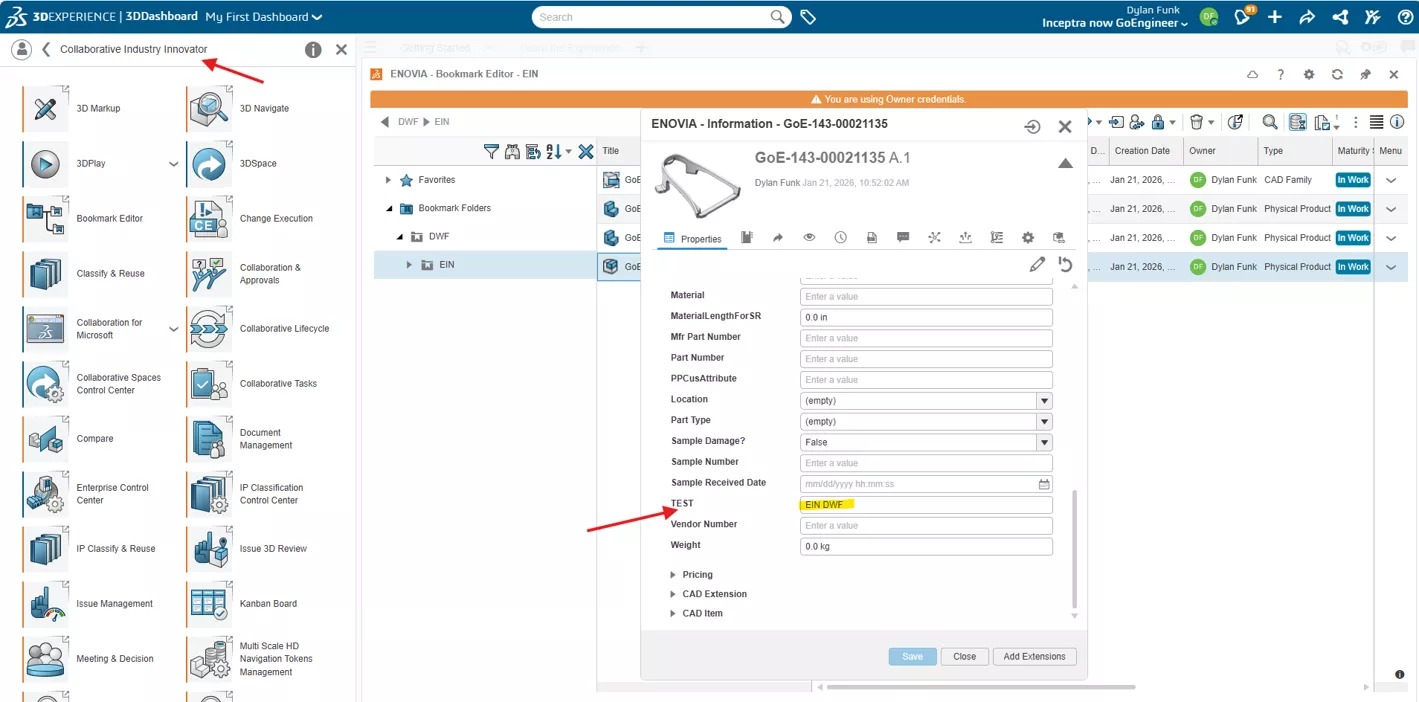
- I have saved a part file to a folder in the bookmark editor. I'll then go to the attribute I created called “TEST” and give it an input called “EIN DWF”.
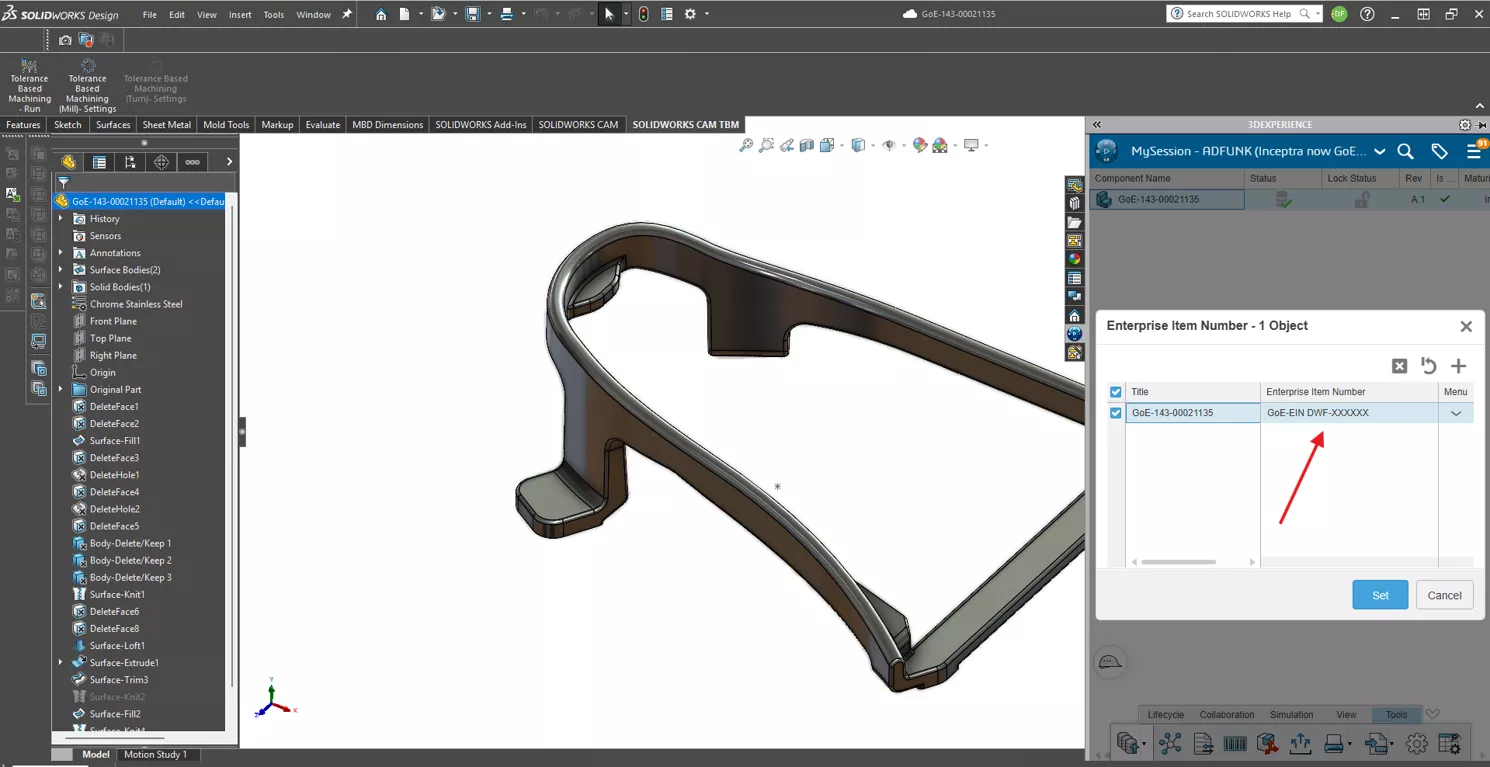
- To assign the EIN, go to the SOLIDWORKS dashboard and launch the 3DEXPERIENCE pane. Click Tools at the bottom, and then Set Enterprise Number. You may need to right-click and clear the current input. Hit the plus sign in the upper right corner and click OK. Verify the EIN looks correct and click Set.
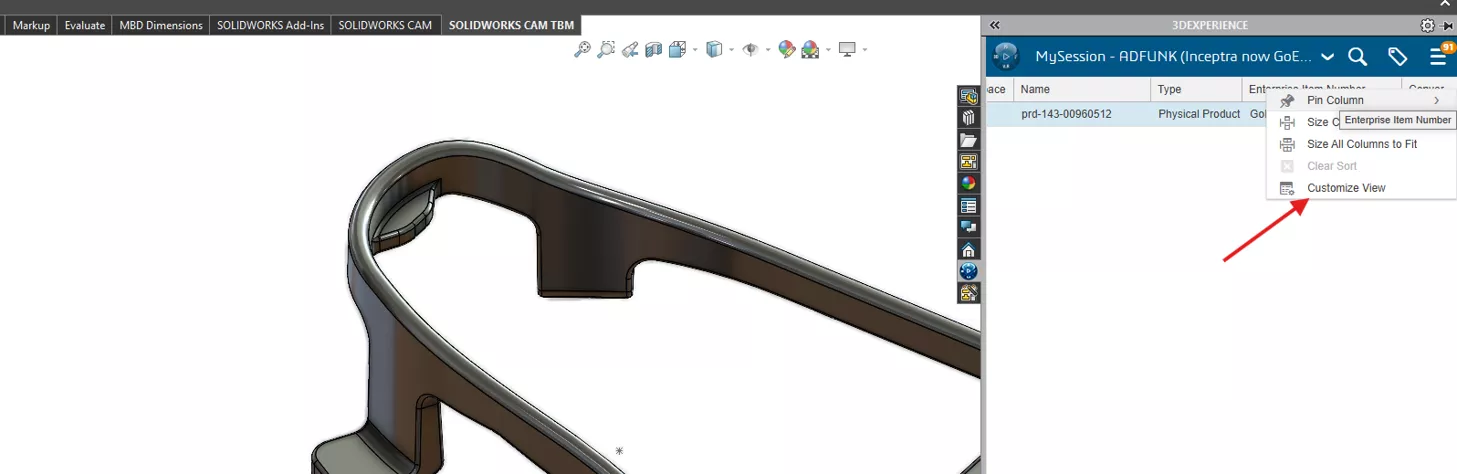
- You may also need to customize the 3DEXPERIENCE view to see the EIN. In SOLIDWORKS, right-click the toolbar and click Customize View.
- You may need to add the Enterprise Item Number to the toolbar to see the value.
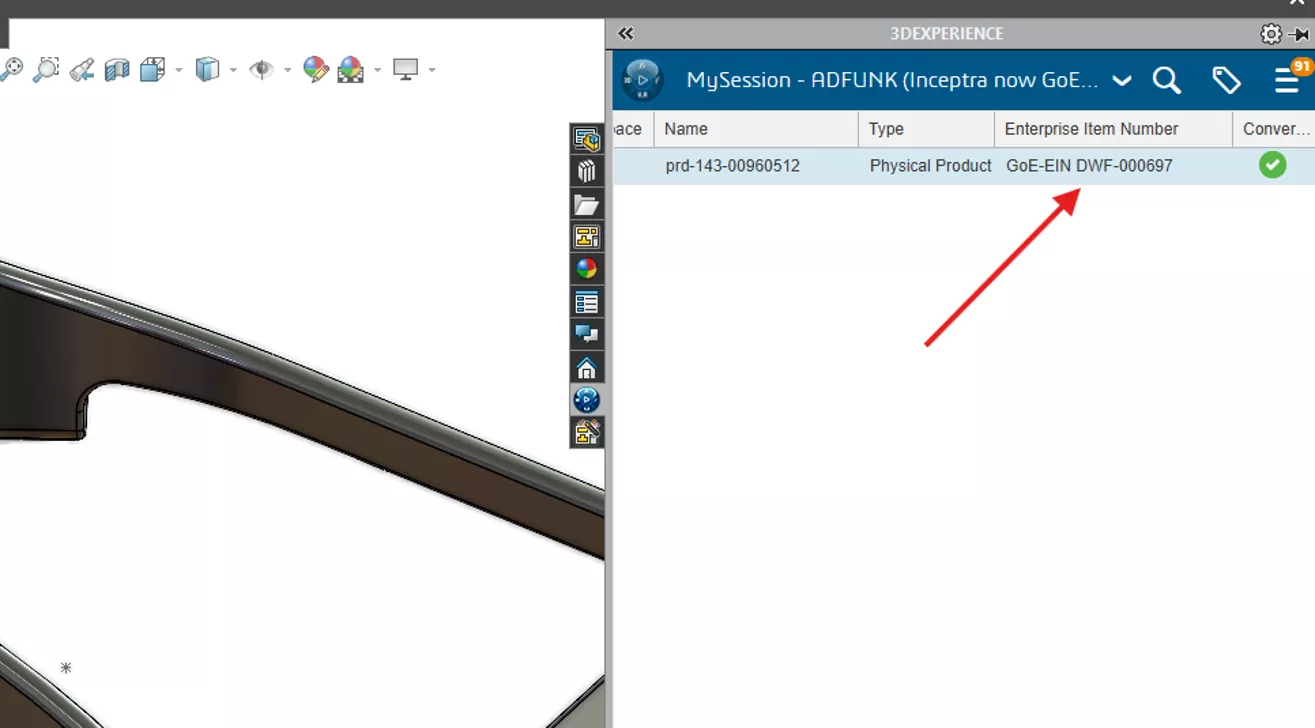
You should now be able to add Enterprise Item Numbers to your CAD data within SOLIDWORKS. Check out our Auto-Name Title in 3DEXPERIENCE blog to utilize the title attribute to organize your CAD data versus creating a new unique attribute as we did for the EIN.
Related Articles
Changing the 3DEXPERIENCE Maturity Graph Engineering Definition
Benefits of 3DEXPERIENCE Duplicate Function
Change Your 3DEXPERIENCE Platform Name & Organization Title
How to Enable XYZ Distance Measurements in 3DPlay

About Dylan Funk
Dylan Funk is a Technical Support Engineer at GoEngineer.
Get our wide array of technical resources delivered right to your inbox.
Unsubscribe at any time.