SWOOD Reactivation for Network Licenses

This guide explains how to reactivate your SWOOD network license. SOLIDWORKS requires yearly reactivation. SWOOD requires a reactivation anytime there is a change to the license (i.e., a renewal or an upgrade).
SWOOD Network License Reactivation
- Run the SWOOD Network license manager as Admin.
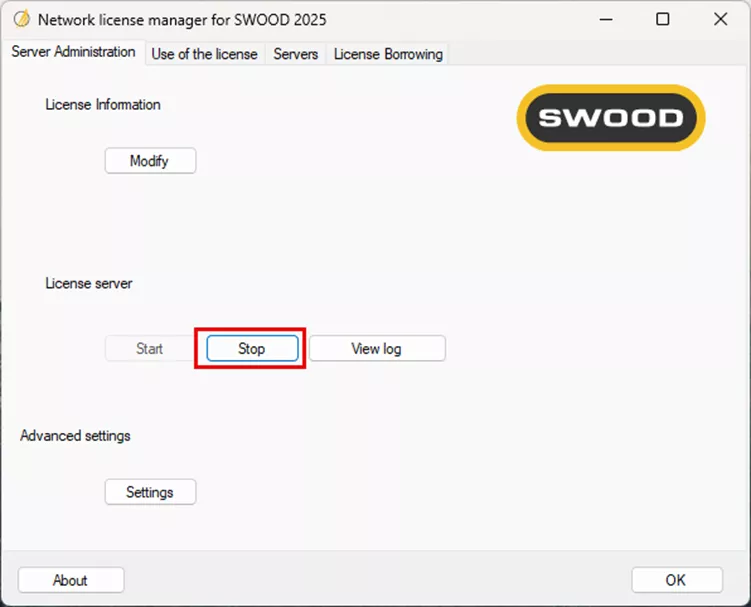
- Click Stop under License server.
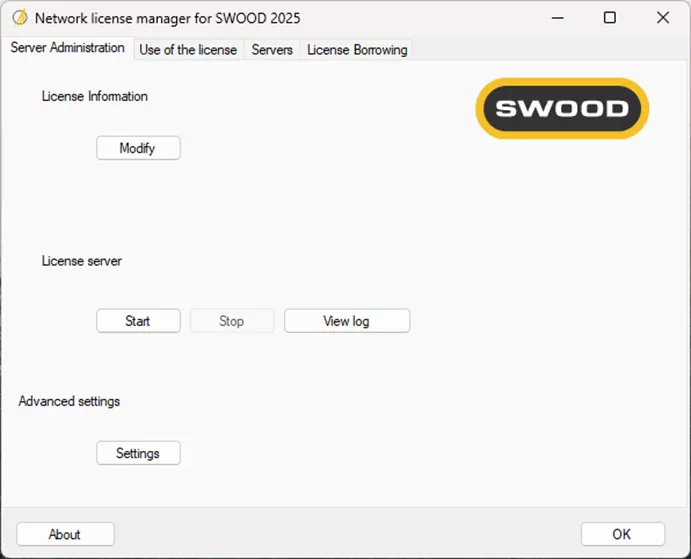
- Then Modify.
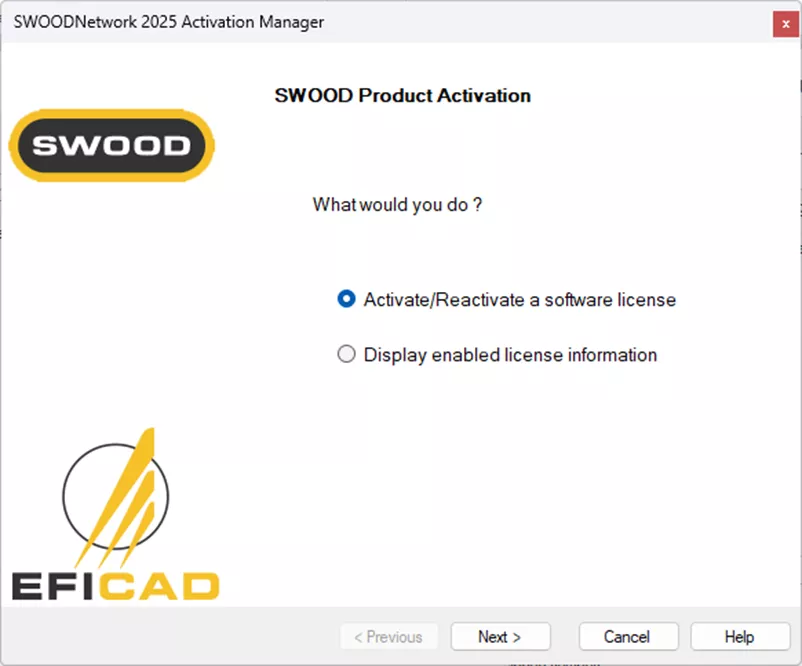
- Choose Activate/Reactivate a software license.
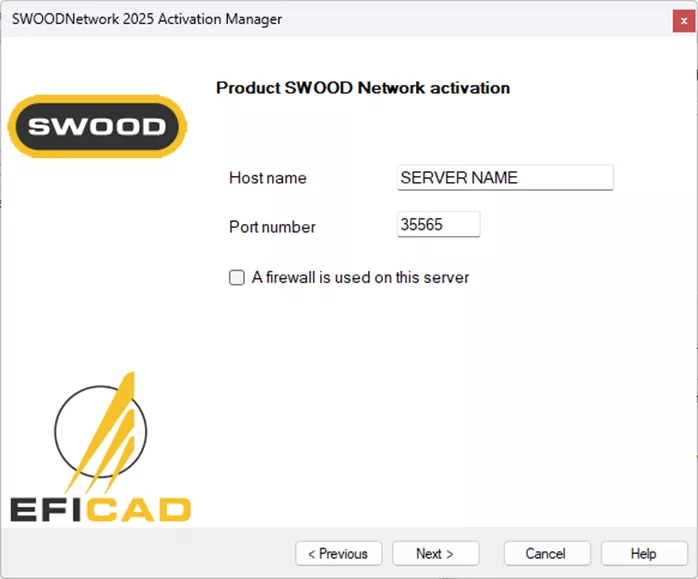
- Enter your host name (server name) and port number (any available).
- Enter your serial number and contact email.
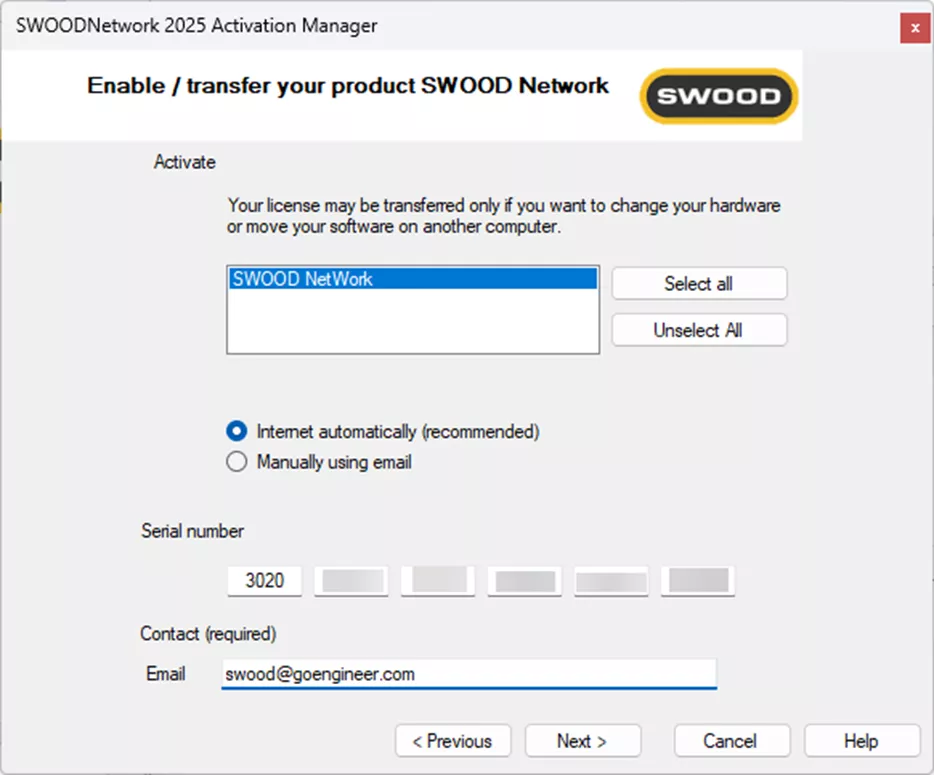
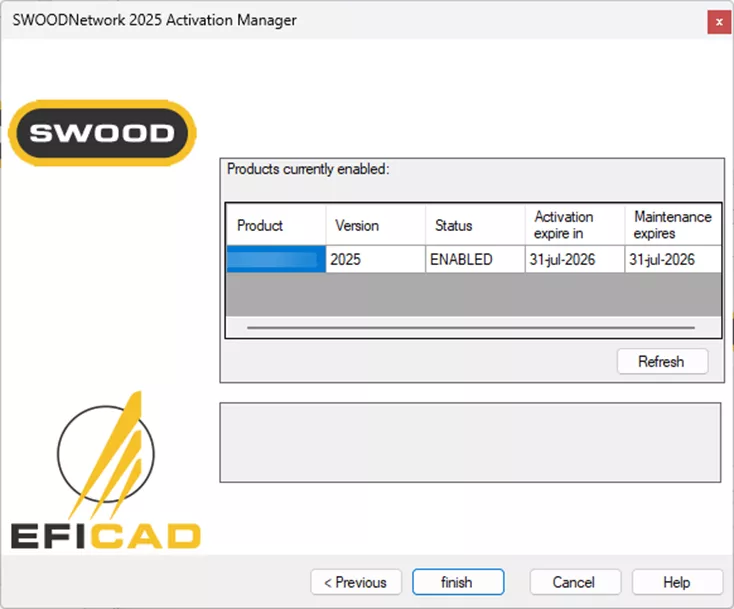
- Click Next and ensure the status is enabled. If nothing shows in this window, click < Previous and try again.
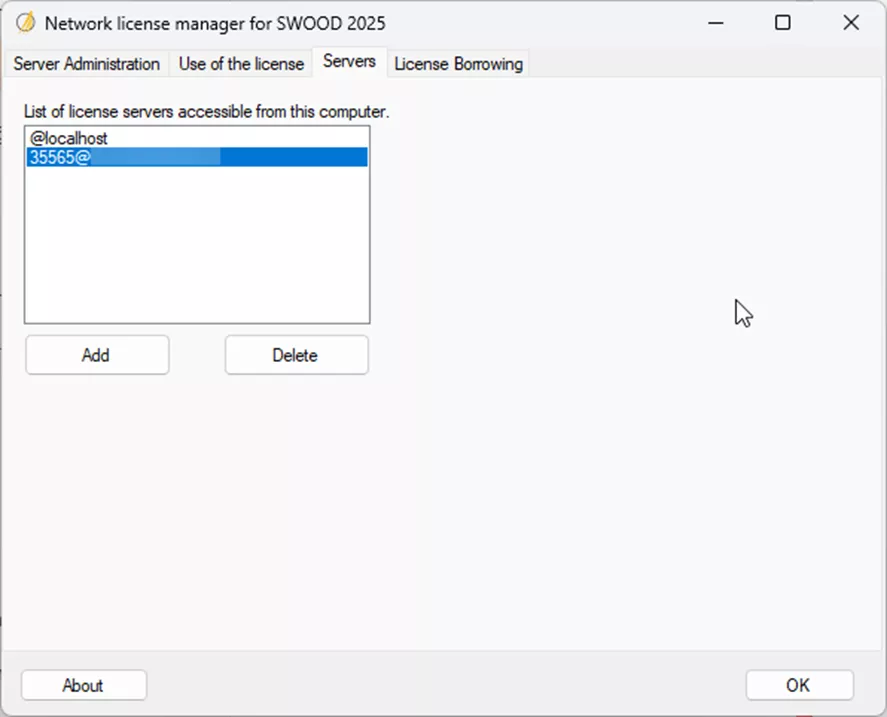
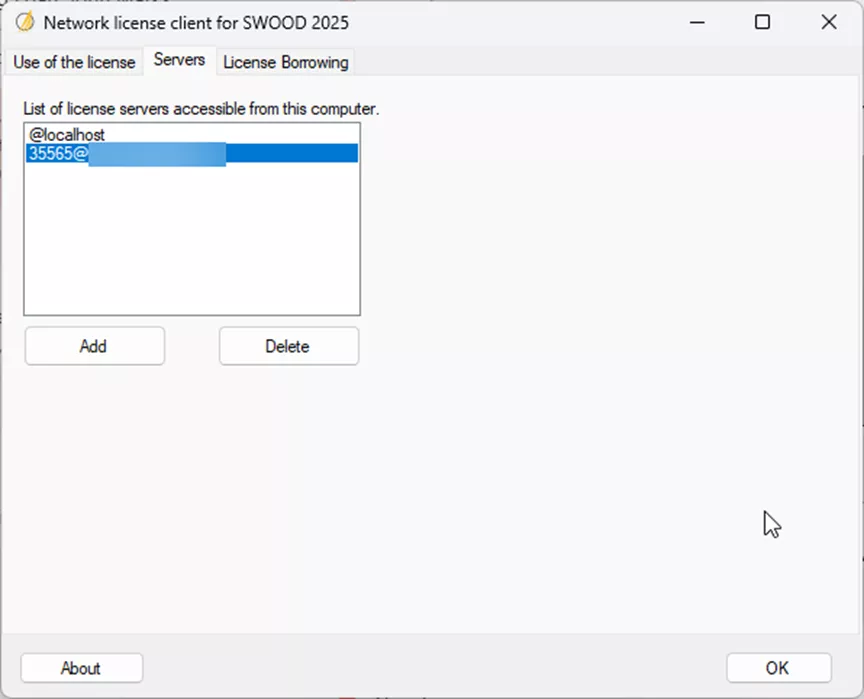
- Ensure your server is listed in the Servers tab, and click Add if it is not already listed.
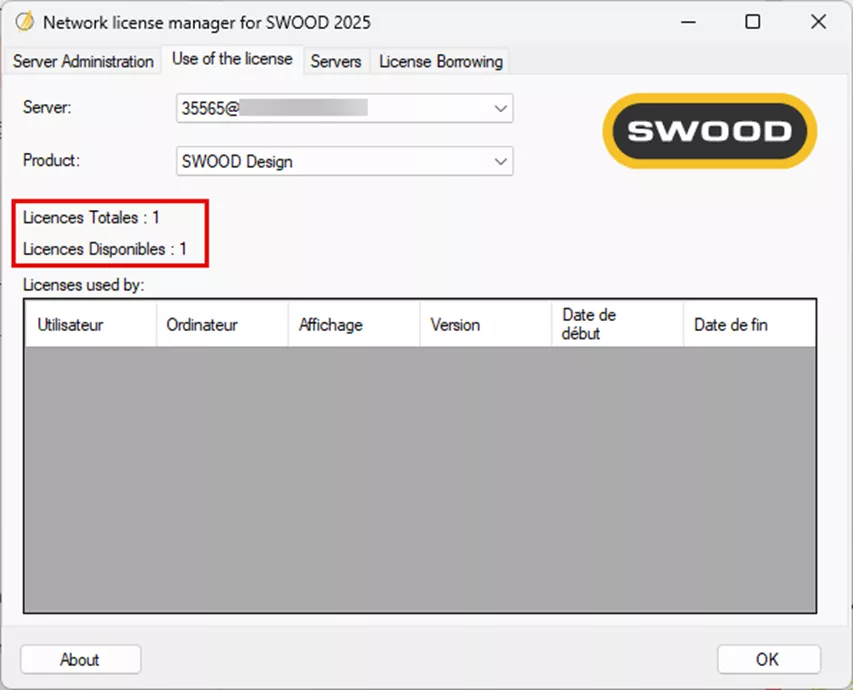
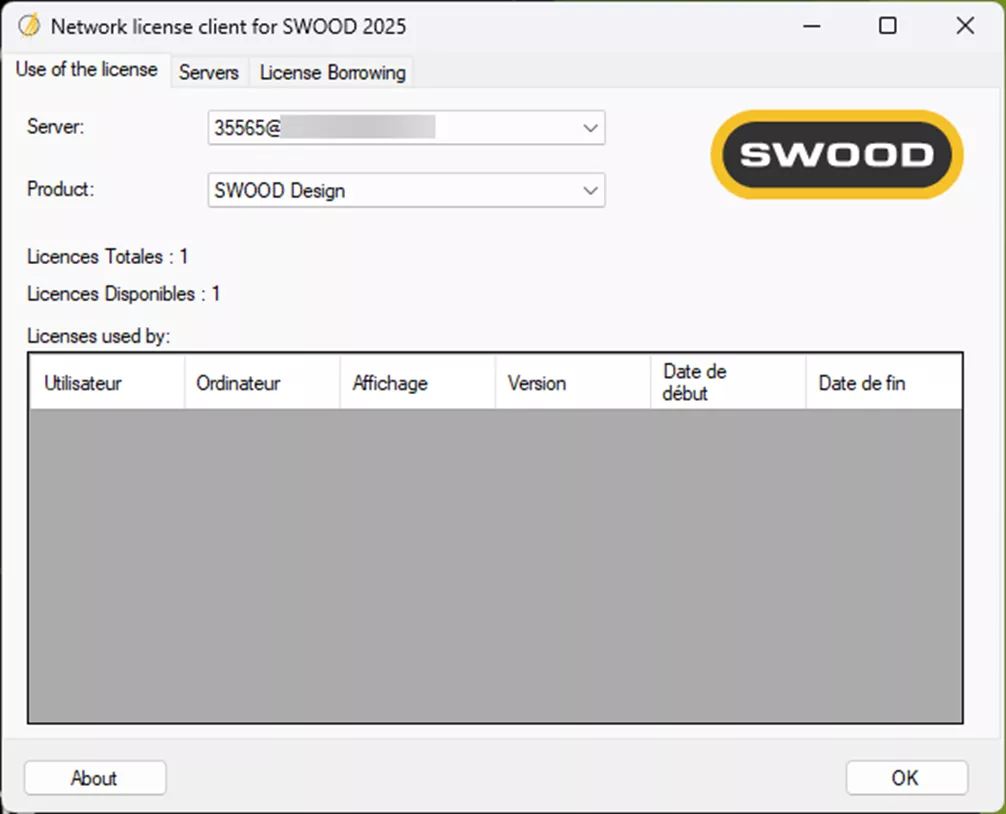
- In the Use of the license tab, select the server and product from their dropdowns. Ensure your licenses are available:
- Click OK.
- Open the SWOODNetWork License Client with Admin rights on the client machine.

- Ensure your server is listed in the Servers tab; if not, choose Add.
- Under the Use of license tab, check that the licenses are correct.
- Open SOLIDWORKS and turn on the SWOOD Add-in.
Questions?
I hope you found this SWOOD network license reactivation guide helpful. If you have questions or need additional help, please contact us.
Related Articles
SWOOD Reactivation for Standalone Licenses
SWOOD Standalone License Activation Guide
SWOOD Network License Activation Guide
KeyShot SOLIDWORKS Add-In Installation & Setup

About Krystal Petersen
Krystal Petersen is a SOLIDWORKS Technical Support Engineer based out of Auburn Hills, Michigan. Krystal studied Product Engineering at Oakland Community College and has earned her CSWA and CSWP Certifications. She joined the VAR channel in 2015 with DASI (now GoEngineer). Krystal is a huge fan of Star Wars and likes to spend her off time fishing and camping.
Get our wide array of technical resources delivered right to your inbox.
Unsubscribe at any time.