Why Is My SOLIDWORKS Task Scheduler Not Working?

When scheduled tasks in your SOLIDWORKS Task Scheduler fail to start, it could be because swboengine.exe is not running. Swboengine.exe is the process running SOLIDWORKS Task Scheduler and is known as the Back Office Engine.
You can verify its activity by setting a task within SOLIDWORKS Task Scheduler to run, accessing your Windows Task Manager (CTRL + SHIFT + ESC) or right-click an open space in your taskbar. Look at the Processes tab - if the process is stalled out, you can end the task.
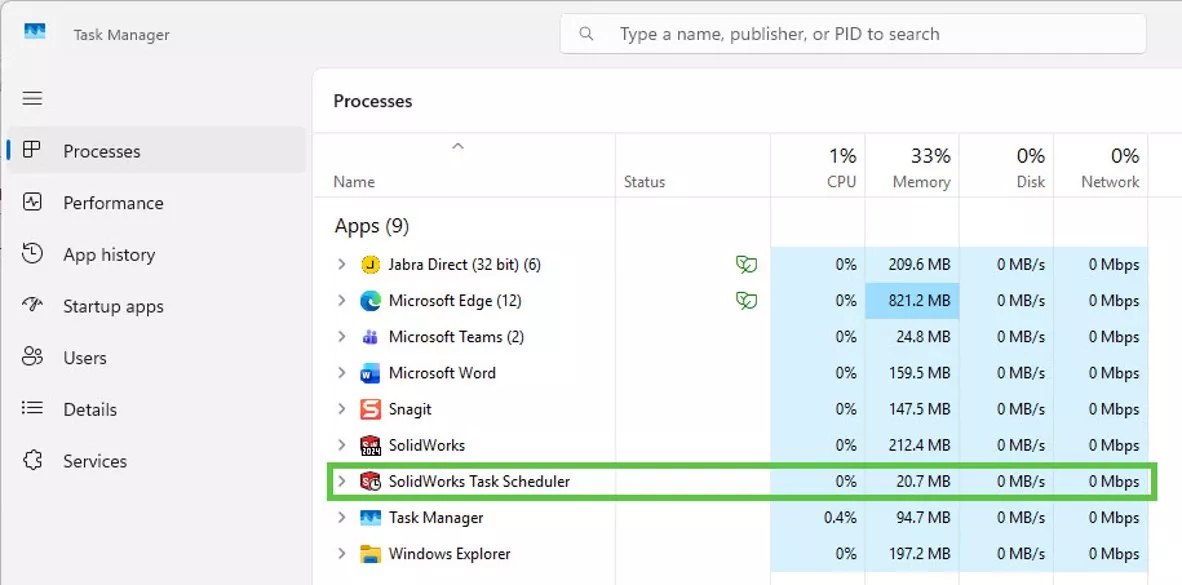
Then, manually run swboengine.exe and retest the issue. Disable any anti-virus programs and User Account Controls (via Control Panel), navigate to
Note: The default location is C:\Program Files\SOLIDWORKS Corp\SOLIDWORKS\swScheduler. If there are multiple year versions of SOLIDWORKS installed, ensure the correct version of swboengine.exe is running from the correct installation location.
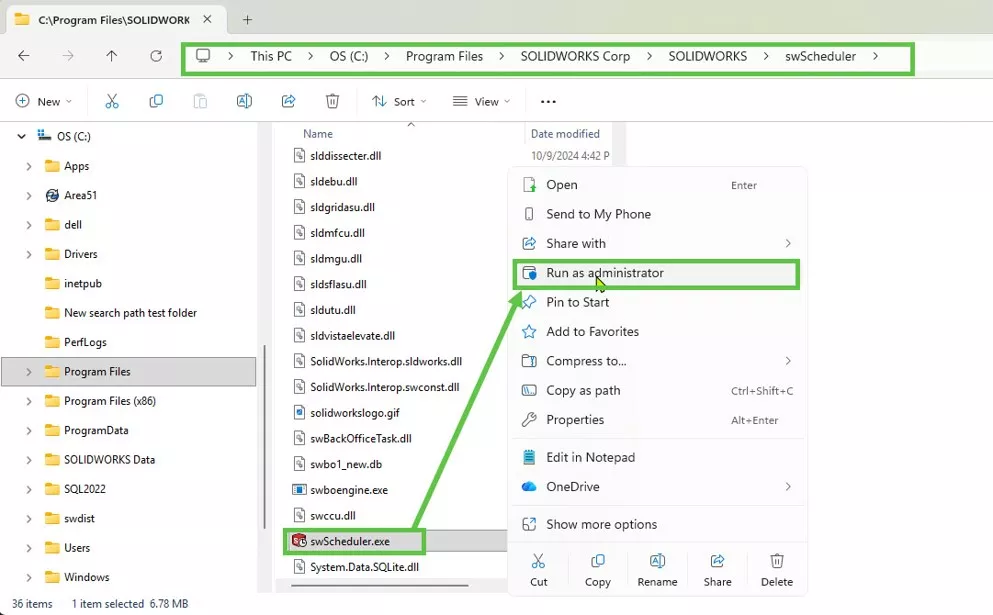
If running swboengine.exe manually resolves the issue, it means that swboengine.exe is not starting automatically as it should. You can force it to run automatically at each Windows startup by adding the shortcut of swboengine.exe at C:\Users\
Some add-ins (like the McMaster-Carr add-in) have been known to interfere with the Task Scheduler. If you suspect an add-in, disable it in SOLIDWORKS, close it, and then relaunch the Task Scheduler.
If the procedure above did not resolve the issue, the next step is to repair the SOLIDWORKS installation. Finally, if that does not fix the issue, a clean reinstallation is recommended as the next step.
SOLIDWORKS CAD Cheat Sheet
SHORTCUTS ⋅ MOUSE GESTURES ⋅ HOT KEYS
Our SOLIDWORKS CAD Cheat Sheet, featuring over 90 tips and tricks, will help speed up your process.

I hope you found this tutorial for fixing your SOLIDWORKS Task Scheduler helpful. Check out more tutorials and tips below, or check out the GoEngineer Community, where you can create forum posts, enter design contests, and answer questions from other SOLIDWORKS users.
More SOLIDWORKS Tips
SOLIDWORKS Worm Gear Mate Quick Tip
Missing SOLIDWORKS Bend Lines in Flat Pattern DXF
Changing Component Colors in SOLIDWORKS Drawings
Modeling Conveyor Belts with Cleats in SOLIDWORKS

About Matthew Kusz
Matthew Kusz is a Senior Technical Support Engineer at GoEngineer. When Matthew isn’t assisting customers with their engineering challenges, he spends his free time repairing antique watches/clocks, designing furniture, tending his aquariums and learning about bee keeping.
Get our wide array of technical resources delivered right to your inbox.
Unsubscribe at any time.