3 Ways to Resolve the SOLIDWORKS Document Manager Library Is Invalid Warning

The error message “The SOLIDWORKS Document Manager Library is invalid. Please see your administrator” can occur when using Pack and Go or File references. This article covers three possible methods to resolve this error message.
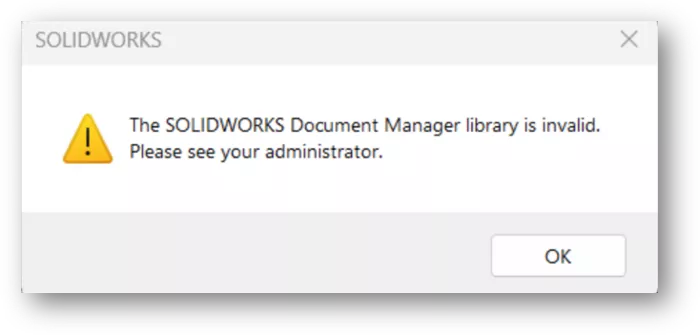
The error is caused by a file located in C:\Program Files\CommonFiles\SolidWorks Shared called SwDocumentMgr.dll. The file is likely the incorrect version, corrupt, or missing from the folder.
Method 1
The easiest way to resolve this issue is to close SOLIDWORKS and rename the C:\Program Files\CommonFiles\SolidWorks Shared folder in Windows Explorer. In the example below, we added _OLD to the end of the folder name.
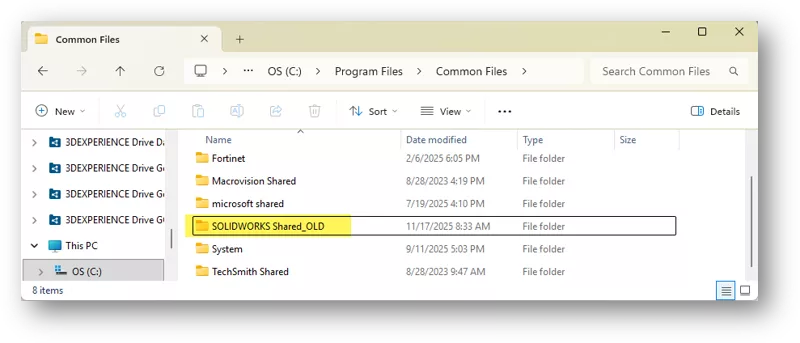
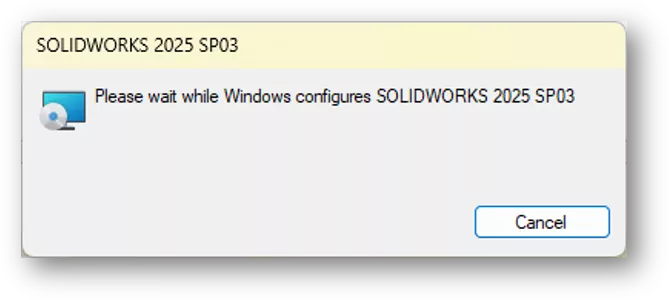
After renaming the folder, launch SOLIDWORKS. A dialog will display indicating that Windows is configuring SOLIDWORKS. Configuring the software may take a few minutes, so please let it run until SOLIDWORKS opens. This process should rebuild the SOLIDWORKS Shared folder with the proper SwDocumentMgr.dll.
Method 2
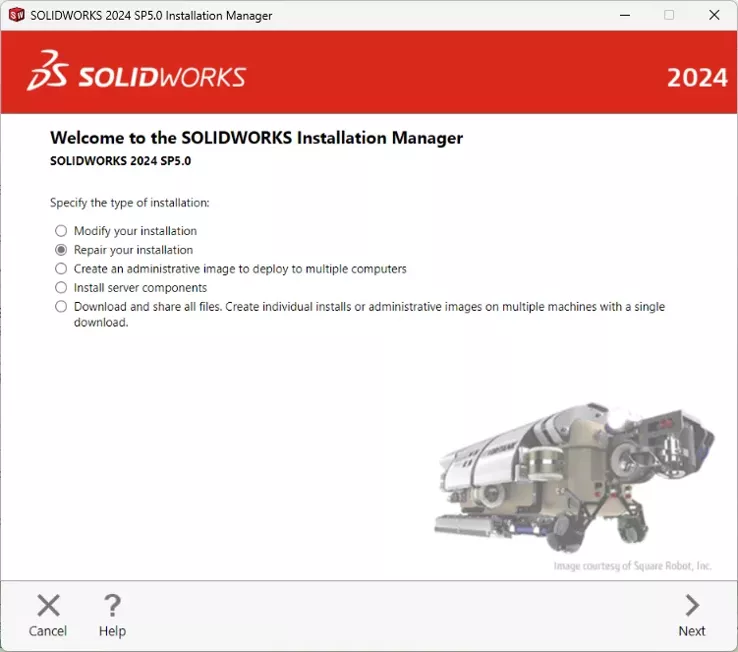
Another method to resolve this error is by repairing the SOLIDWORKS Installation. The instructions for repairing the software can be found here: SOLIDWORKS Installation Repair.
Method 3
If the repair or renaming of the SOLIDWORKS Shared folder does not resolve the issue, the DLL may be manually registered using the Windows Command Prompt. Please follow the instructions below to manually register the DLL.
- First, make sure the SwDocumentMgr.dll exists in the C:\Program Files\CommonFiles\SolidWorks Shared folder.
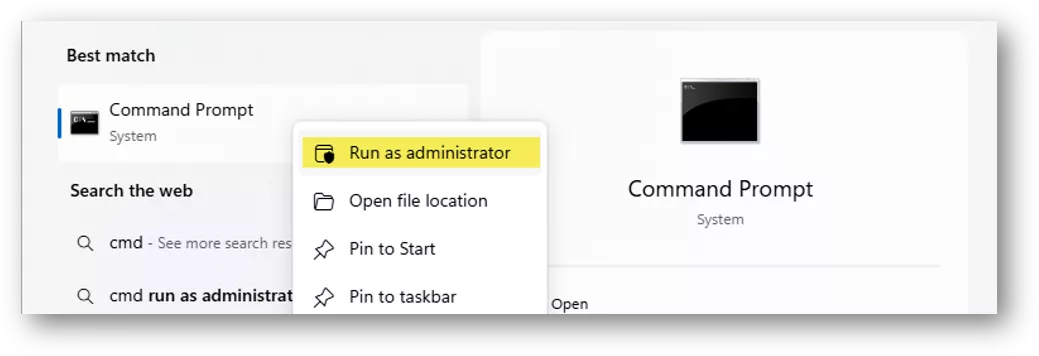
- Close SOLIDWORKS, then click the Windows Start menu and type “CMD”. Right-click Command Prompt and choose Run as administrator.
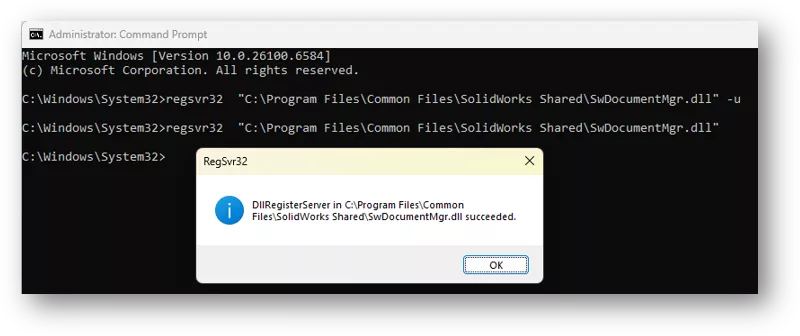
- Type the command regsvr32 "C:\Program Files\Common Files\SolidWorks Shared\SwDocumentMgr.dll" -u, then hit ENTER. This unregisters the DLL.
- Type the command regsvr32 "C:\Program Files\Common Files\SolidWorks Shared\SwDocumentMgr.dll", then hit ENTER. This registers the DLL.
- Use the Windows Task Manager to restart Windows Explorer.
- Open SOLIDWORKS and perform a test to see if the issue is resolved.
We hope these methods helped resolve the "SOLIDWORKS Document Manager Library is invalid" warning message. For further assistance, please contact your technical support team.
Want to learn more? Check out more tips and tricks from our team below. Additionally, join the GoEngineer Community to participate in conversations, create forum posts, and answer questions from other SOLIDWORKS users.
Related Articles
Why Is My SOLIDWORKS Task Scheduler Not Working?
Changing Component Colors in SOLIDWORKS Drawings
How to Read the SOLIDWORKS SolidNetWork License Manager
How to Upgrade SOLIDWORKS to a Newer Version
What is CEF for SOLIDWORKS & How to Fix the Faulting Module libcef.dll?

About Zach Brown
Zach Brown is a certified SOLIDWORKS Expert and a Technical Support Engineer. Prior to working at GoEngineer, he spent 15 years as a mechanical designer, CAD support tech, and instructor using SOLIDWORKS. His hobbies include playing guitar, riding motorcycles, and skiing.
Get our wide array of technical resources delivered right to your inbox.
Unsubscribe at any time.