How to Read the SOLIDWORKS SolidNetWork License Manager

The SOLIDWORKS SolidNetWork License Manager (SNL) supports multiple license clients by distributing licenses to clients on the network. This allows the number of users to exceed the number of licenses by floating licenses.
Understanding how to navigate and work in the SolidNetWork License Manager can be very confusing; this guide will cover the basics.
Accessing the SNL
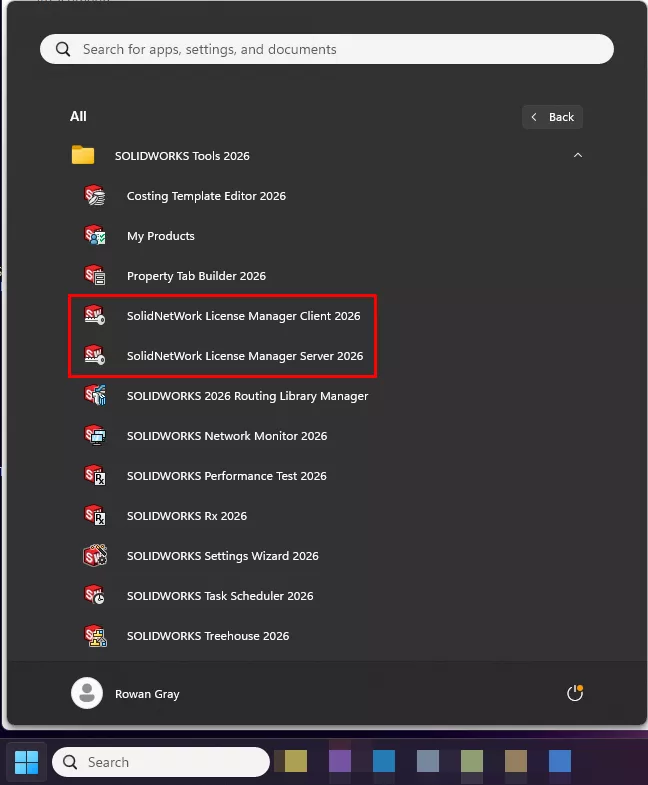
To start, you can get to the SNL by opening up the Windows Start menu > All Programs > SOLIDWORKS Tools 20XX > SolidNetWork License Manager…
Depending on whether you’re on a workstation or your server, you might see either SolidNetWork License Manager Client or SolidNetWork License Manager Server. They’re mostly the same tool, and we’ll cover the intricacies of both.
SOLIDWORKS SNL Tabs
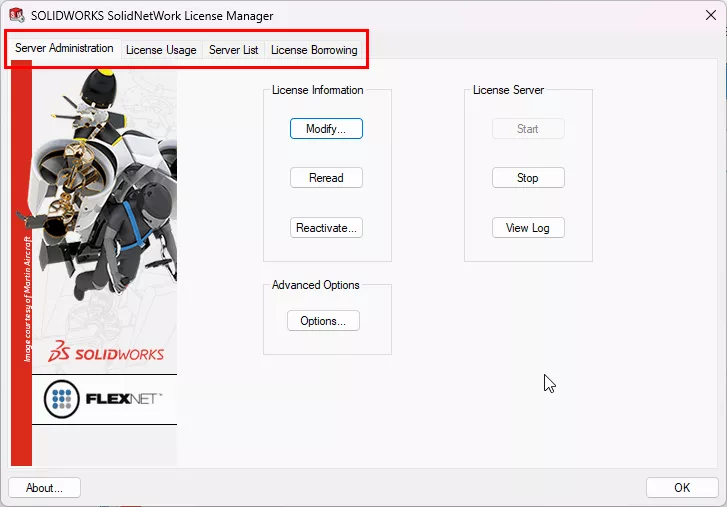
In the SNL, there are 5 tabs:
- Server Administration (Server only)
- License Usage
- Server List
- License Borrowing
- License Order (Client only)
Let’s go through each tab.
Server Administration
The Server Administration tab is only visible on the License Manager computer (server), not the License Client computer. This tab has access to a multitude of tools.
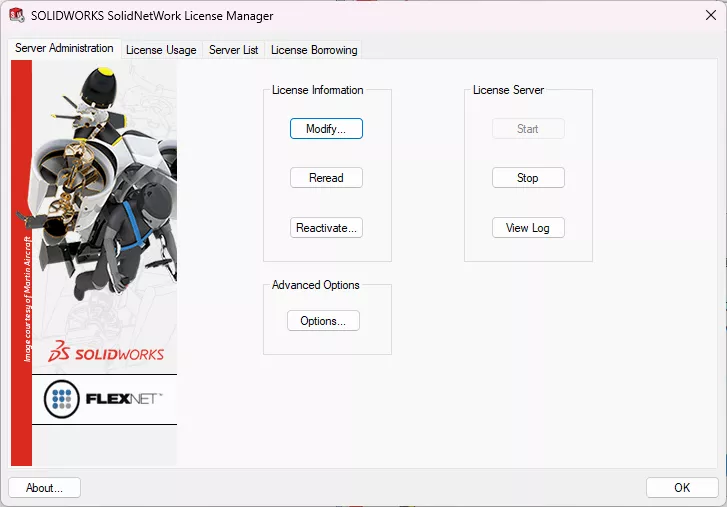
Modify
Modify by far has the most options available compared to any other button on this screen.
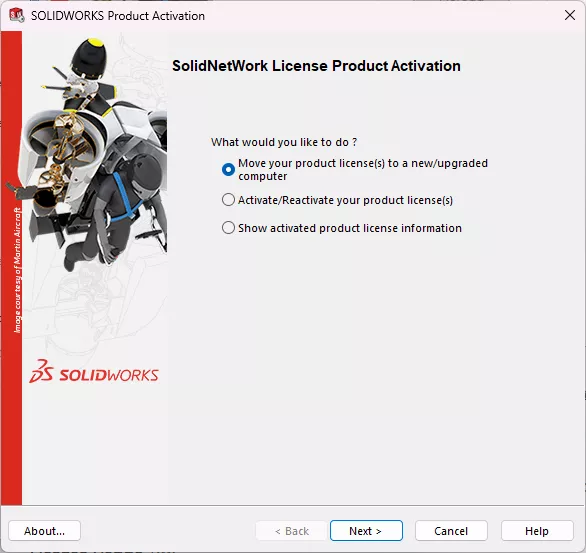
You can:
- Add or remove licenses (in 2023 and later).
- This article, "How to Add Another SOLIDWORKS License to your License Server," details the exact steps you need to follow.
- Reactivate your current licenses.
- Deactivate licenses (usually to move them to a new machine).
- List the products you have based on the current licenses.
- Implement an Options File.
- An Options File allows you to allocate, reserve, and manage your licenses with greater specificity. We have an article, "Option File – A Great Solution for Managing Your SNL(s)," that walks through that process in more detail.
Reread
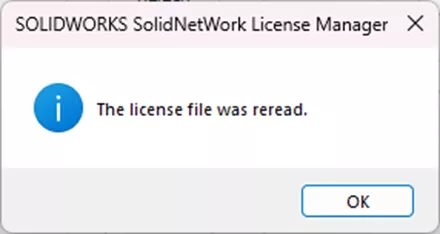
If you currently have a license file in place for temporary or activation-exempt licensing, Reread will force a refresh so the system syncs up with the file. This is useful if you replace your license file, but the location remains the same.
Reactivate…
This button will automatically reactivate all of your licenses at once, as well as display which seats are associated with each serial number.
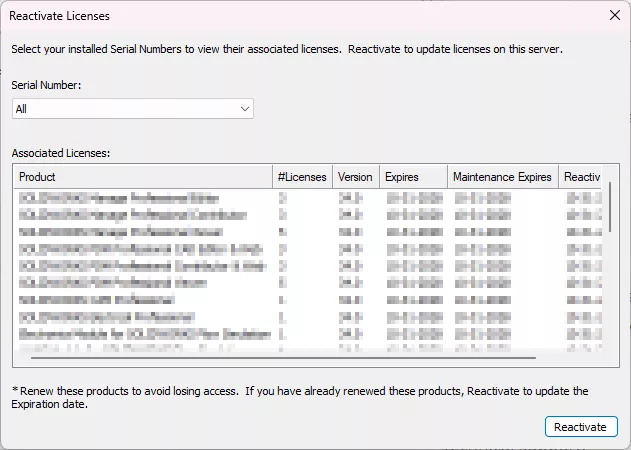
Note: This option is only present in 2021 and beyond. Follow these steps to reactivate your SolidNetWork License Manager in any version.
Options…
This button allows you to remove the service that runs the SNL (we recommend against this unless you have a specific reason), as well as decide whether you use online activation or a license file.
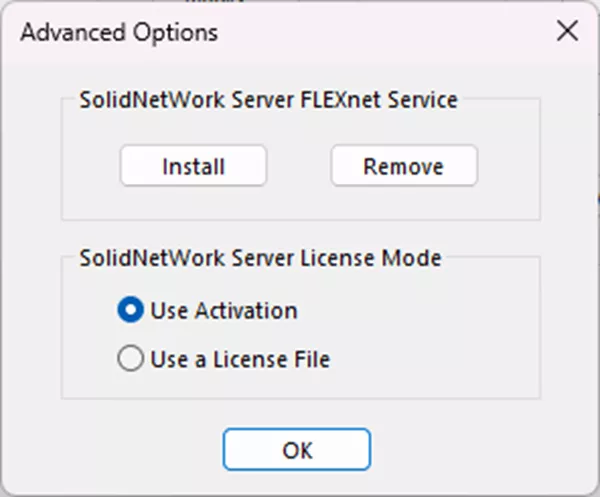
License files are often used for temporary licensing (like when testing a new setup) or for Activation Exemption licenses. Activation Exemption is used when a license server is unable to access the internet, and manual/email activation is not an option due to security policies. Most companies will use online activation.
Our SOLIDWORKS (SNL) Temporary License Setup guide includes the steps for installing a license file for network licenses.
Start/Stop
These buttons will start or stop the service running the SNL. Unless you’re doing maintenance or troubleshooting, you need this service running to allow users to connect. Stopping and restarting the service can sometimes resolve issues and is an easy troubleshooting step.
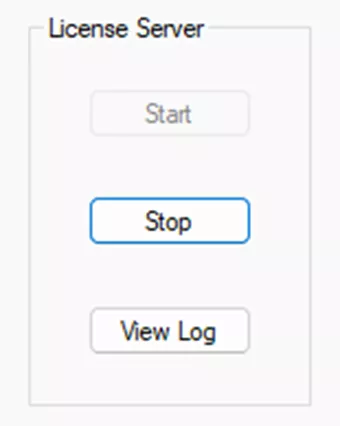
View Log
This lets you view the plain text log of license borrowing activities and errors on your SNL. This log is not preserved and will clear out each time the service stops or the server is restarted. A modification can be made to preserve the log using the registry. Reach out to your Technical Support team for more info on that.
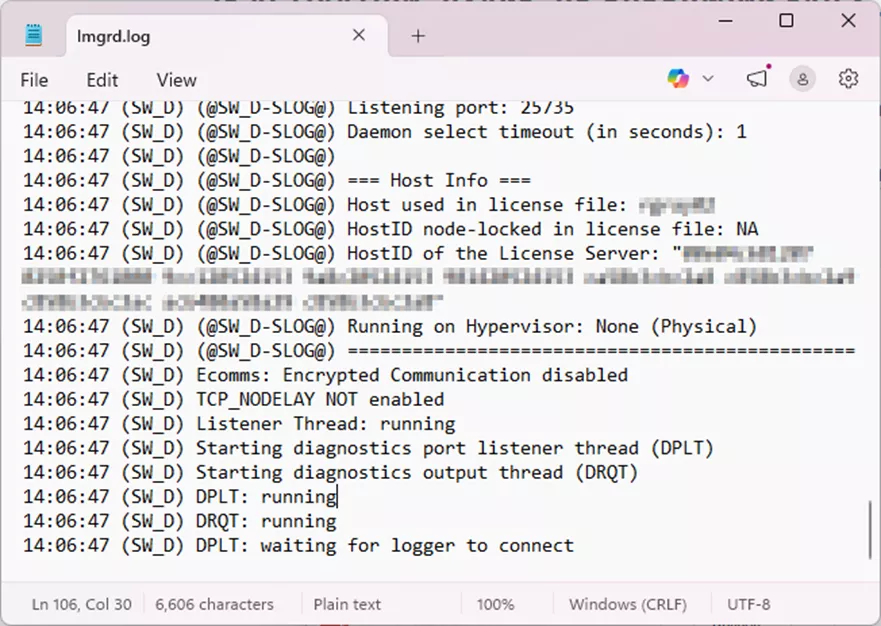
This can help identify why a user may have been prevented from checking out a license or connectivity issues. Support may ask for this log if you’re troubleshooting licensing issues.
License Usage
This tab will give you a list of any license servers running an SNL (whether you have one or multiple), the products hosted on that server, and the usage info of the licenses.
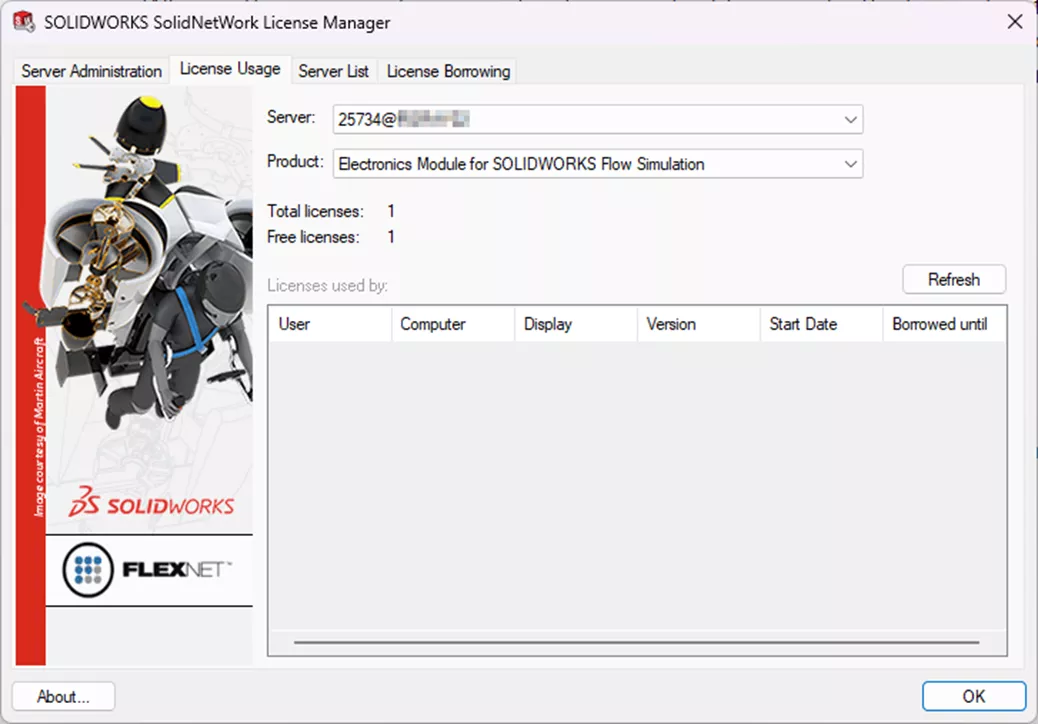
You can also see who has a license, what computer they’re on, how long they’ve had it, and more.
For many, the most confusing part of the SNL is the product list, because it often shows licenses available that seemingly don’t reflect the correct number of seats.
Many customers ask why it shows a SOLIDWORKS Standard license when they did not purchase any Standard licenses.
So why is this?
SOLIDWORKS has 3 packages: Standard, Professional, and Premium. Many customers have a mix of these packages.
If you have a package of SOLIDWORKS above Standard (i.e., Professional or Premium), the License Manager will show more Standard licenses than you actually have.
This doesn't mean you've magically gained more seats of SOLIDWORKS. The best way to think about it is that the total number of Standard licenses shown on the License Manager is the total number of SOLIDWORKS seats you've purchased.
For example, say you've purchased 10 Standard, 5 Professional, and 5 Premium licenses for your server, totaling 20 purchased licenses. The License Manager will show that you have 20 Standard licenses, 5 Professional, and 5 Premium. The extra Standard licenses are the foundation for the add-in Professional and Premium licenses. The total number of accessible licenses is 20, even though the total added up is 30.
When it comes to network Simulation Professional, Premium, or any other add-on licenses, these are just add-ons to the basic packages of SOLIDWORKS, so when the add-on is activated in SOLIDWORKS, this license is pulled. It doesn't matter what SOLIDWORKS package is in use (Standard, Professional, or Premium).
Server List
This screen lists any license servers hosting SNL’s. They’ll usually be listed with “25734@” in front of the server name, as this is the required syntax to identify the proper port for network communication to and from the server.
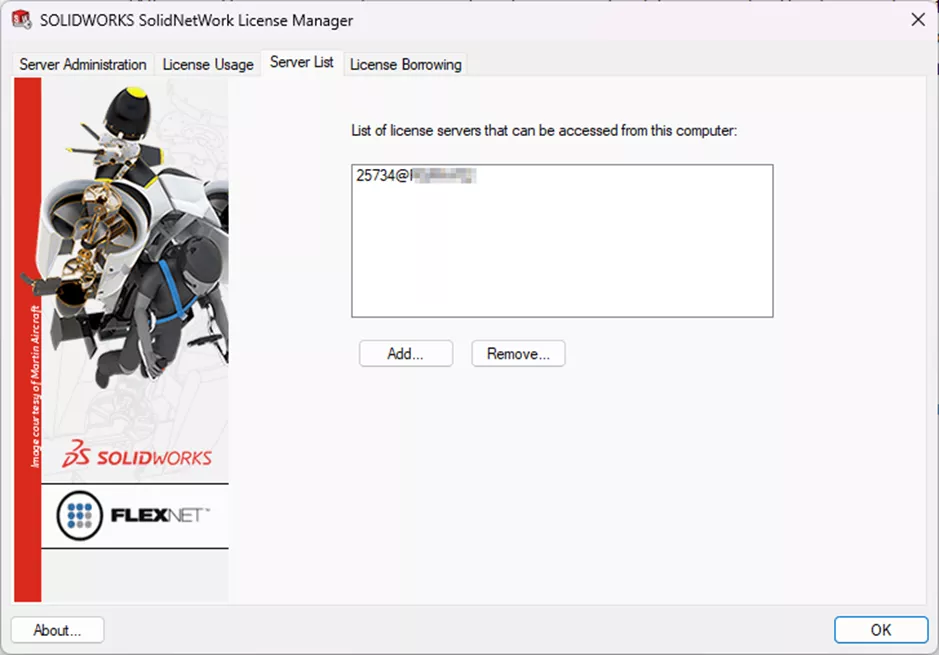
You can use the Add… and Remove… buttons to manage the servers.
License Borrowing
This tab also shows Borrowed Product licenses. SolidNetWork licenses can be borrowed to use the software from a remote location. The license is removed from the pool of available licenses and must be returned for it to become available again.
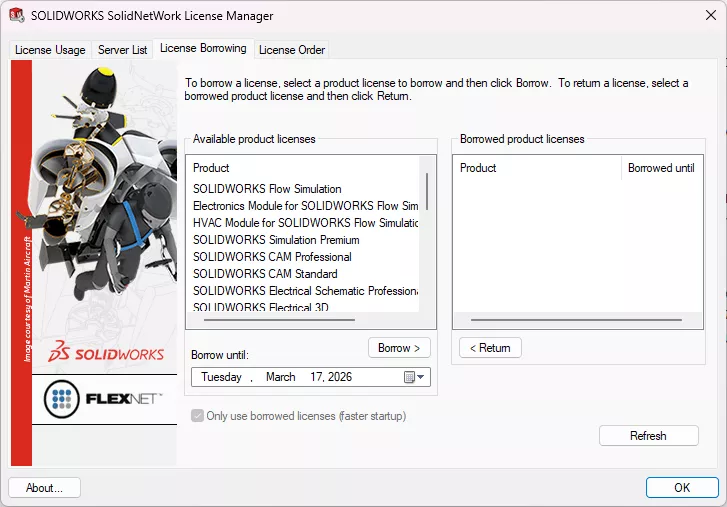
Borrow until shows a specific period of time that a license can be borrowed. The time can be up to 30 days (or as defined by the system administrator). The administrator selects a product, clicks Borrow, and sets an Expiration Date. When the Expire Date column is blank, that indicates that the licenses have been returned.
It is not necessary to return licenses after the expiration date. The license is returned to the pool on the SolidNetWork License Manager at midnight on the expiration date, and the applications on the remote system no longer run.
License Order
The License Order tab manages how to direct your SOLIDWORKS licenses. This is an important consideration if you have purchased multiple versions of SOLIDWORKS.
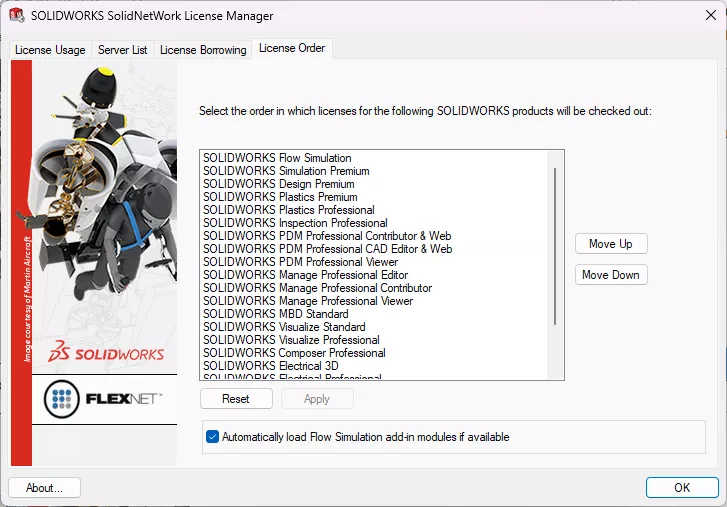
When setting up your license order, you should consider the hierarchy of products (placing a Professional license before a Premium, for example). This ensures that users don’t pull a more powerful license than they require. This leaves the Premium license only if a user is using a Premium add-in, like Routing, TolAnalyst, or Simulation.
Ultimately, how you sort your licenses is up to you and your company’s use case and demographics. Oftentimes, smart management of license order is enough, but we also discussed Options Files above. Options Files help you reserve licenses for specific users. That’s a more concrete way of preventing someone from losing out on a license they need.
Conclusion
The SolidNetWork License Manager is something used on a pretty frequent basis, but having a good understanding of what can be accessed or managed from the tool can be really helpful to ensure you’re getting the most out of your software.
Hopefully, this gives you a solid foundation for navigating the SNL. If you have any further questions and GoEngineer is your reseller, you’re more than welcome to reach out to our Technical Support Team. Want to learn more? Check out more tutorials and tips below, or check out the GoEngineer Community, where you can create forum posts, enter design contests, and answer questions from other SOLIDWORKS users.
SOLIDWORKS CAD Cheat Sheet
SHORTCUTS ⋅ MOUSE GESTURES ⋅ HOT KEYS
Our SOLIDWORKS CAD Cheat Sheet, featuring over 90 tips and tricks, will help speed up your process.

Related Articles
How To Request a SOLIDWORKS Document Manager API Key
How to Upgrade SOLIDWORKS to a Newer Version
AI in SOLIDWORKS: What It Is (and What It Isn’t)
What is CEF for SOLIDWORKS & How to Fix the Faulting Module libcef.dll?

About Rowan Gray
Rowan Gray is a Technical Support Manager at GoEngineer and CPPA/CPAP with a specialty in SOLIDWORKS PDM and related data/lifecycle management. They have been with GoEngineer since 2020, and have a strong IT background that helps them more fully support customers with whatever issues may arise in their PDM environment. In their free time, they enjoy playing video games, D&D, multimedia crafting, and spoiling their pets.
Get our wide array of technical resources delivered right to your inbox.
Unsubscribe at any time.