Different SOLIDWORKS Sheet Formats on Each Sheet

Table of Contents
SOLIDWORKS users often need to customize their drawings to comply with company and industry standards, sometimes requiring different sheet formats for each drawing sheet.
For example, a common practice is to include certain information on the first sheet only, which isn't needed on the others, such as the revision number or other custom properties. To do this, you need to create two sheet formats and specify which sheet format to use for the initial and subsequent sheets.
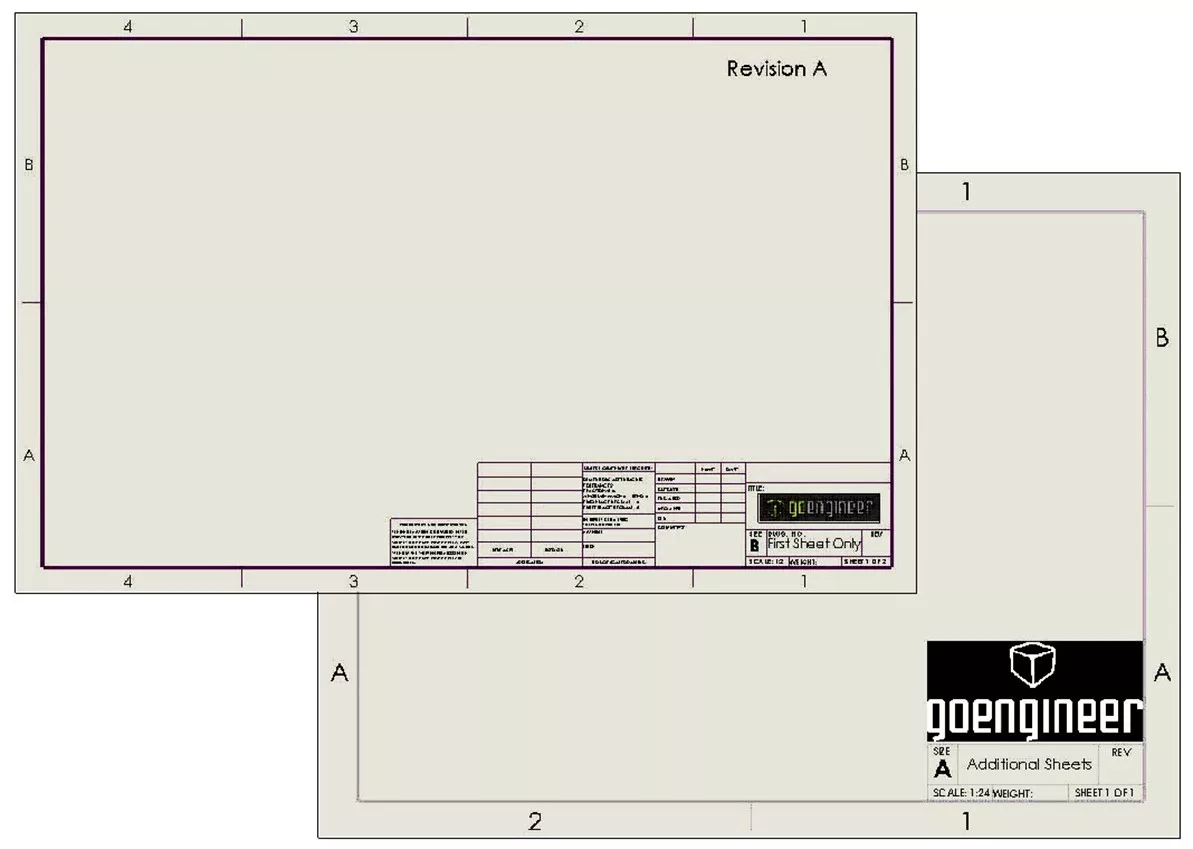
Creating Unique Sheet Formats
The first step is to create the required sheet formats. For this example, I'll create two; one for the first sheet and a second for subsequent sheets. To customize a sheet format, right-click in the graphics area on the drawing sheet, select Edit Sheet Format, and make your changes.
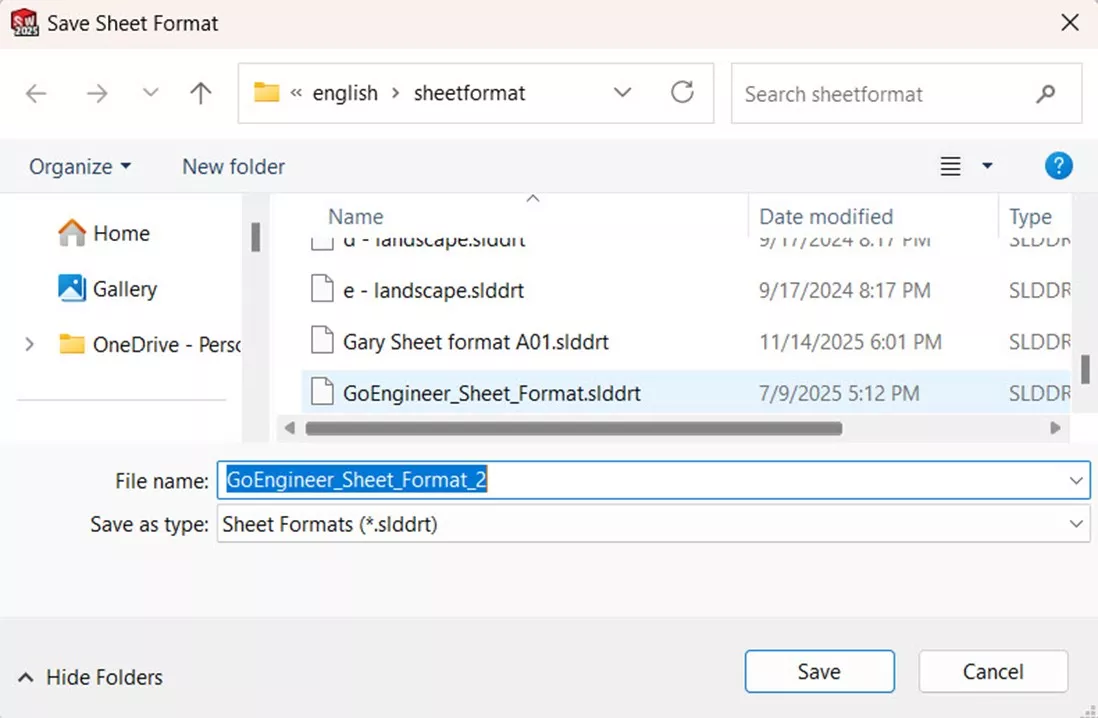
Save those changes as a new .slddrt sheet format using File > Save Sheet Format. Repeat these steps for the other required sheet format.
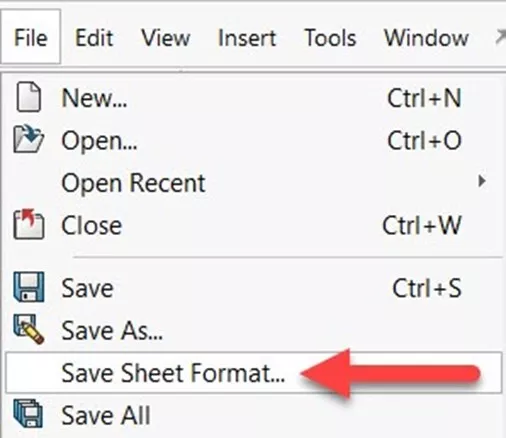
To apply an existing sheet format to the current sheet, right-click in the graphics area on the drawing sheet, select Properties, and browse to the desired sheet format.
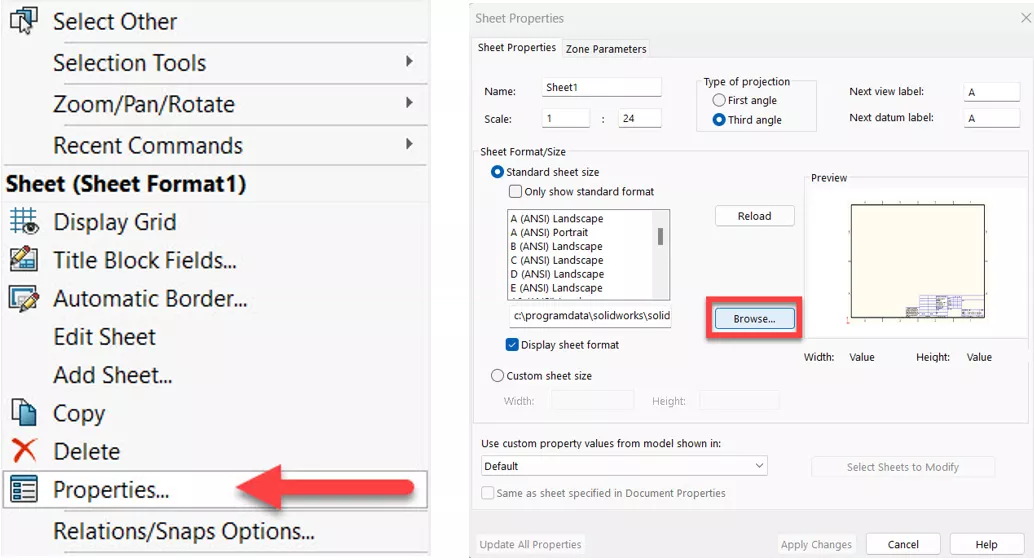
Select the sheet format, then click Open, and Apply Changes.
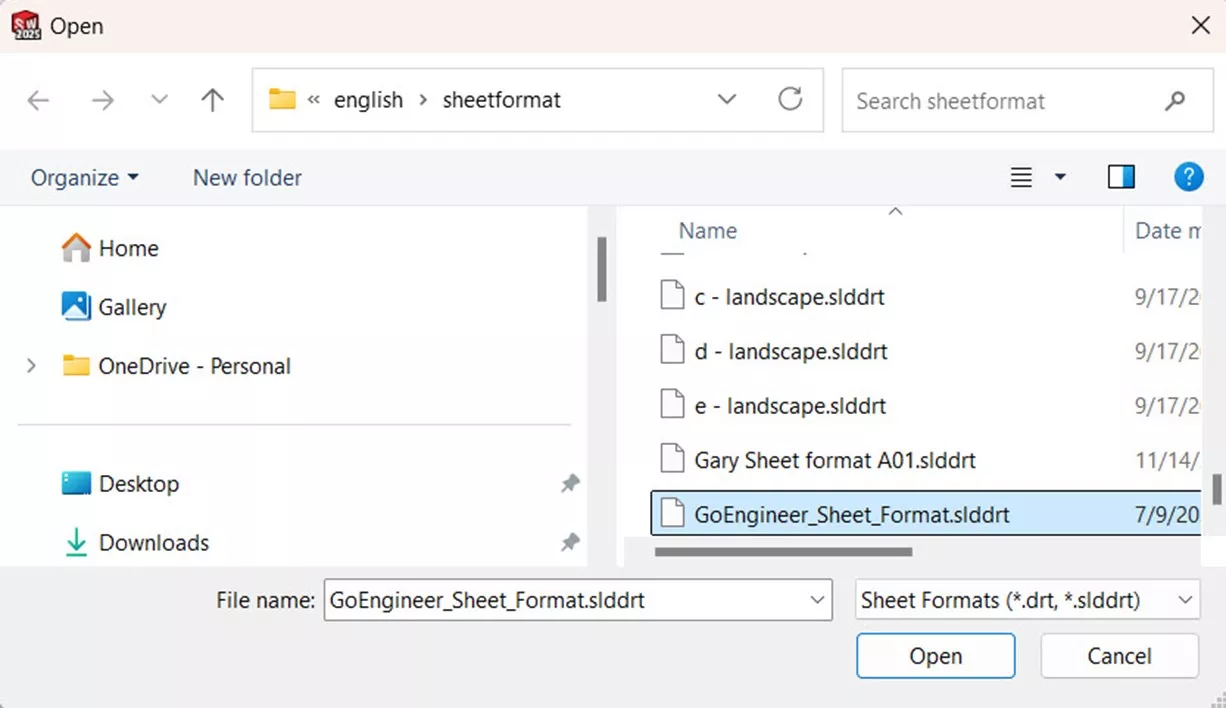
To learn more about how to customize and save sheet formats, check out our article: Create Custom Templates and Sheet Formats in SOLIDWORKS
Specify the Sheet Format Used for New Sheets
When saving a template with a sheet format applied, each new drawing using that template will automatically pull the formats you specified. The PropertyManager Design Tree will list the sheet formats for each sheet.
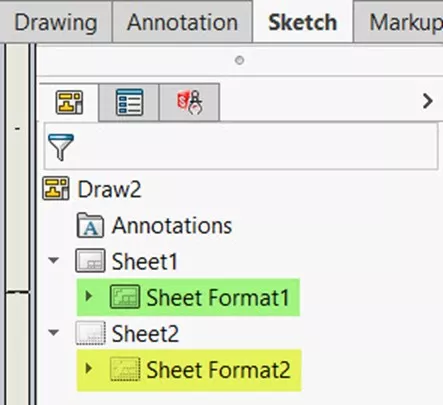
The template determines which sheet formats get used for every additional sheet, so the next step is to save a new drawing template with the additional sheet format defined.
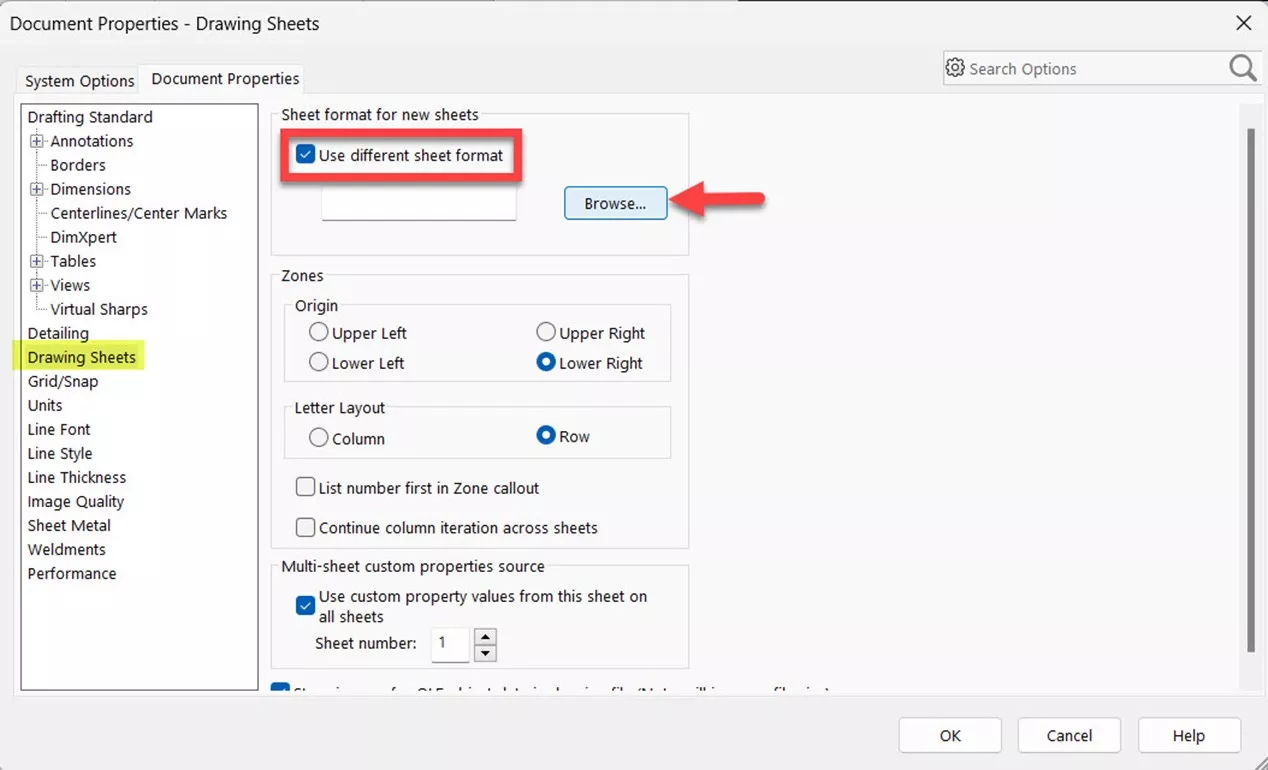
With the appropriate sheet format defined for the first sheet, click on Tools > Options > Document Properties > Drawing Sheets. Next, check the box for Use Different Sheet Format, and click Browse. This will allow you to select the sheet format to use for all sheets after the first one.
Save the Drawing Template
Once you have specified which sheet formats to use, save the template using File > Save As; don’t forget to change the file type to *.drwdot.
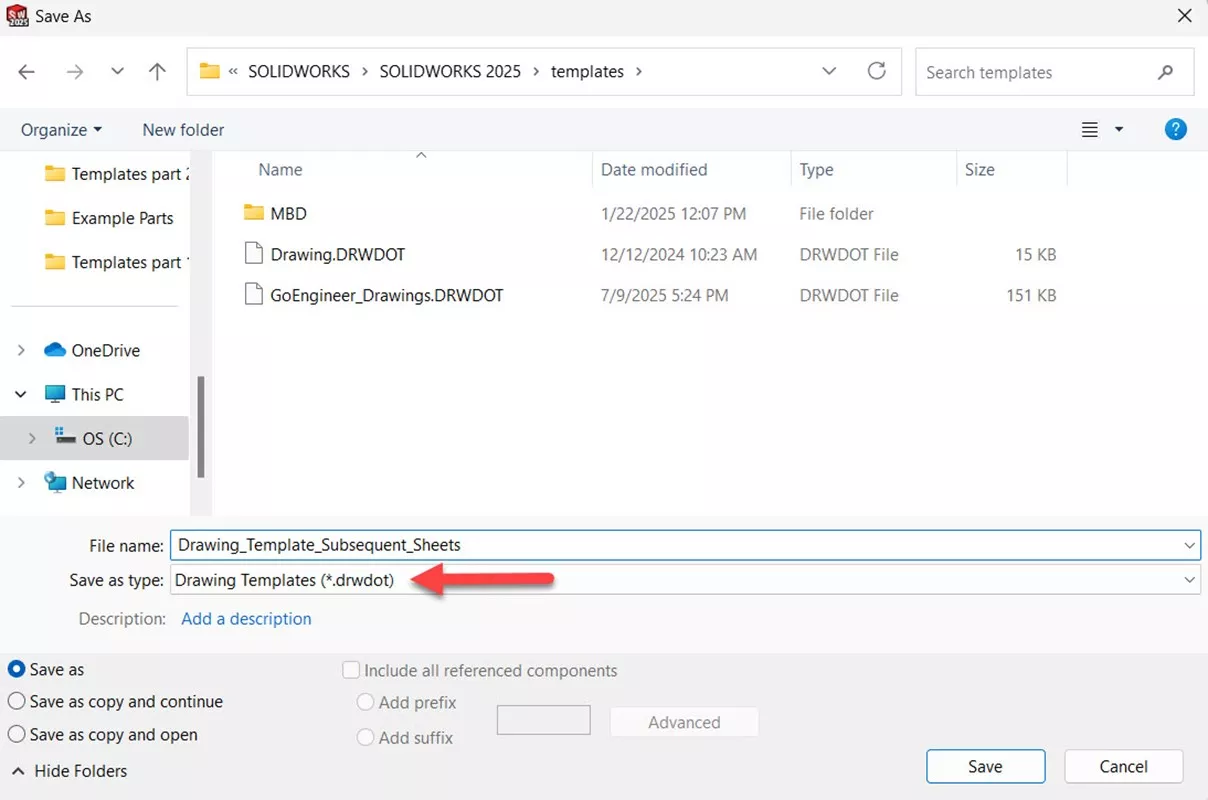
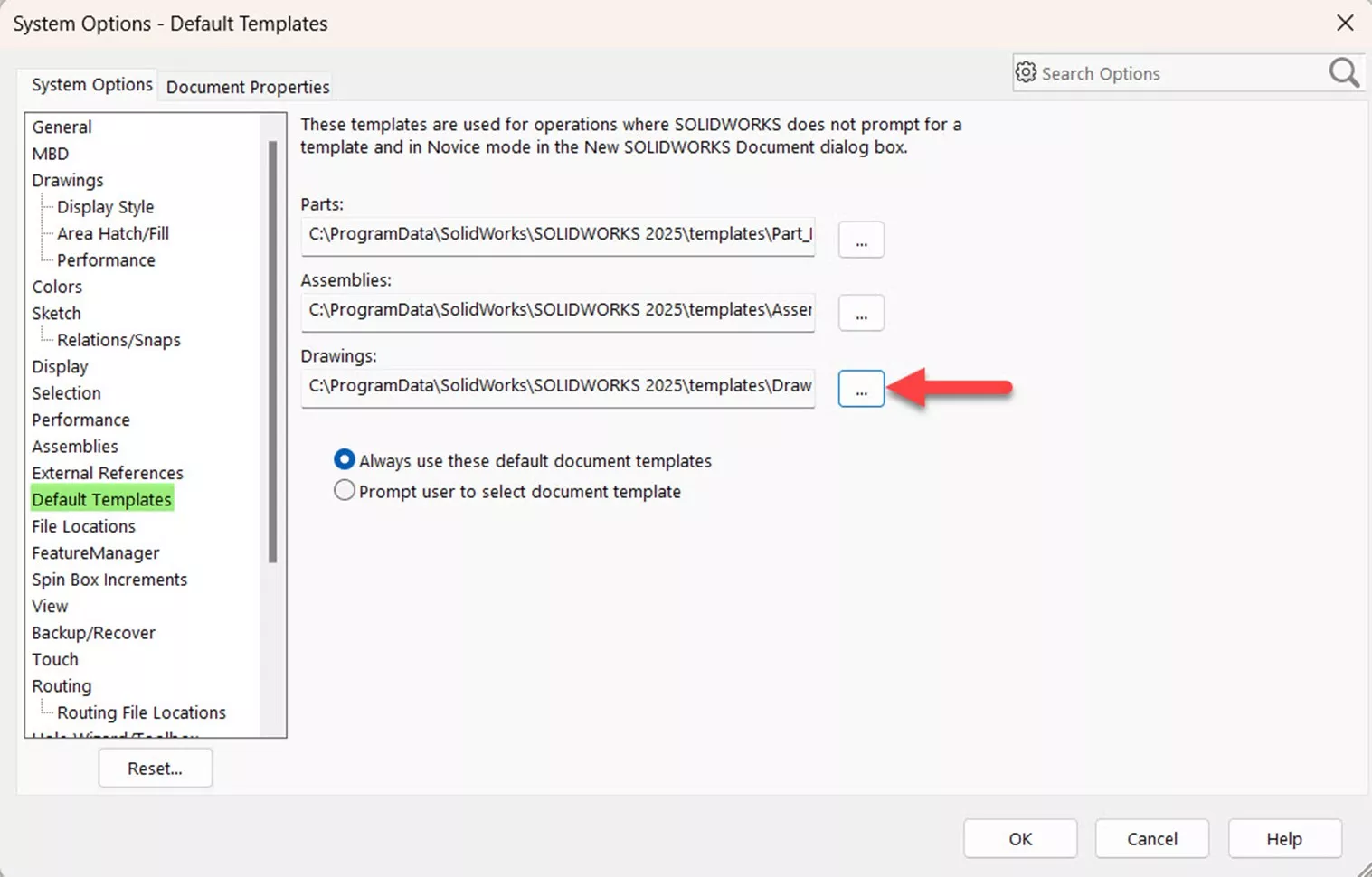
To use this template automatically for new Drawings, you can make this the default drawing template under Tools > Options > Document Properties > Default Templates.
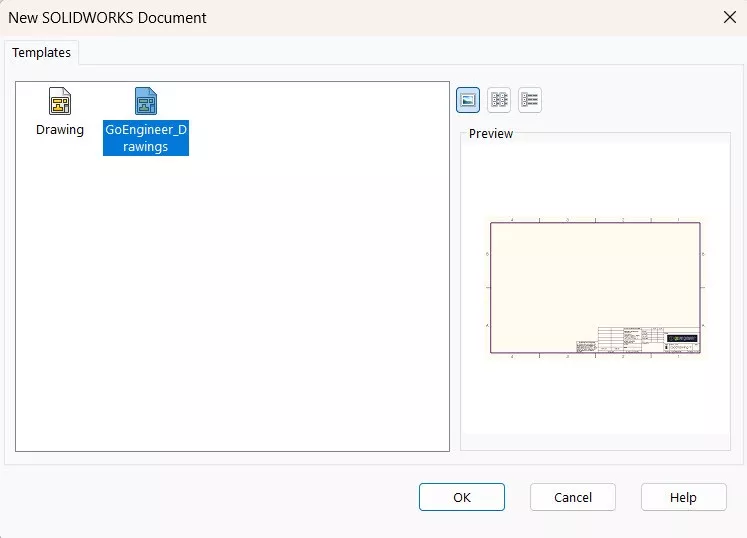
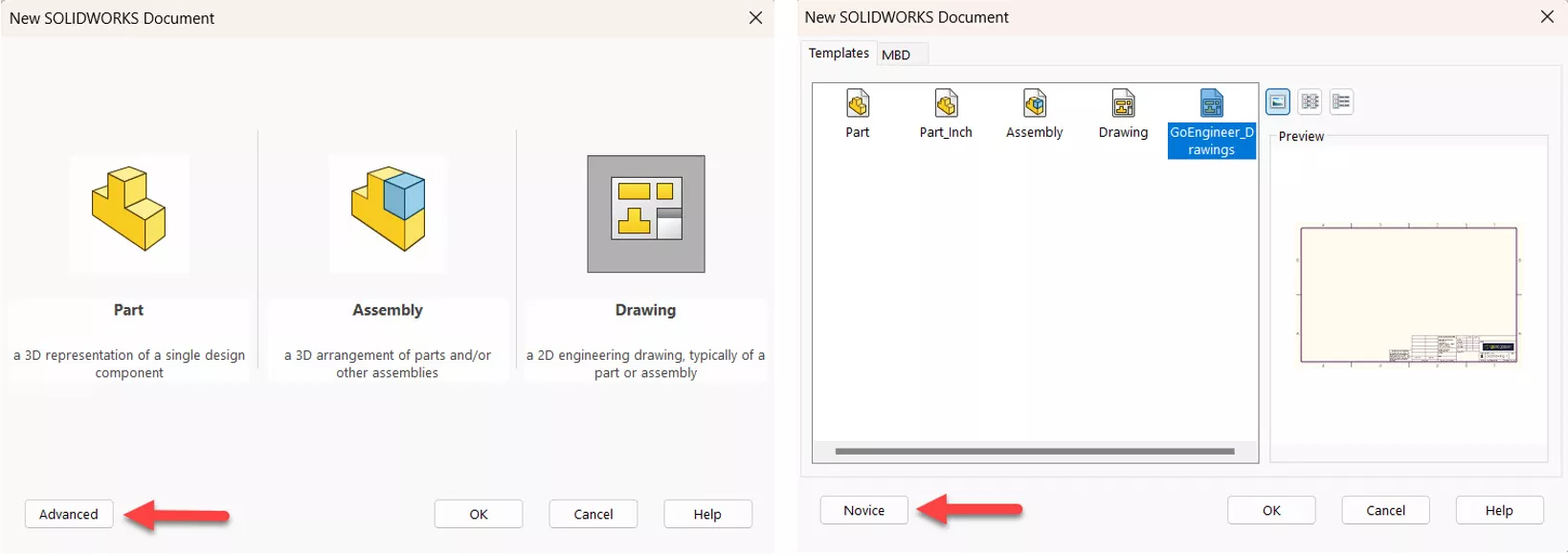
You still have the option to choose your template when creating new drawings by toggling the Advanced New SOLIDWORKS Document window.
Conclusion
Customizing sheet formats in SOLIDWORKS allows users to create tailored drawings that meet specific company and industry standards. With these steps, users can enhance their drawing templates and streamline their documentation processes.
Want to learn more about SOLIDWORKS templates and sheet formats? Check out more tutorials and tips below, or check out the GoEngineer Community, where you can create forum posts, enter design contests, and answer questions from other SOLIDWORKS users.
SOLIDWORKS CAD Cheat Sheet
SHORTCUTS ⋅ MOUSE GESTURES ⋅ HOT KEYS
Our SOLIDWORKS CAD Cheat Sheet, featuring over 90 tips and tricks, will help speed up your process.

Related Articles
Create and Use Revision Tables in SOLIDWORKS
SOLIDWORKS Motion Studies - Animating View Orientation
AI in SOLIDWORKS: What It Is (and What It Isn’t)
How to Change Units of Measure in 3DPlay
What is CEF for SOLIDWORKS & How to Fix the Faulting Module libcef.dll?

About Gary Ballentine
Gary Ballentine is a Mechanical Engineer based out of our Headquarters in Salt Lake City, Utah. He earned a Bachelor’s degree from the University of California, Davis, a certification in Technical Writing from San Francisco State University, and a Bachelor’s degree in Mechanical Engineering from the University of Utah. Gary has been part of the GoEngineer family since April 2019 as a Support Engineer and Certified SOLIDWORKS Instructor.
Get our wide array of technical resources delivered right to your inbox.
Unsubscribe at any time.