Comparing SOLIDWORKS Packages: Features in Standard, Professional, and Premium

There are three distinct levels of SOLIDWORKS 3D Design, the base of the SOLIDWORKS suite of products to which additional capabilities, like Simulation or Electrical, can be added. All licenses purchased after July 2023, regardless of level, include Cloud Services. The most basic SOLIDWORKS package is the Standard license, followed by Professional and Premium.
Each tier of SOLIDWORKS includes powerful features (the higher level includes all of the features of the previous levels). In this guide, we compare each tier of SOLIDWORKS packages and see some examples of the most used features at work so you can best determine what level of SOLIDWORKS is best for you or your company.
SOLIDWORKS Design Standard
Features in SOLIDWORKS Design Standard:
- Part and Assembly Modeling
- 2D Drawings
- Design Reuse and Automation
- Animation and Visualization
- Interference Check
- Collaborate and Share CAD Data
- Basic Analysis Tools
- Design for Manufacturing
- Advanced CAD File Import (3D Interconnect)
- SOLIDWORKS CAM Standard
- AI tools and companions (via Cloud services)
SOLIDWORKS Design Standard is the basic package for part, assembly, and drawing creation. There are some simple creation and evaluation tools. This includes working with structural beams, sheet metal tools, and weldments. For those who need to consider Standard licenses, every serious potential customer of SOLIDWORKS needs to have at least Standard licenses.
Why SOLIDWORKS Design Standard?
Those who choose to get Standard licenses might be smaller companies that need just basic SOLIDWORKS functions or companies that only need a few engineers using Pro/Premium tools while the rest use Standard.
Data management is possible with some of the Cloud Services capabilities, but there are other on-premise options as well in the form of PDM, which will be shown in this article. Note that if you are interested in PDM Standard -tools within a SOLIDWORKS Design Professional license. You will need to upgrade each SOLIDWORKS license to Professional or higher for access to sufficient PDM Standard licenses. You may instead purchase standalone PDM Professional licenses, which are not tied to the level of SOLIDWORKS license you purchase. It is recommended to have at least one PDM license per SOLIDWORKS license.
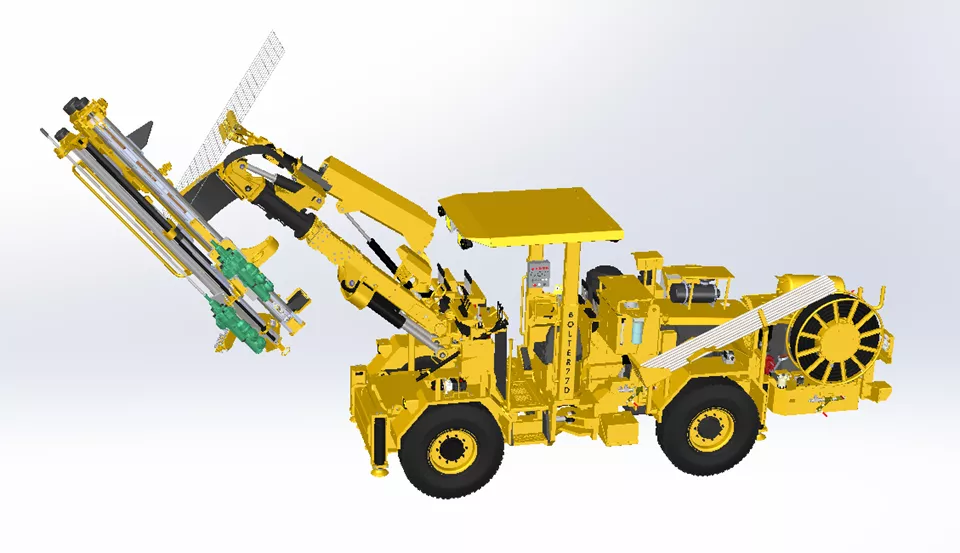
To demonstrate some of the SOLIDWORKS Standard features, we will use the Resamin Bolter 77D. A majority of the assembly pictured below can be created using a SOLIDWORKS Design Standard license.
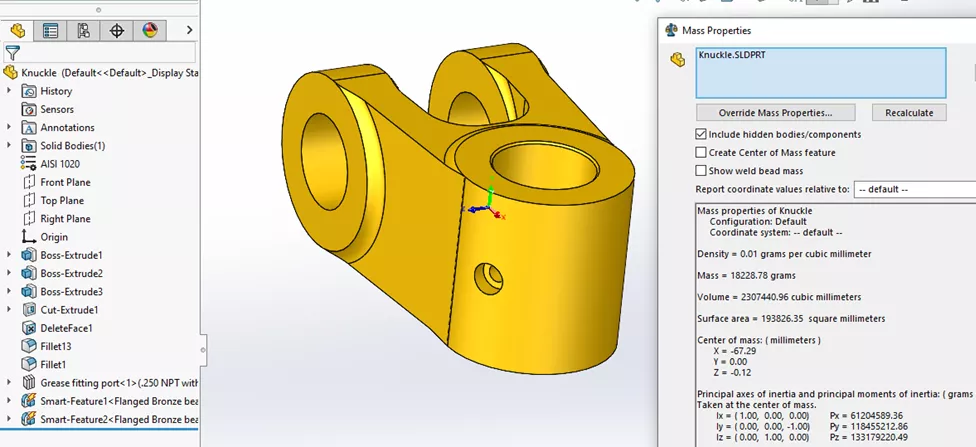
This knuckle which connects the hydraulic parts to the moving arm, was created in under 10 minutes. Pictured is the knuckle and the various mass properties of that part.
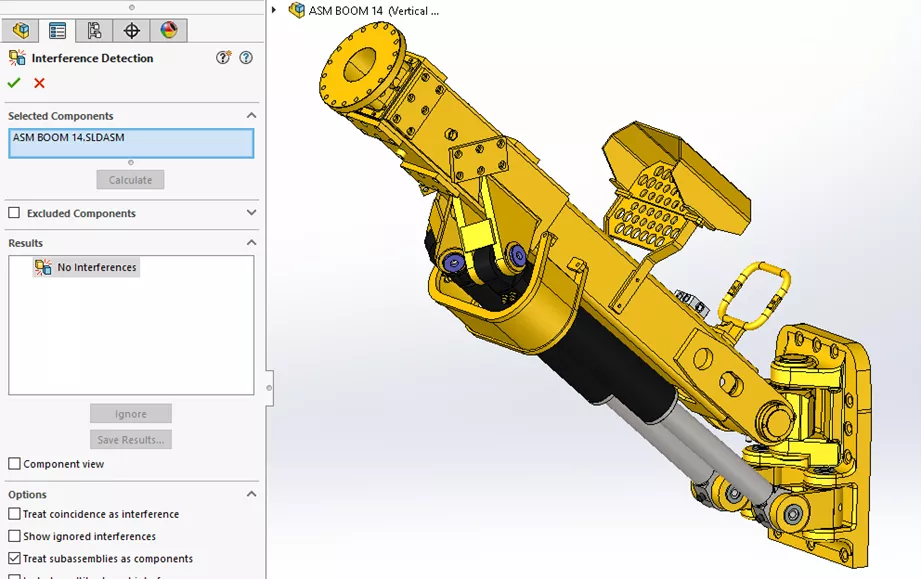
Just as easily, we can assemble various parts in the way they will be assembled and double check that none of the parts interfere.
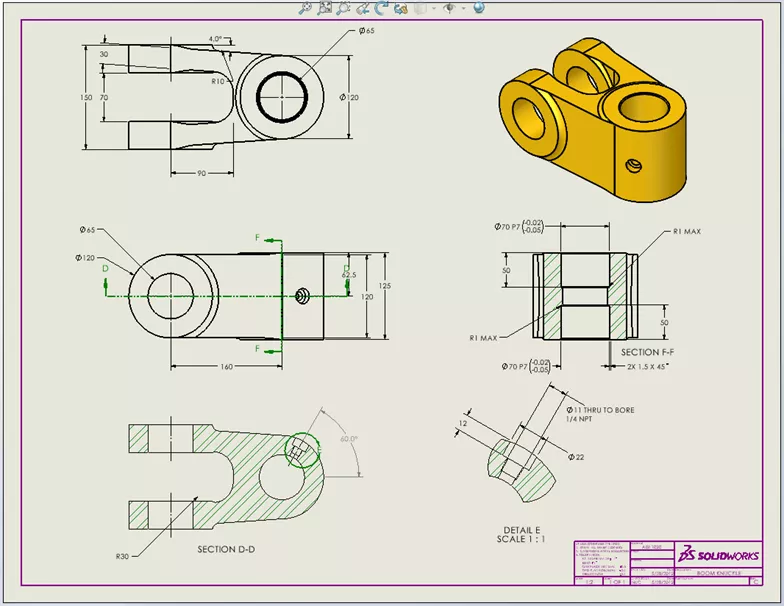
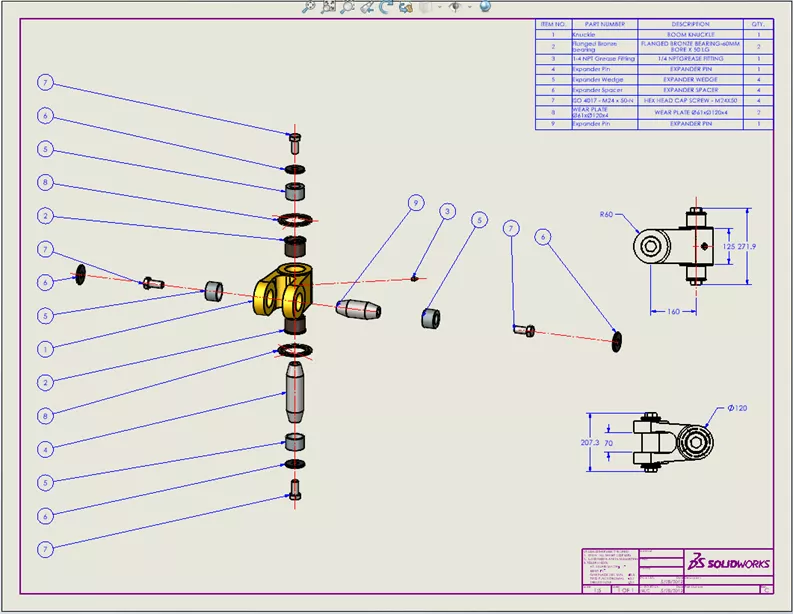
Creating documentation for our parts is a breeze with the AI tool within SOLIDWORKS that can automatically generate the first draft of a drawing. Even manual creation is easy because our drawings can import all the dimensions that we used to create the 3D part. This drawing that documents the knuckle took only a few dozen clicks to create and yet contains all the critical dimensions for the part.
SOLIDWORKS Design Professional
Features in SOLIDWORKS Design Professional:
- All features included with SOLIDWORKS Design Standard
- CAD Libraries (Toolbox)
- Advanced Design for Manufacturing
- Design for Cost/Quoting (SOLIDWORKS Costing)
- Productivity Tools
- SOLIDWORKS Visualize Standard *must be current on Support
- CAD Standards Checking (Design Checker)
- SOLIDWORKS File Management (PDM Standard)
- eDrawings Professional
- ECAD/MCAD Collaboration (CircuitWorks)
- Reverse Engineering (Scanto3D)
- Automated Tolerance Stack-Up Analysis (TolAnalyst)
SOLIDWORKS Design Professional is the next level of license that unlocks several useful tools that will quickly provide a return on investment. Of great note are the tools that enhance collaboration in a team, such as PDM Standard and, to a lesser extent, eDrawings Professional.
Another important feature is the CAD Libraries, also known as Toolbox, allowing users to leverage SOLIDWORKS' ability to analyze parts and quickly find the fastener type, length, and stack parts. These make it easy to see what part(s) a company needs to buy to hold their assembly together by creating a bill of materials.
Why SOLIDWORKS Design Professional?
Any company that would utilize eDrawings Pro, PDM standard, or CAD Libraries would be a great candidate for upgrading to a SOLIDWORKS Professional license. Of course, the other tools listed above have beneficial use cases too.
For example, if you wanted to reverse-engineer a part, Scanto3D would be useful; additionally, gaining access to the Visualize Standard program would be helpful for marketing to create realistic images of items that haven’t been manufactured yet. Visualize even has a direct API link to SOLIDWORKS, so you can create photorealistic renders while staying in one single app!
For our first example using SOLIDWORKS Design Professional tools, we will look at the arm assembly in the Resamin.
The picture on the left was created in SOLIDWORKS Standard and has no toolbox components, just the holes that the toolbox components will go into. With the use of smart fasteners, we quickly and easily added nearly 100 parts in the form of bolts, nuts, and washers.
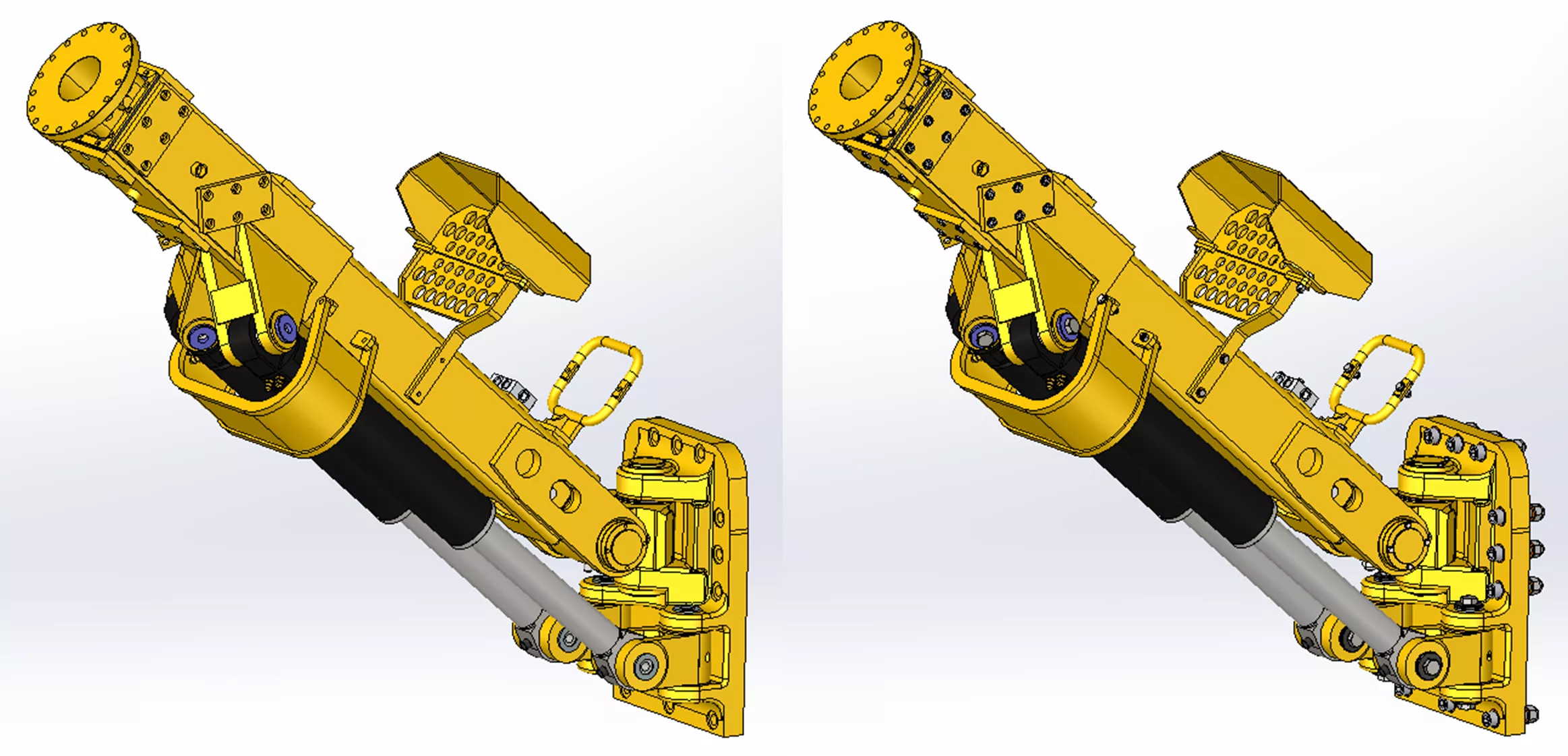
Some companies prefer to use imported models from specific suppliers. The toolbox tool can be customized to include these components. Alternatively, you can insert these imported models into your assembly manually (potentially with assistance from AI fastener recognition), and you do not require a SOLIDWORKS Design Professional license to do this.
Now that toolbox components have been added to our part, we can show them in our bill of materials so that we know exactly what to get and how many to get.
In this example, our knuckle kit has 4 instances of a M24 Hex head cap screw, 50mm long, and can be easily located in the assembly by looking at balloon labeled “7”.
If we wanted to share our work with others in our workgroup, ideally there would be a location on our network that we could save these files to so that other engineers could access them.
But what if two engineers are working on the same file at the same time? Their saves overwrite each other, and one of the engineers' files gets lost. Then, say, after a few months, we need to go back and see what the design looked like back then, but it has undergone several revisions since then - what do we do?
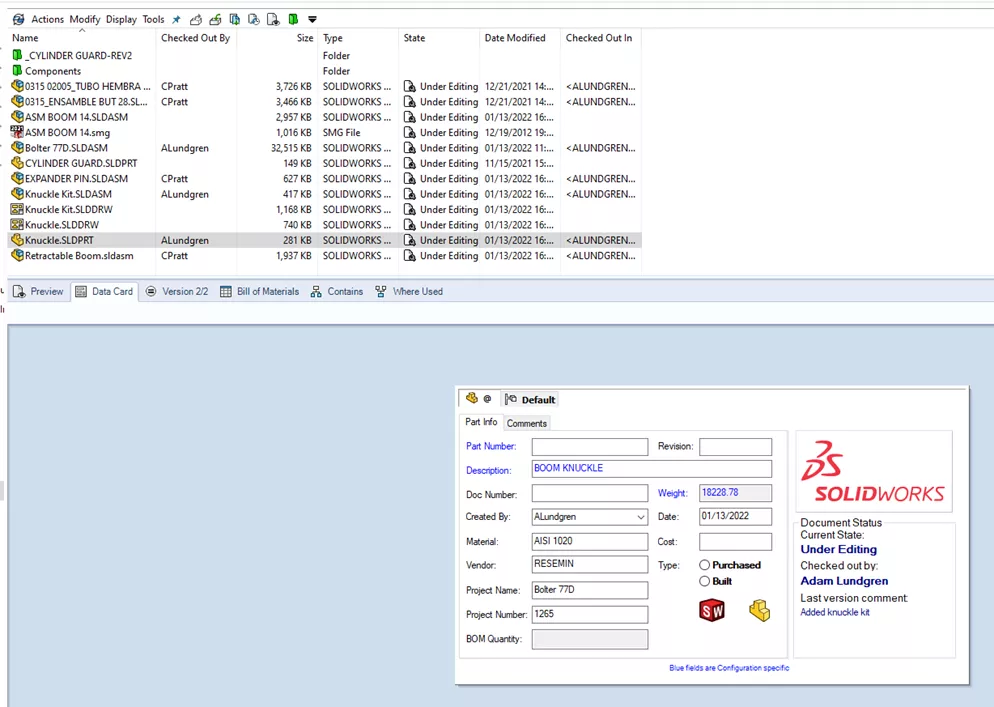
Fortunately, all these potential problems are avoided with SOLIDWORKS PDM, the preferred on-premise data management software. Using a Windows Explorer interface (shown below), PDM allows us to check out files ensuring that our files are never overwritten, and even enables us to view all previous versions of that file so we can revert to them if needed. This and so much more information is available at a glance with PDM Standard; my personal favorite tool of SOLIDWORKS Design Professional.
SOLIDWORKS Design Premium
Features in SOLIDWORKS Design Premium:
- All features included with SOLIDWORKS Design Professional
- Structural Part and Assembly Analysis
- Motion Analysis
- Routing of Pipes and Tubes
- Routing of Electrical Cabling and Wiring Harnesses
- Advanced Surface Flattening
- Sustainability
- Catia V5 Import
SOLIDWORKS Design Premium introduces some of the most advanced (and impressive) tools in the SOLIDWORKS suite of products. With this license level, we have access to SOLIDWORKS legendary in-app simulation tools at a level similar to purchasing SOLIDWORKS Simulation Standard.
We can also animate how an assembly will move and even collide using Motion Study. When preparing to prototype a product, these tools are especially helpful because they can determine if a design will fail; ultimately eliminating the cost of creating several first prototypes.
There are also features that allow us to route our electrical and plumbing within SOLIDWORKS so we can manage their space effectively, optimize their length, and eliminate waste/cost.
Why SOLIDWORKS Design Premium?
Ultimately, if a company has designs that bear a load, that are designed to move, or have plumbing or cabling, then SOLIDWORKS Premium will pay for itself the first time it is used.
Let’s look again at our knuckle example part. We know the force that the hydraulic cylinders will create at the worst angle in this knuckles range of motion.
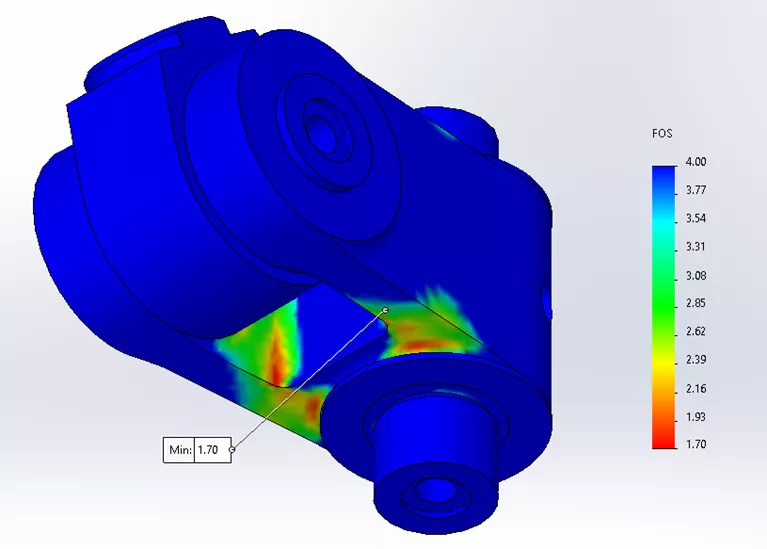
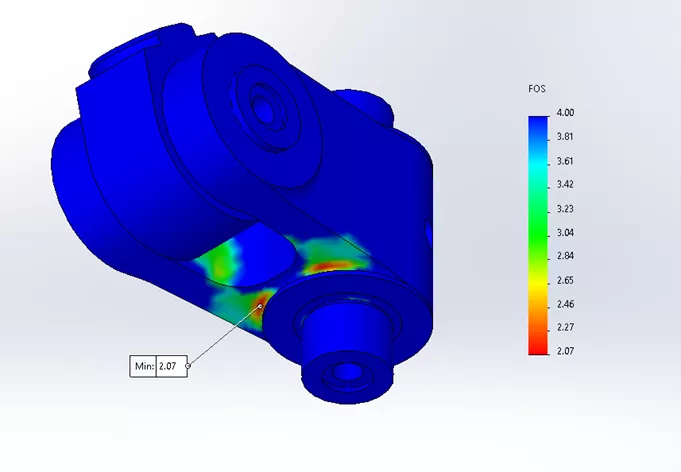
This company has a standard that the factor of safety (FOS) for each of its designs must be above 2. When we test our knuckle, knowing where its fixed and where load comes from, we see in the first picture below that the FOS was 1.7, so we needed to change our design.
Within 2 minutes, we modified the fillet radius and arm width and tested again to get new results. Now with this new design we got a FOS of 2.07, which matches the company standard. Imagine how much time and money was saved by not creating a prototype of this 40-pound knuckle part!
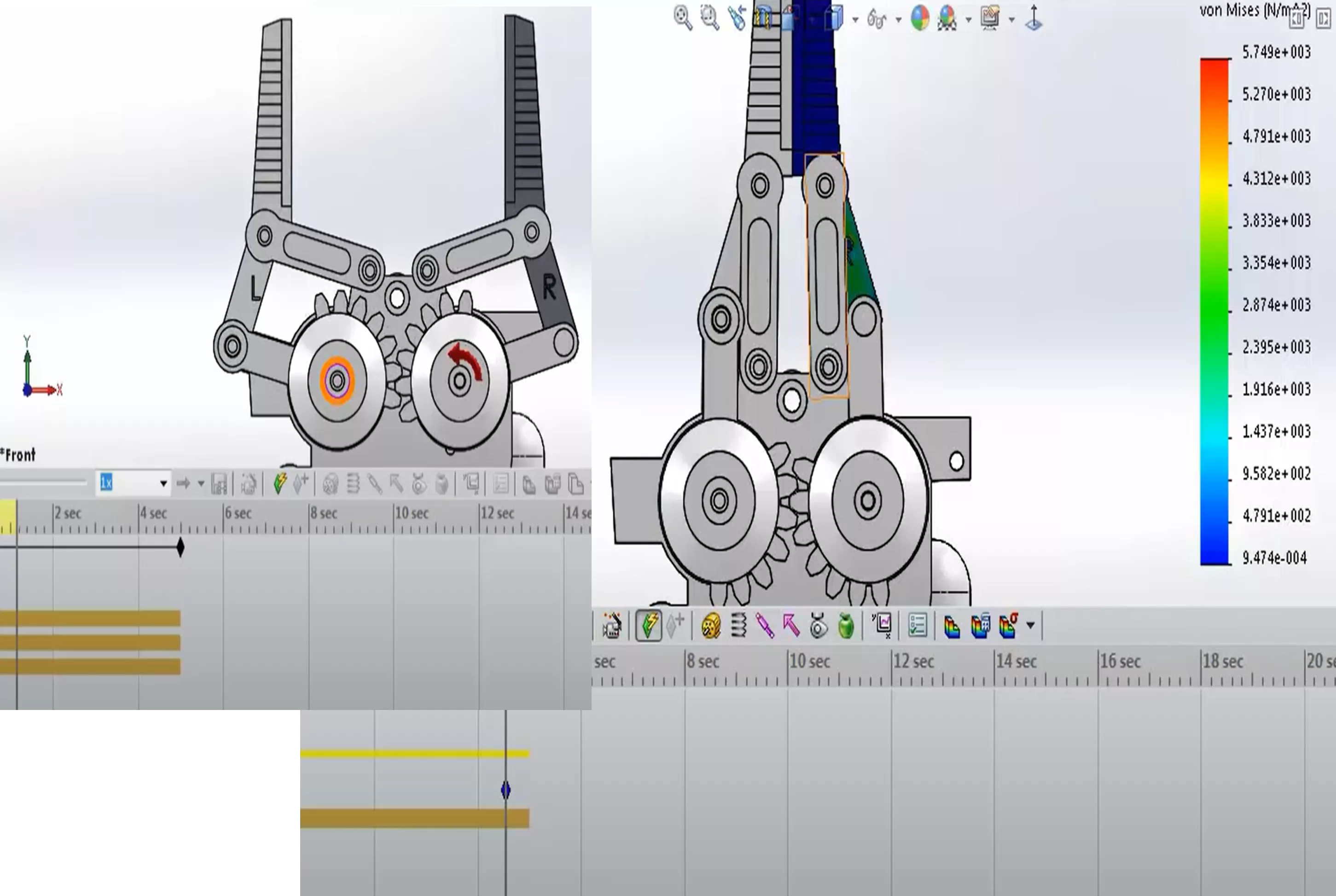
In this example we are looking at a claw moved by a motor on a gear-toothed part. We are interested in how the assembly will behave while in motion and how much stress the part will be under when the claw closes.
Motion studies let us animate the motion and save the animation as a video, making it easy to highlight when there are collisions. We can see how the assembly will behave after those collisions and simulate the forces at these points (or any other). After performing a motion study with the claw, as pictured below, we see that the claw behaves as intended and will not break when gripping something.
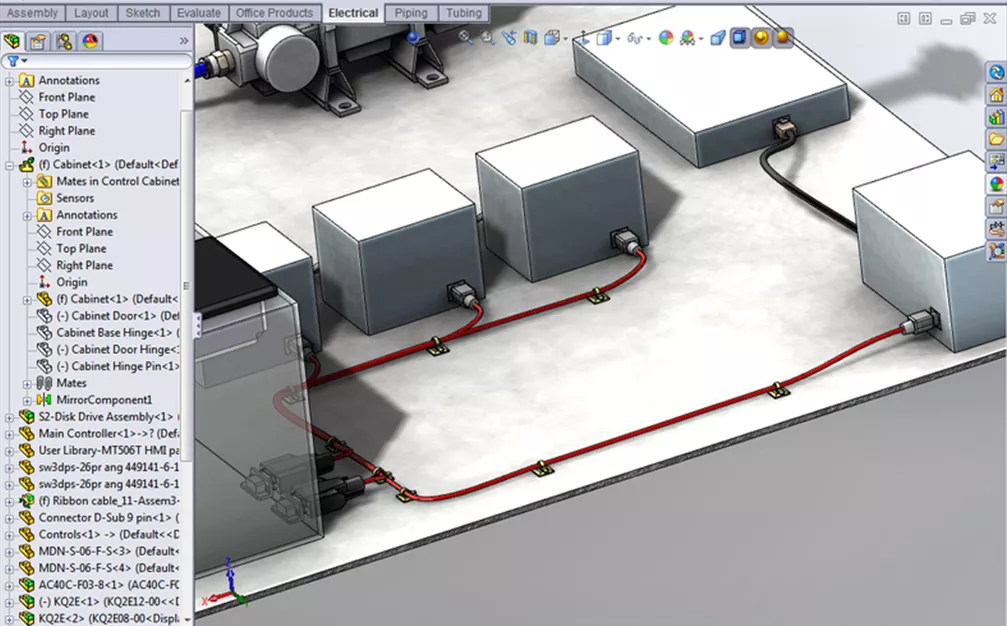
As mentioned previously, the routing tools in SOLIDWORKS Design Preminum allow us to place cables and plumbing into our assemblies. In doing so, we can optimize our routes to save money, check for geometric fit, and produce cut lists containing accurate lengths directly in SOLIDWORKS to eliminate the guesswork when manufacturing the part.
In the assembly pictured below, we created a cable management system for our electrical cables.
What Makes Sense For You?
This concludes our surface level comparison of each level of SOLIDWORKS 3D Design liceneses and many of the most used features in each tier. To learn more about these features in greater depth or others we couldn't review here, please contact us. The capabilities of SOLIDWORKS might surprise you, so don’t be afraid to ask! You may find a tool within SOLIDWORKS suite of products that will take your company to the next level.
Download the SOLIDWORKS Packages Comparison Matrix here.
SOLIDWORKS WHITEPAPER
Going Beyond Design: Making CAD the Cornerstone of an Integrated Design-to-Manufacturing Process
SOLIDWORKS drives better team and company performance by uniting design, engineering, testing, quality control, tooling, and other disciplines within a single unified ecosystem. Read this SOLIDWORKS whitepaper to learn more about how SOLIDWORKS Design Premium offers:
- Virtual product simulation
- Design validation
- CNC tool path generation
- Tooling development
- Costing and quoting capabilities
- Documentation development
Editor's Note: This article was originally published in June 2022 and has been updated for accuracy and comprehensiveness.
Related Articles
Best Workstations for SOLIDWORKS: Hardware Configurations
Ultimate Guide to SOLIDWORKS Licensing: Types, Activation, & Borrowing
GoEngineer Launches Customer Portal: Manage Assets, Maintain Users, and More

About Adam Lundgren
Adam is an Applications Engineer based out of GoEningeer's headquarters in Salt Lake City, Utah. He has a BSME from the University of Utah, is a certified SOLIDWORKS Expert, and has several years of SOLIDWORKS experience.
Get our wide array of technical resources delivered right to your inbox.
Unsubscribe at any time.