SOLIDWORKS Pack and Go: What It Is & How to Use It

In SOLIDWORKS, Pack and Go is a very handy tool for collecting all referenced files from an assembly or drawing and creating copies of the files to save in a new location, to share with others, renaming files, etc. Pack and Go is fairly straightforward to use. This article explains how to use it and its different options.
If your files are stored in SOLIDWORKS PDM, there is a more powerful tool called Copy Tree that would be more beneficial to utilize. (To see them side by side, check out our SOLIDWORKS Pack and Go and Copy Tree Tool Comparison.)
How to Access Pack and Go
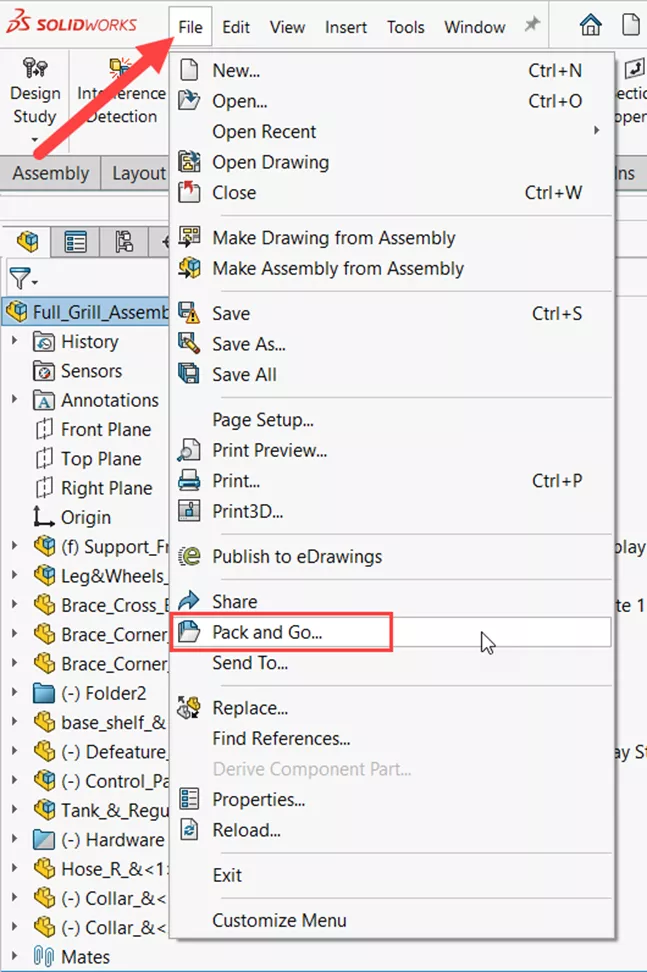
There are a couple of different ways to start the Pack and Go. The first way is in SOLIDWORKS by going to File > Pack and Go.
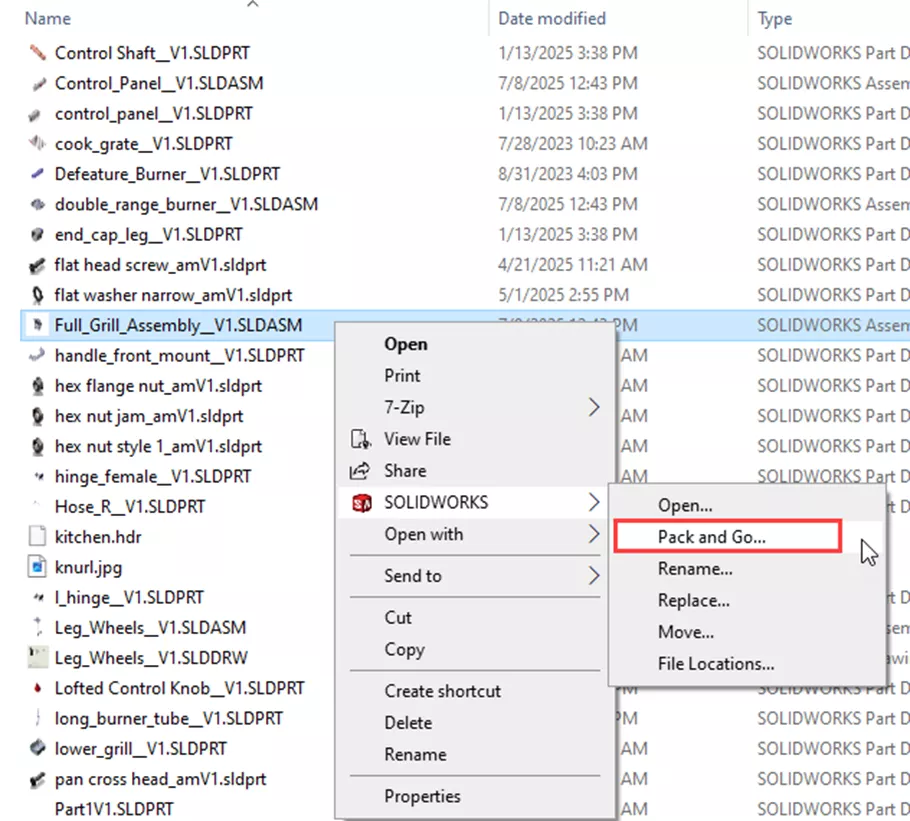
The other way is through File Explorer using the SOLIDWORKS File Utilities tool. Right-click on the assembly or drawing, hover over the SOLIDWORKS option, then select Pack and Go. Keep in mind, if you are using Windows 11, after right-clicking on a model/drawing, you will need to click the Show More Options button to see the SOLIDWORKS option.
Pack and Go Options
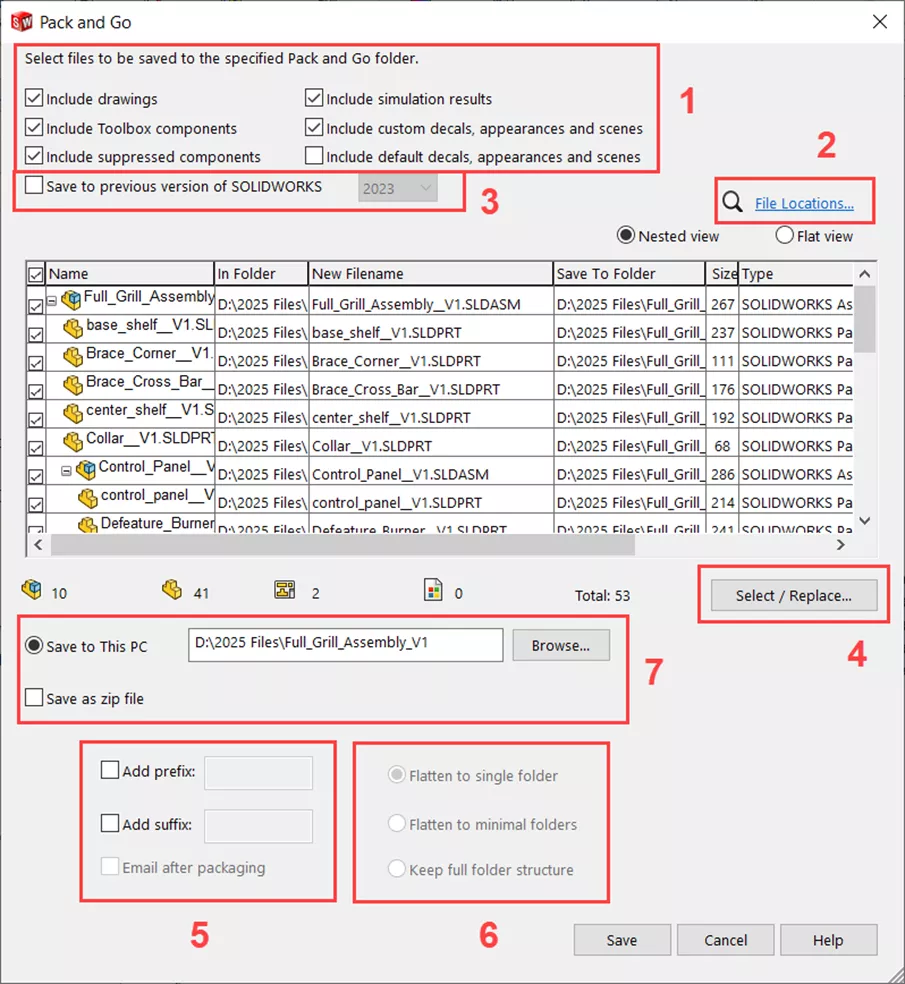
Files to Include (1)
Once the Pack and Go window is open, several options can be selected to include in the Pack and Go:
- Drawings
- Toolbox Components
- Suppressed Components
- Simulation Results
- Custom Decals, Appearances, and Scenes
- Default Decals, Appearances, and Scenes
Including Drawings from Referenced Parts (2)
If you are running the Pack and Go from a top-level assembly or assembly drawing and would like to include all drawings from the various referenced parts, this can be done through the File Locations section.
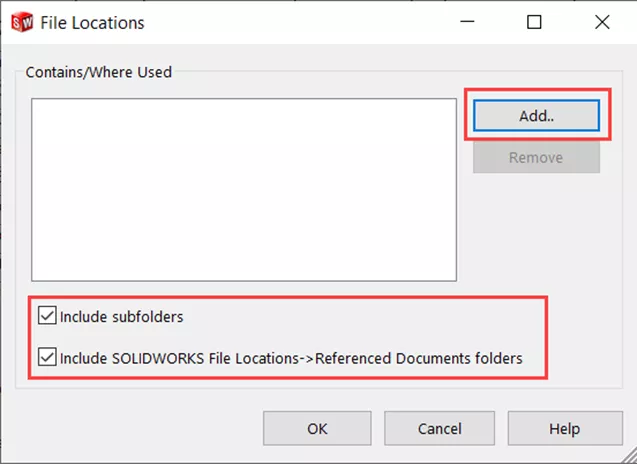
If the part drawings are included in a subfolder of where the top-level assembly or drawing is stored, then the Include Subfolders option should be chosen. If the part drawings are stored in a different location, select Add and add that location. Or, before doing the Pack and Go, the location(s) can be added in SOLIDWORKS by going to Tools > Options > System Options > File Locations > Referenced Documents, and then in the Pack and Go select the Include SOLIDWORKS File Locations -> Referenced Document folders.
Saving Files to Previous Versions (3)
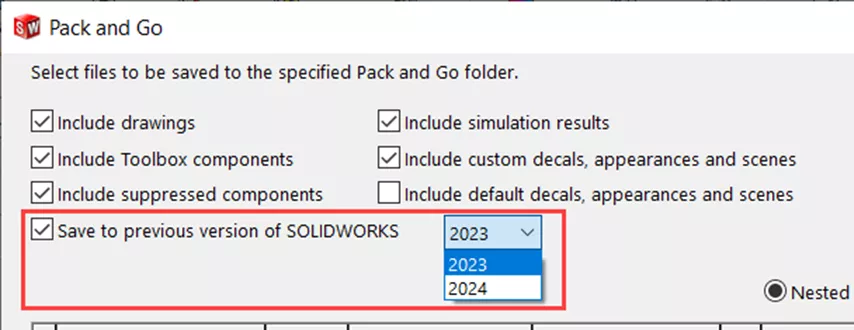
Starting in SOLIDWORKS 2024, the Pack and Go tool includes the option to save the files to a previous version of SOLIDWORKS. Keep in mind, it will only allow you to save them as far as two versions back. To do this, in the Pack and Go select Save to previous version of SOLIDWORKS and in the dropdown, choose which version is needed.
Selecting Files or Replacing File Names (4)
There are many actions that can be performed in the Select/Replace option in the Pack and Go window.
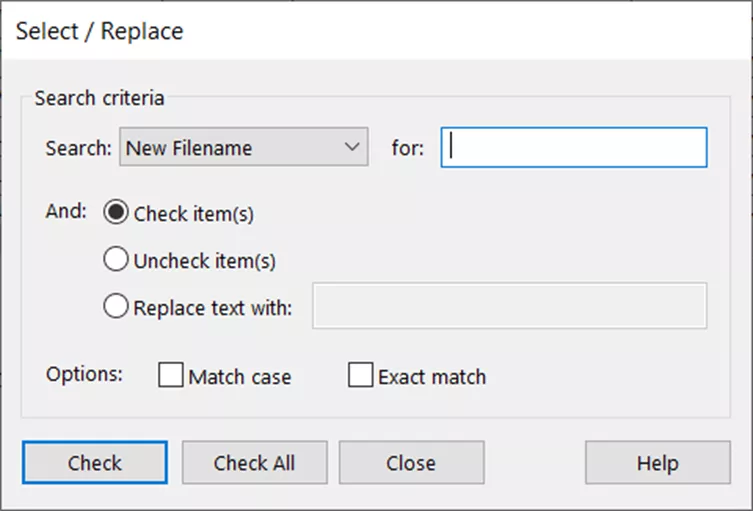
You can search for a file name, folder name, size of file, type of file, date file was modified, etc. Then, you can ensure those items are checked, uncheck the items, or replace the text.
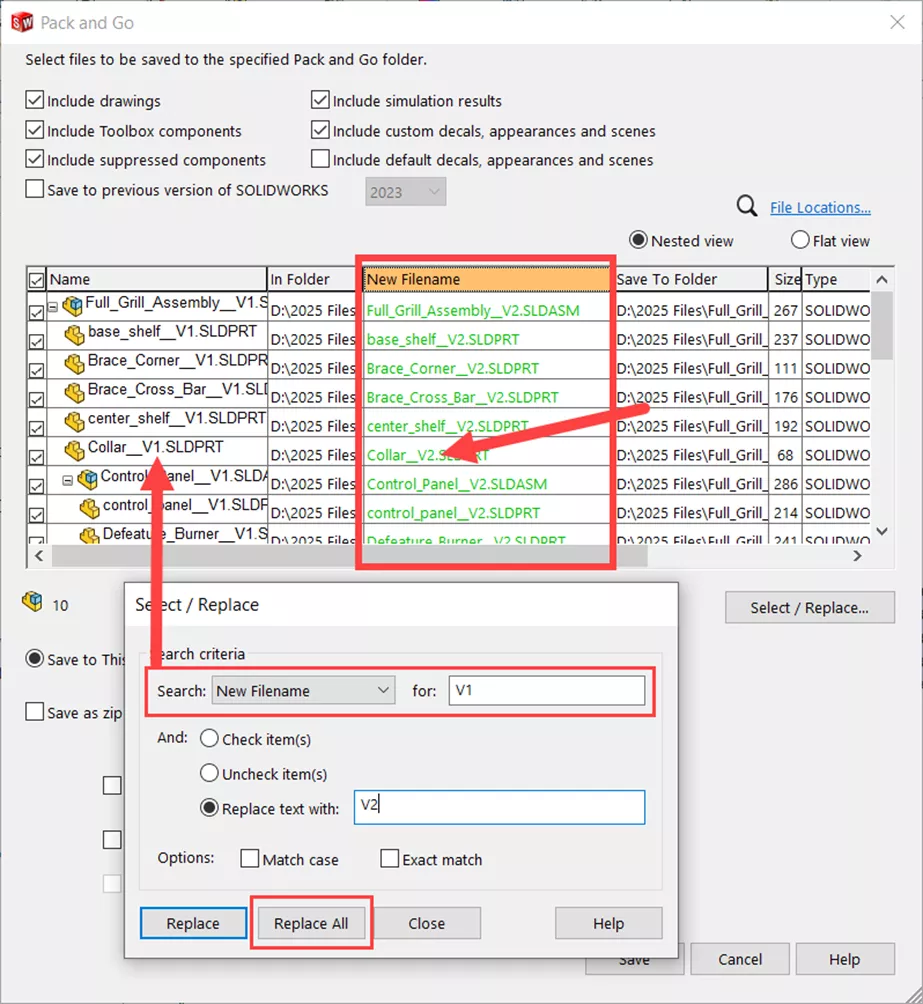
The replace option is handy if you are trying to rename files with a particular part or version number. For instance, if you have a version 1 file signified by a V1 in the file name and would like to replace it with a V2 for the copied files, you can search New Filename for V1, then select the Replace text with option and type in V2. Once you select Replace All, the new file name section will display the updated names.
Adding Prefix or Suffix to File Names (5)
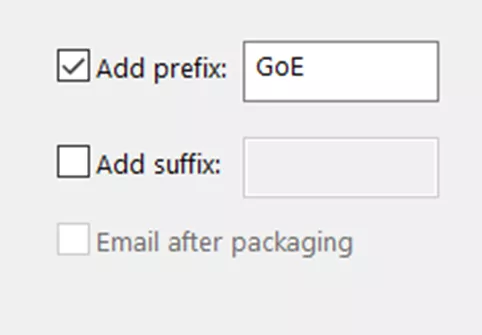
Another way to rename files in the Pack and Go tool is by adding a Prefix or Suffix to the name. To do this, check Add Prefix or Add Suffix, then add what is needed to the name.
Folder Structure for Pack and Go File Set (6)
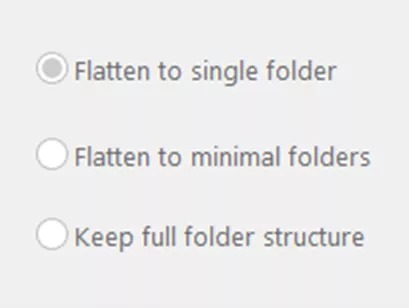
If you have a certain folder structure for your original files that you would like to maintain, select Keep full folder structure in this section. The Flatten to minimal folders option will remove unnecessary or unused folders, and Flatten to single folder will ignore all original folders, and put everything in one folder. If everything is already in one folder, these options will be greyed out, which is the case for this example.
Finishing Up (7)
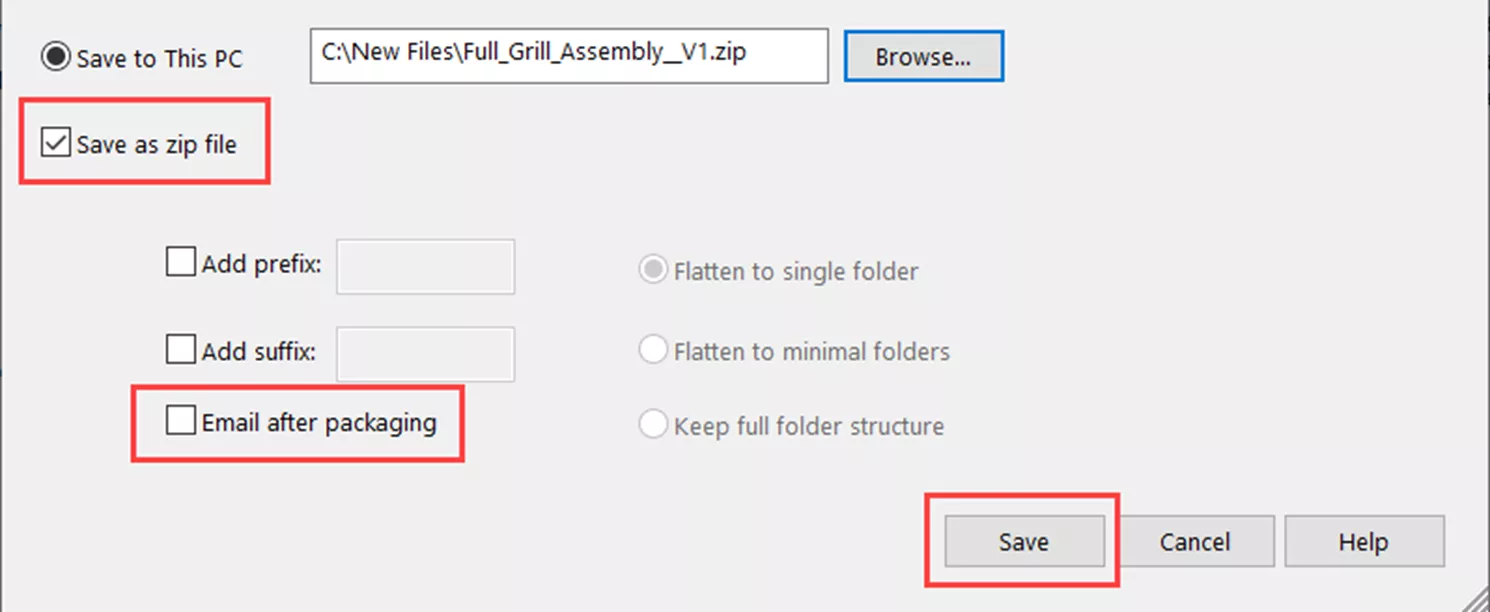
Once everything is complete, choose where you’d like to save the file by selecting Browse.
There is also an option to save the file set in a zip file. If this is selected, you can opt to email the zipped file after it’s done saving by selecting Email after packaging. Select Save, and it will save all the files!
As you can see, SOLIDWORKS Pack and Go is a useful tool with many options. Check out more tutorials and tips below, or check out the GoEngineer Community, where you can create forum posts, enter design contests, and answer questions from other SOLIDWORKS users.
SOLIDWORKS CAD Cheat Sheet
SHORTCUTS ⋅ MOUSE GESTURES ⋅ HOT KEYS
Our SOLIDWORKS CAD Cheat Sheet, featuring over 90 tips and tricks, will help speed up your process.

More SOLIDWORKS Tips
Adding and Removing Search Paths in SOLIDWORKS
Ballooning Subassemblies in a SOLIDWORKS Drawing
3DEXPERIENCE SOLIDWORKS Local Cache Management
Why Your SOLIDWORKS Drawing Balloons Have Question Marks (?) or Asterisks (*)

About Tashayla Openshaw
Tashayla Openshaw is a SOLIDWORKS Technical Support Engineer based out of our Headquarters in Salt Lake City, Utah. She earned her Bachelor’s degree in Mechanical Engineering from the University of Utah in 2018 and has been part of the GoEngineer family since February 2019.
Get our wide array of technical resources delivered right to your inbox.
Unsubscribe at any time.